This guide provides a comprehensive overview of the integration between Kynection and Sage, focusing on Projects, Invoices, Purchase Orders, and Timesheets.
1. Projects
From the Kynection home dashboard, access the Project Module.
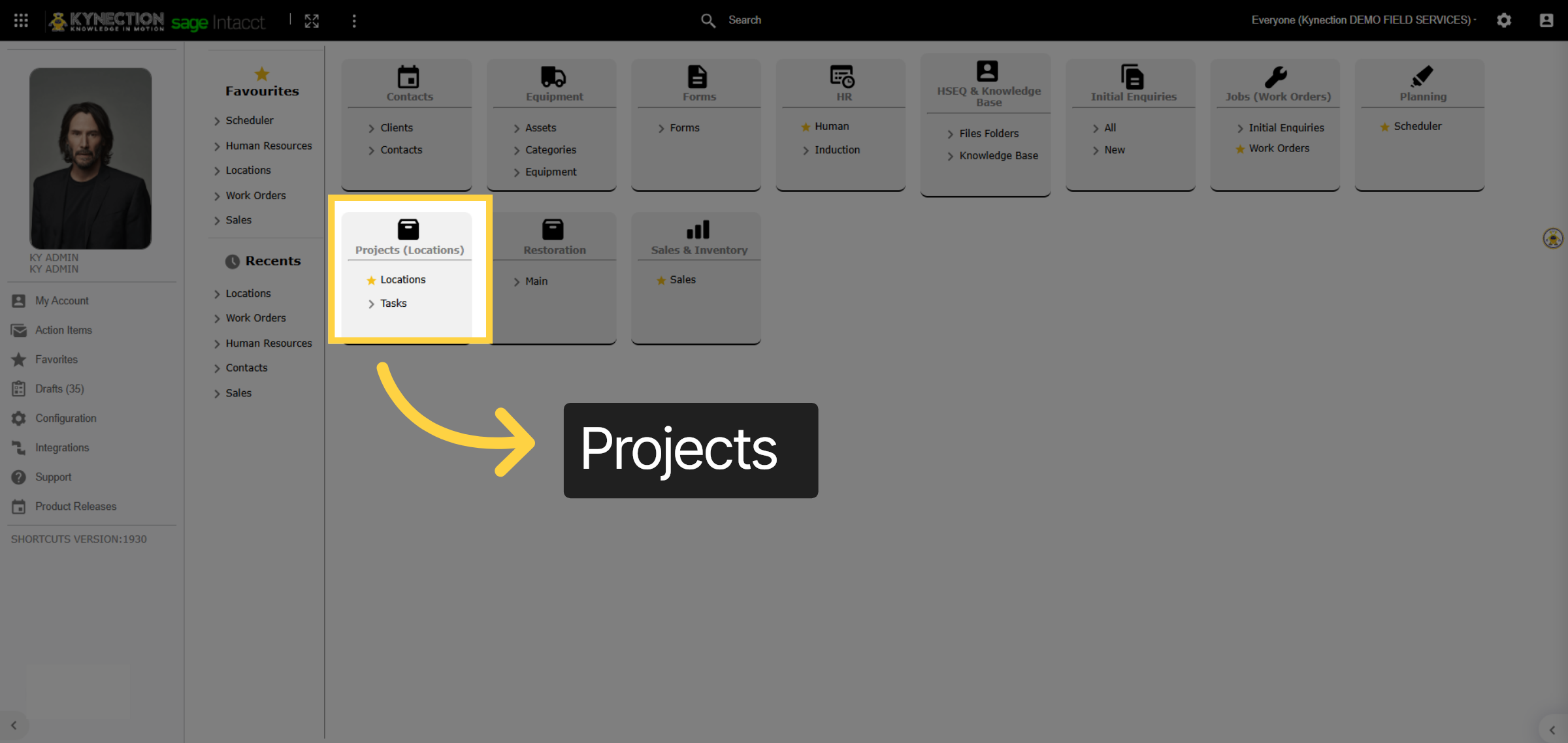
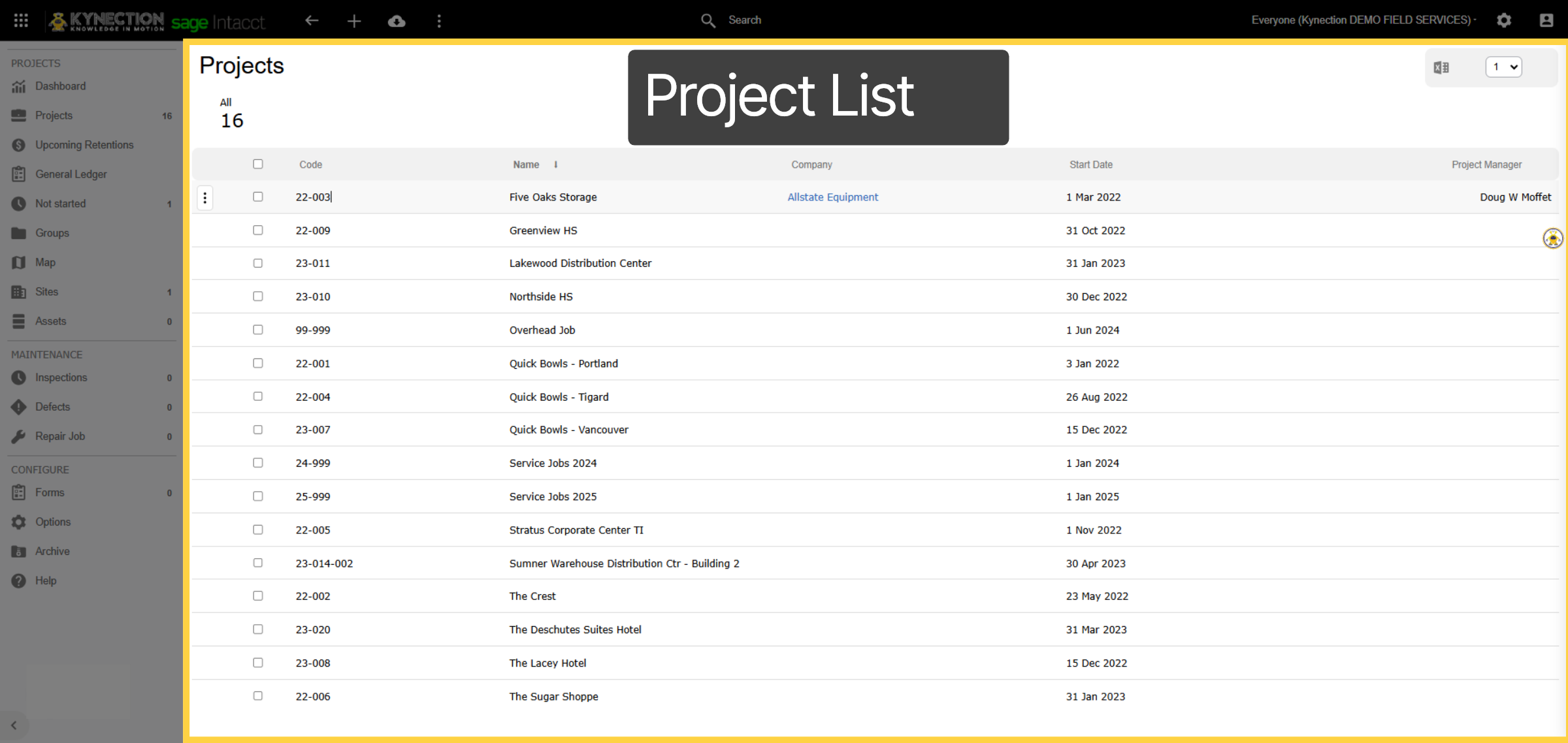
2. Project List
As you can see, this displays a list of all projects synced from Sage. Let’s examine the Five Oaks Project as an example.
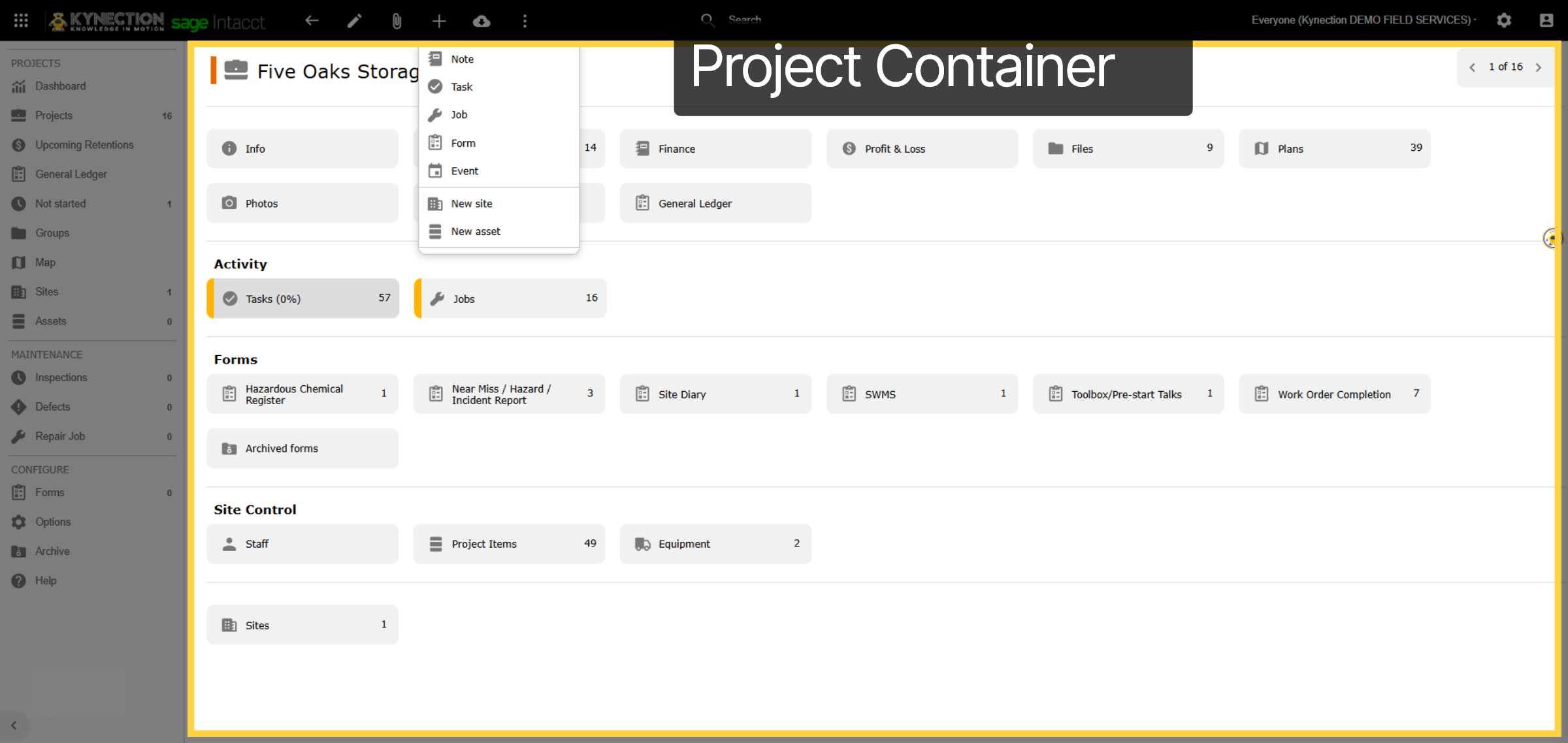
3. Project Container
The project functions as a central hub for all relevant information. It allows you to view staff hours, equipment utilization, subcontractor expenses, materials consumed, compliance and service forms, as well as a profit and loss breakdown. Additionally, it displays all tasks synchronized from Sage.
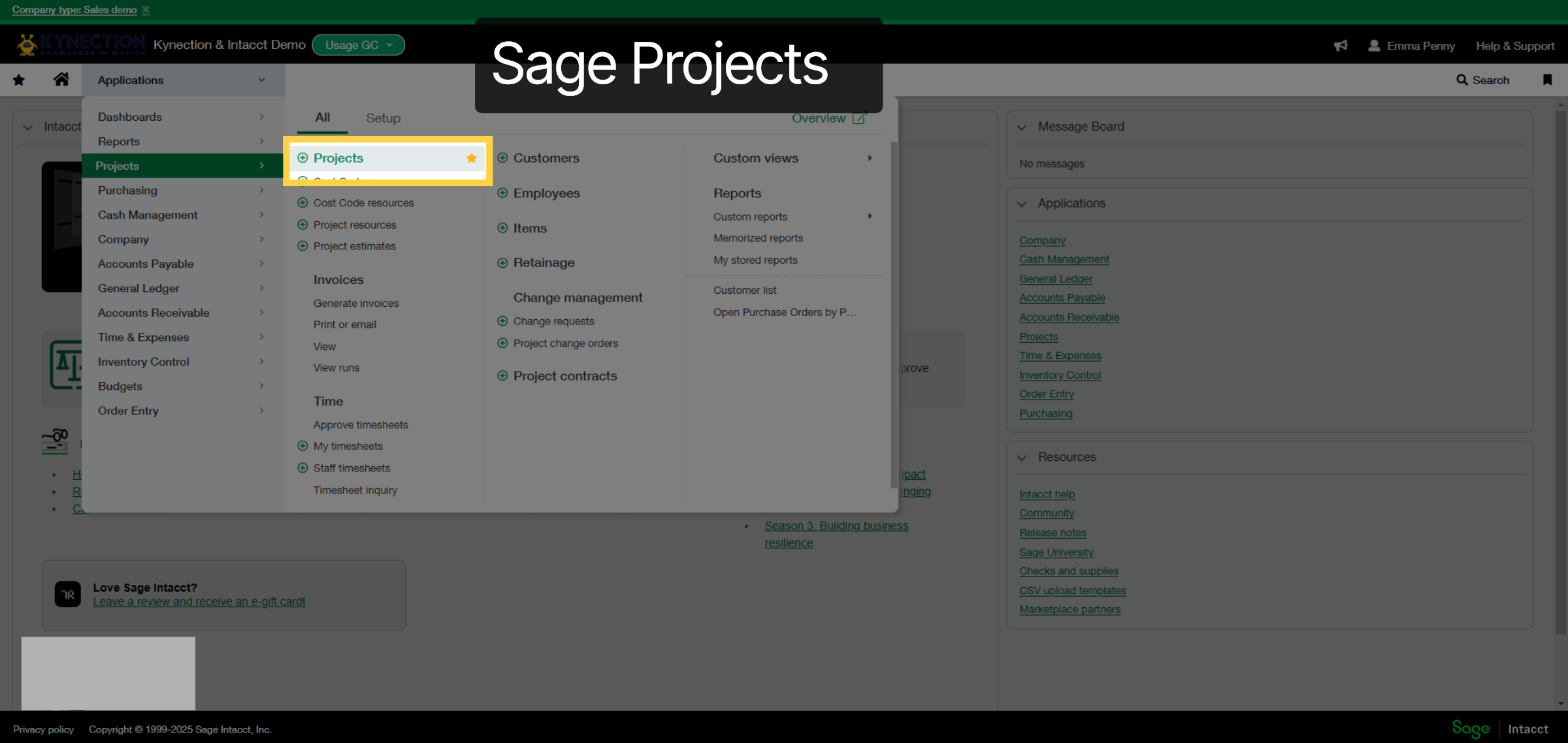
4. Sage Projects
From the Sage dashboard, go to the Applications tab and select Projects.
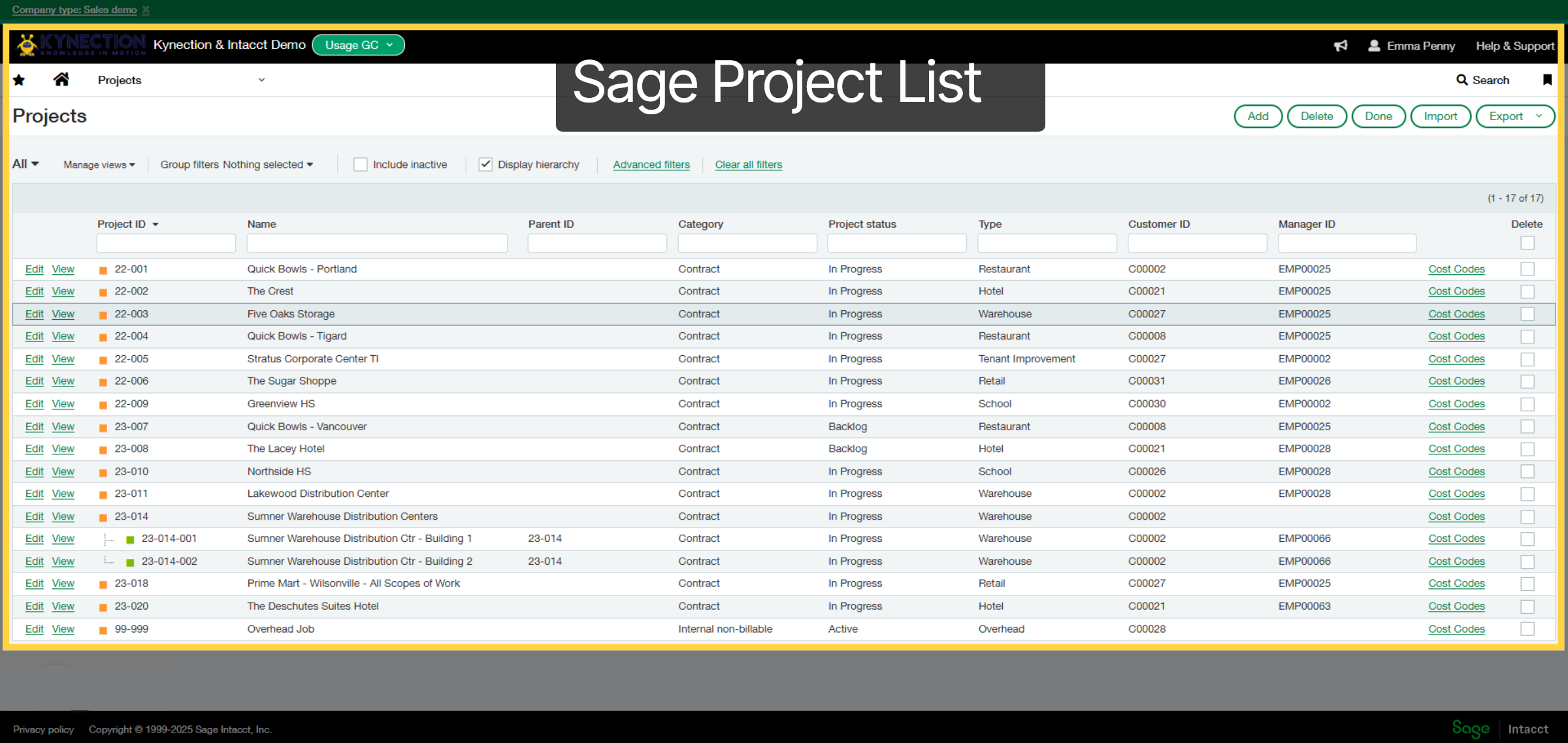
5. Sage Project List
This displays a list of all projects in Sage that have synced with Kynection. Let’s take a closer look at the Five Oaks project.
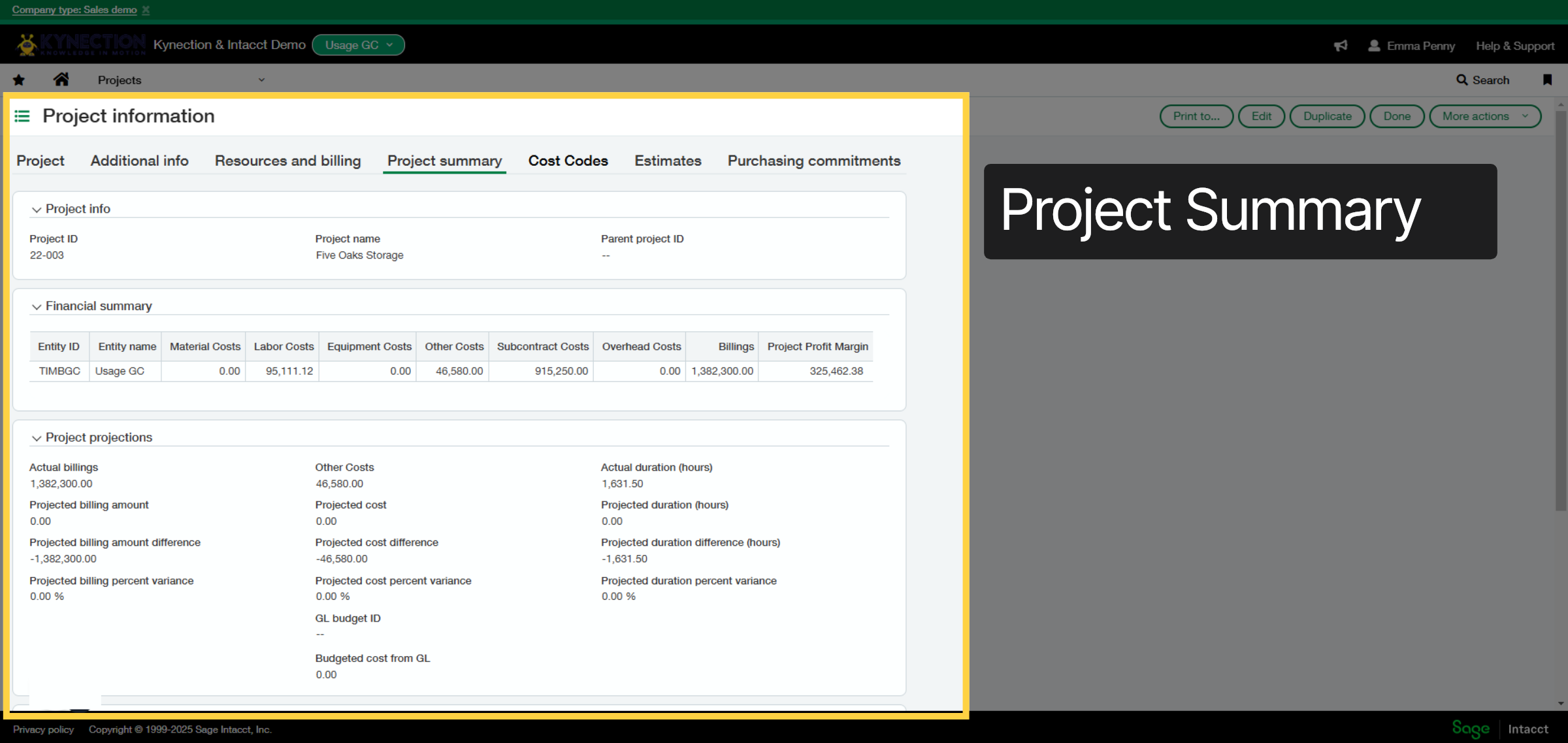
6. Project summary
You can view all project details here. Now, let's proceed to Cost Codes.
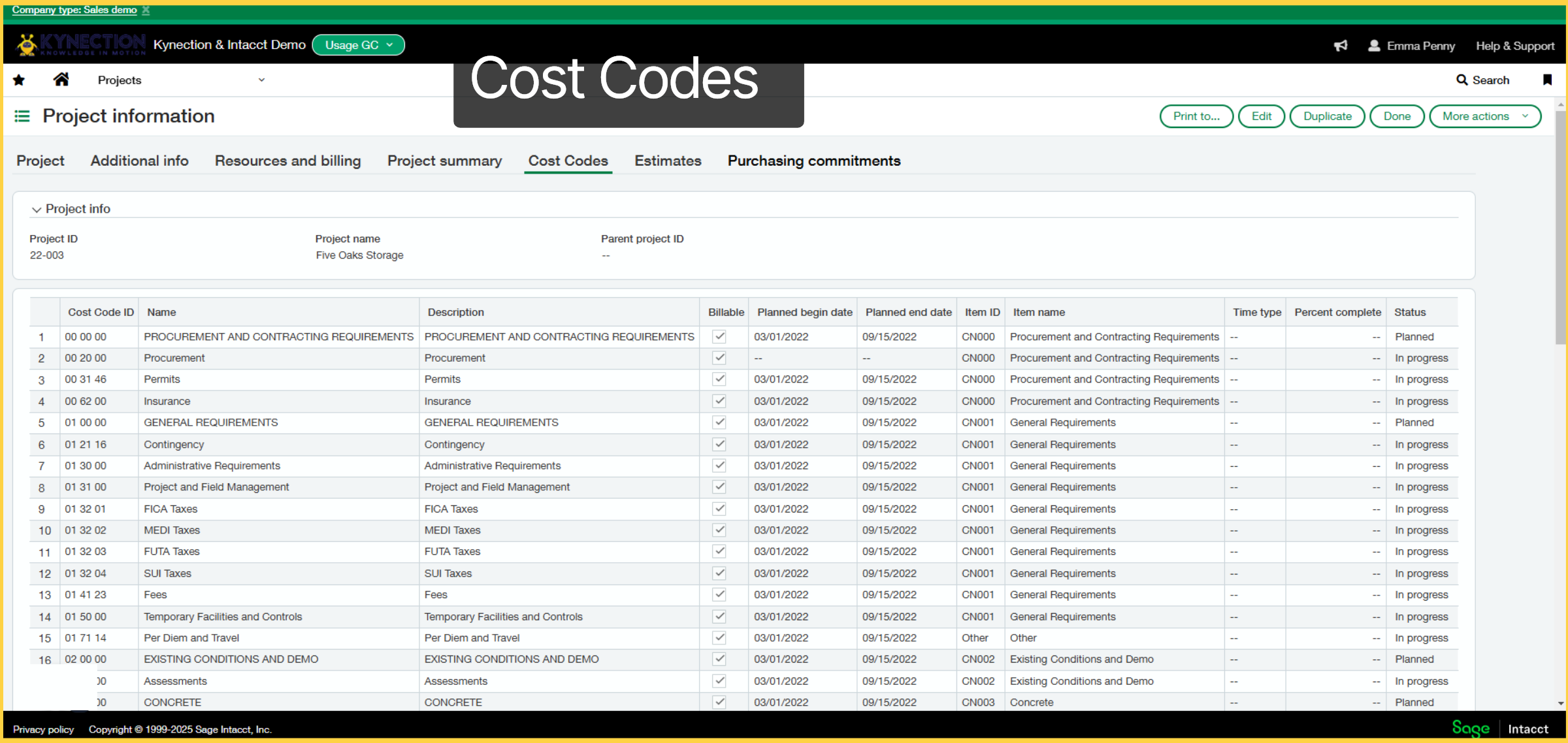
7. Cost Codes
This is a comprehensive list of all cost codes that correspond to the project's tasks synchronized with Kynection. We can monitor the progress of these tasks in both Sage and Kynection.
8. Kynection & Sage Invoices
Let's dive into the Kynection & Sage Invoices.

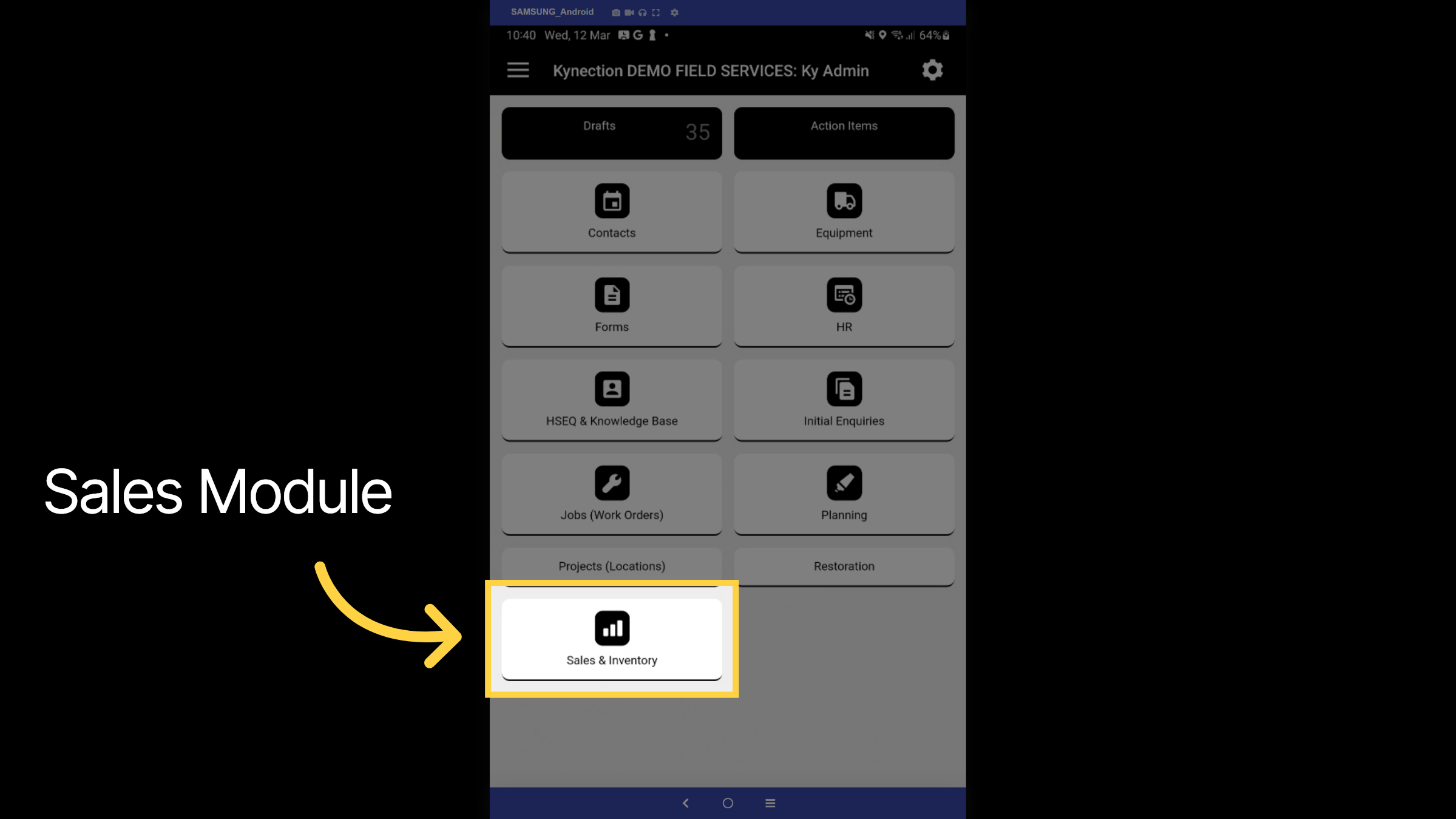
9. Sales Module
From the Kynection home dashboard in the mobile application, select the Sales and Inventory tab.
10. Invoices
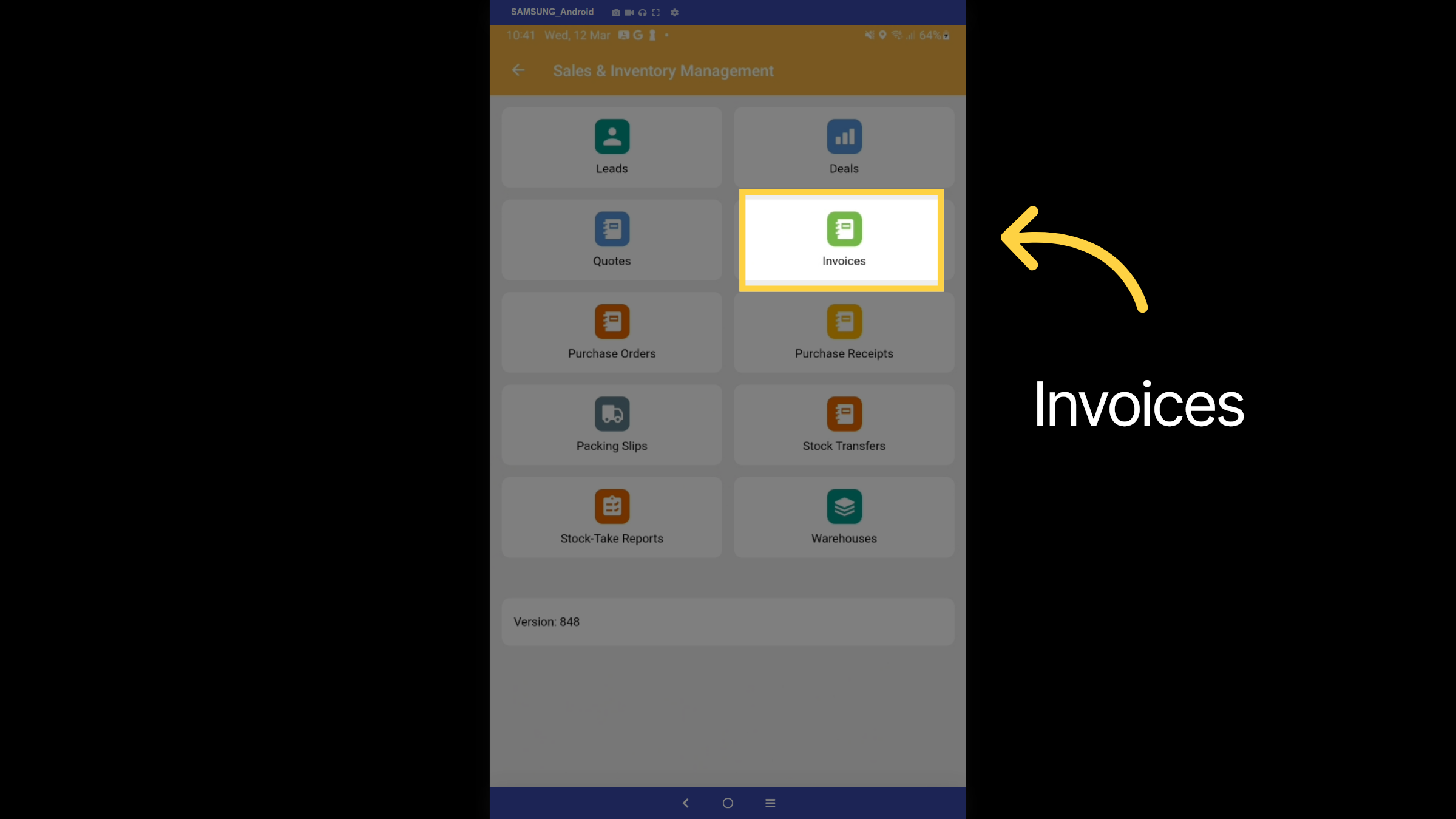
As we delve into the Sales module, you will encounter various features, such as managing leads and tenders, creating and overseeing quotes and invoices, generating and receiving purchase orders, and much more. Now, let’s take a closer look at the invoices tab.
11. Invoice Cycle
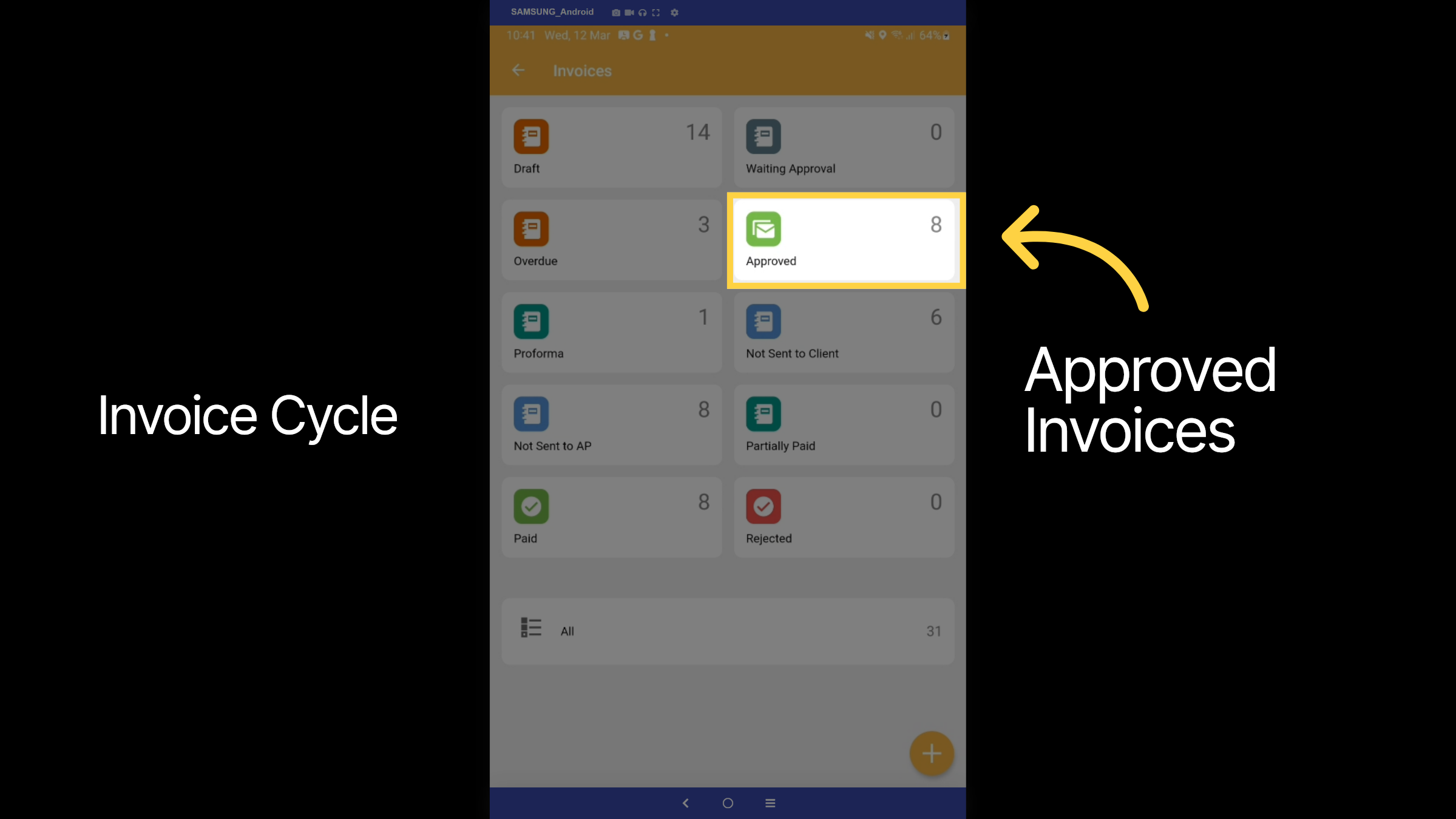
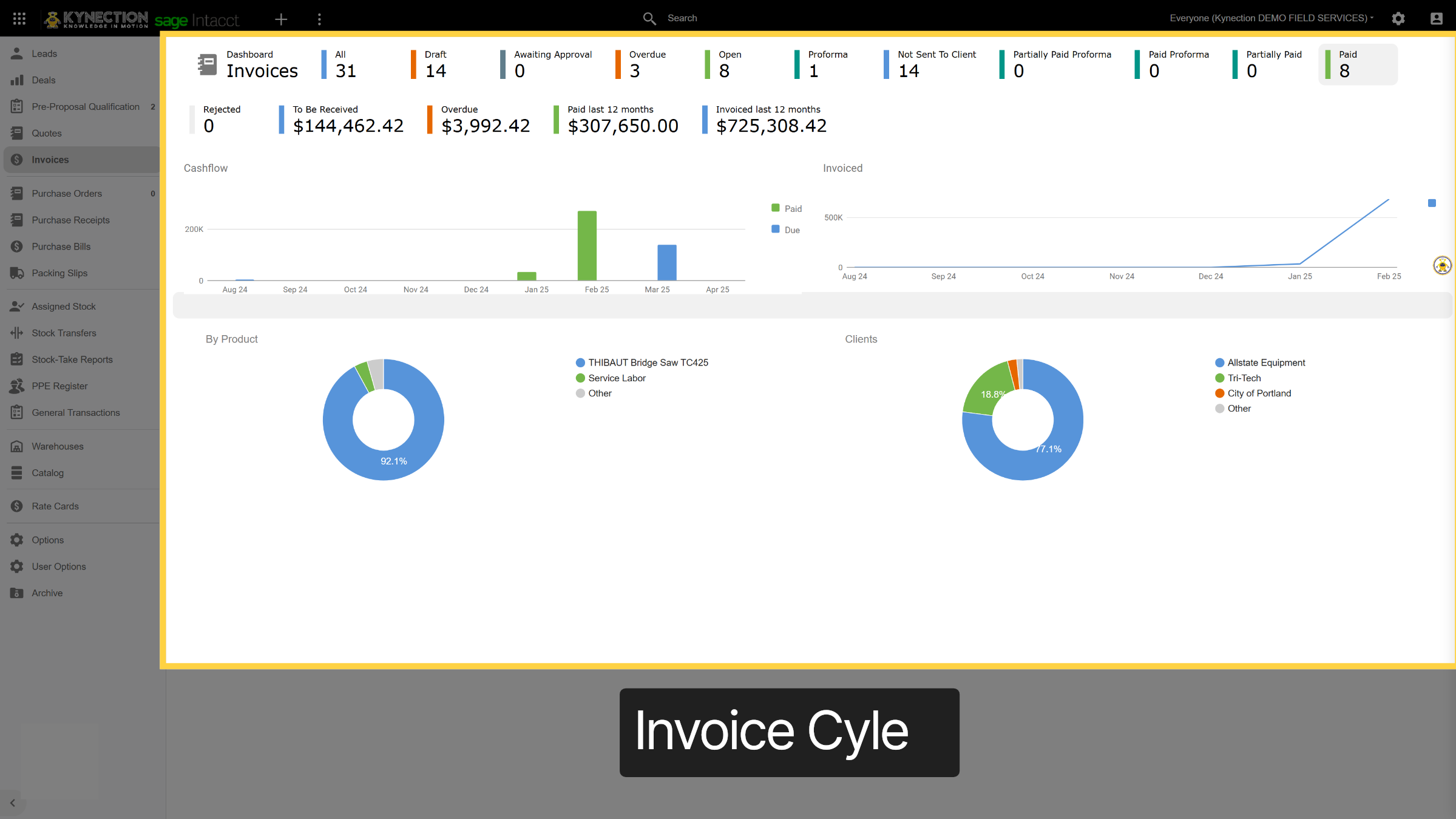
As you can see, we have a comprehensive invoice lifecycle—from the initial draft stage to awaiting approval, approval, sent to the client, partial payment, overdue, paid, or rejected. We can customize as many stages as needed while ensuring these statuses are accurately reflected in Sage, eliminating the hassle of double data entry. Let's explore the approved stage.
12. Approved Invoices
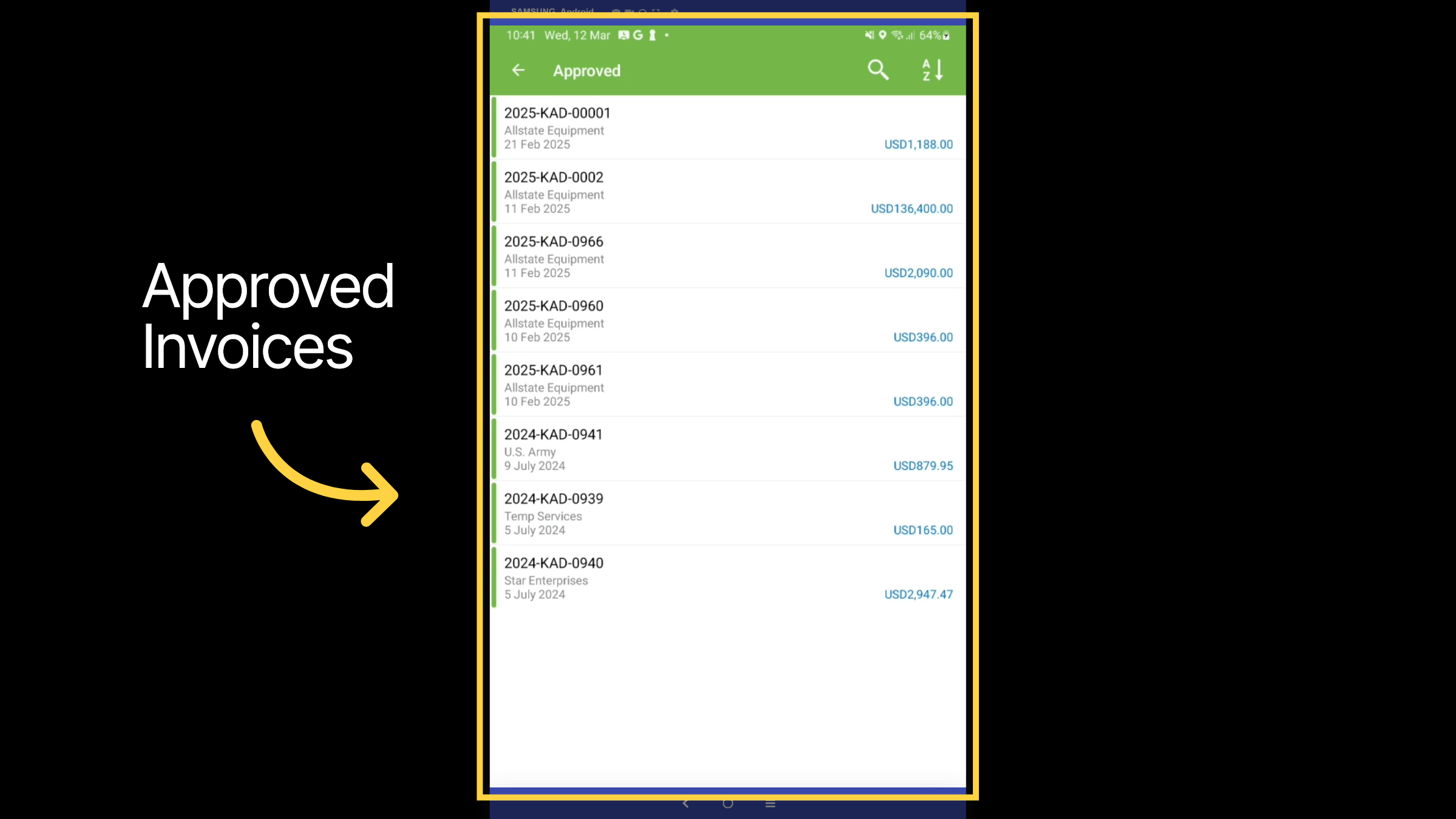
Here, you can view all invoices that have received manager approval before proceeding to the next stage of being sent to the client. Additionally, we can establish approval budgets that apply not only to invoices but also to purchase orders.
13. Invoice
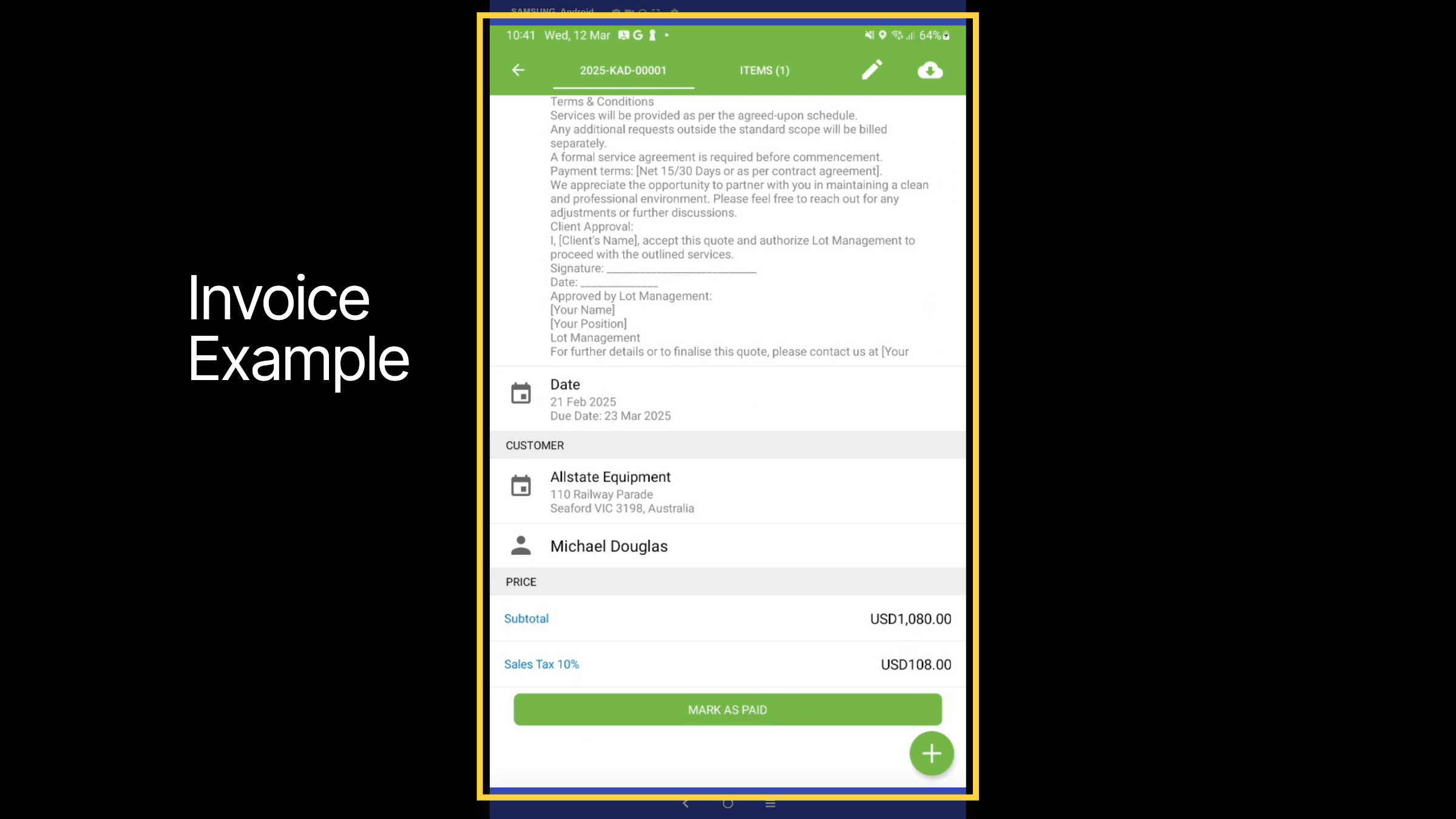
Within the invoice, you can view all line items, descriptions, dates, and customer details—all at your fingertips. Once the invoice is paid in Sage, it will automatically update in Kynection as paid.
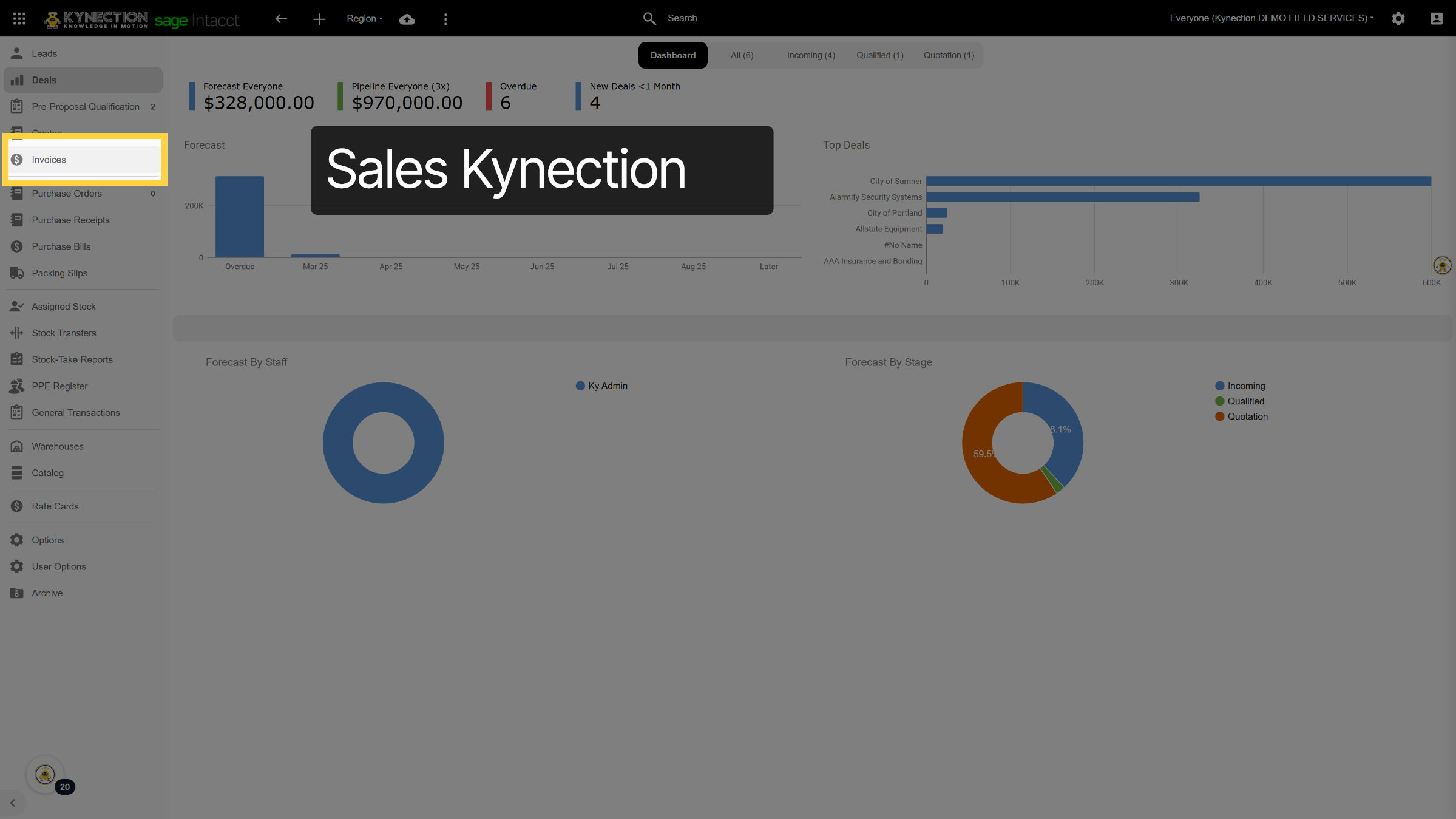
14. Sales Kynection
Similarly, in the Kynection mobile app, we can access the Sales Module on the web. Now, let’s explore the invoices.
15. Invoice Cyle
The Kynection Wevb reflects the same lifecycle as represented on the web.
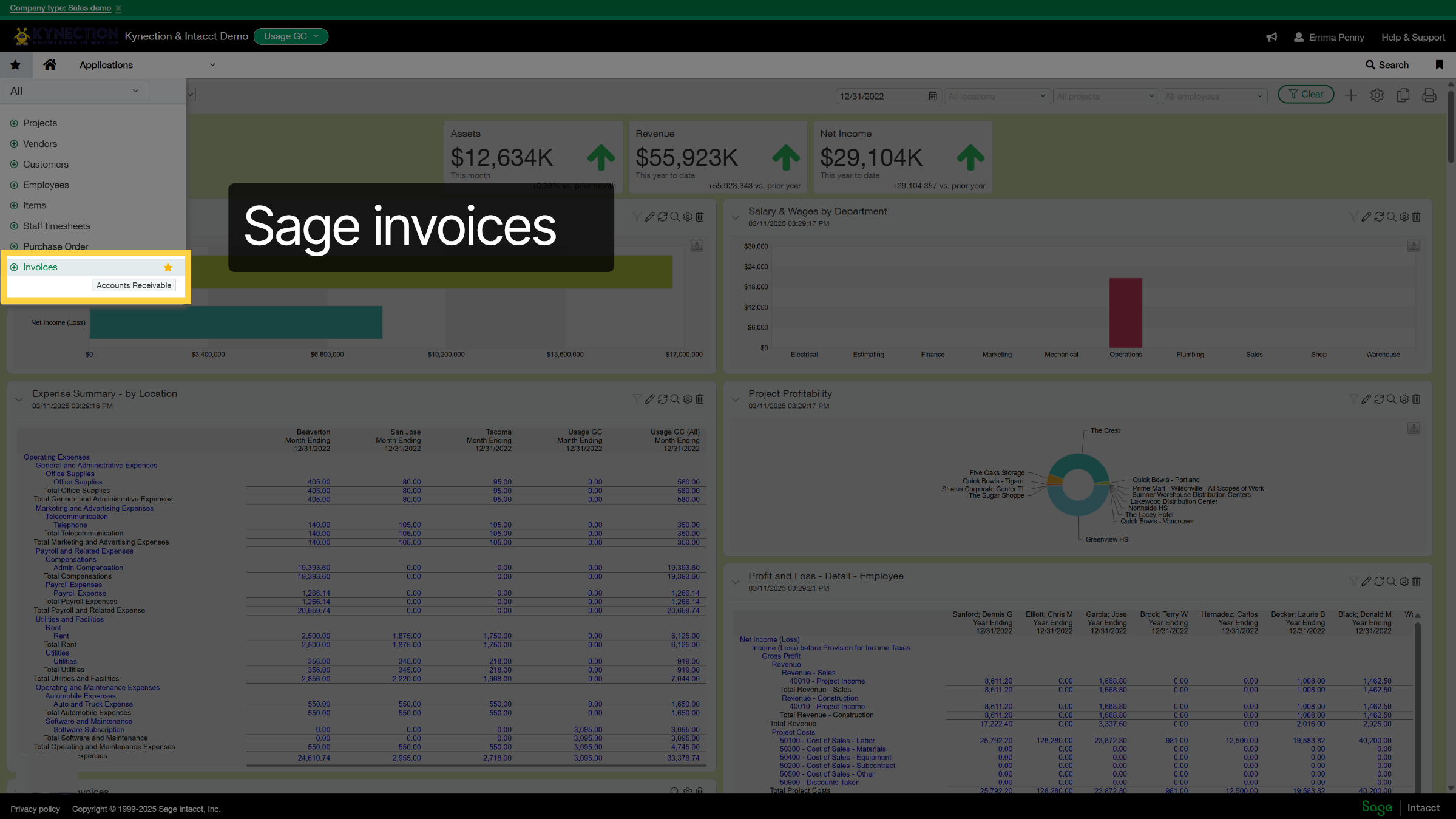
16. Sage invoices
From the Sage Home dashboard, select the entity you wish to view, then click on "Invoices" from the shortcut menu.
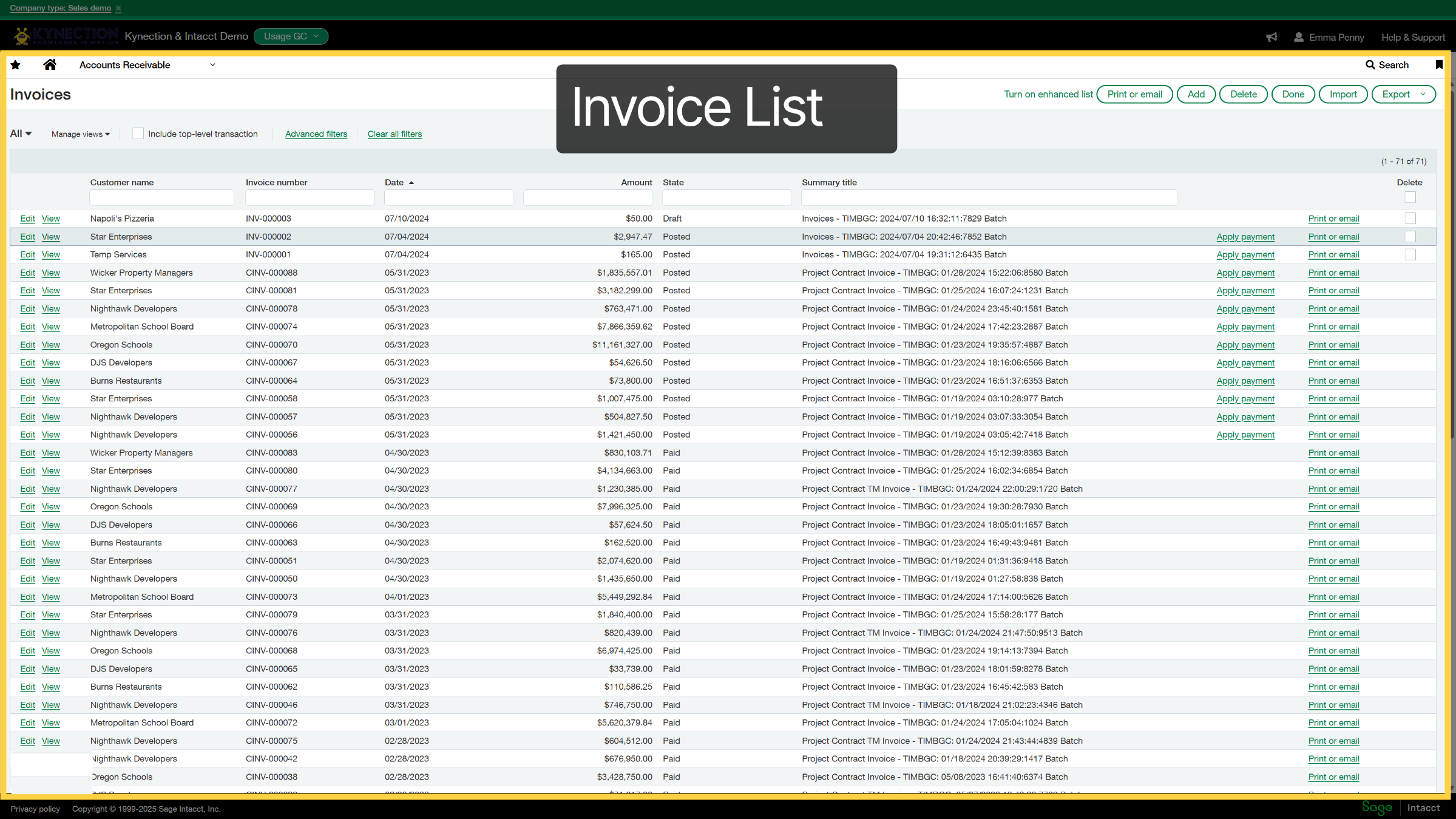
17. Invoice List
Here is a list of all the invoices associated with Kynection. Let’s examine one.
18. Kynection & Sage Purchase Orders
Let's explore the integration with Kynection and Sage purchase orders.

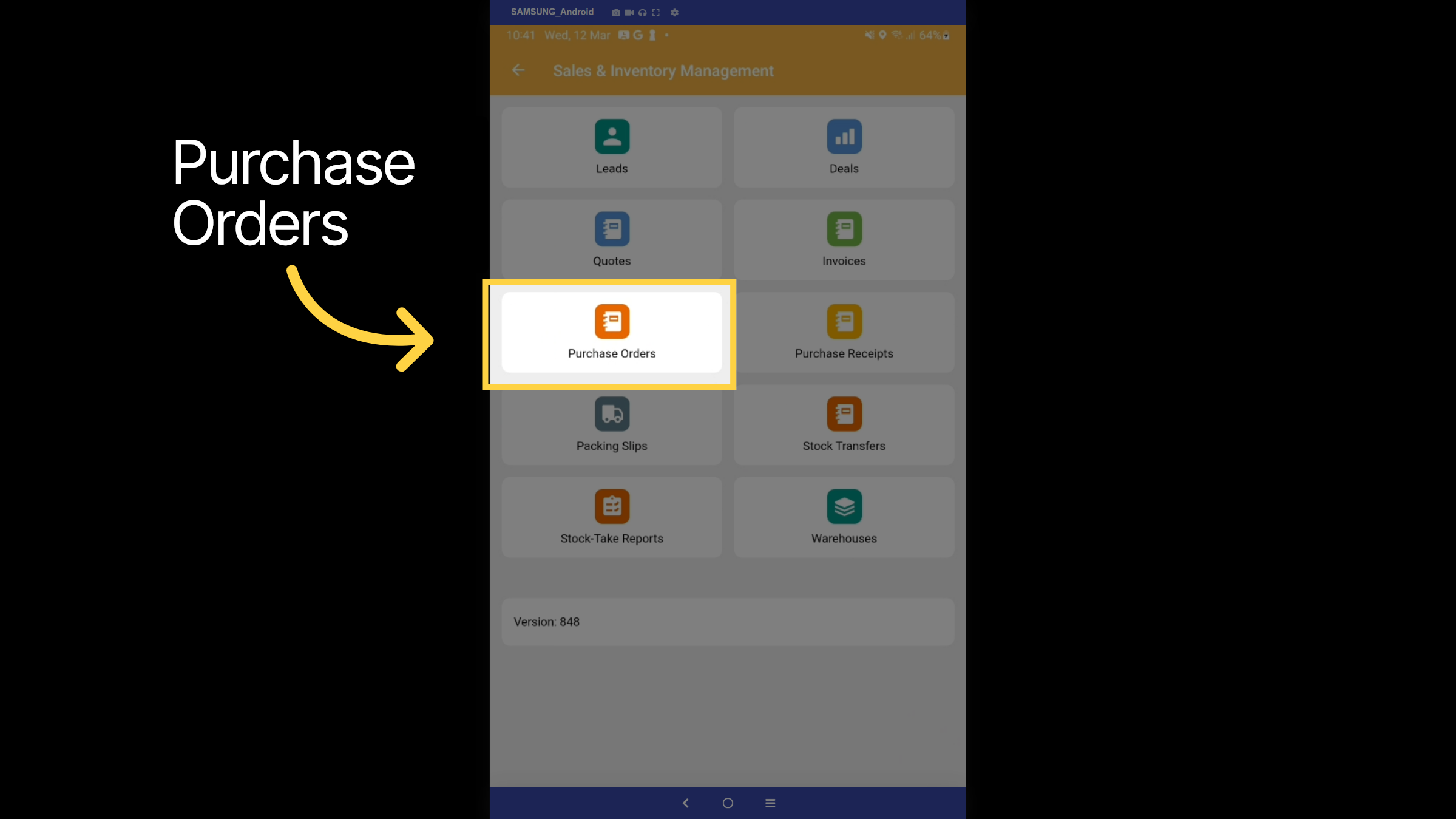
19. Purchase Orders
Let's return to the mobile interface and examine Purchase Orders.
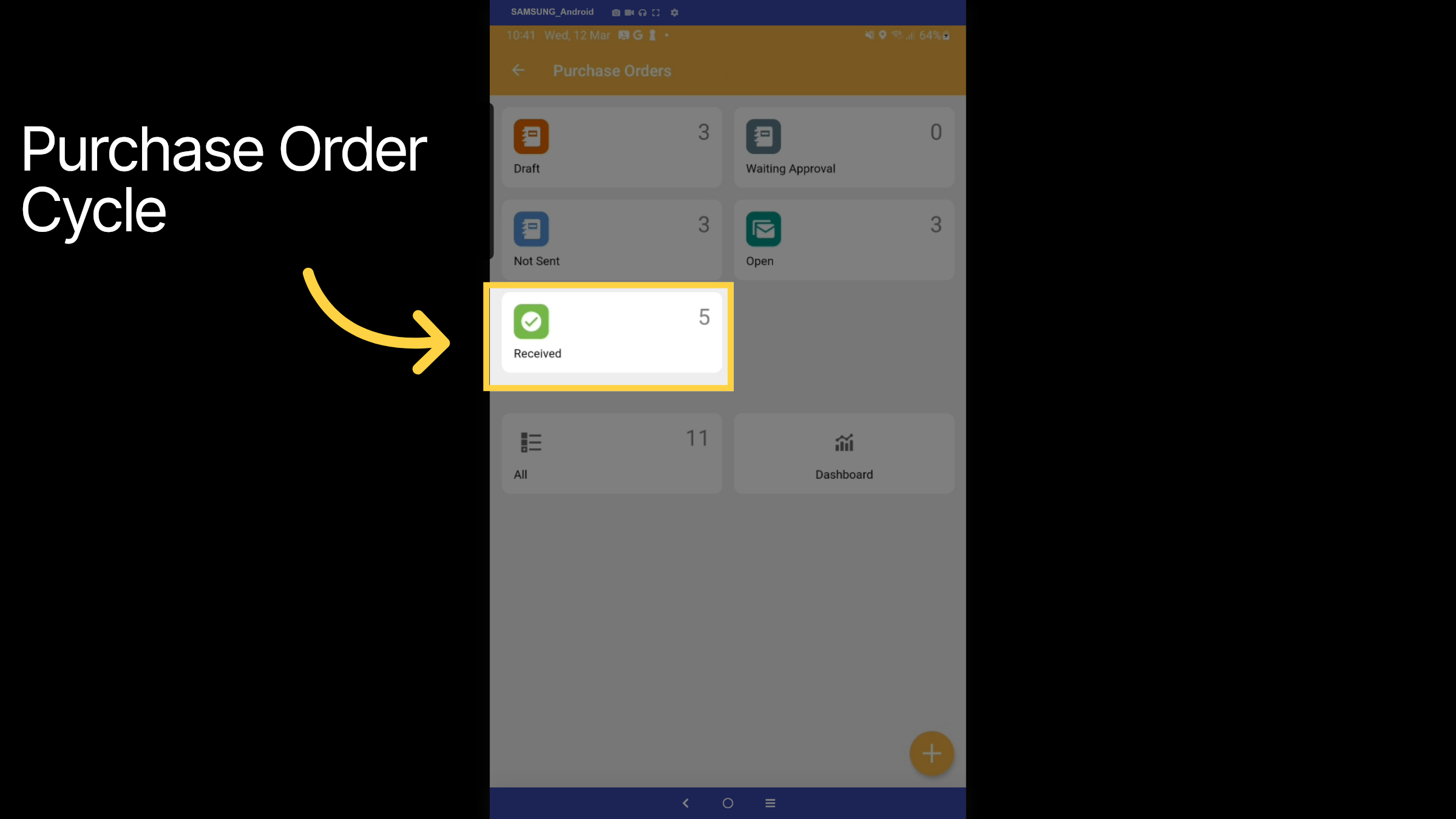
20. Purchase Order Cycle
As you can see, we have another lifecycle for Purchase Orders. They can be created in either Sage or Kynection and receipted in both. Typically, larger purchase orders are created in Sage, while field employees can receipt them directly in Kynection using a mobile device. Let's tap on the received button.
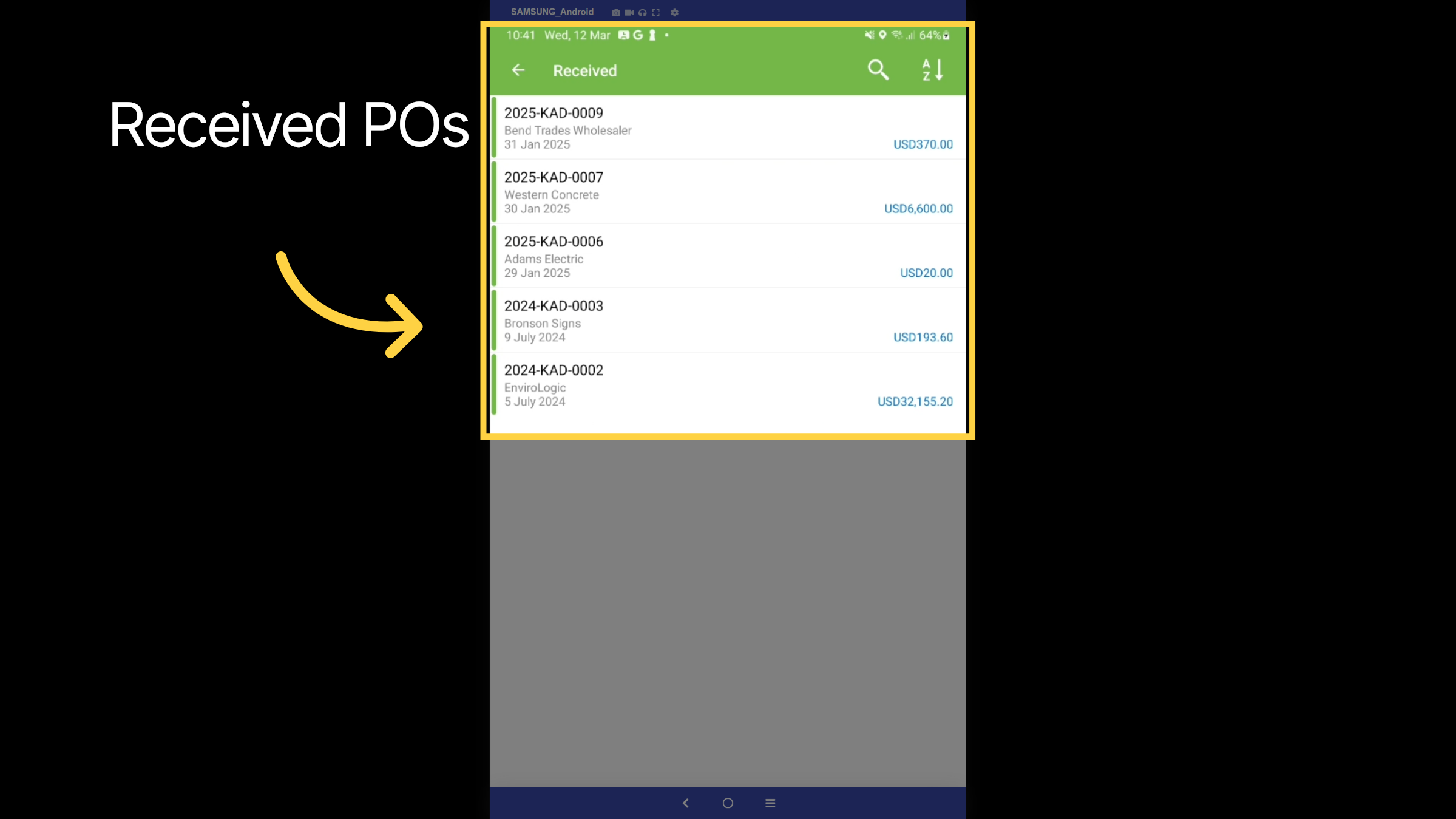
21. Received POs
Here is a list of all the purchase orders received. Let’s click on the first one for an example.
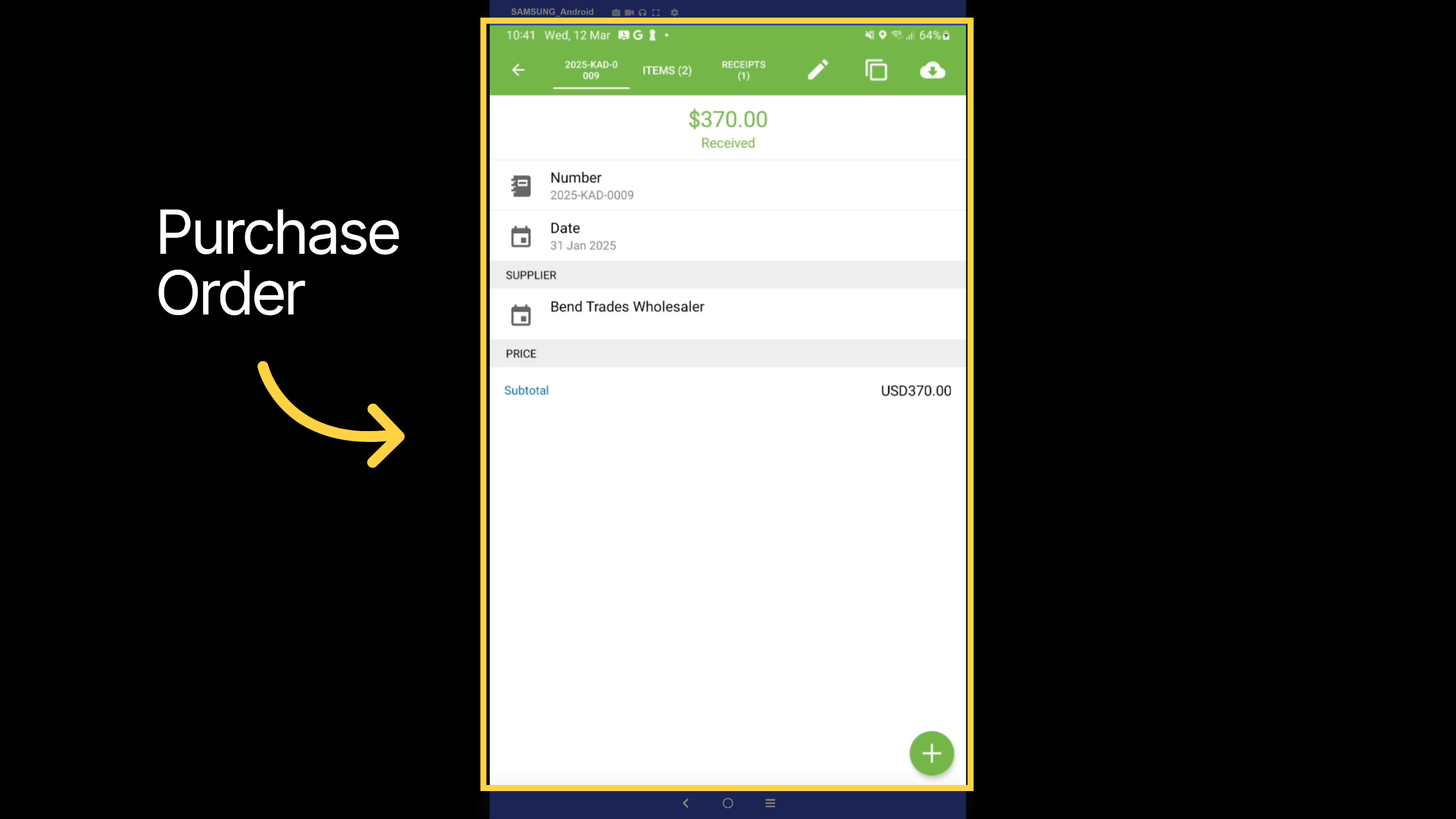
22. Purchase Order
We can view all details, including the supplier, cost, line items, date, and the purchase identifier that corresponds with Sage.
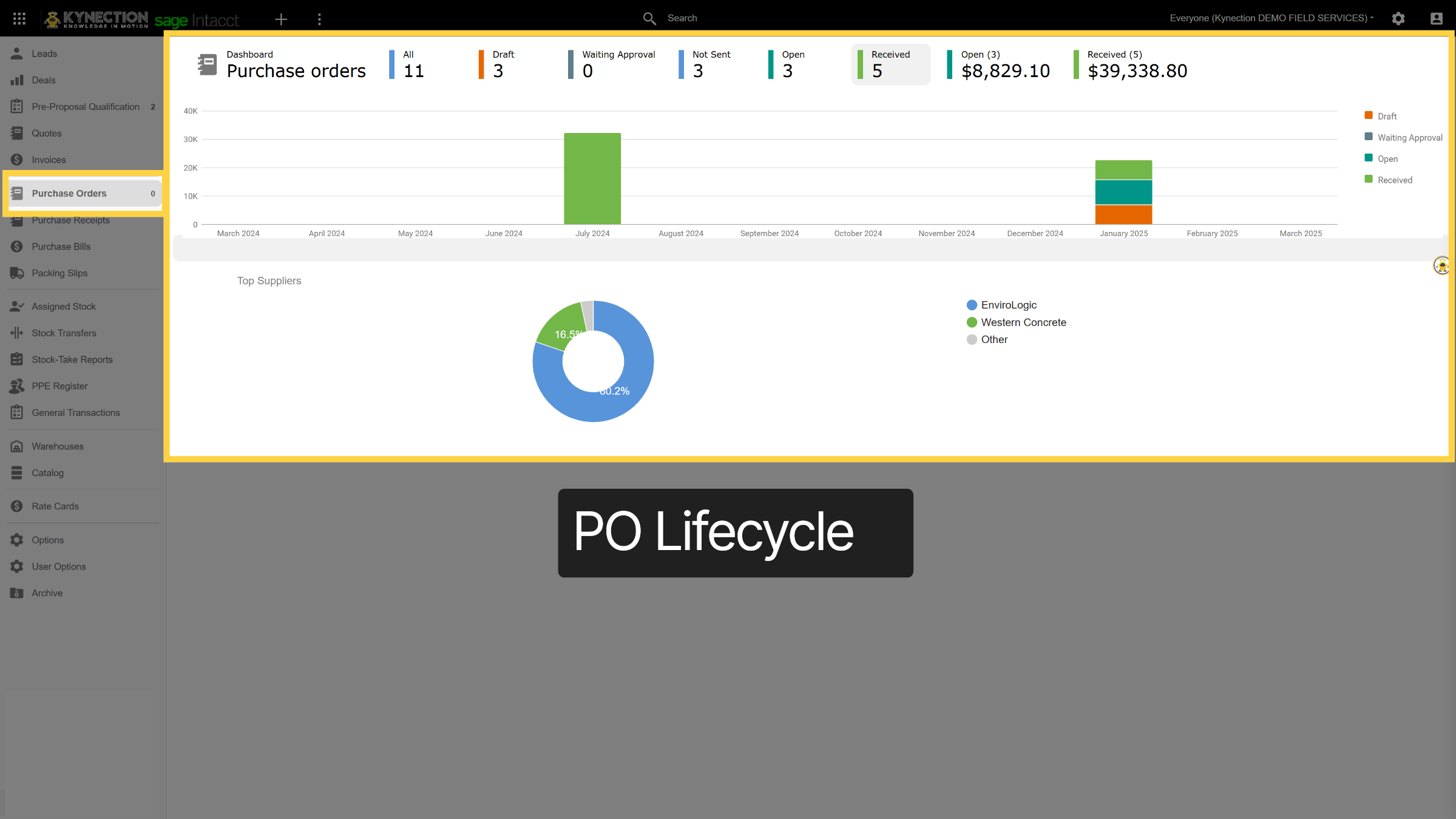
23. PO Lifecycle
Similar to the lifecycle of the mobile app, the purchase order lifecycle is also depicted on the web.
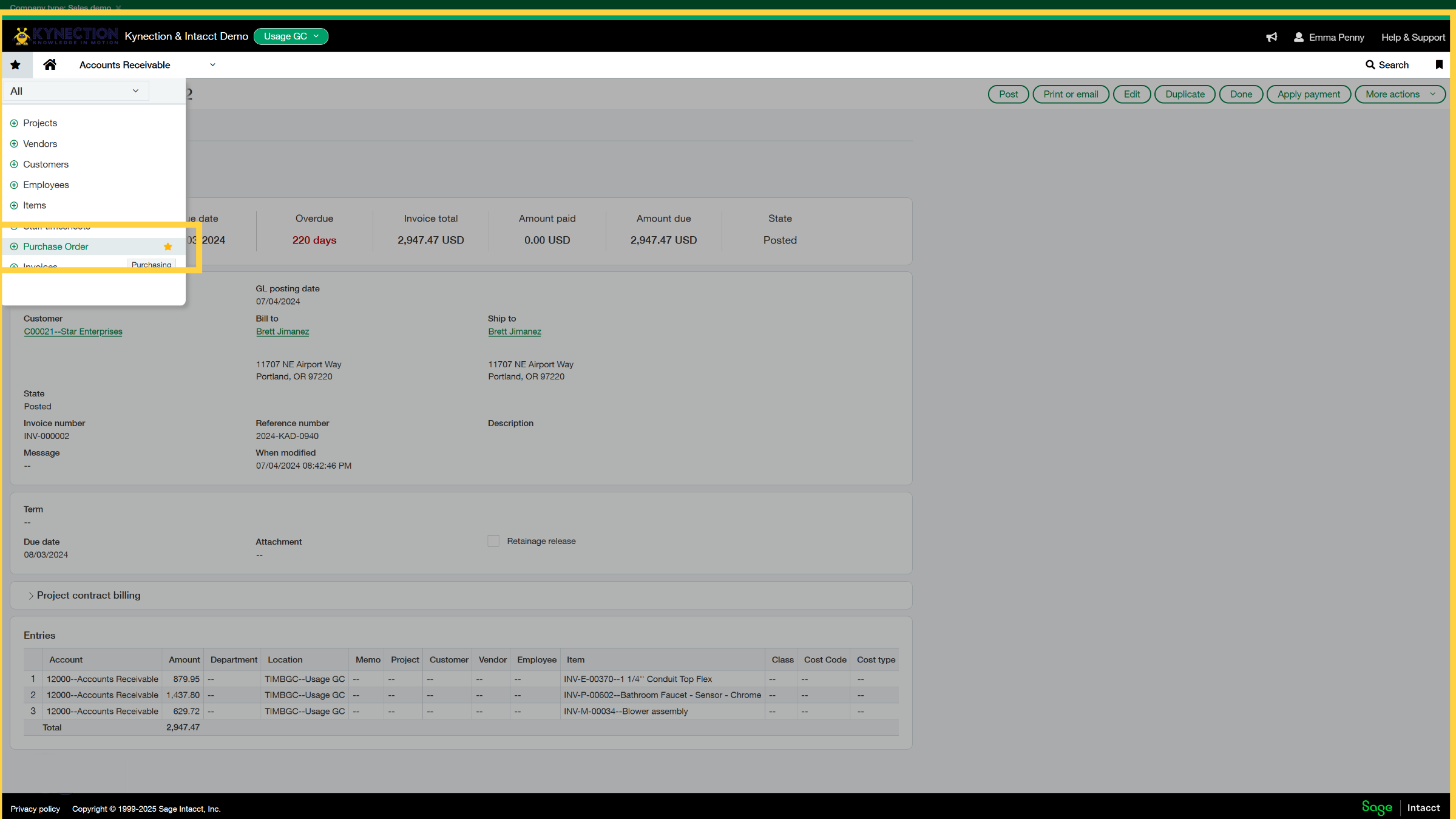
24. Sage Purchase Order
To view purchase orders in Sage, simply navigate to "Purchase Orders" from the home dashboard.
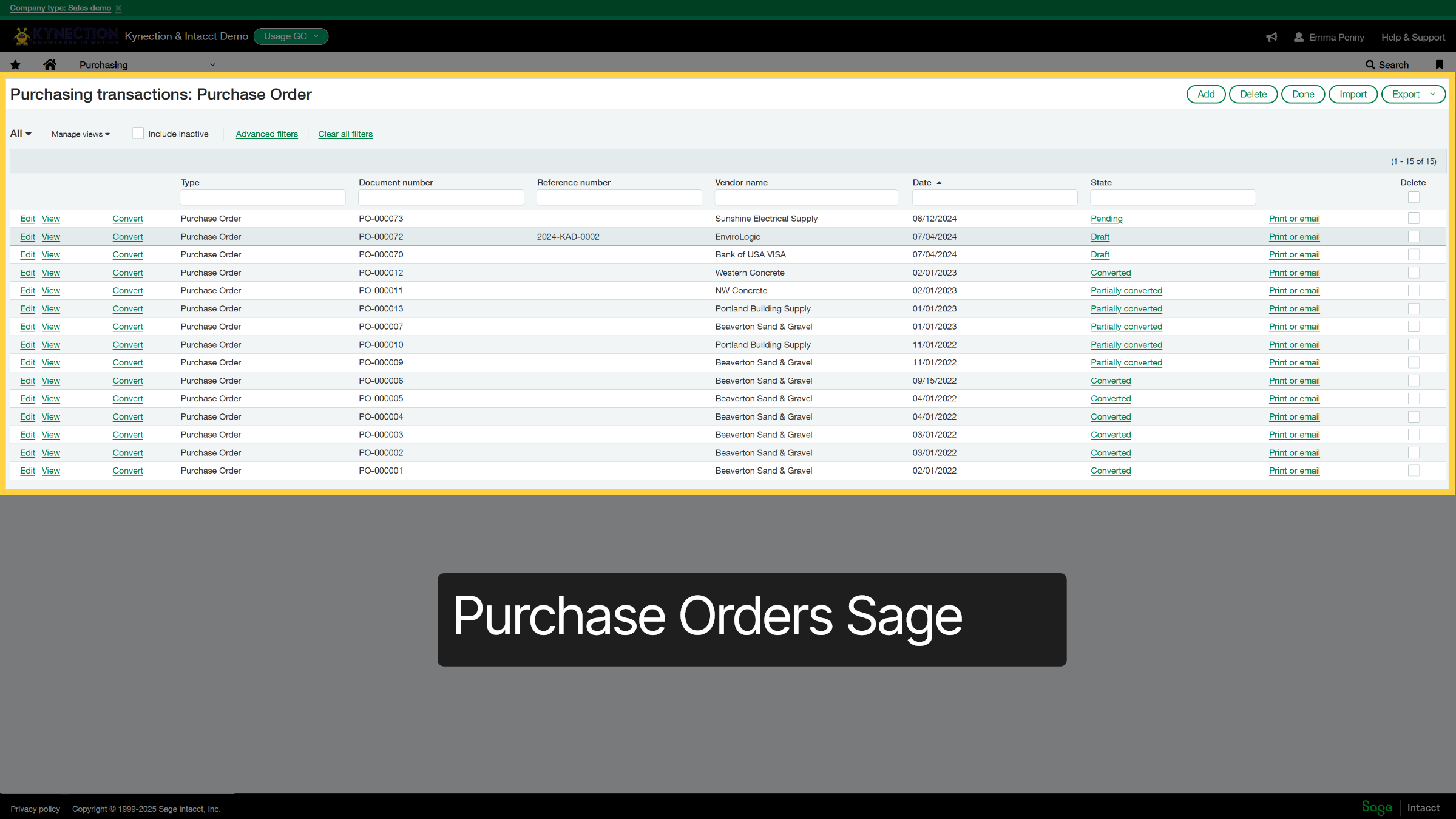
25. Purchase orders Sage
As you can see, we have compiled a list of all purchase orders associated with Kynection.
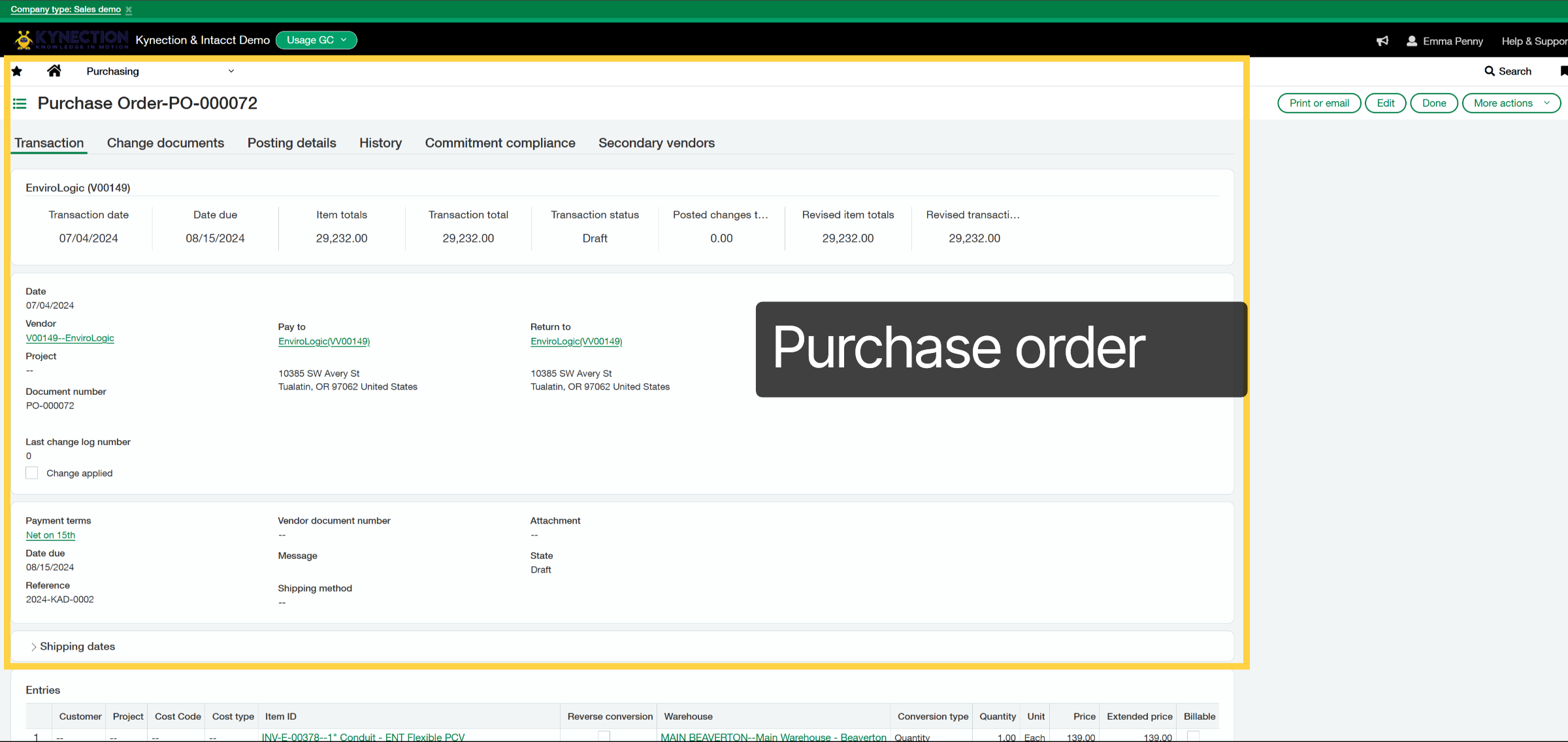
26. Purchase order
In the purchase order, we can view all the details, including the vendor, the associated project, the items with their quantities, prices, and much more.
27. Kynection & Sage Timesheets
Let’s delve into the integration of Kynection timesheets with Sage.

28. HR Module
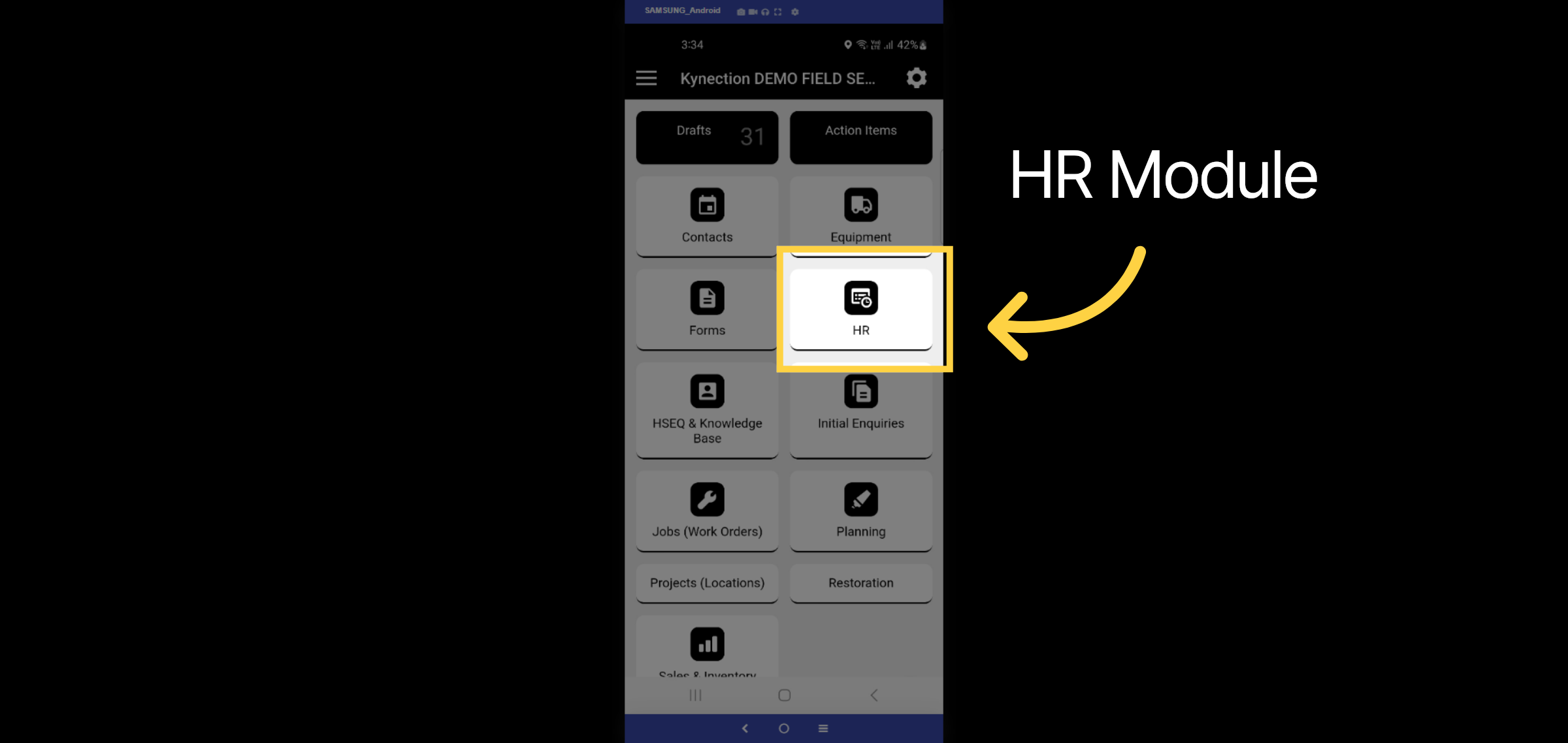
In the Kynection mobile app, select the HR Module.
29. Timesheets
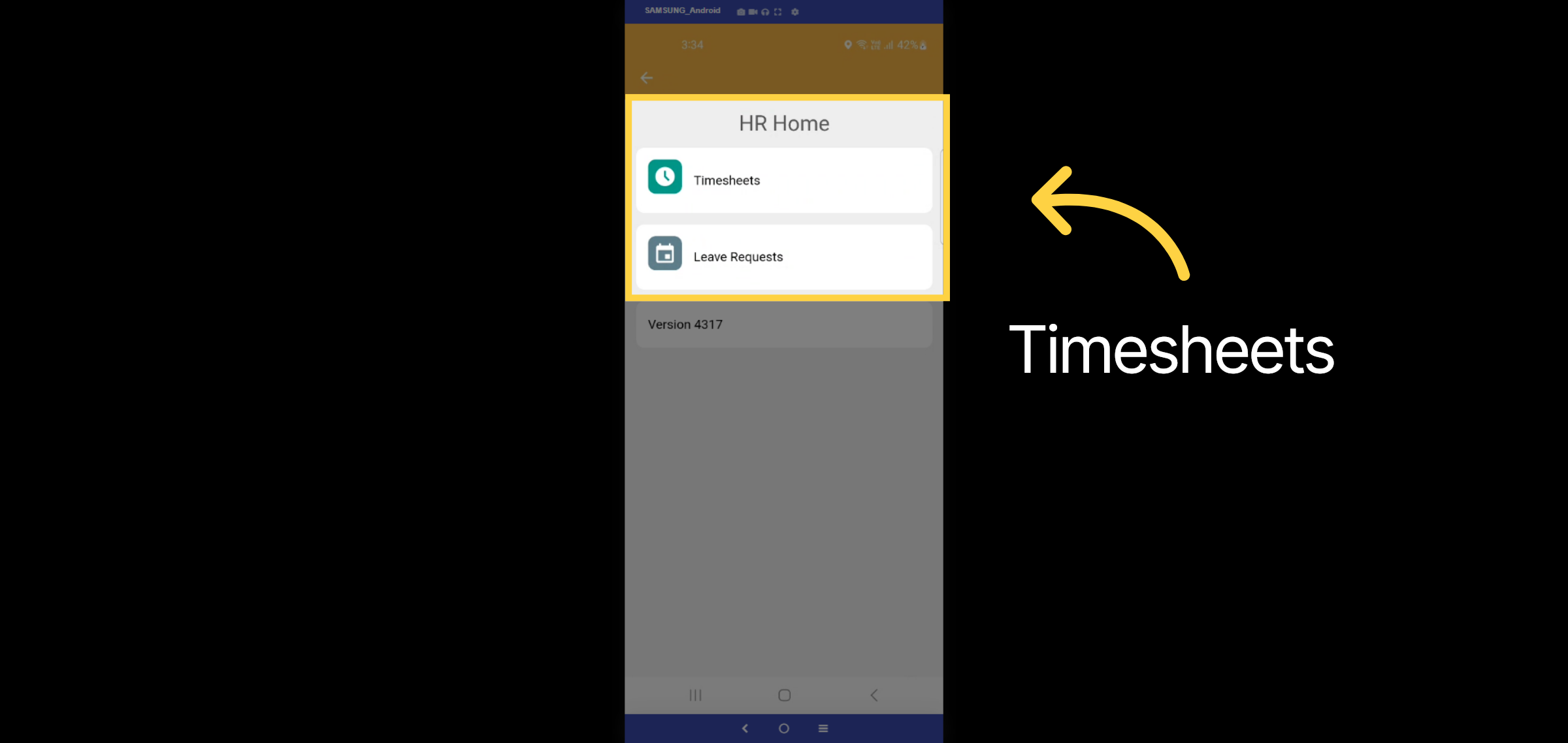
Here, you can log timesheets and submit leave requests. Let’s begin with a timesheet entry.
30. Start Shift
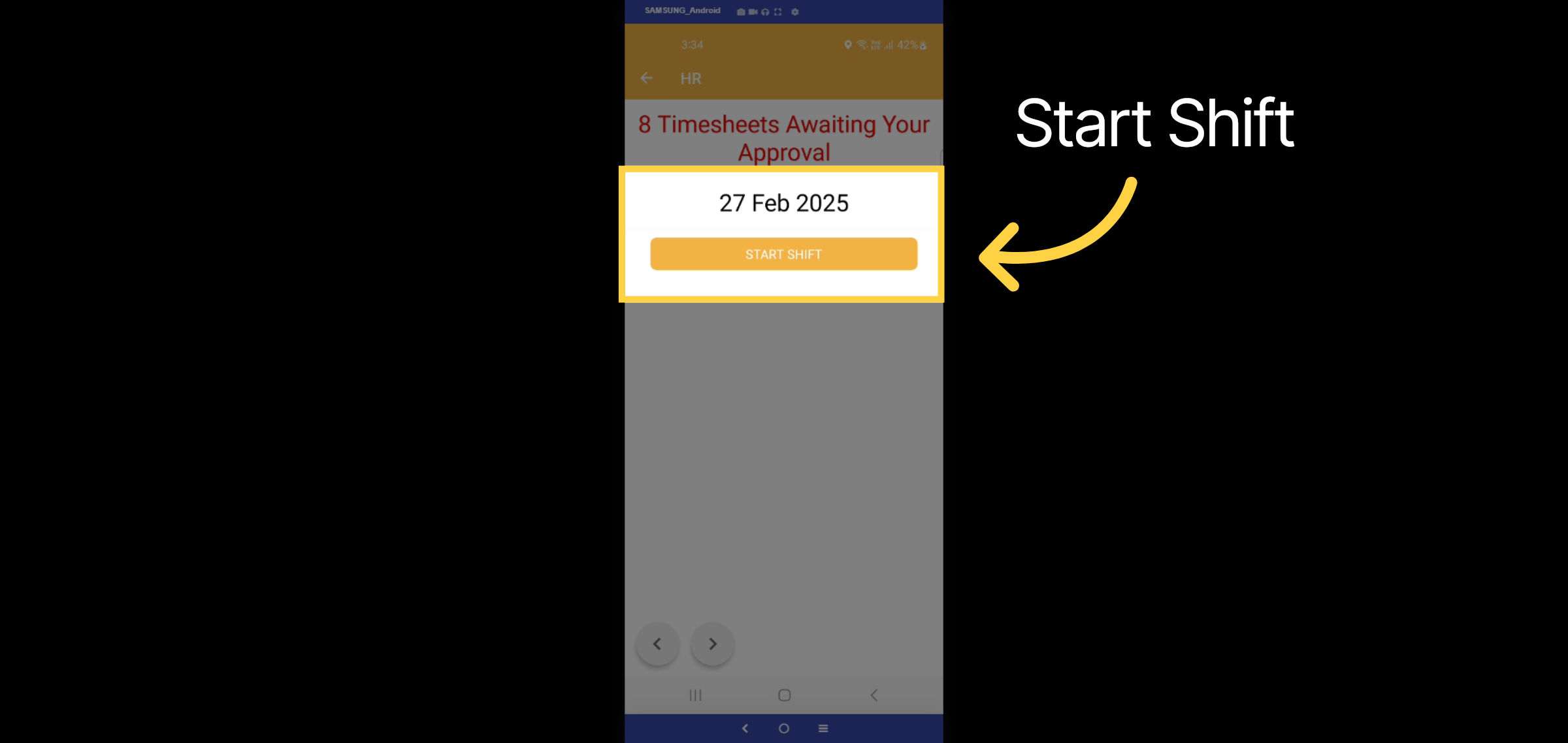
Begin by tapping the "Start Shift" button.
31. Job or Project
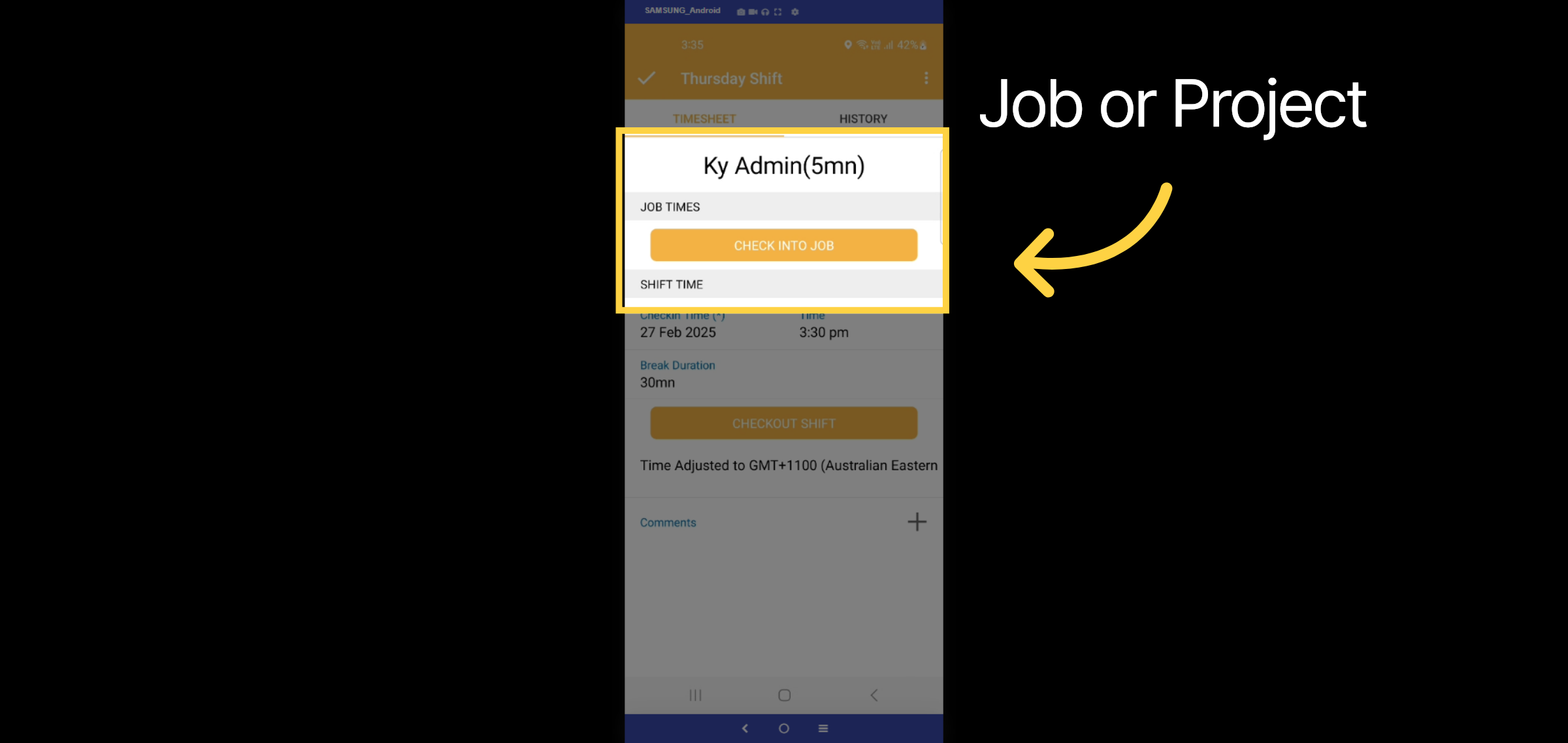
Let's check in on a Project or Job
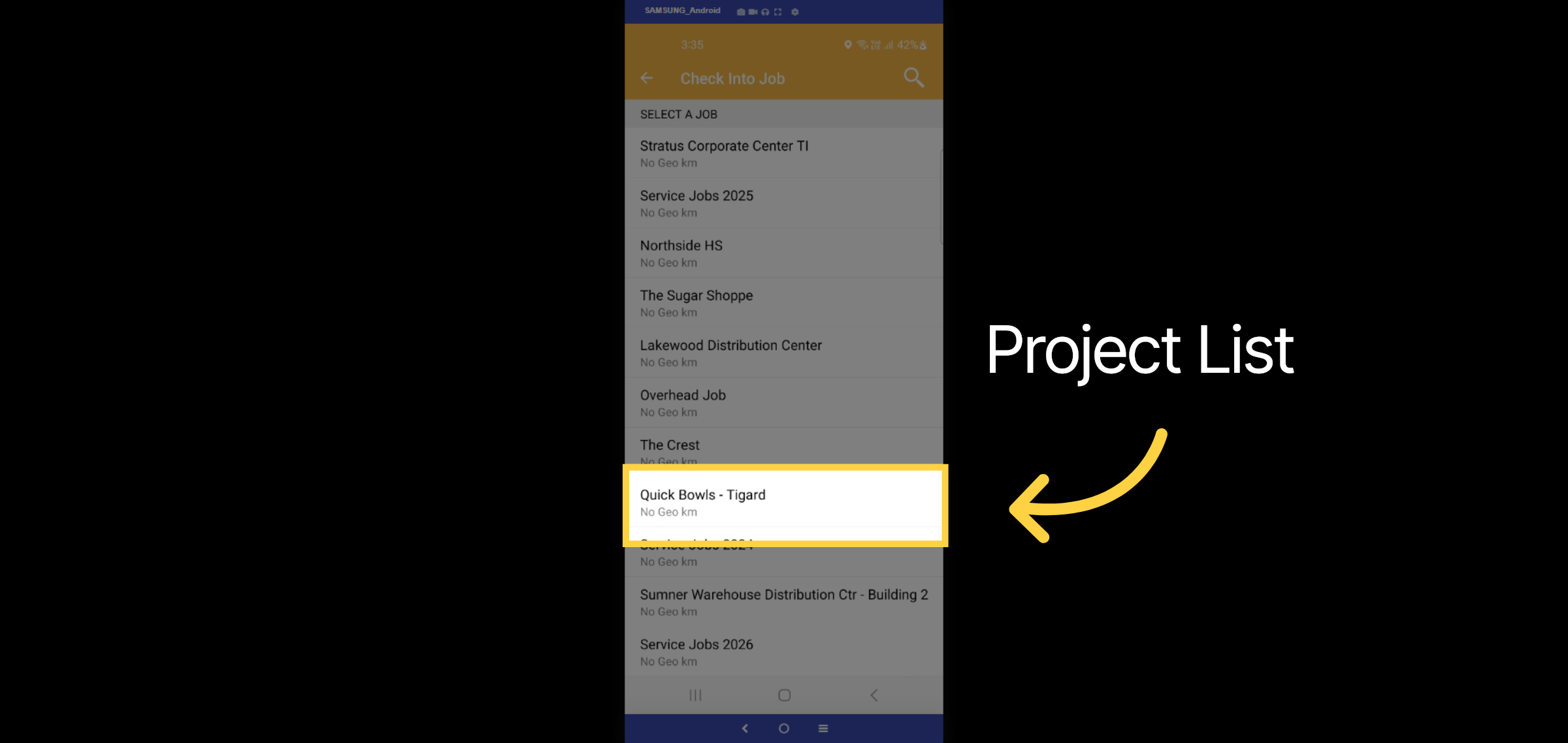
32. Project List
Here, you will find a comprehensive list of all current ongoing projects and jobs. For this example, we will examine the Quick Bowls job. Additionally, we have the option to add a geostamp to the job site, ensuring that the field operative must be within a specified proximity to it.
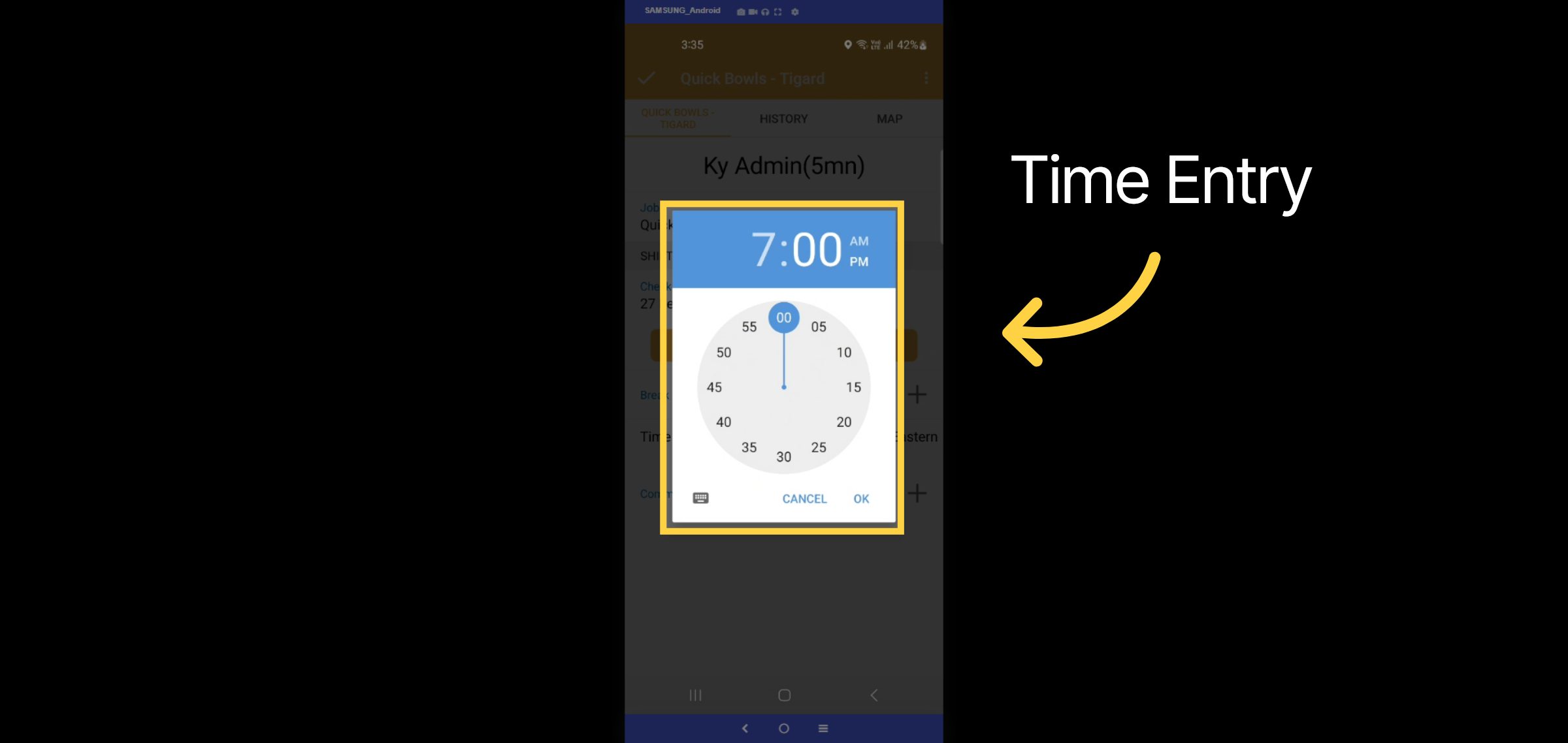
33. Time Entry
Please enter the start time.
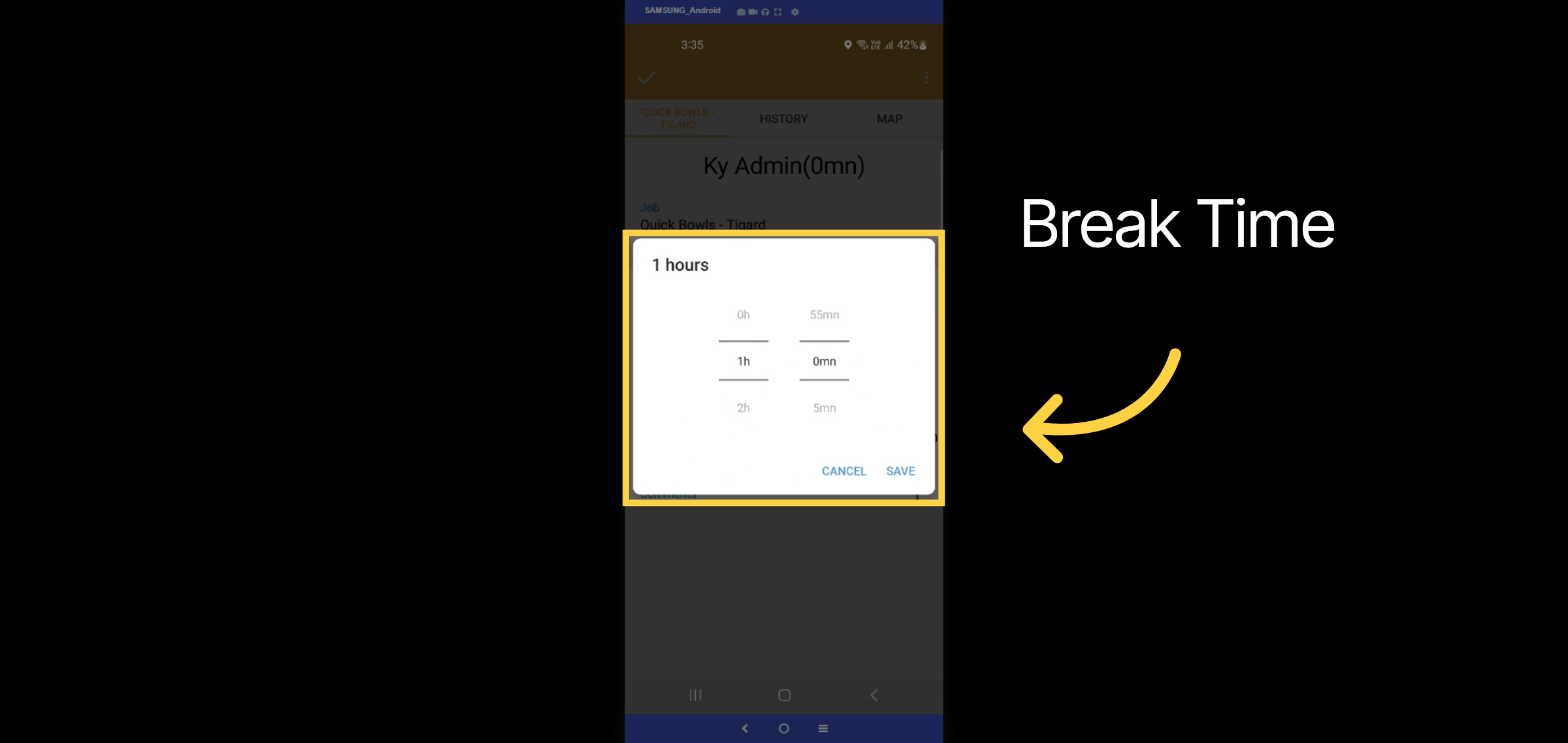
34. Break Time
We can also include the break time.
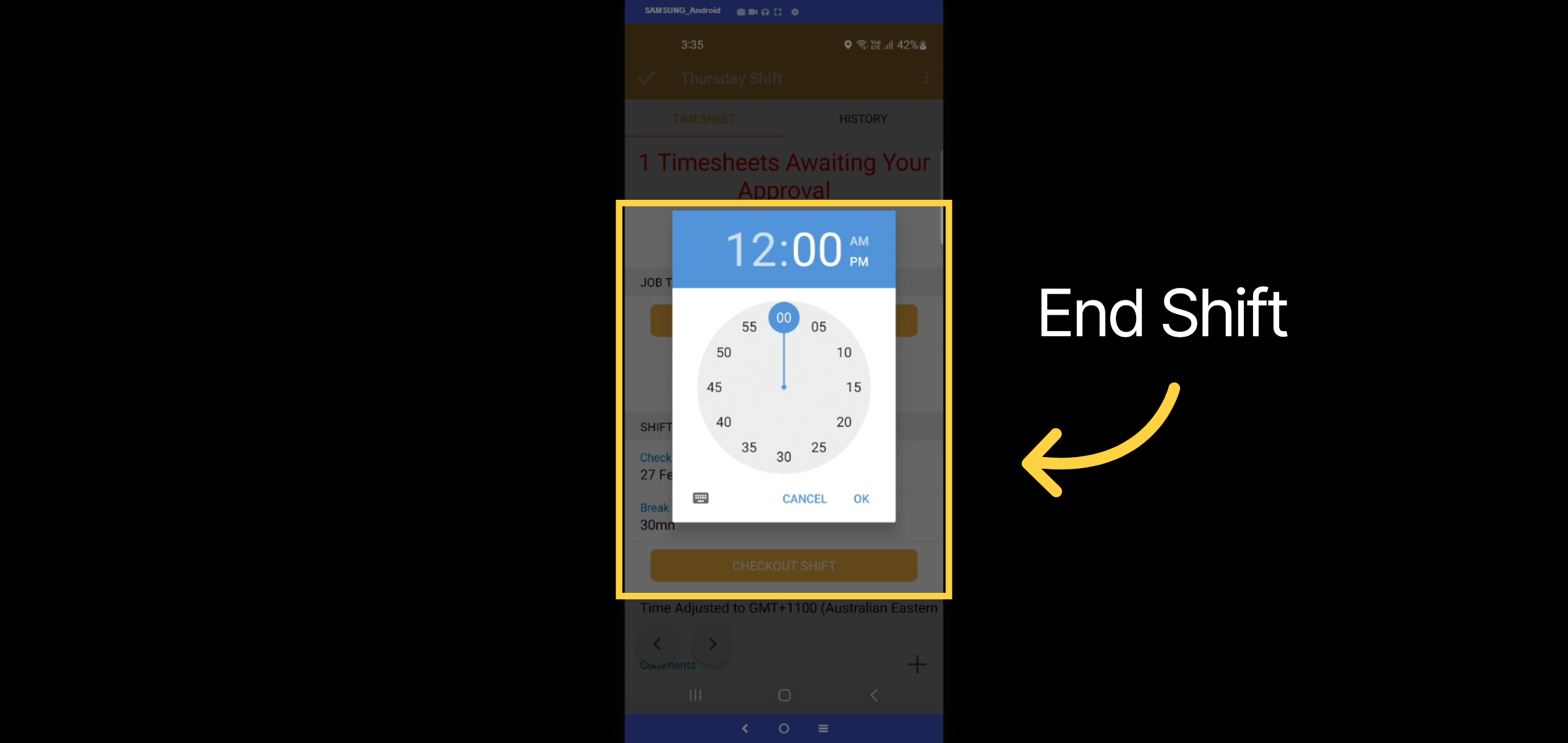
35. End Shift
Enter in the checkout time
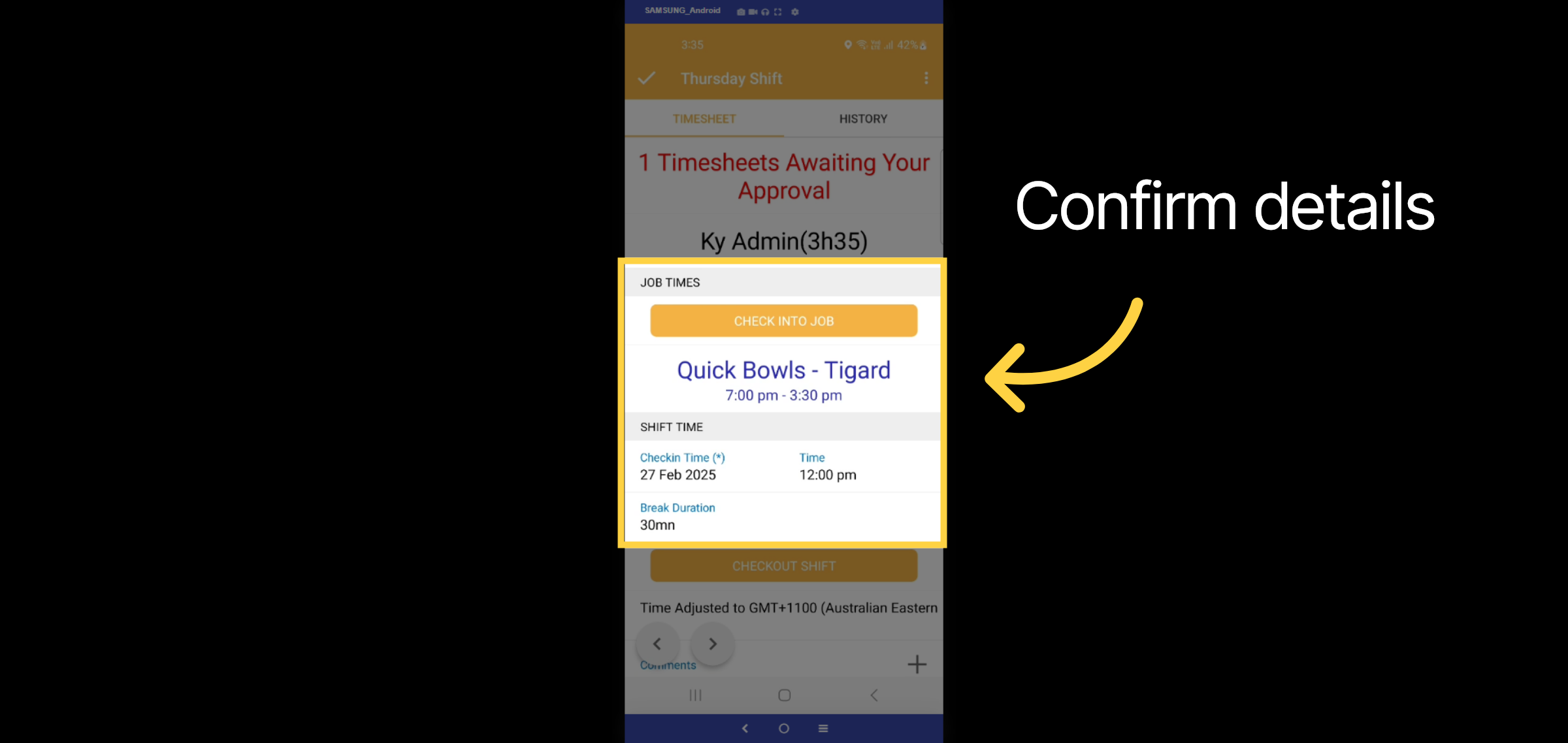
36. Confirm details
Here, you can review and submit your timesheet.
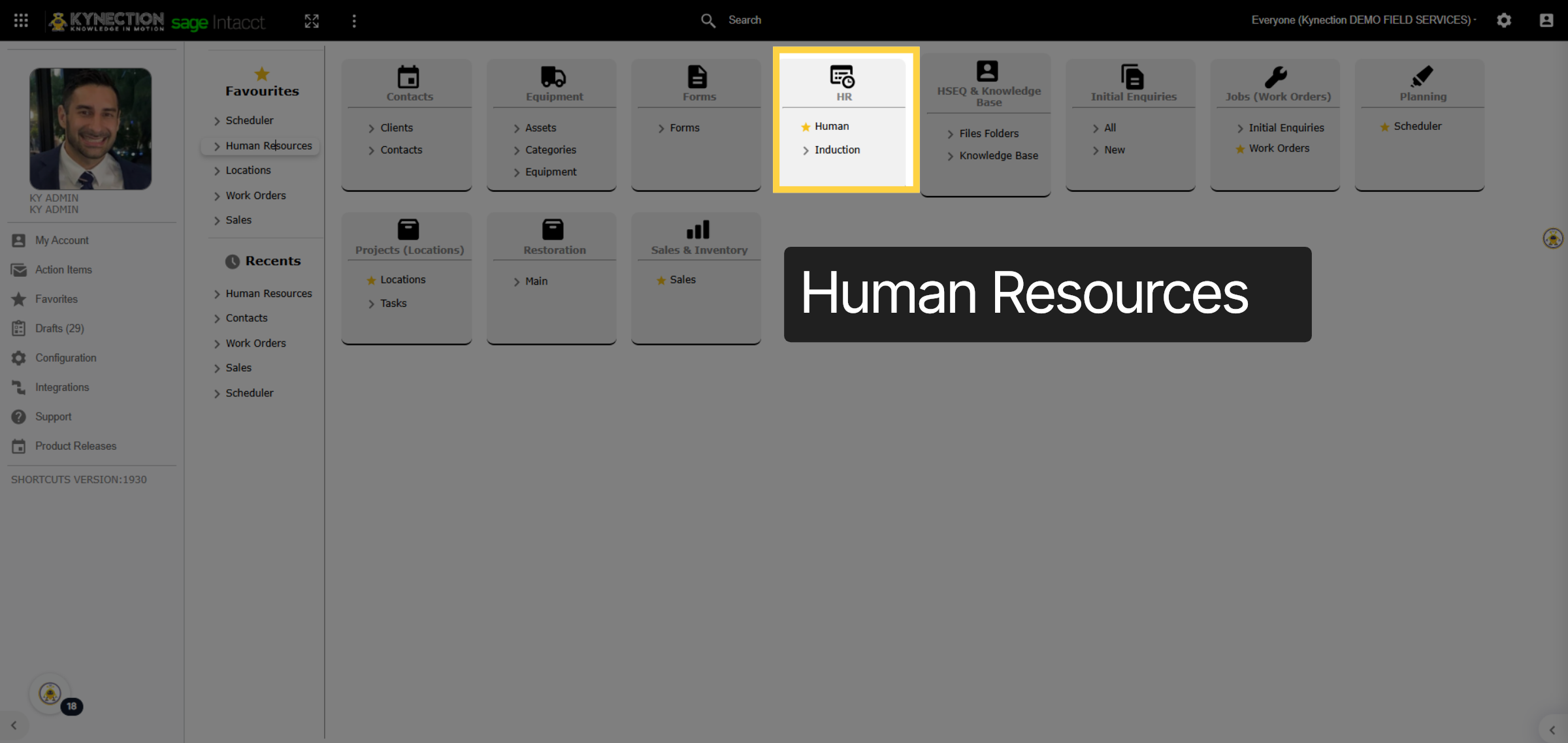
37. Human Resources
From the Kynection web dashboard, access the HR module.
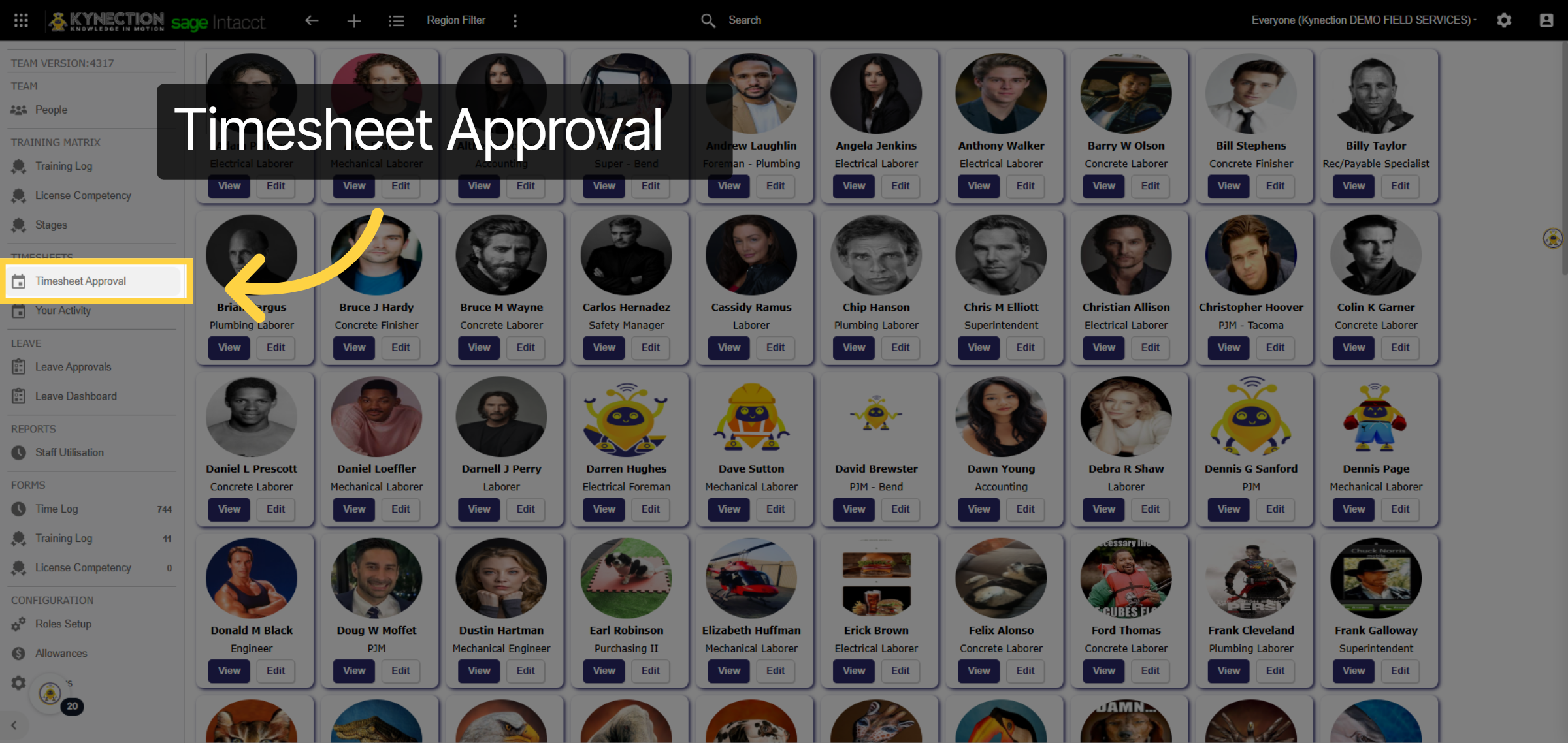
38. Timesheet Approval
Navigate to the timesheet approval dashboard
39. Approval
Here, you can view all timesheets and leave requests submitted by employees. You’ll see their start and end times, break duration, the job or project they checked into, and the associated award. We can implement a multi-step approval process before pushing the timesheet into Sage.
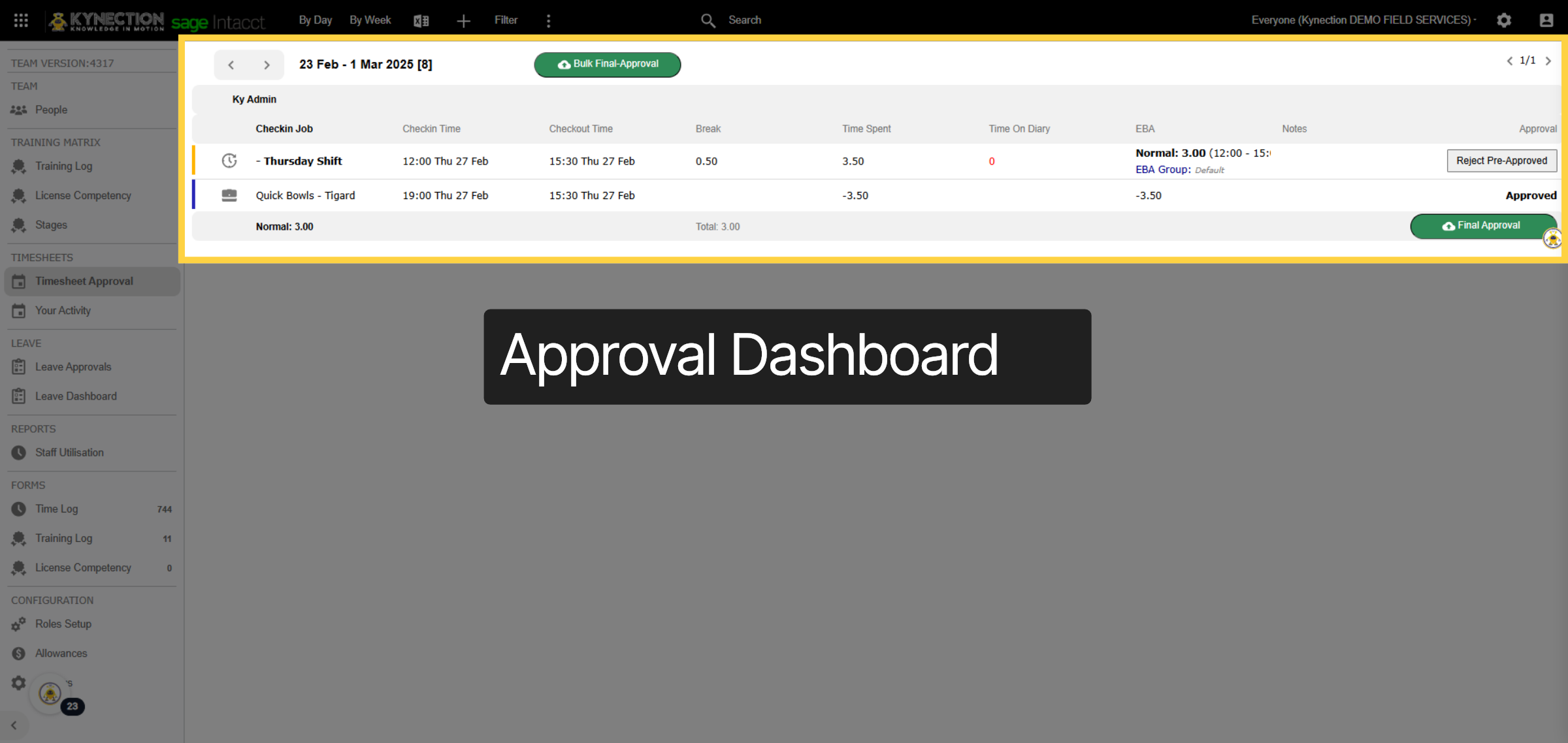
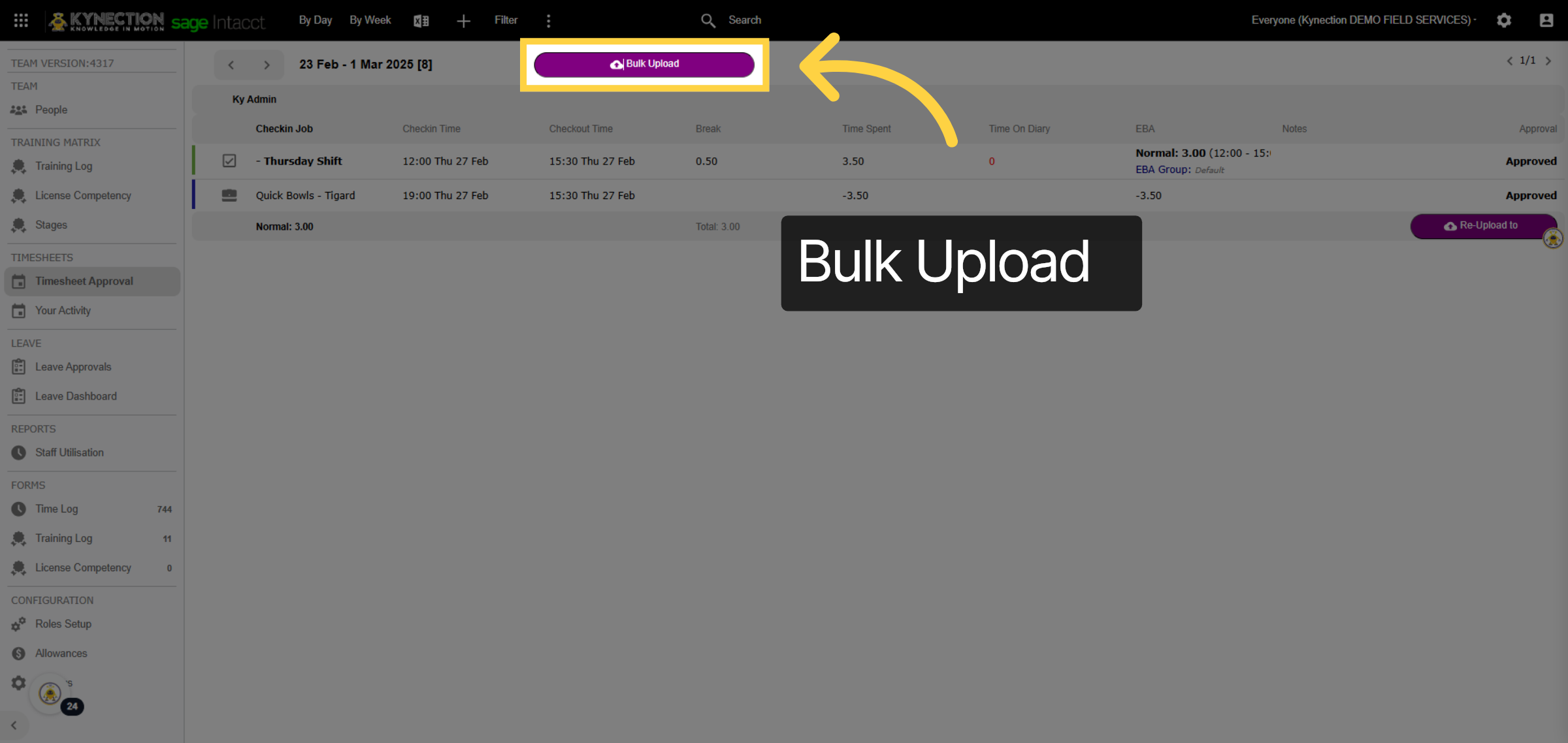
40. Bulk Upload
Once you have reviewed, click the bulk upload button to initiate the API and submit the timesheets to Sage.
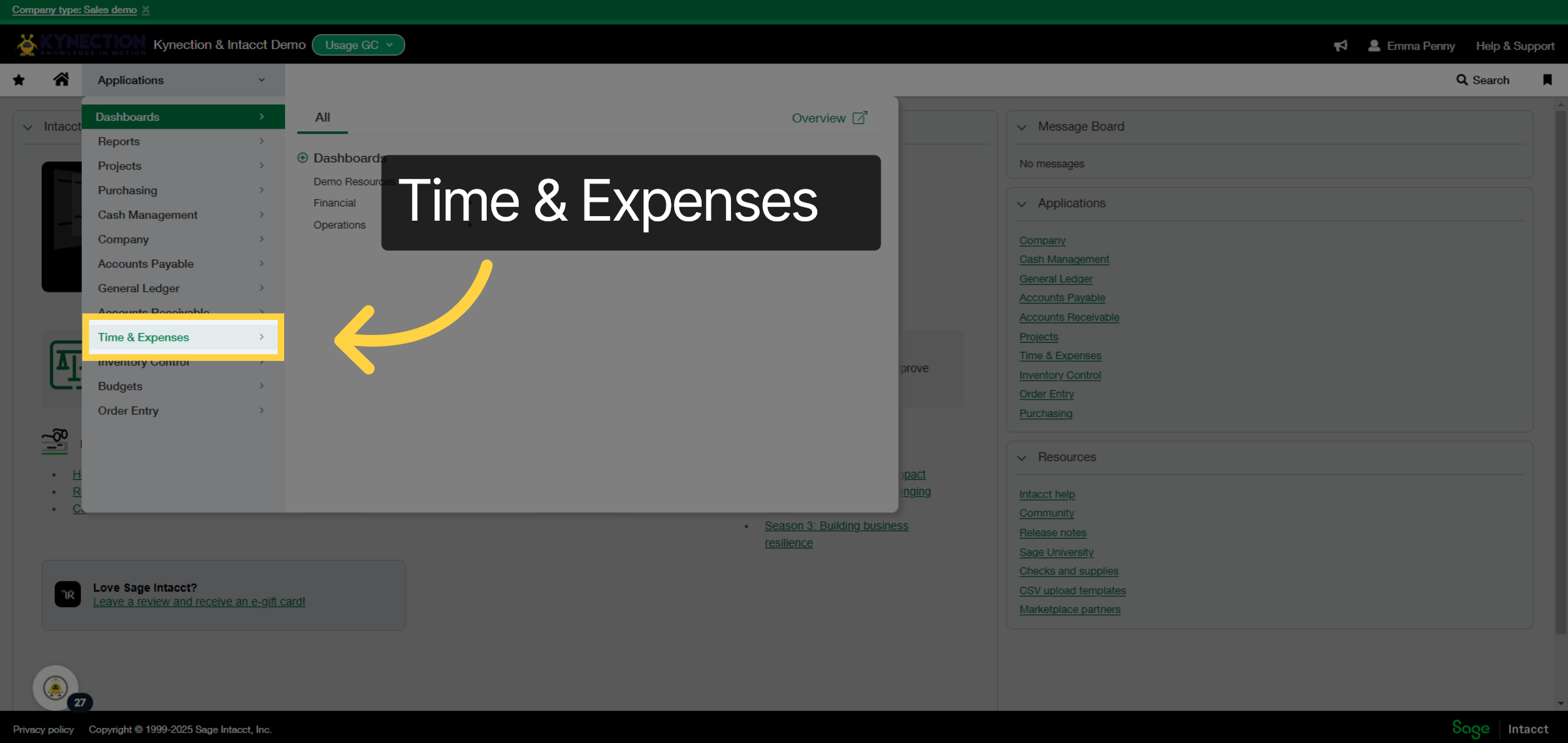
41. Time & Expenses
In the Sage home dashboard, select Applications and go to Time and Expenses.
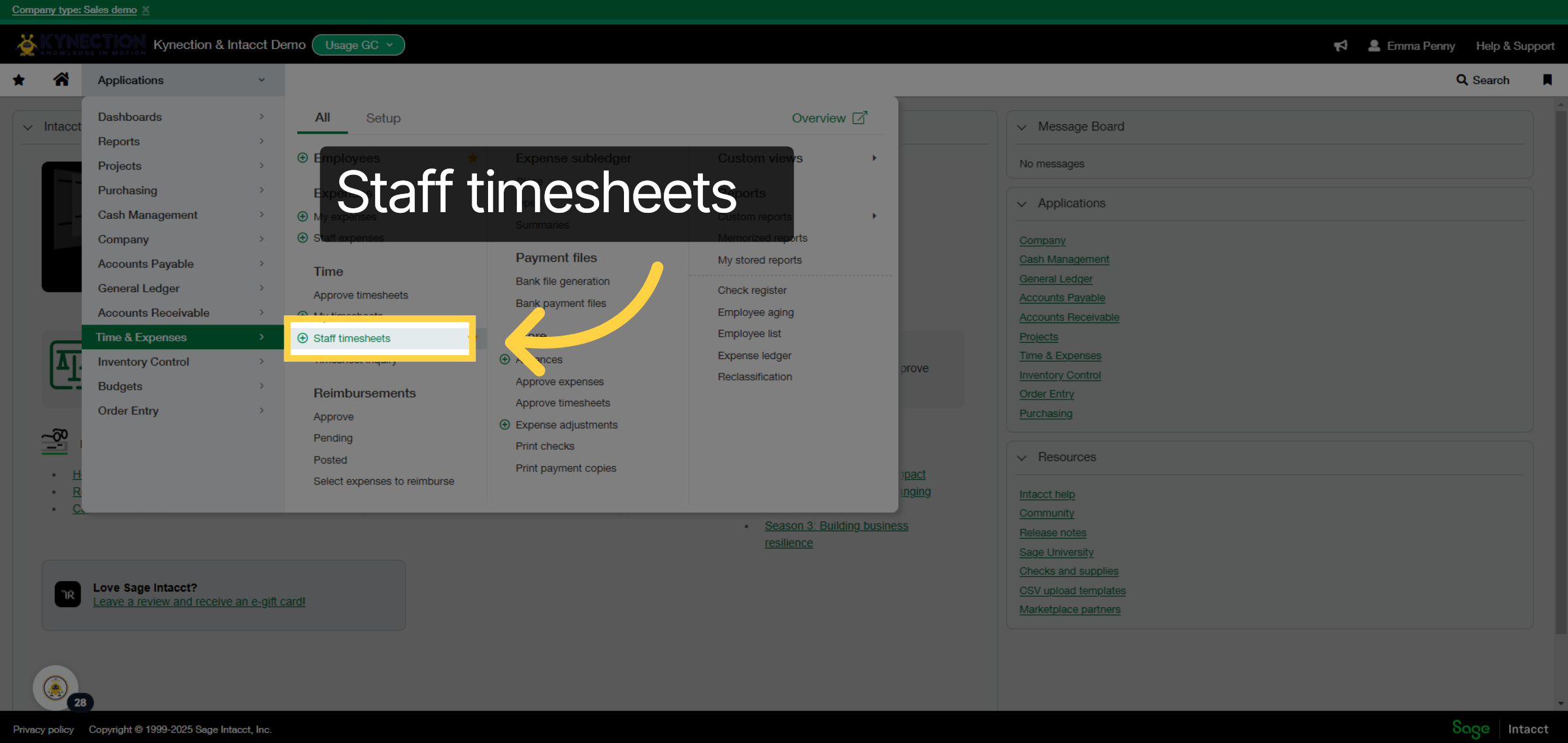
42. Staff timesheets
Select Staff Timesheets.
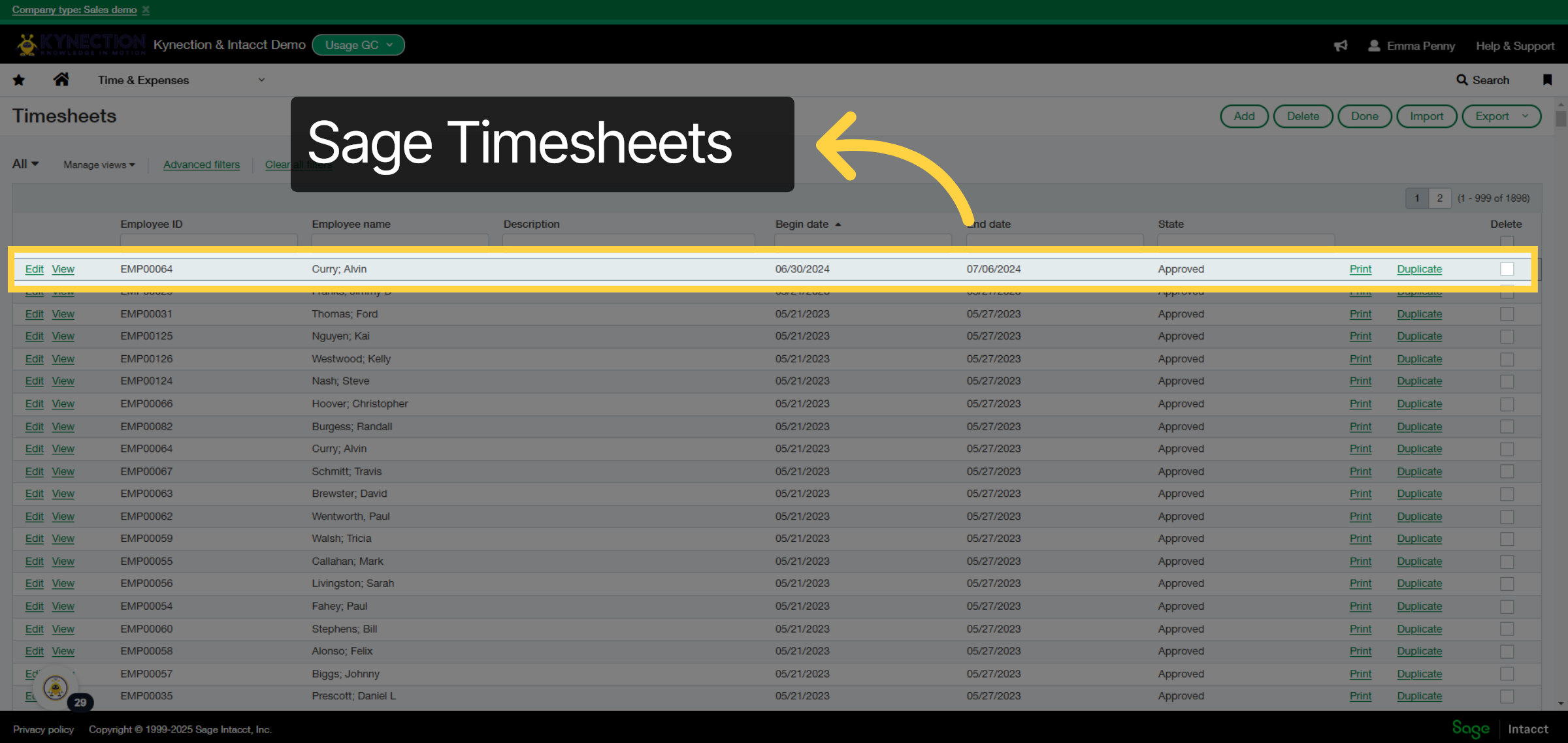
43. Sage Timesheets
Here, you can view all timesheets submitted by employees through the Kynection application. Let’s select an employee to see their details.
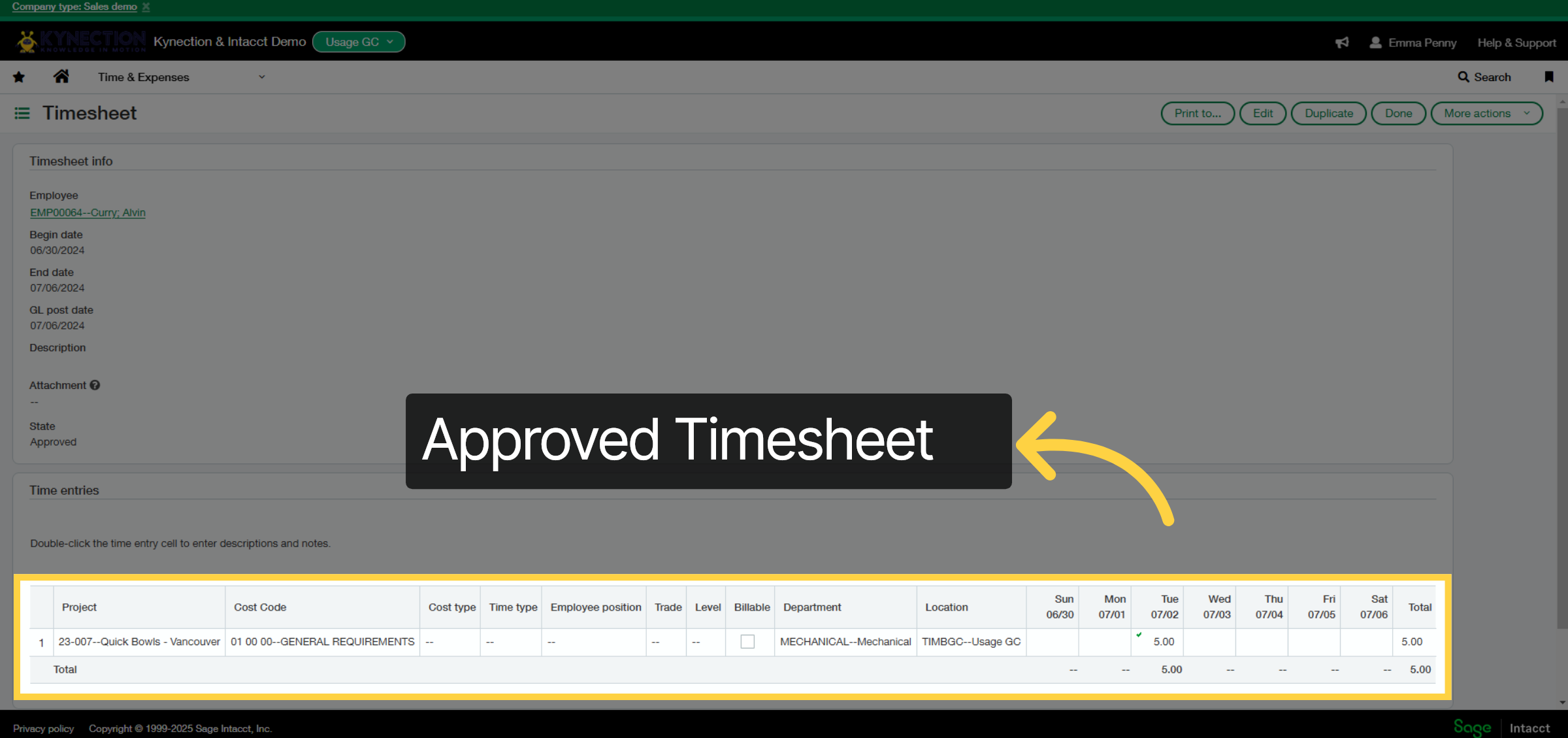
44. Timesheet
You can view the job or project they checked into, along with the total hours worked.
Thanks for watching

