This guide outlines key actions within Kynection to help you maintain your ISO certification, prepare for annual audits, and ensure ongoing compliance with ISO standards. ISO Audits are conducted to evaluate the effectiveness and availability of an organisation’s management system, focusing on documented processes and tangible evidence of day-to-day implementation. It also facilitates the consistent completion of essential daily operational forms such as SWMS, JSAs, ITPs, and Meeting Minutes—each linked to easy-to-use, automated registers.
1. Knowledge Base
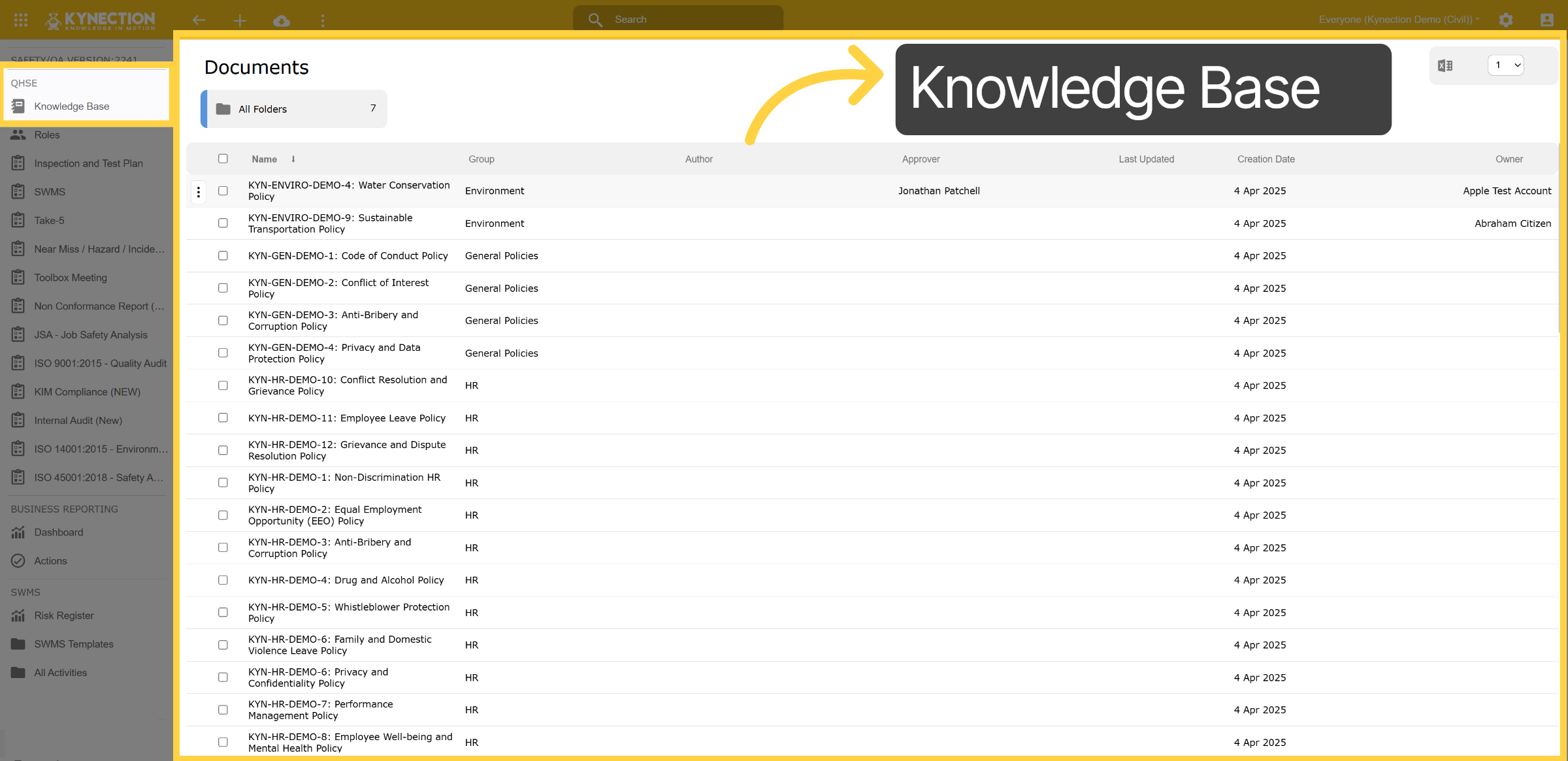
From the Home Dashboard, navigate to the Health and Safety module. Open the Knowledge Base, which act's as a centralised hub for storing, updating and sharing your policies, procedures, work instructions, SOPs, and other key documents. You can control user access and editing permissions, and include hyperlinks to external repositories such as Google Drive or SharePoint for seamless integration.
2. Any Document
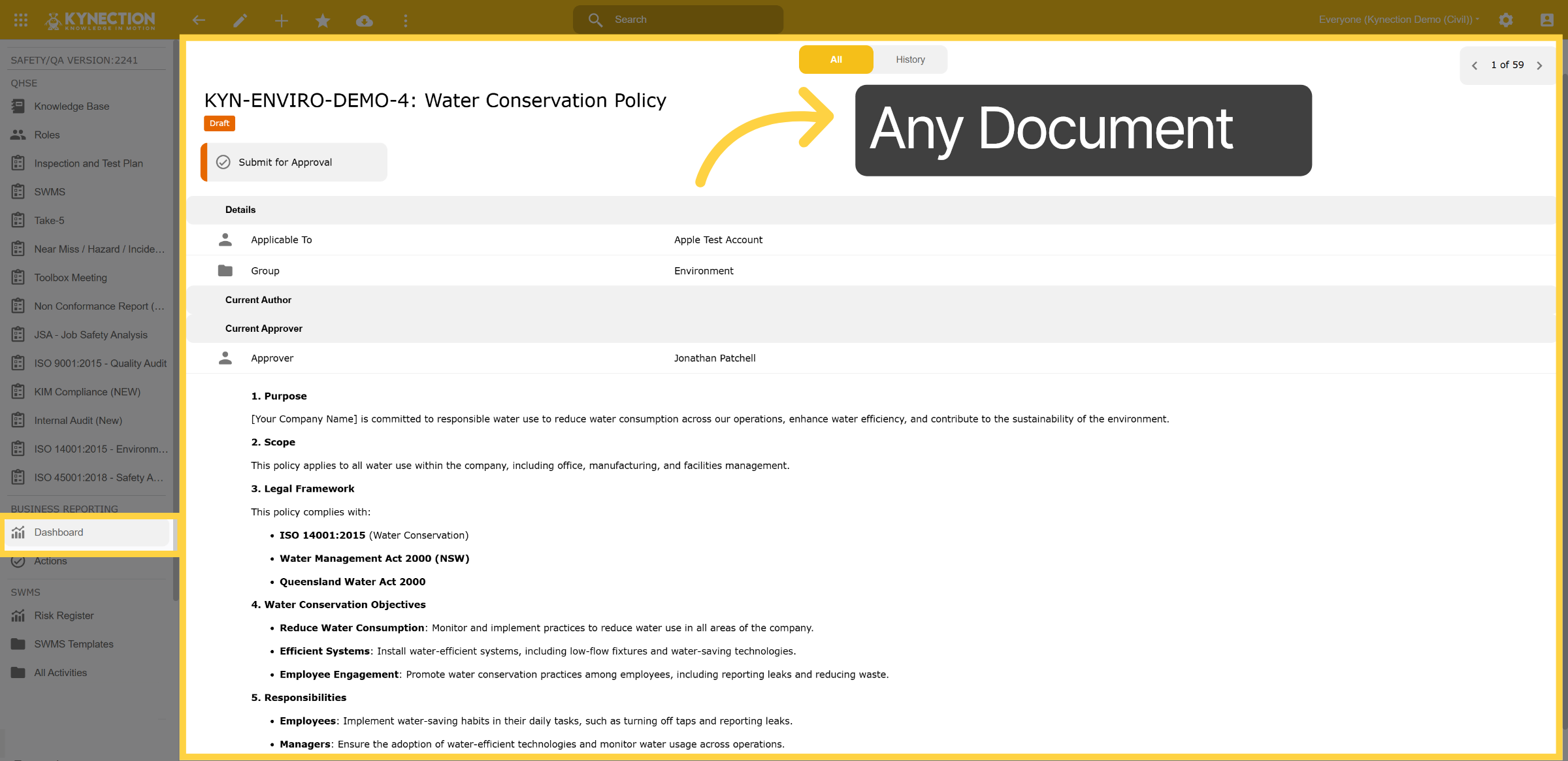
Within each document, you'll find version and access control tools, the ability to attach files and images, and an option to break procedures into smaller, mobile-friendly steps. Knowledge Base documents can also be linked as mandatory induction items within KIM’s HR module—capturing acceptance and validation records for compliance.
3. Dashboard
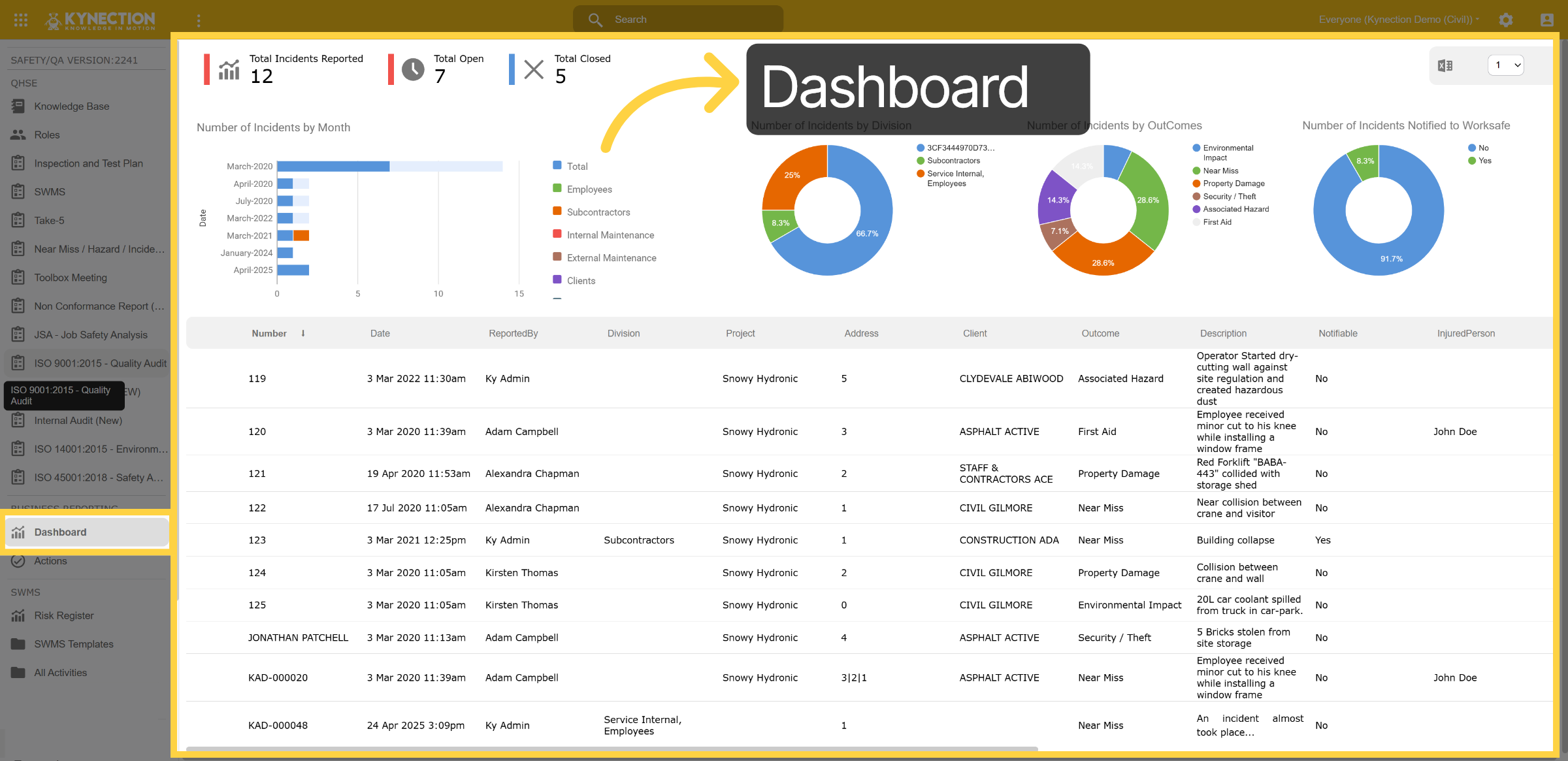
In the dashboard, you can access all Incident reports.Reports can be opened and reviewed anytime, with forms updating in real-time. The system also works offline—forms are auto-saved as drafts and can be submitted later, ensuring no data is lost.
4. ISO 9001
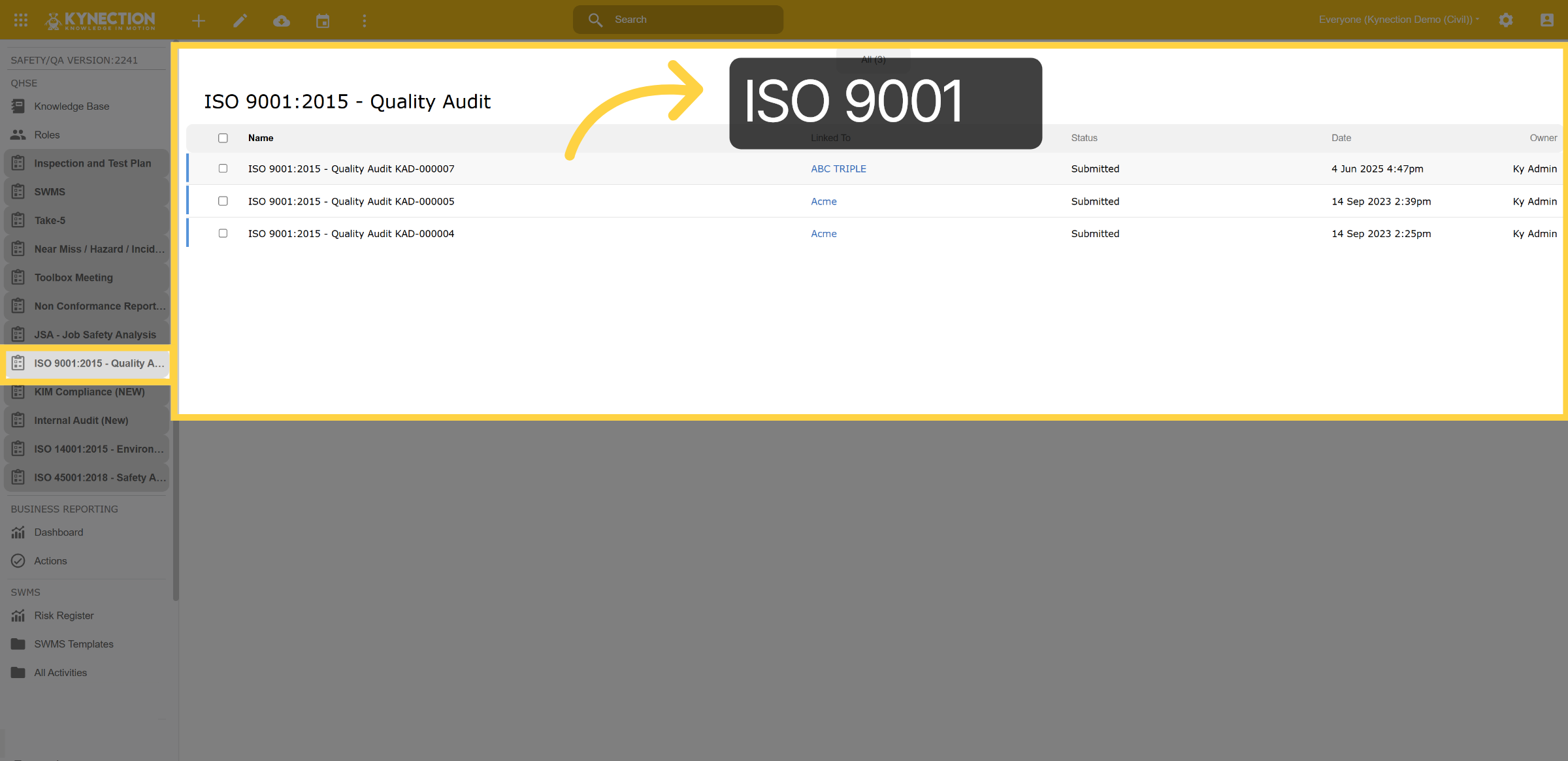
On the left panel, you'll find all your registers. Each register provides instant access to critical data on completed forms or issues raised in KIM, with customisable columns to suit your reporting needs. Within the ISO 9001 register, you can view a list of all ISO 9001 checklists that have been started and completed.
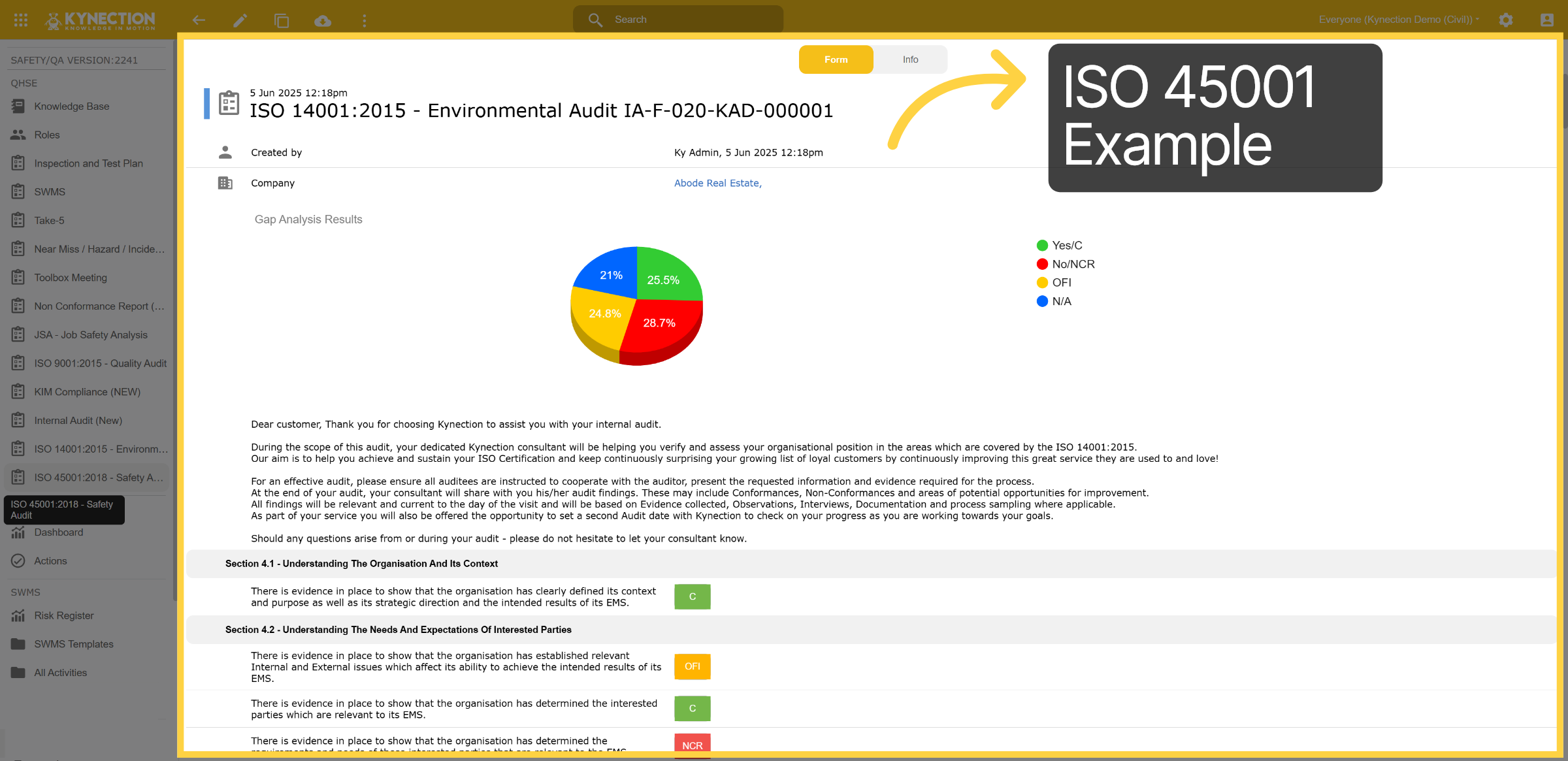
5. ISO 45001 Example
This is an example of an ISO 14001 Environmental Audit. The checklist is fully customisable and can be configured to suit your organisation, aligning with ISO accreditation standards. The gap analysis results are presented in a pie chart, clearly highlighting areas of compliance, non-compliance, and opportunities for improvement.
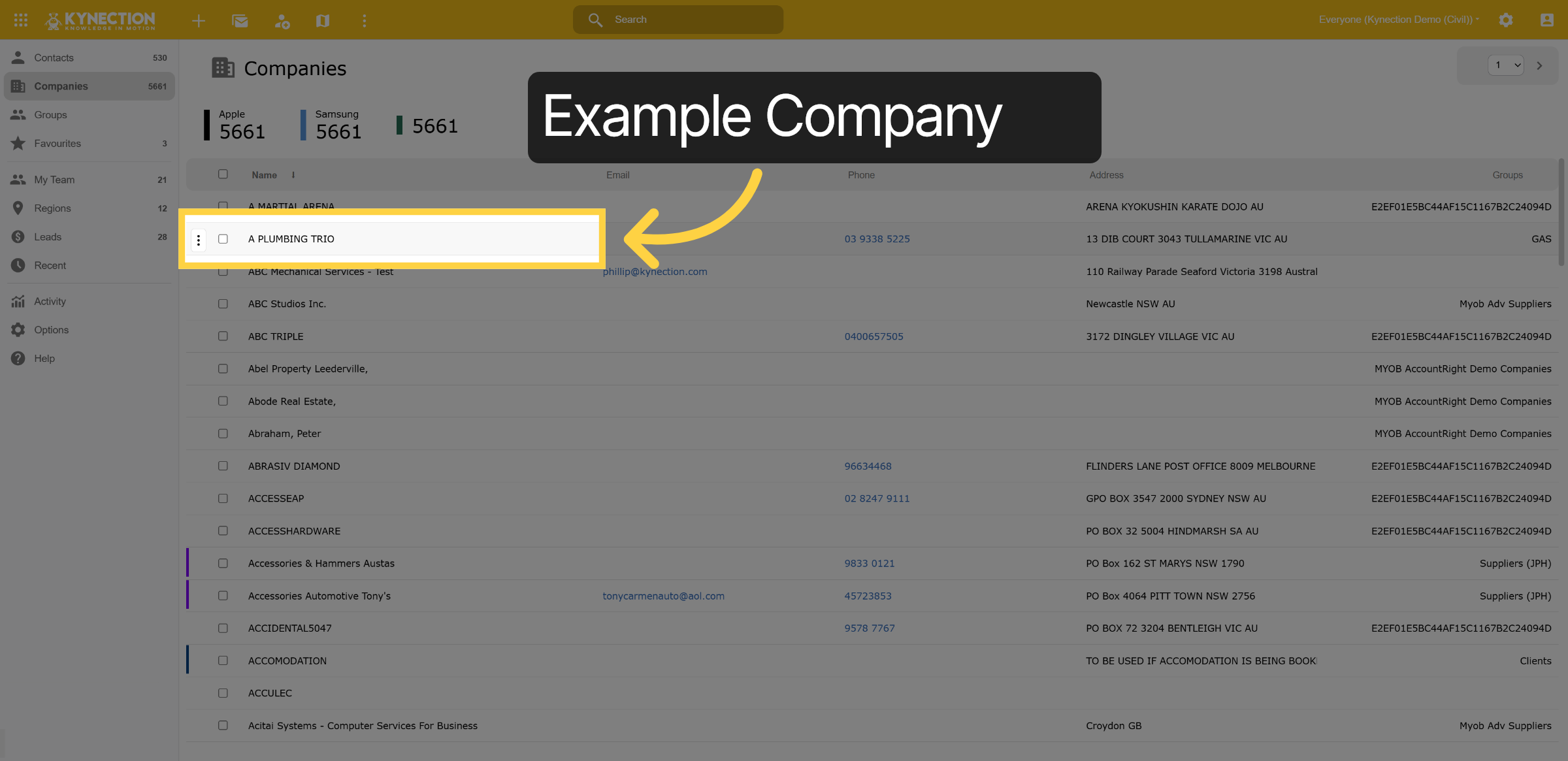
6. Example Company
To begin an audit, select your own company from the company list in contacts.
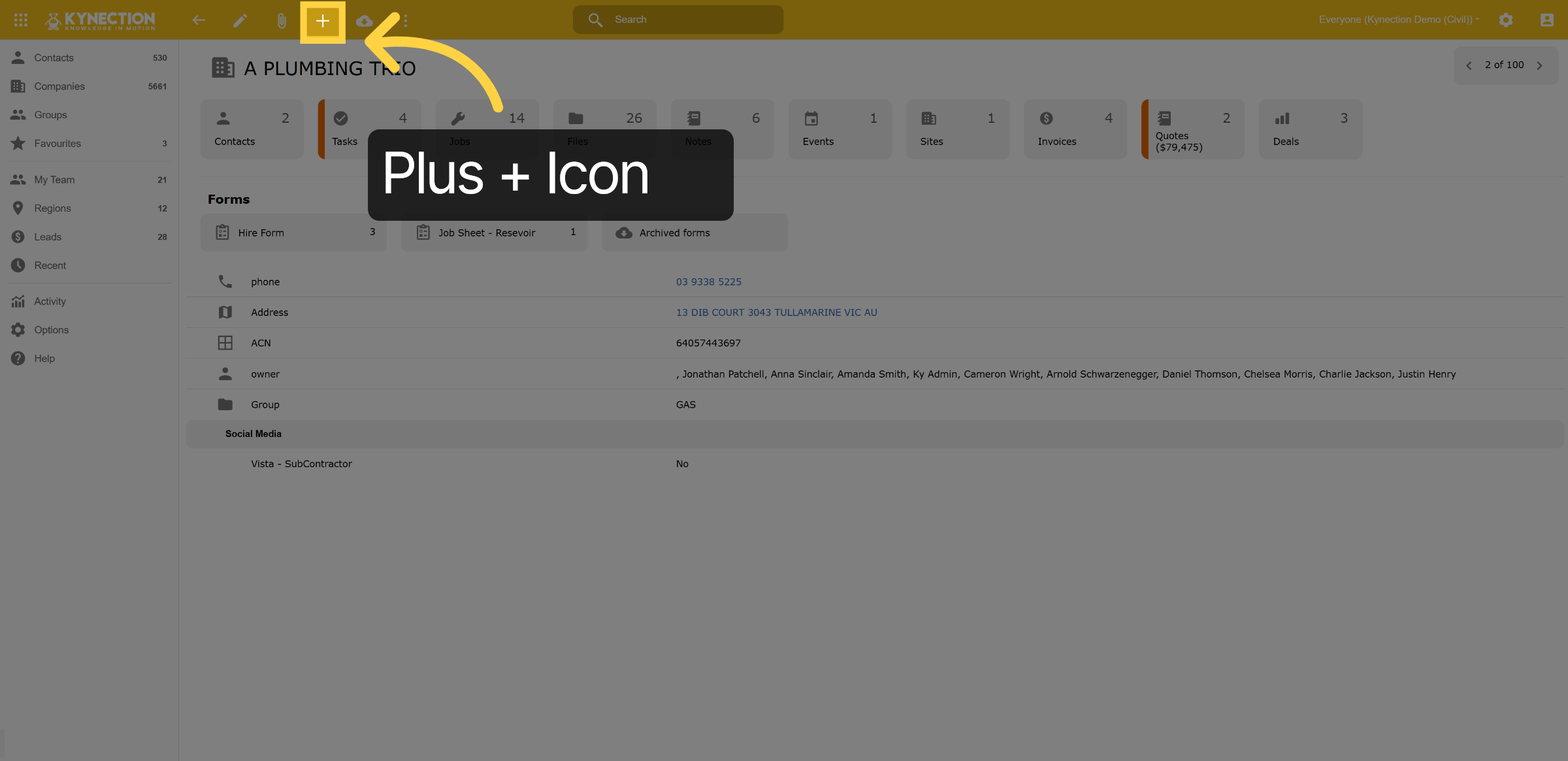
7. Plus + Icon
Within the Container of the company, selec on the plus icon
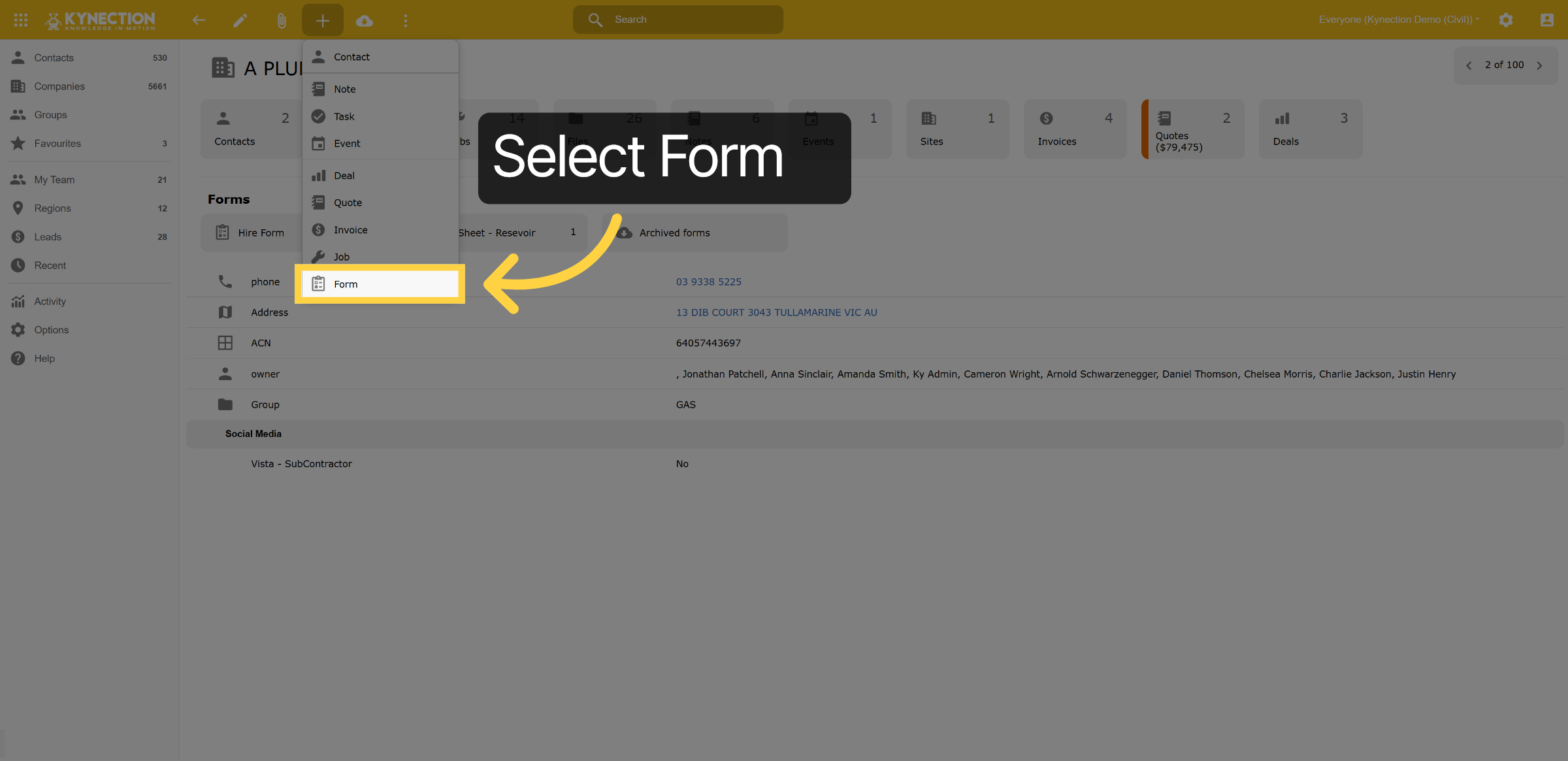
8. Select Form
Access the Form section.
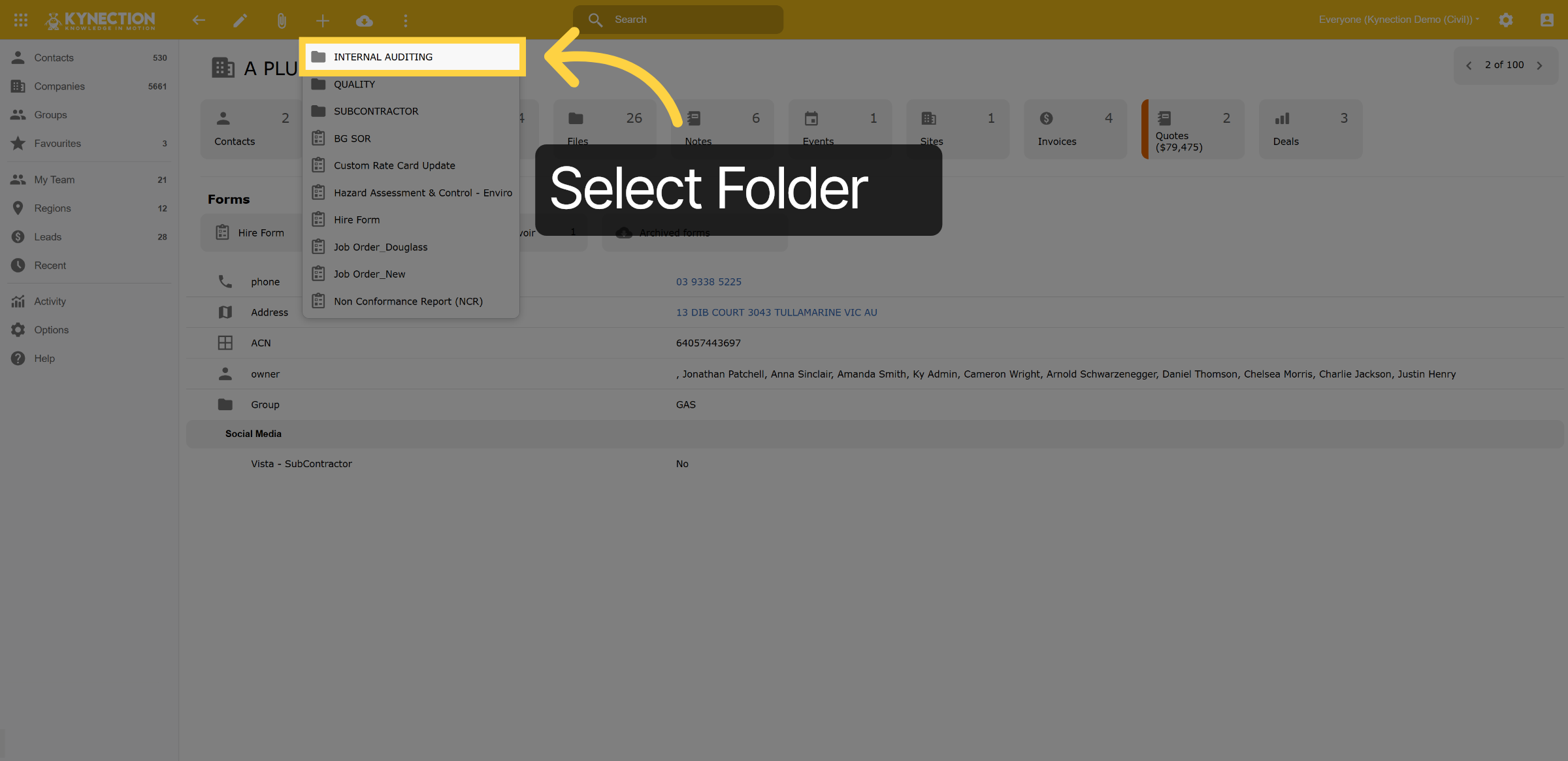
9. Select Folder
Select the folder that contains all your checklists. In this example it's labelled Internal Auditing
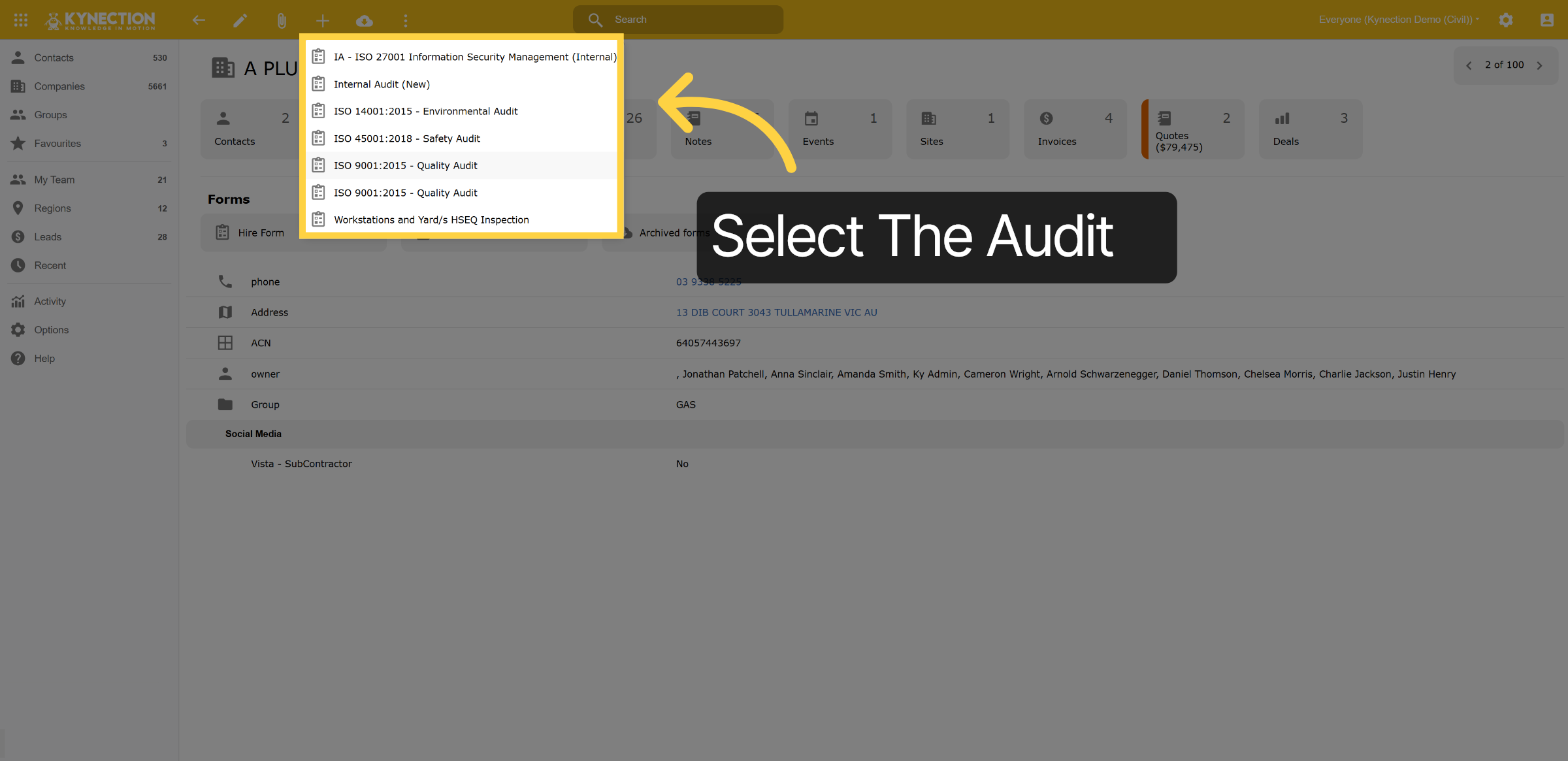
10. Select The Audit
Select the audit you wish to conduct.
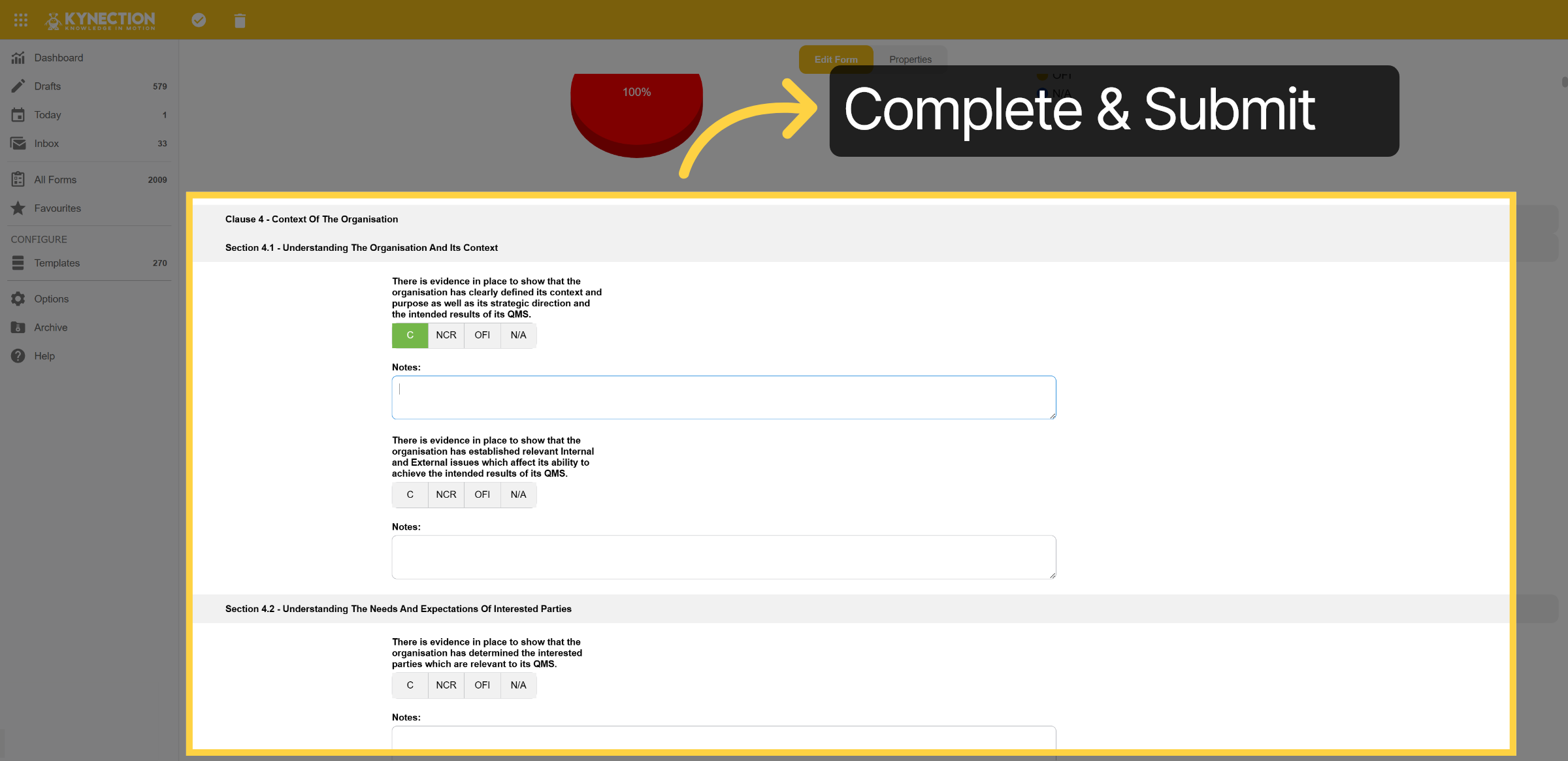
11. Complete & Submit
Complete the assessment and submit it through.
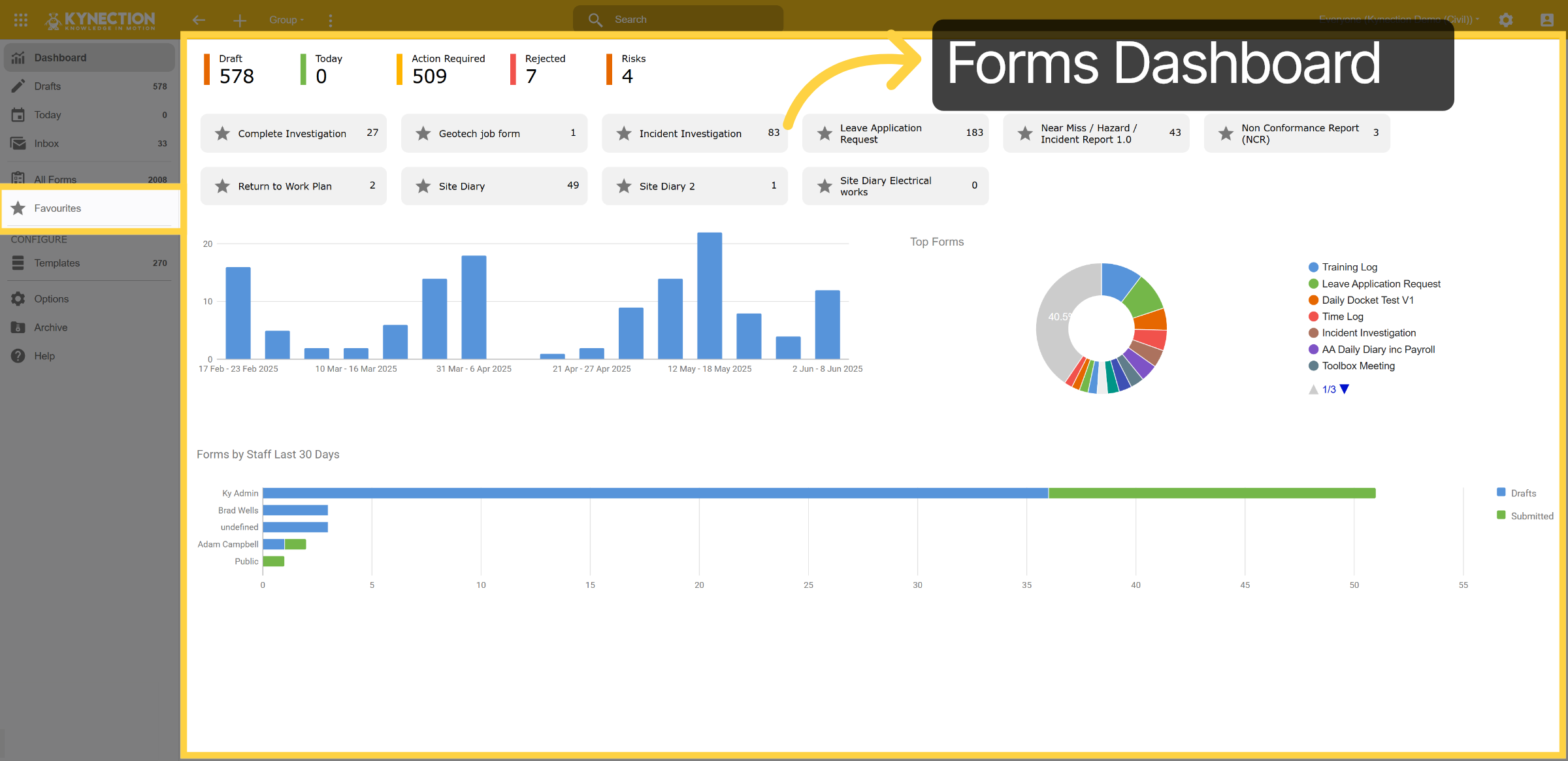
12. Forms Dashboard
The Kynection Forms module allows you to design, allocate, and update Form Templates with full version and access control. You can also set favourites for quick access and track form completion across your workforce.
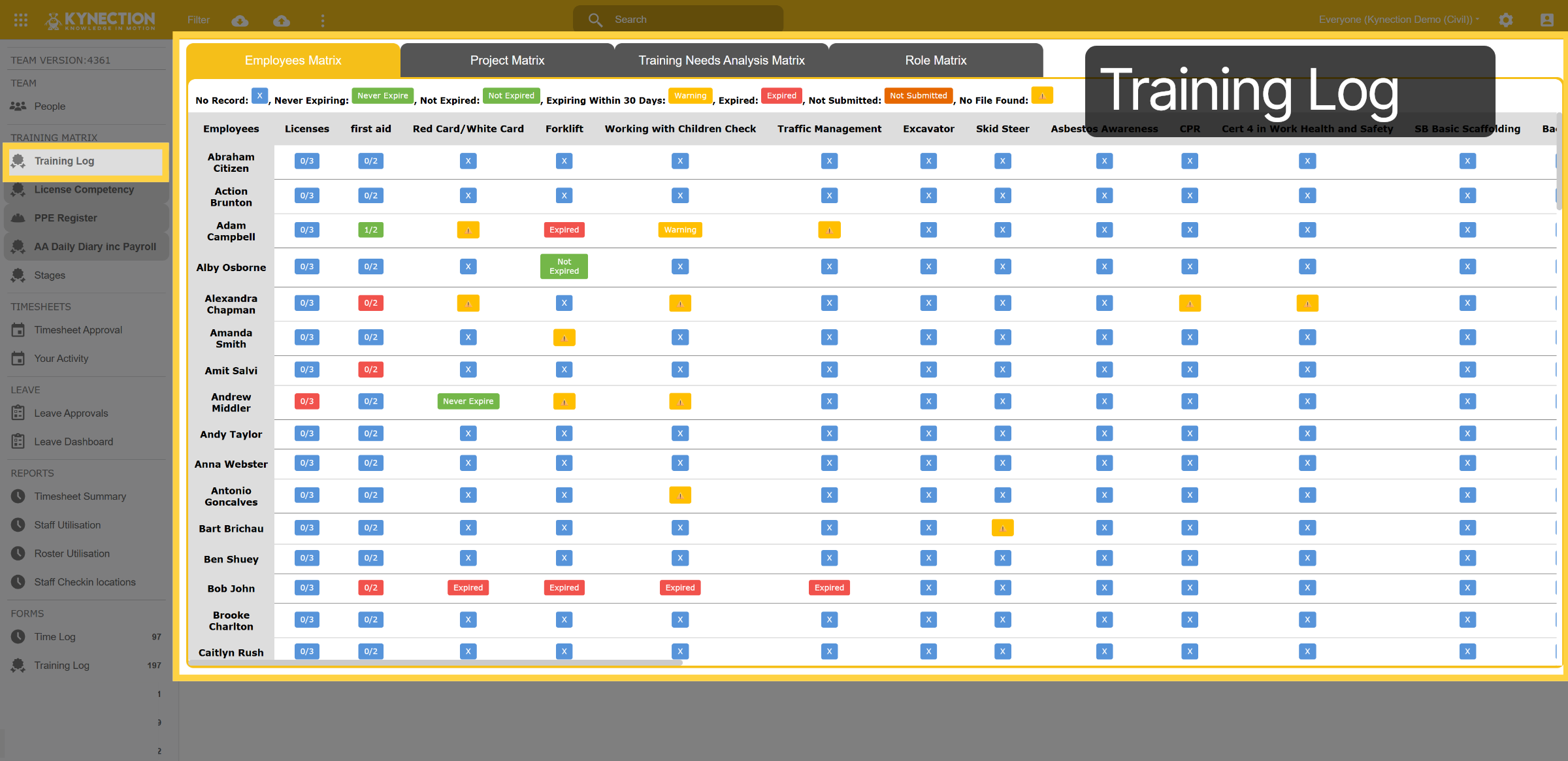
13. Training Log
All your training and competency requirements can be managed within Kynection’s HR Module, alongside key registers such as Licences, Competencies, Issued PPE, and more. Kynection also supports all key ISO requirements, including procurement, traceability, customer communication, employee support, training, and more.
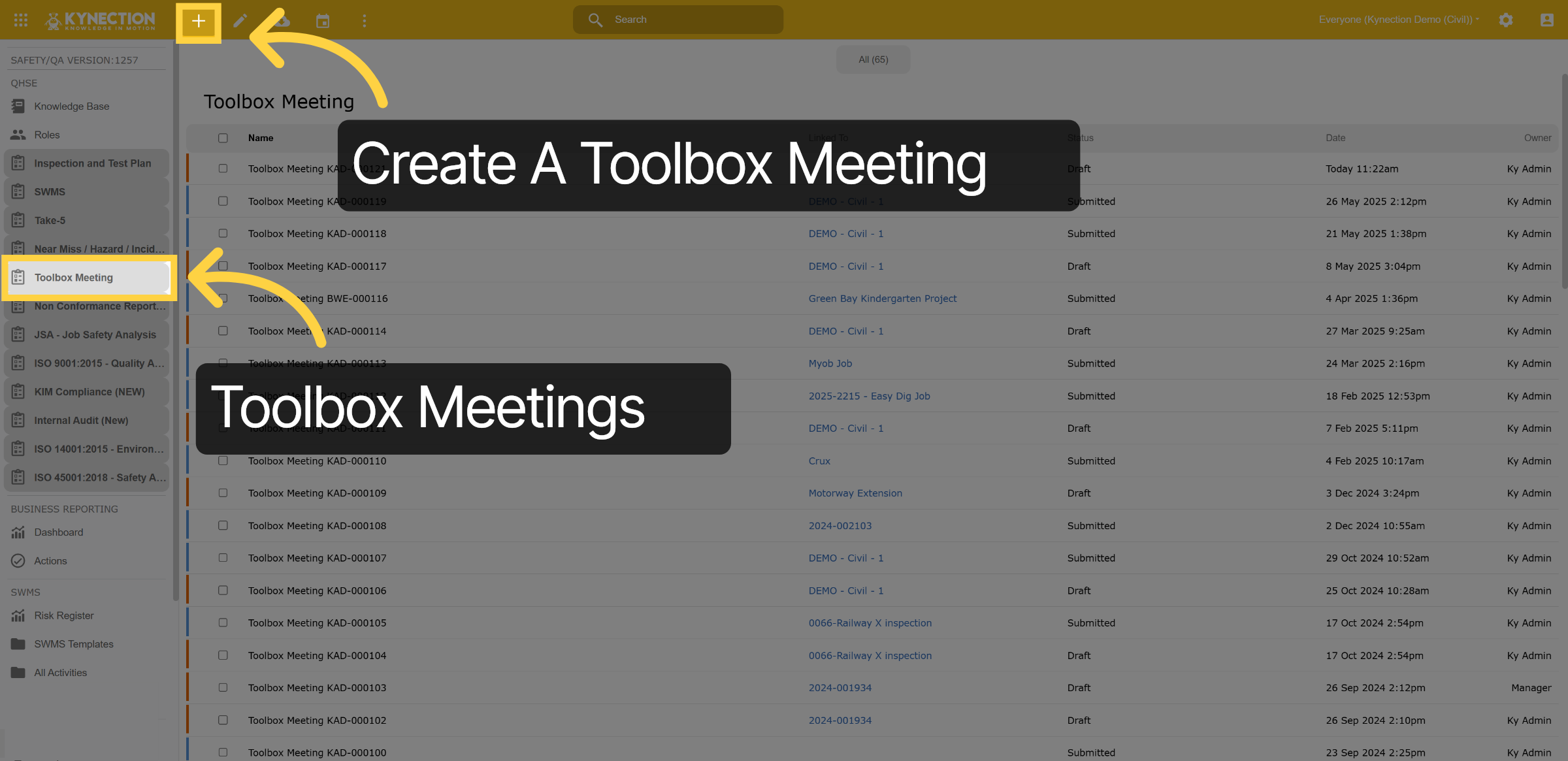
14. Toolbox Meetings
Within the HSEQ module select the Toolbox meeting Register from the left panel. A list of toolbox meetings will be displayed, with colour indicators showing which meetings are in draft or completed. Select the plus (icon to create a new entry.
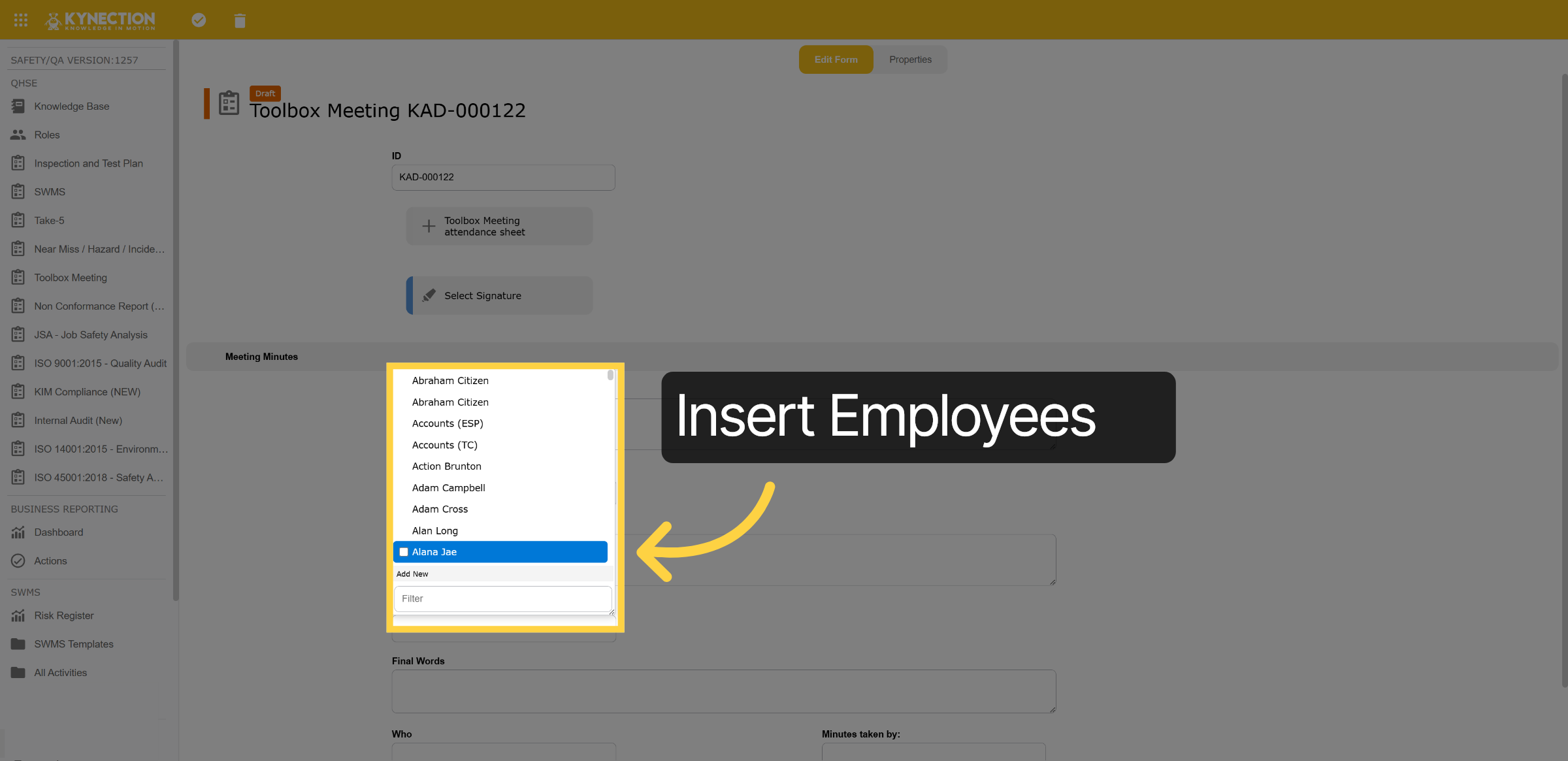
15. Insert Employees
Insert the employees in this section.
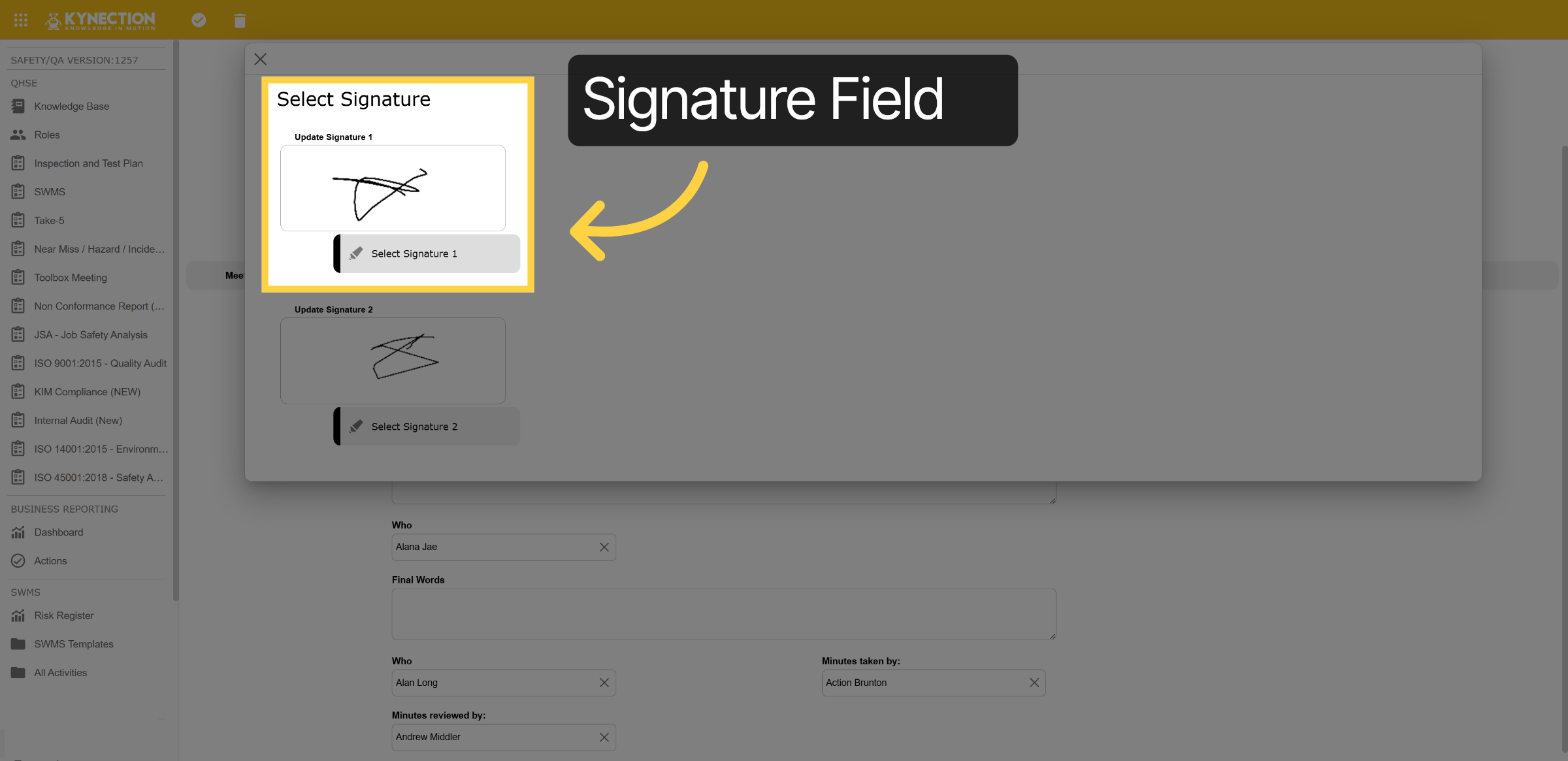
16. Signature Field
Create or insert your signature.
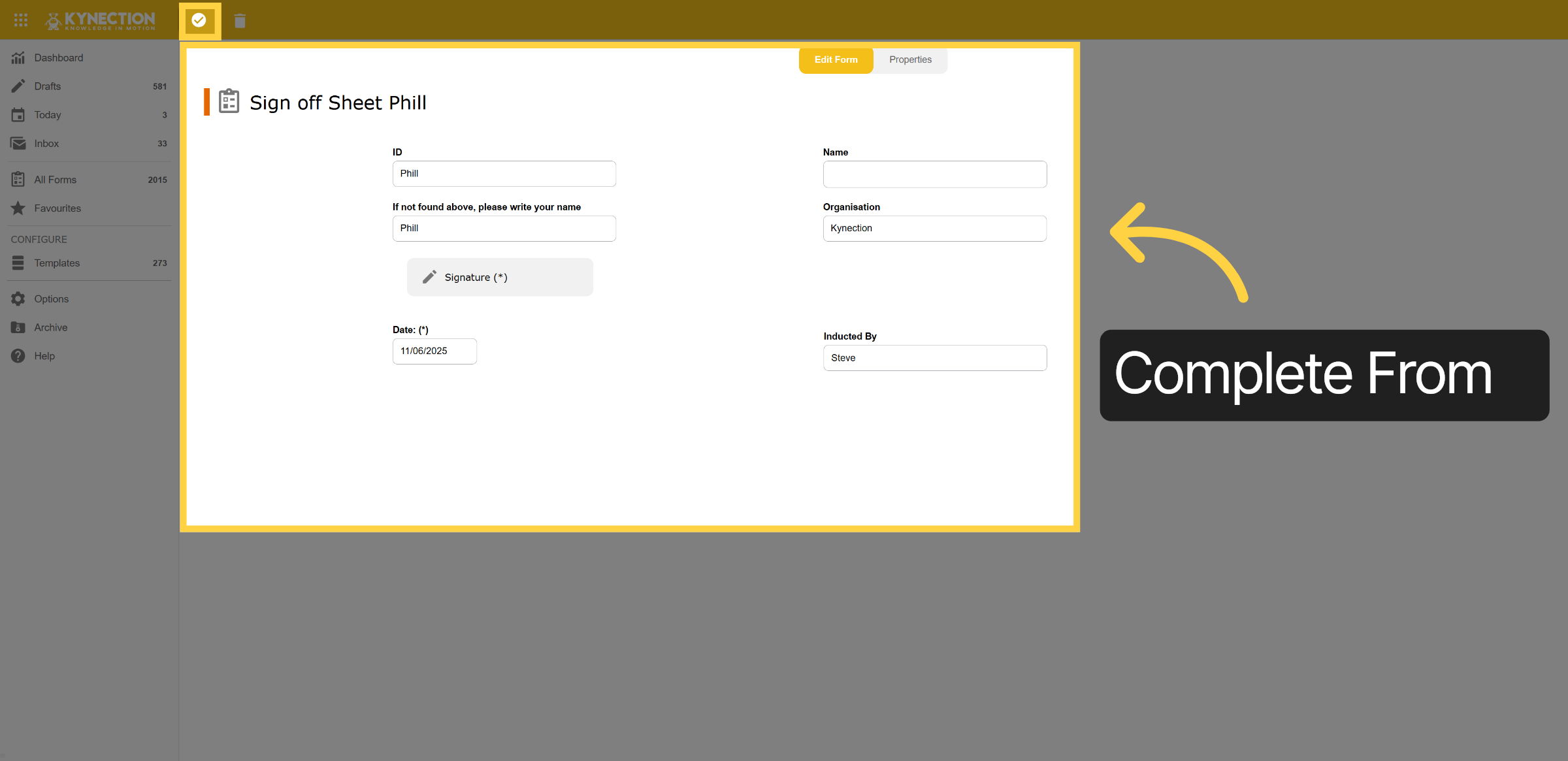
17. Complete From
Complete the Sign-Off Sheet Attendance subform, then click the tickbox icon to save.
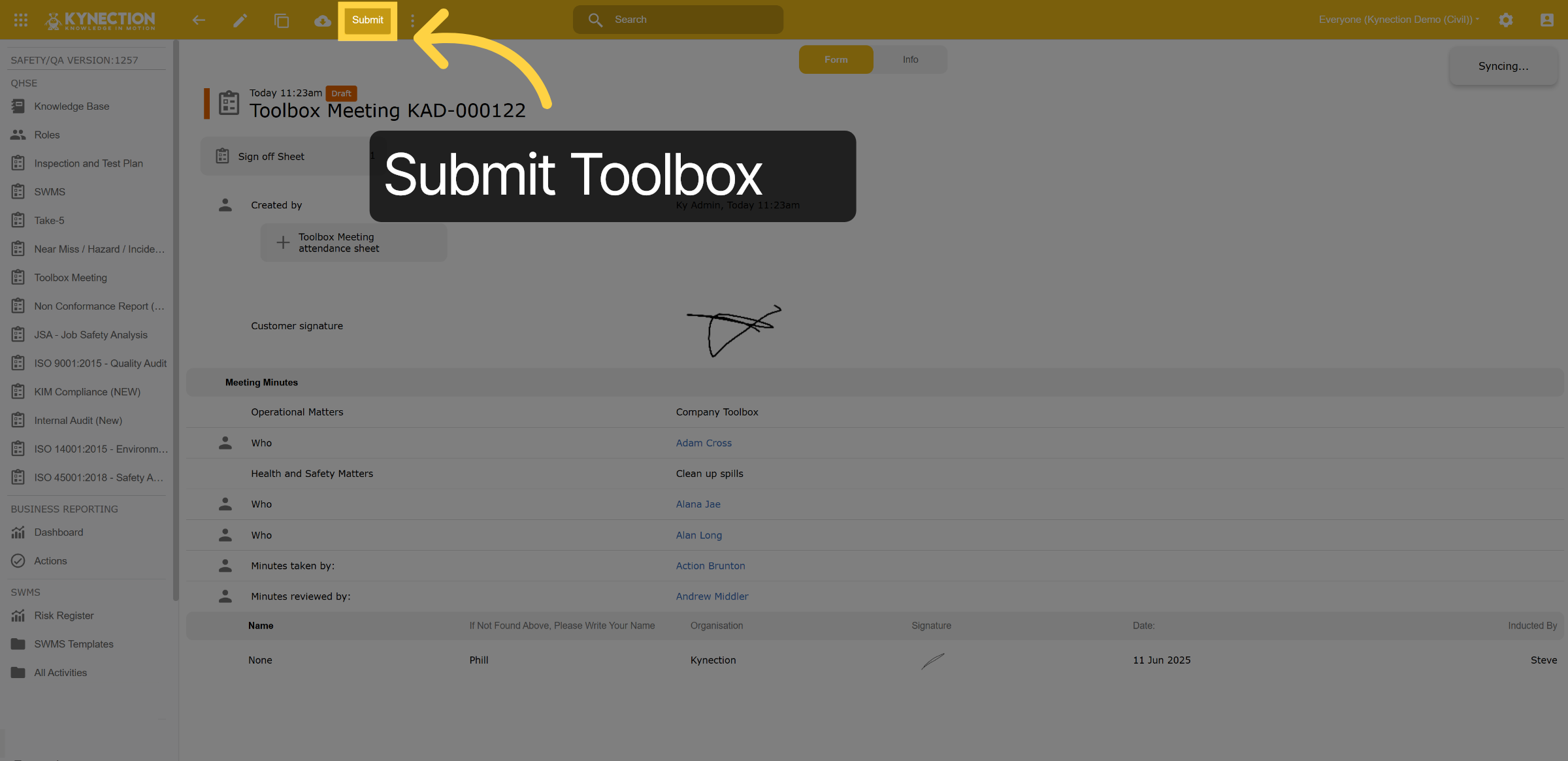
18. Submit Toolbox
Select Submit to submit the Toolbox Meeting form.
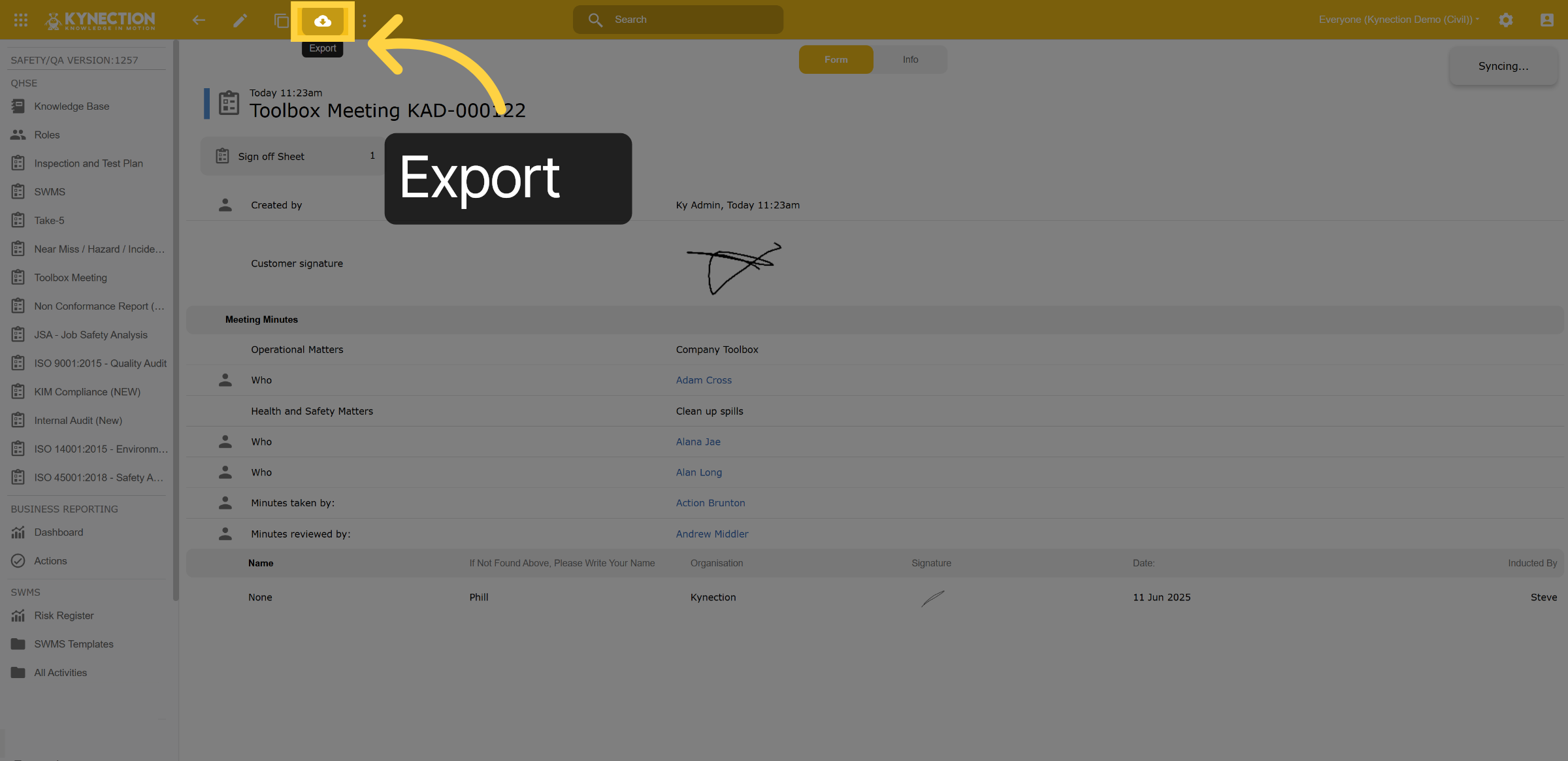
19. Export
Selec the cloud icon to export the form.
Thanks for watching

