This training will provide an overview of the various API endpoints that connect Kynection with MYOB Acumatica. Topics include Projects, Timesheets, stock and non-stock items, and Invoices.
1. Projects
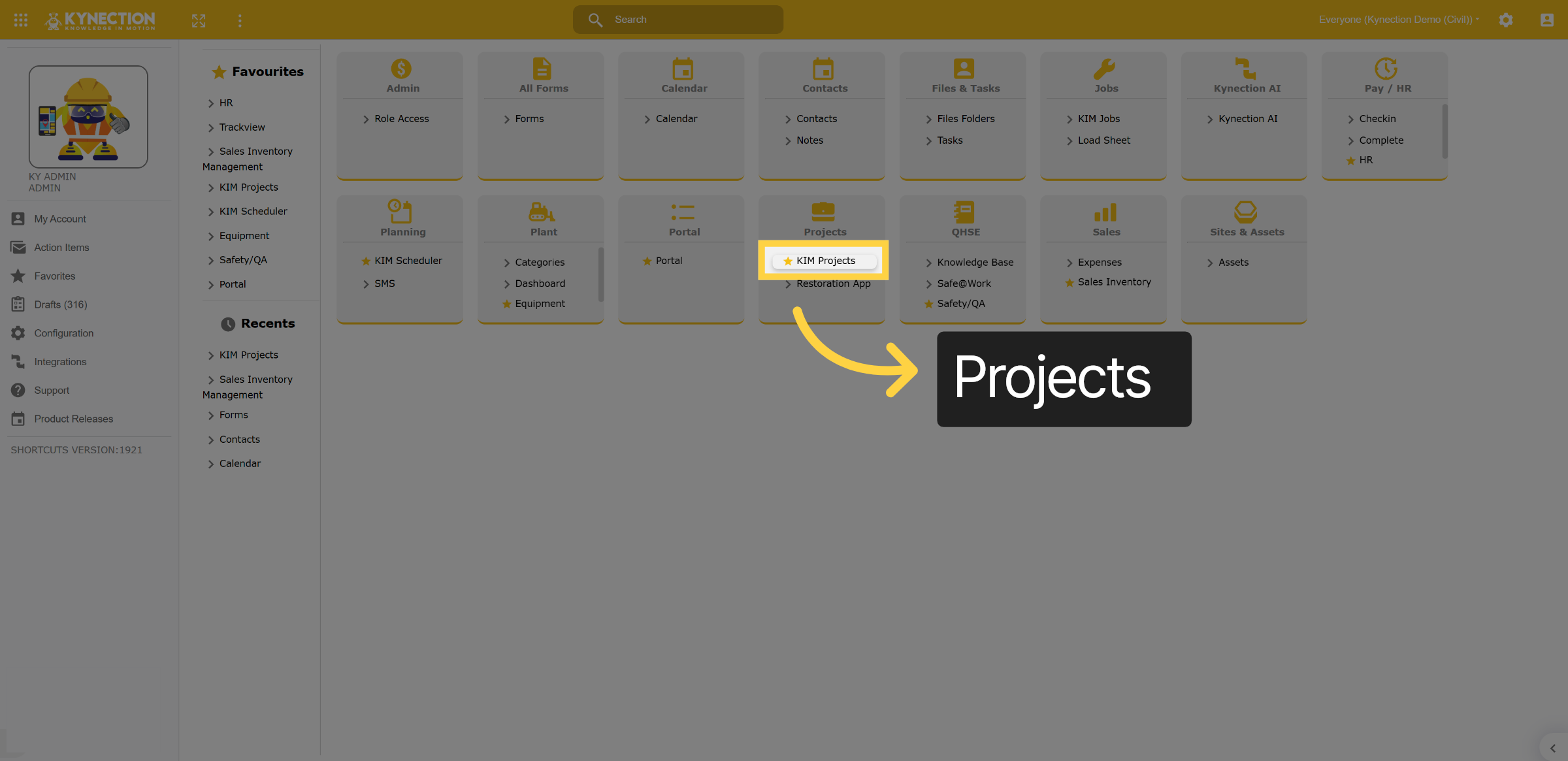
First, we will examine the connection between Projects. Go to the home dashboard and select the Projects module.
2. Select a Project
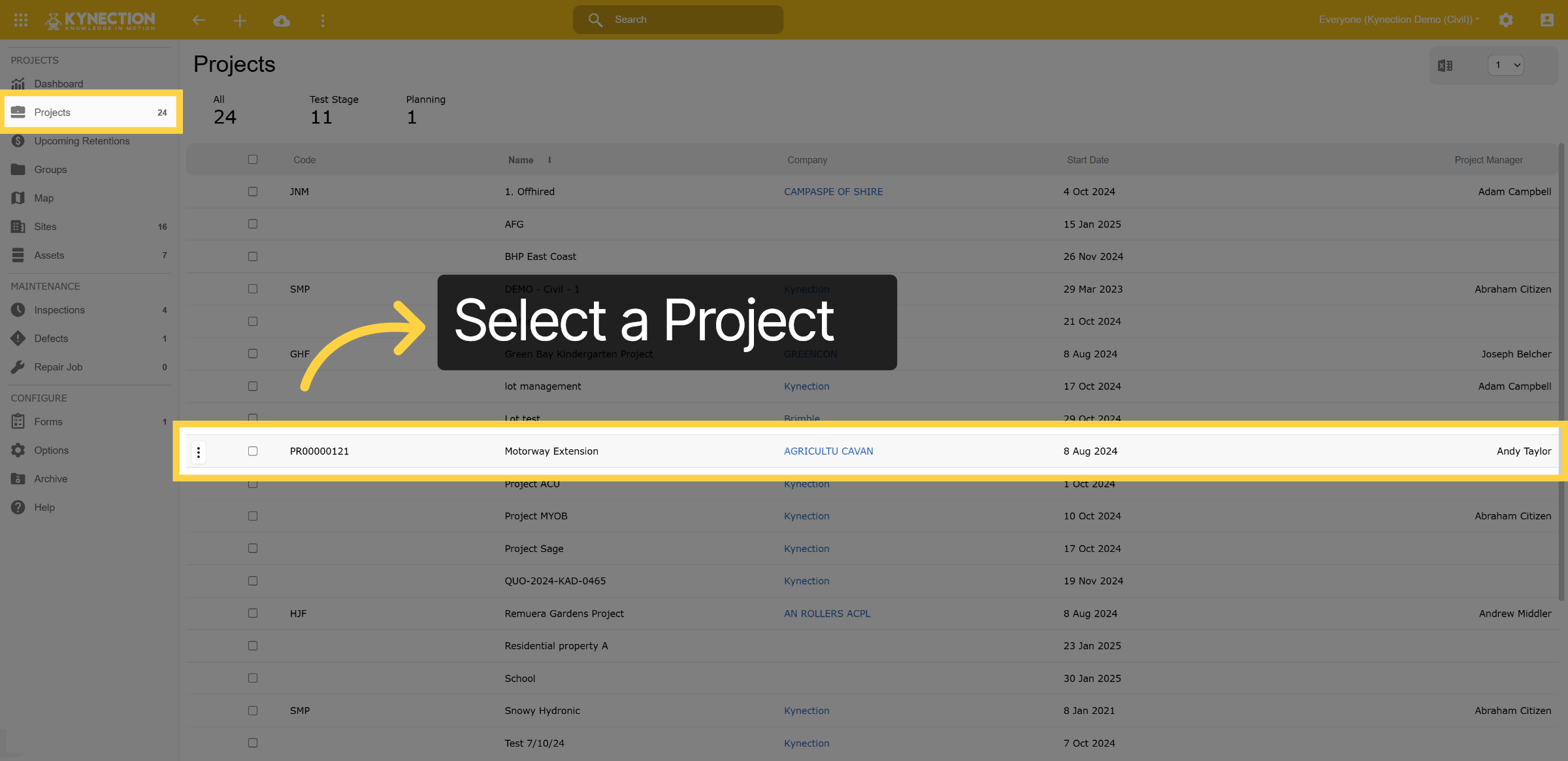
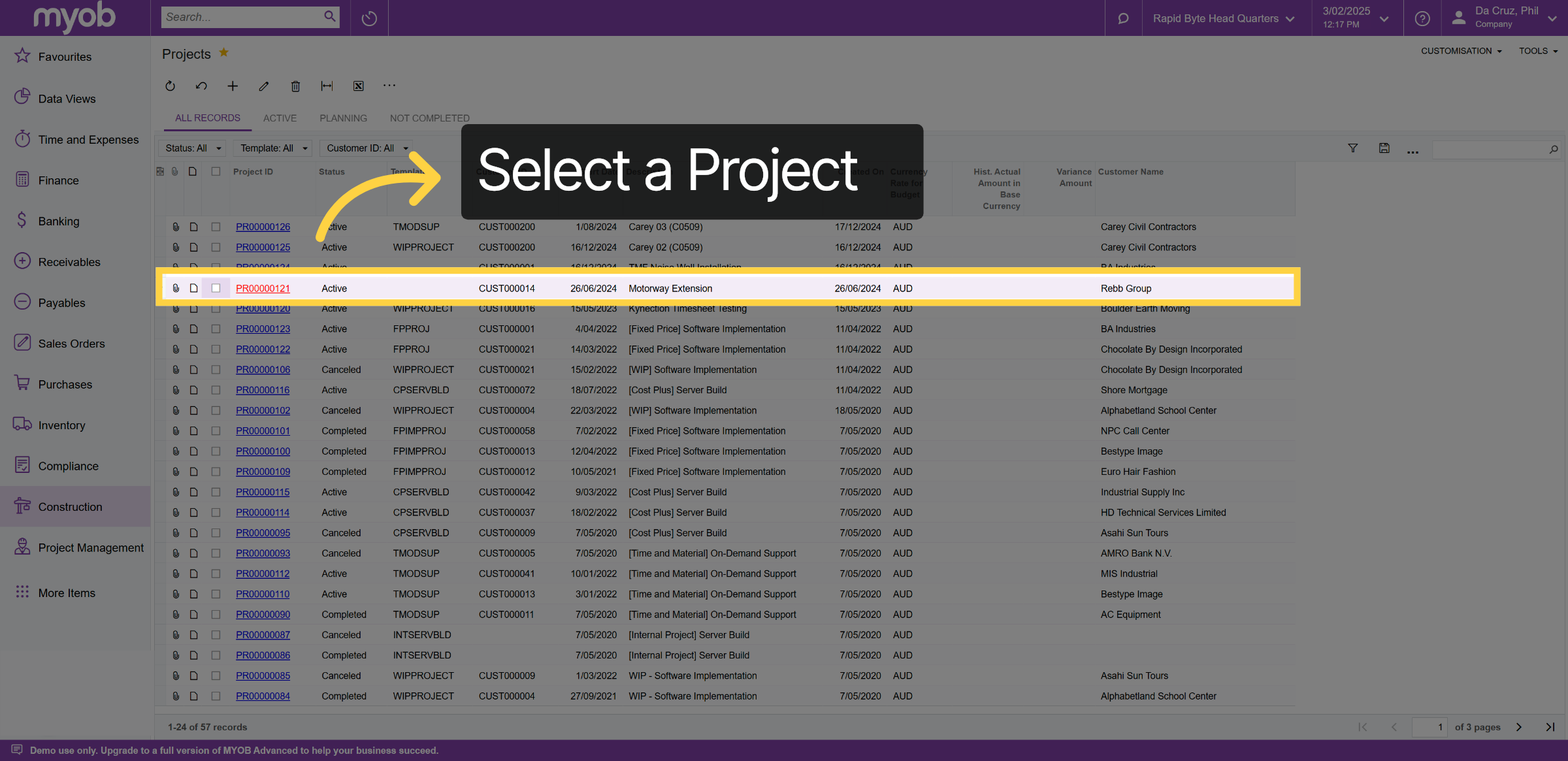
Here is a comprehensive list of all projects imported from MYOB Acumatica. For this example, we will explore the Motorway Extension project in detail.
3. Project Motorway
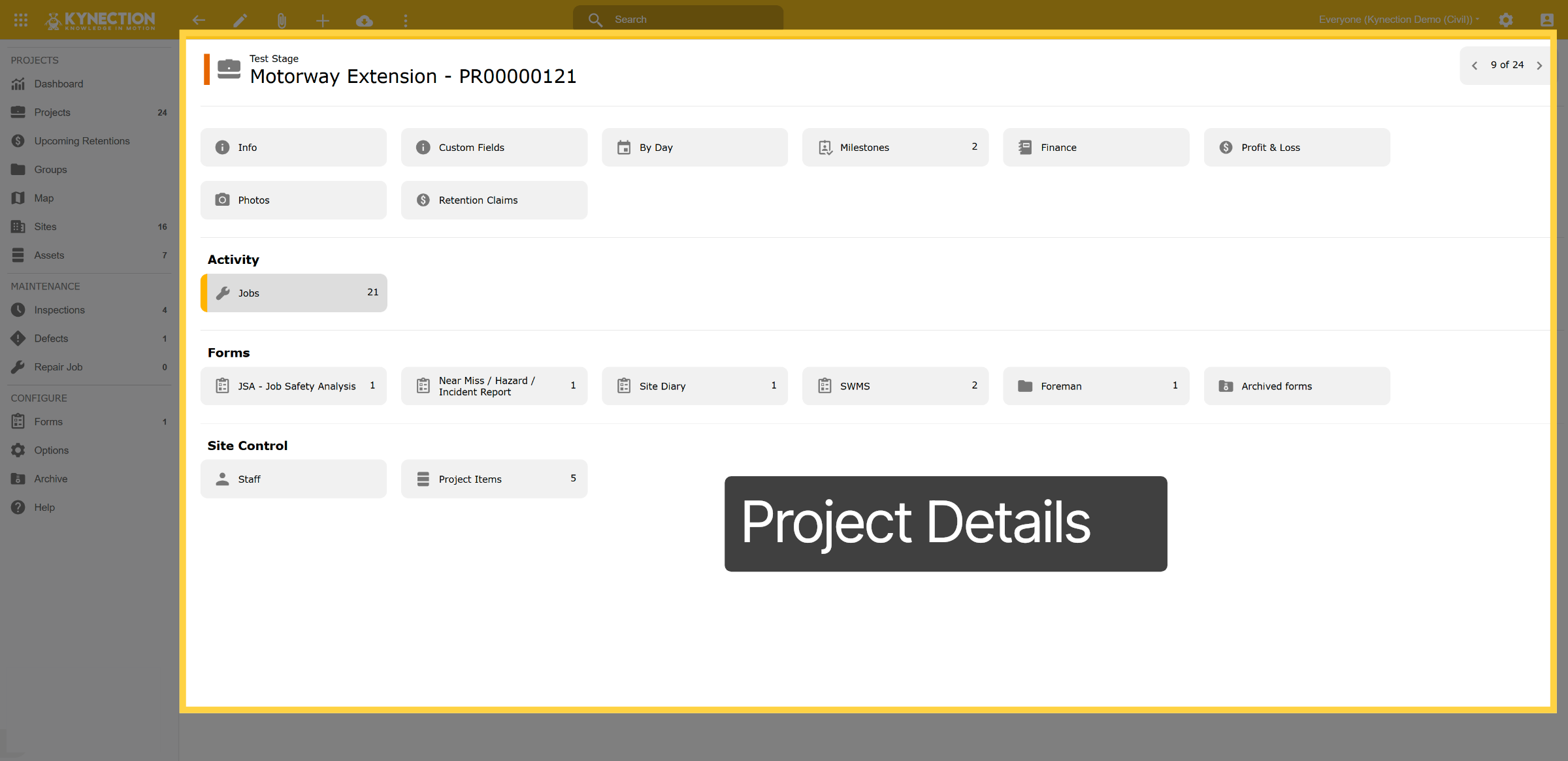
Within this project container, you can access all linked details and forms, including site diaries, photos, safety forms, equipment checklists, and more. You will also find staff allocation, alongside the materials and equipment assigned to the project. Furthermore, the project tasks and jobs are clearly visible, ensuring full transparency regarding the project's progress. The Kynection milestones are linked to the project tasks in MYOB Acumatica.
4. Projects
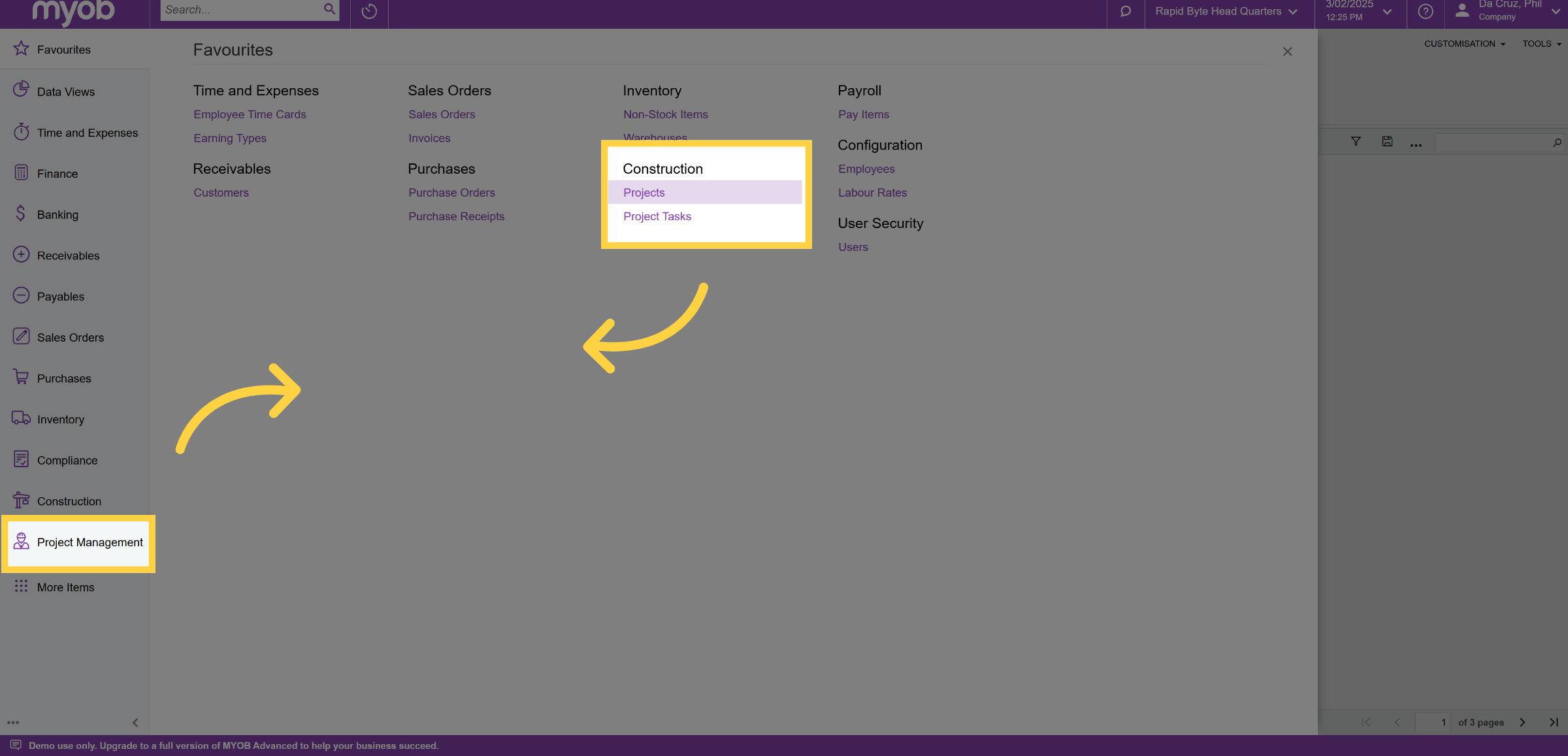
Let's take a closer look at a typical Myob Acumatica database. From the home dashboard, select the Project Management Module, or if it's in your favorites, choose Projects.
5. Project Motorway Extension
Within Projects dashboard, you’ll find a list of all your projects. Let’s select the Motorway Extension Project.
6. Motorway Extension Details
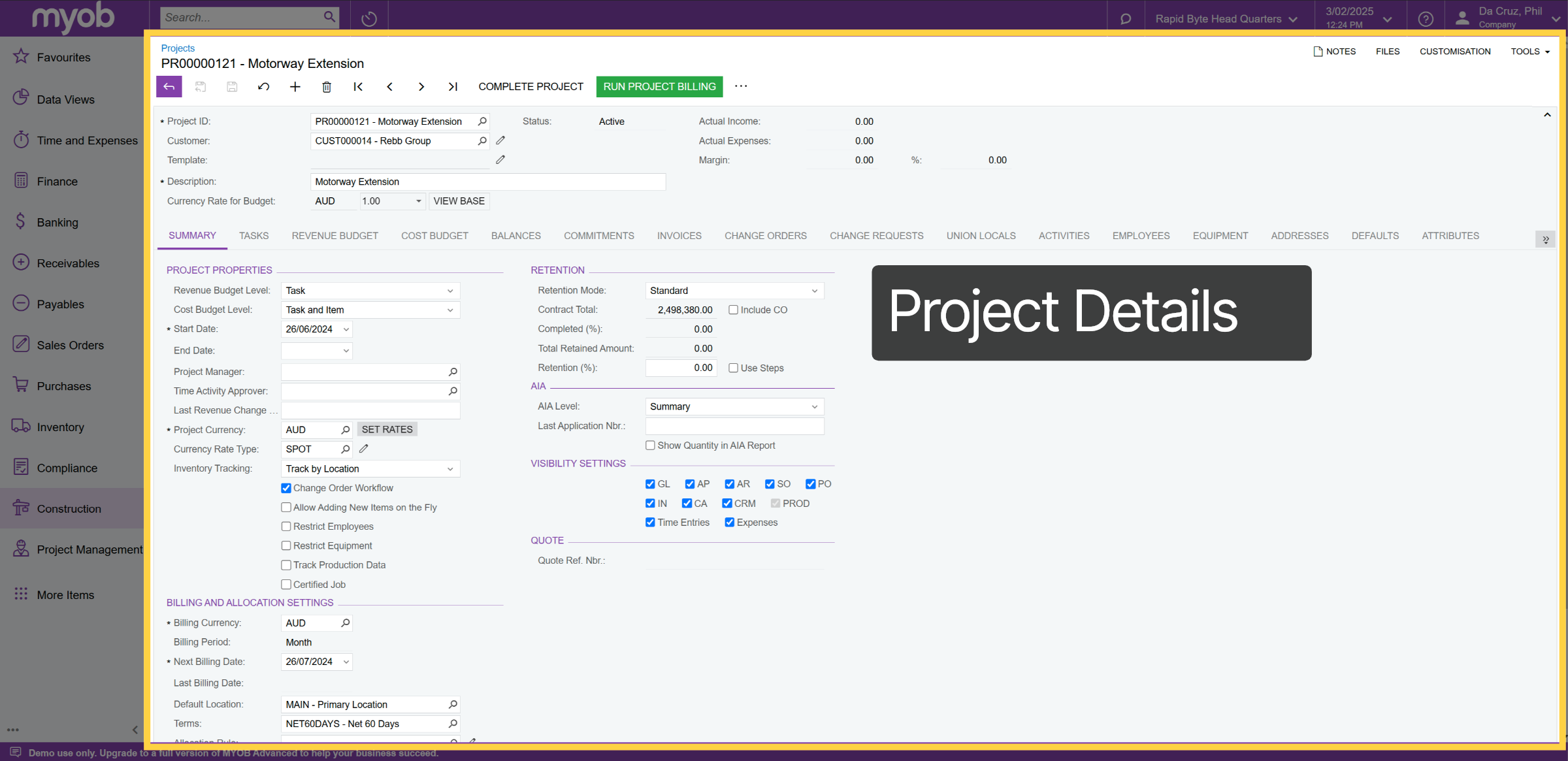
In this section, you can access all financial details related to the project, including completed tasks in Kynection, revenue and cost budgets, and all associated invoices and purchase orders. Thanks to the multi-directional API, customers can select where the source of truth resides—either in Kynection or MYOB Acumatica—providing the flexibility they require.
7. KIM Integration to Myob/Acumatica Time Cards
Let's examine the timesheet capture and payroll process from Kynection to MYOB Acumatica.

8. Add Timesheet
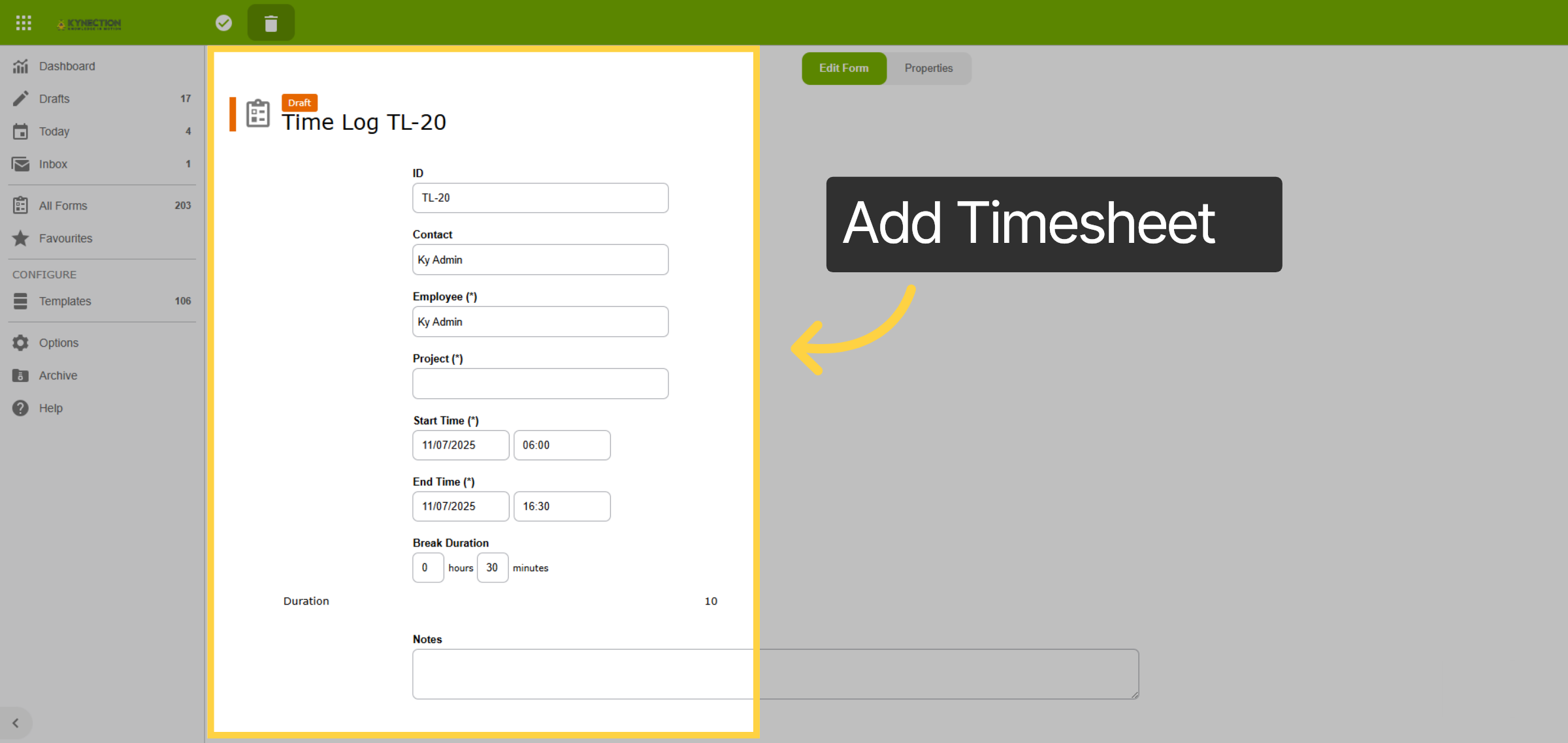
Within In Kynection there a re multiple ways capturing labour, from Kiosks, to mobile entry on your own device and much more for this example we will submit a timesheet via the web. Fro mthe Time sheet approval dashboard select the + icon and add a timesheet, subit the deails and select the tickbox ico
9. Bulk Approval
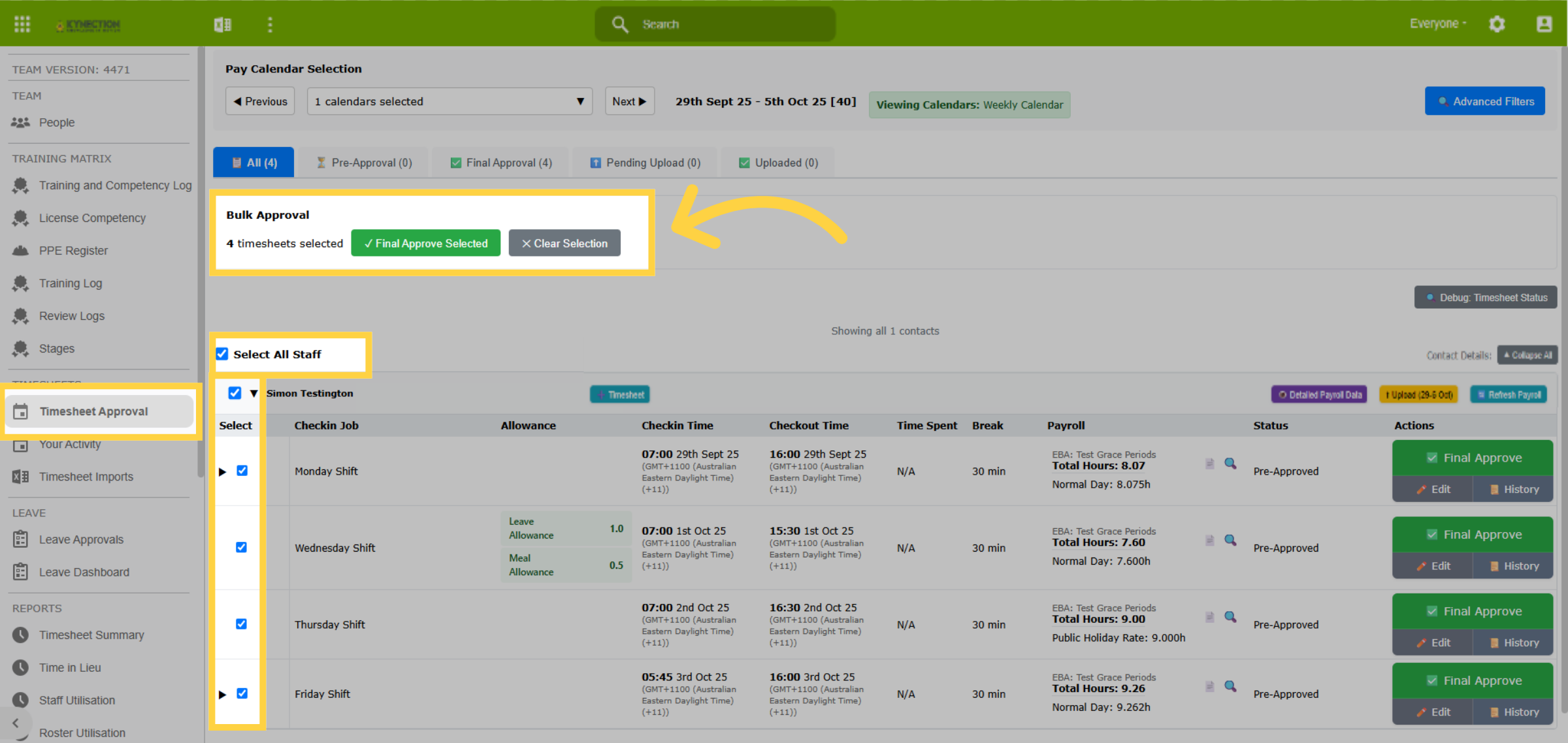
The timesheet approval dashboard in Kynection features a multi-step approval process. Initially, one manager will approve the first round of timesheets, which may be submitted by field staff. This is followed by a final approval from your HR manager in the office. You can choose to approve individual shifts or take advantage of the bulk approval feature.
10. Pending Upload
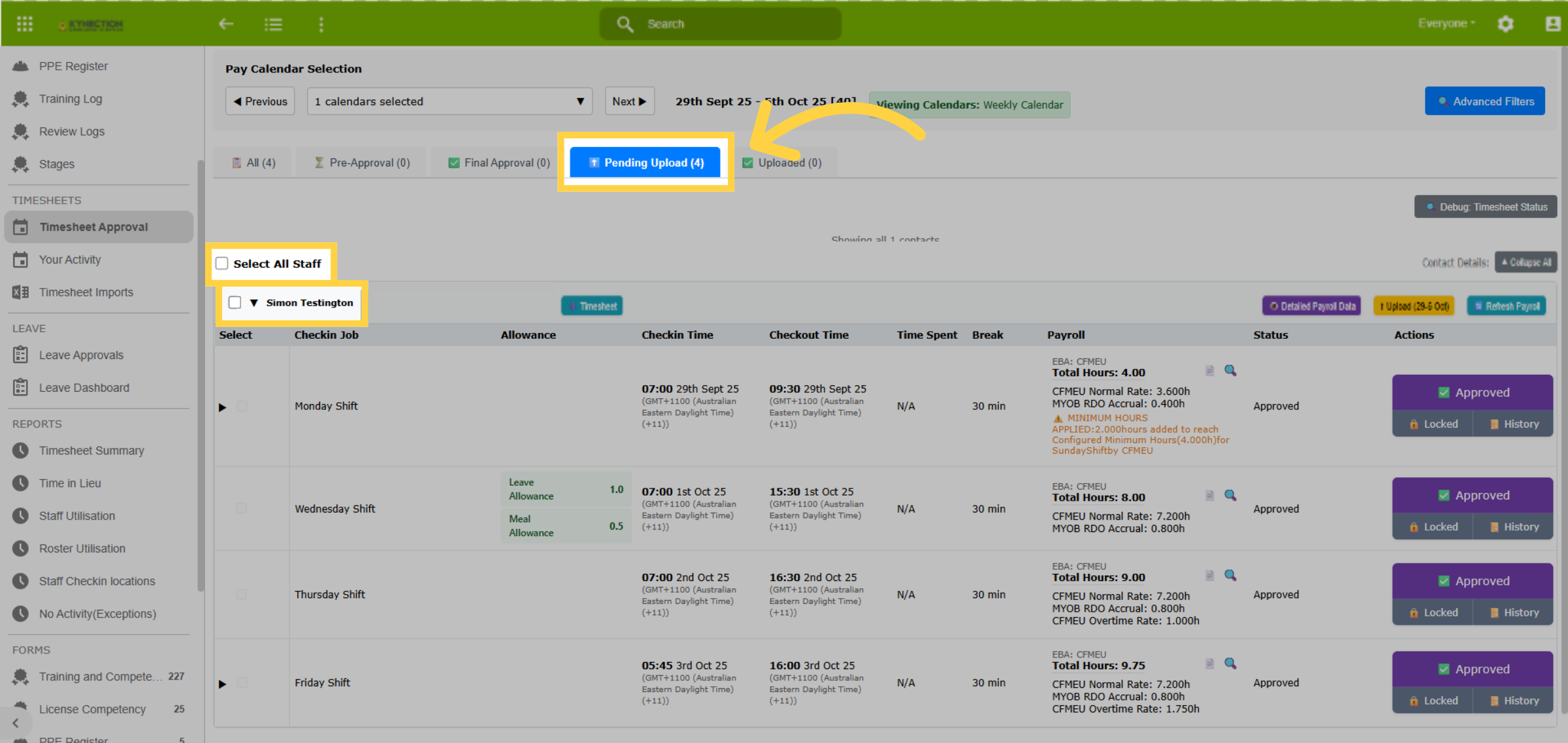
The "Pending Upload" tab lists all records that have received final approval and are ready for upload to the Accounting Package. To begin the upload process, select the desired records using the checkboxes for either All Staff or Individual Staff members.
11. Bulk Upload
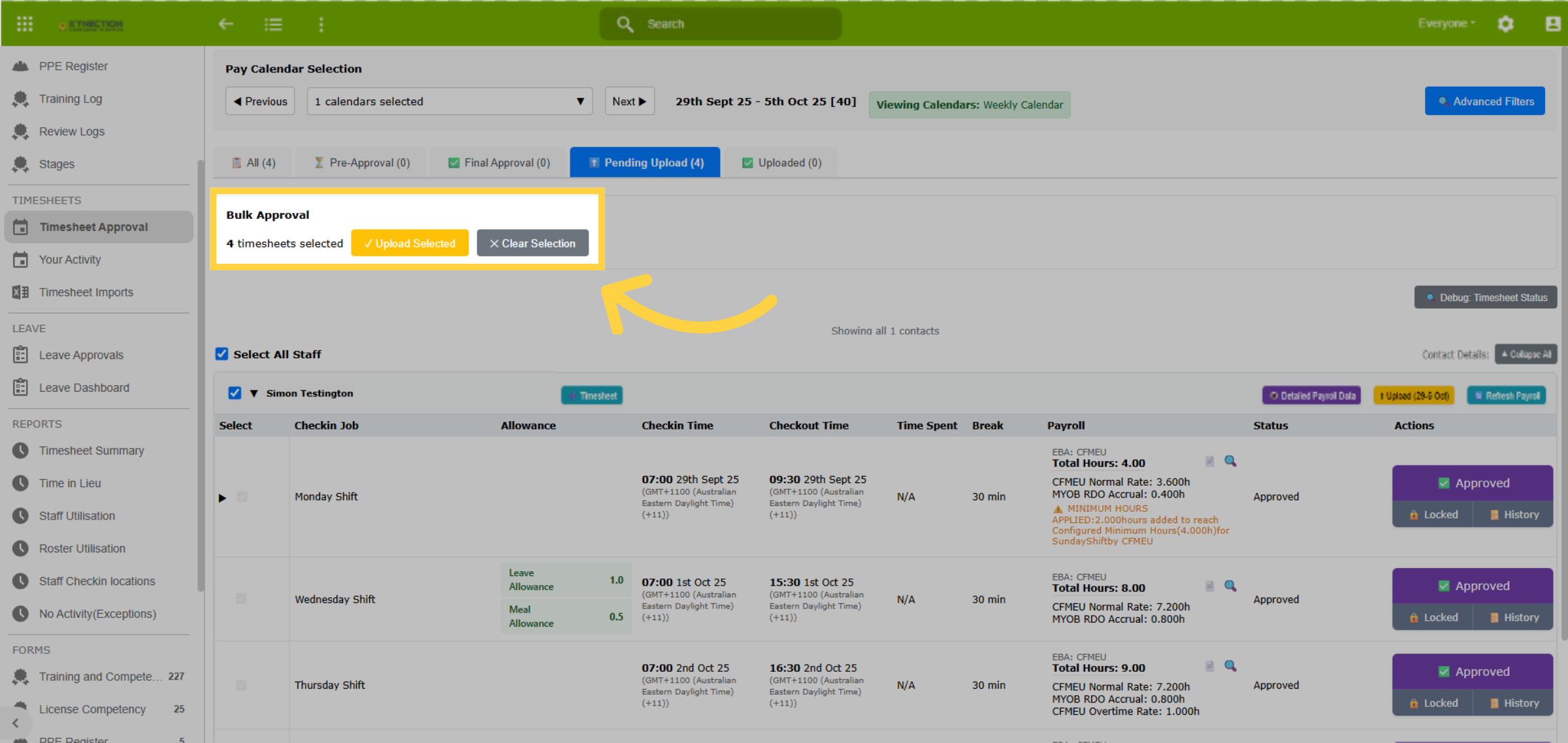
After records are selected, the "bulk approval" feature displays. Click the button for "Upload Selected" to transfer the timesheet records to the accounting package.
12. Uploaded Timesheets
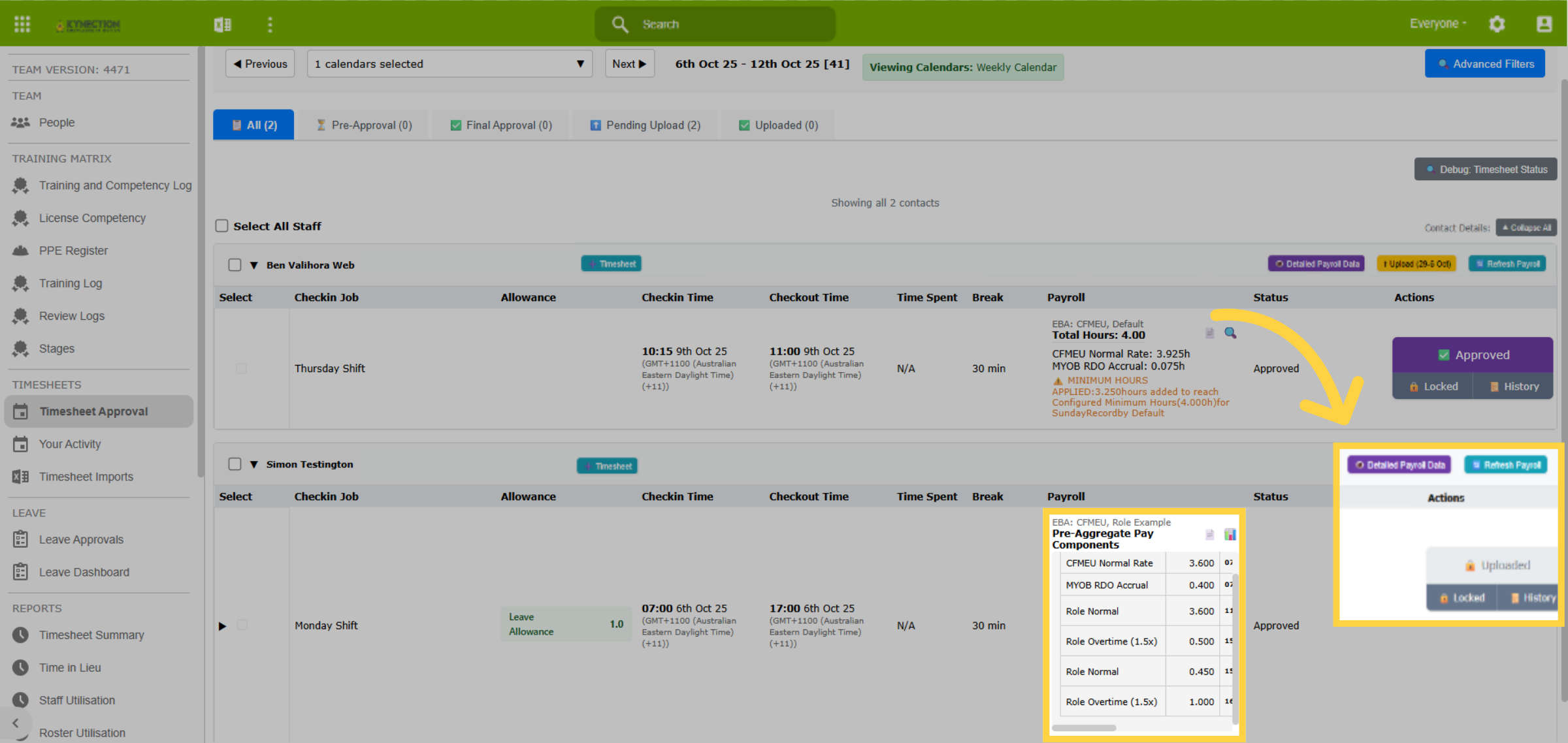
Records that have been uploaded to Myob Acumatic are no longer editable. This is indicated by the "Uploaded and Locked" status, and the removal of the "Upload" button from the employee section header. To view the details of what has been uploaded, click the "Detailed Payroll Details" button, or, for single shift details, the magnifying glass icon, found in the payroll column.
13. Myob Acumatica
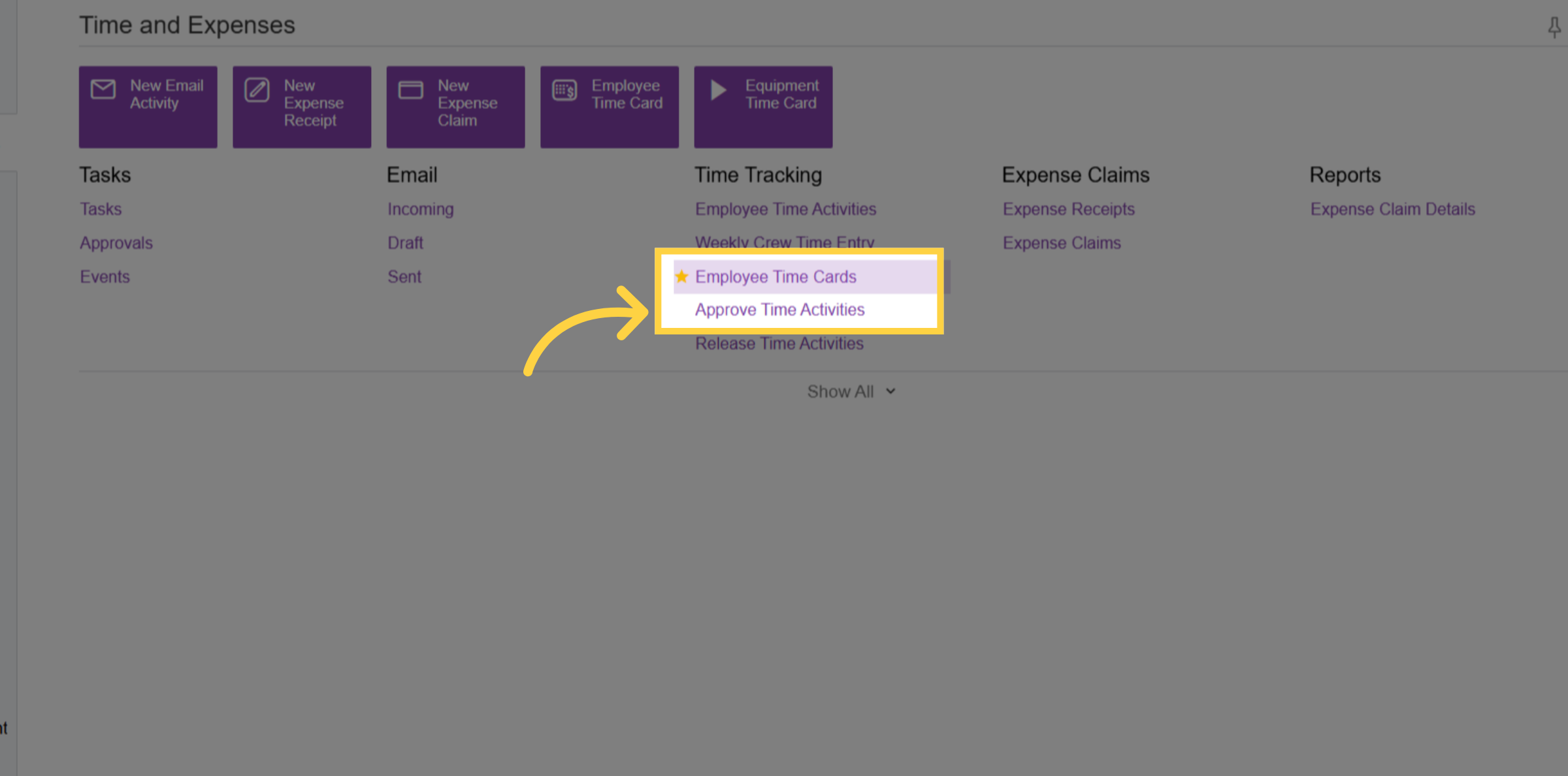
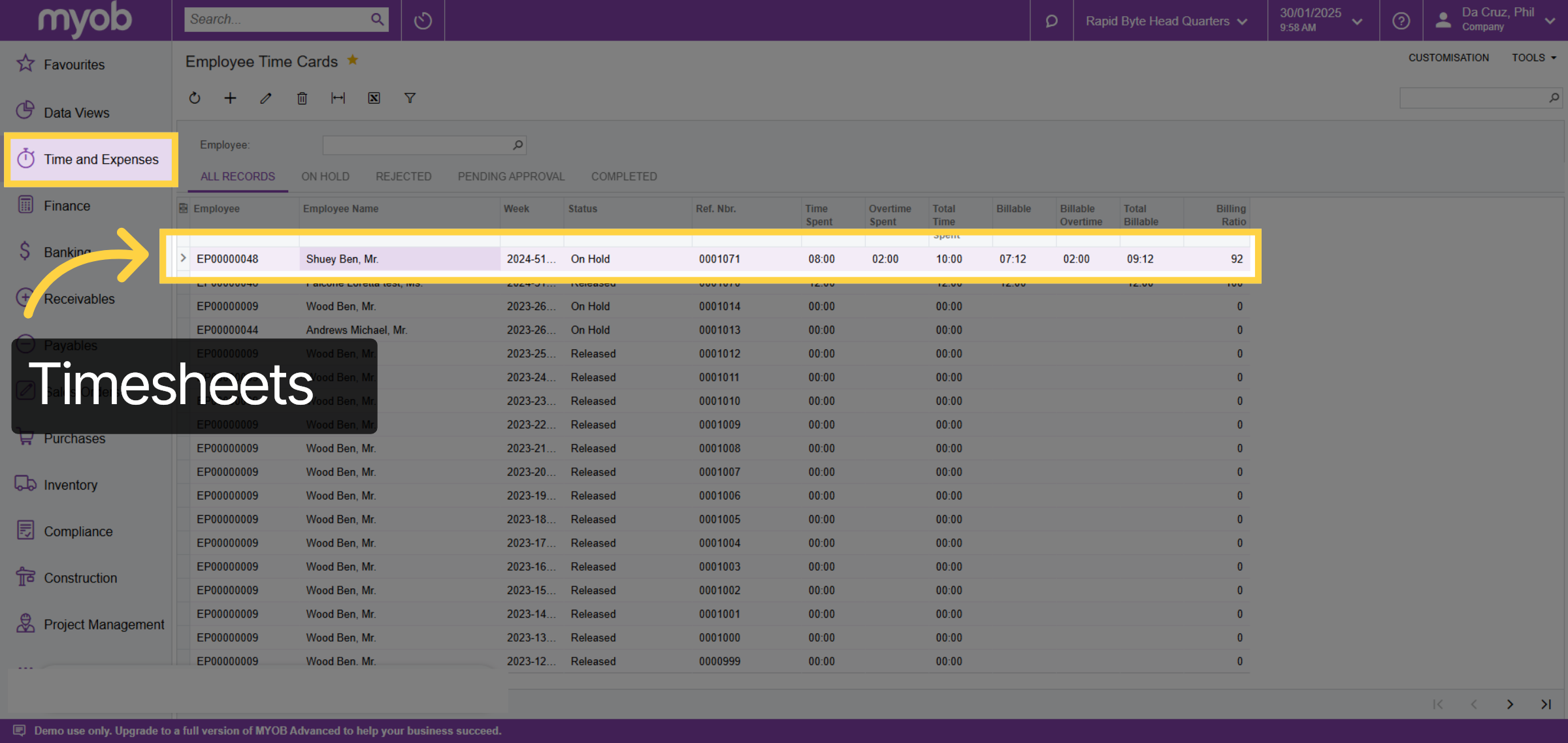
Within the MYOB Acumatica platform, navigate to the Time and Expenses section and select either Employee Time Cards or Approve Time Activities. In Time Activities, Kynection has the capability to push the Project ID and Project Task, along with the EBA awarded hours and allowances for each employee’s timesheet.
14. Billable hourse
Within the Employee Time Cards, you can view the timesheet, which has been transferred via the API from Kynection. This display includes all billable hours.
15. Kynection to Myob Acumatica Stock & Non Stock Items
Let’s explore the API integration for both stock and non-stock items from MYOB Acumatica.

16. Prosper (Sales) Module
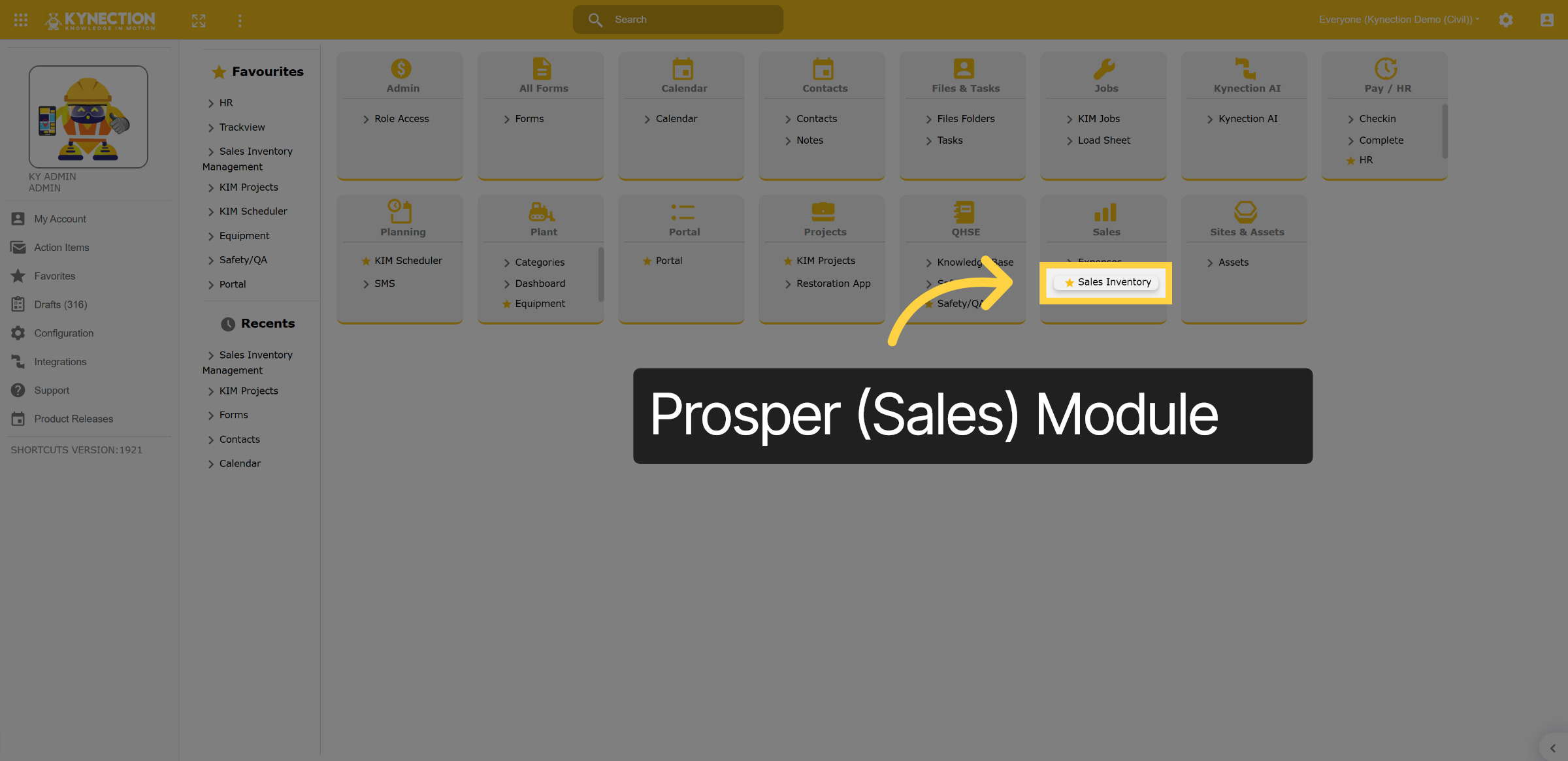
From the Kynection home dashboard, navigate to the Prosper (Sales) module.
17. Catalog
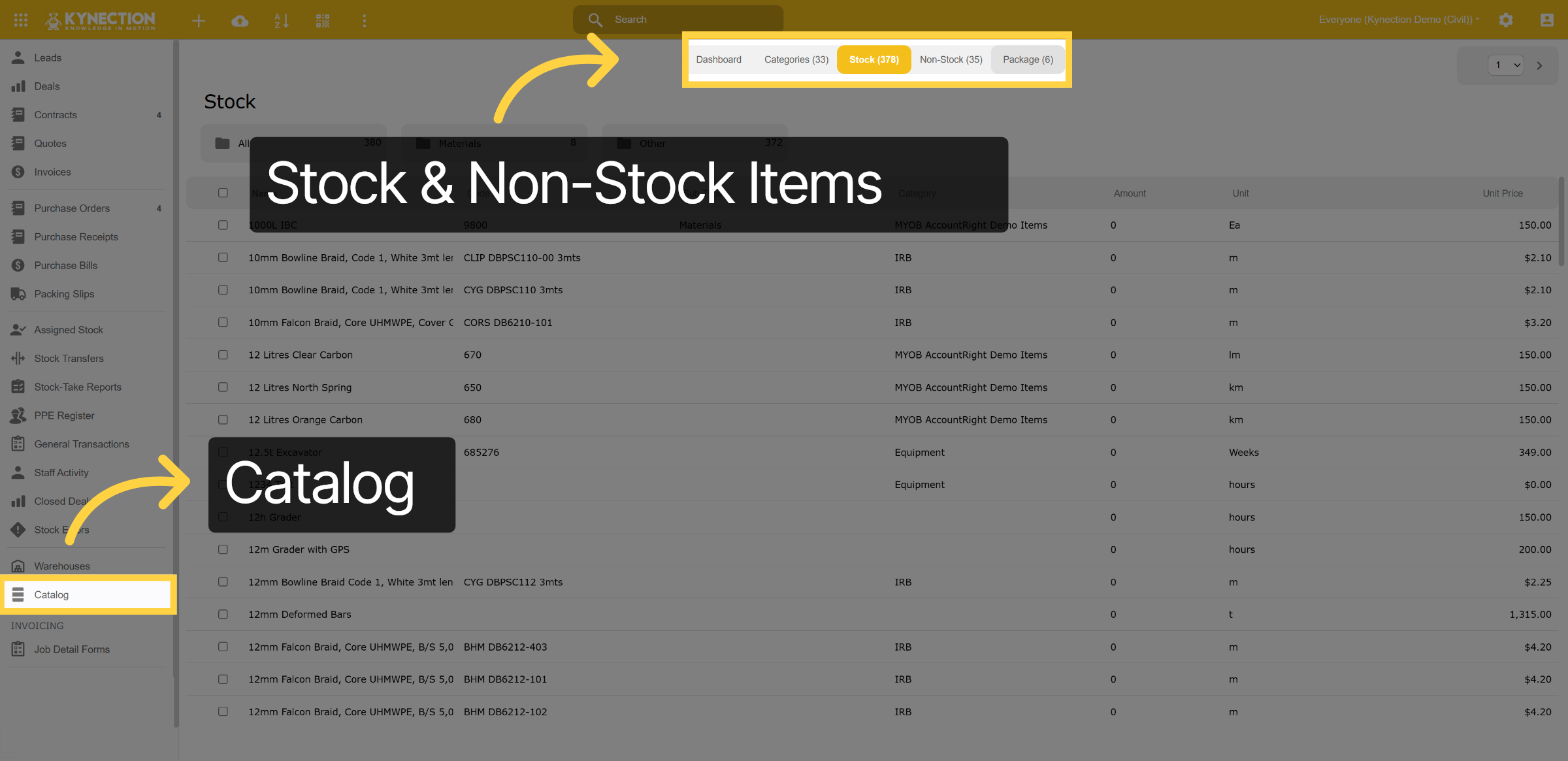
Navigate to the Catalog tab in the left pane, where you can view a comprehensive list of all stock and non-stock items directly pulled from MYOB Acumatica.
18. Non Stock Item
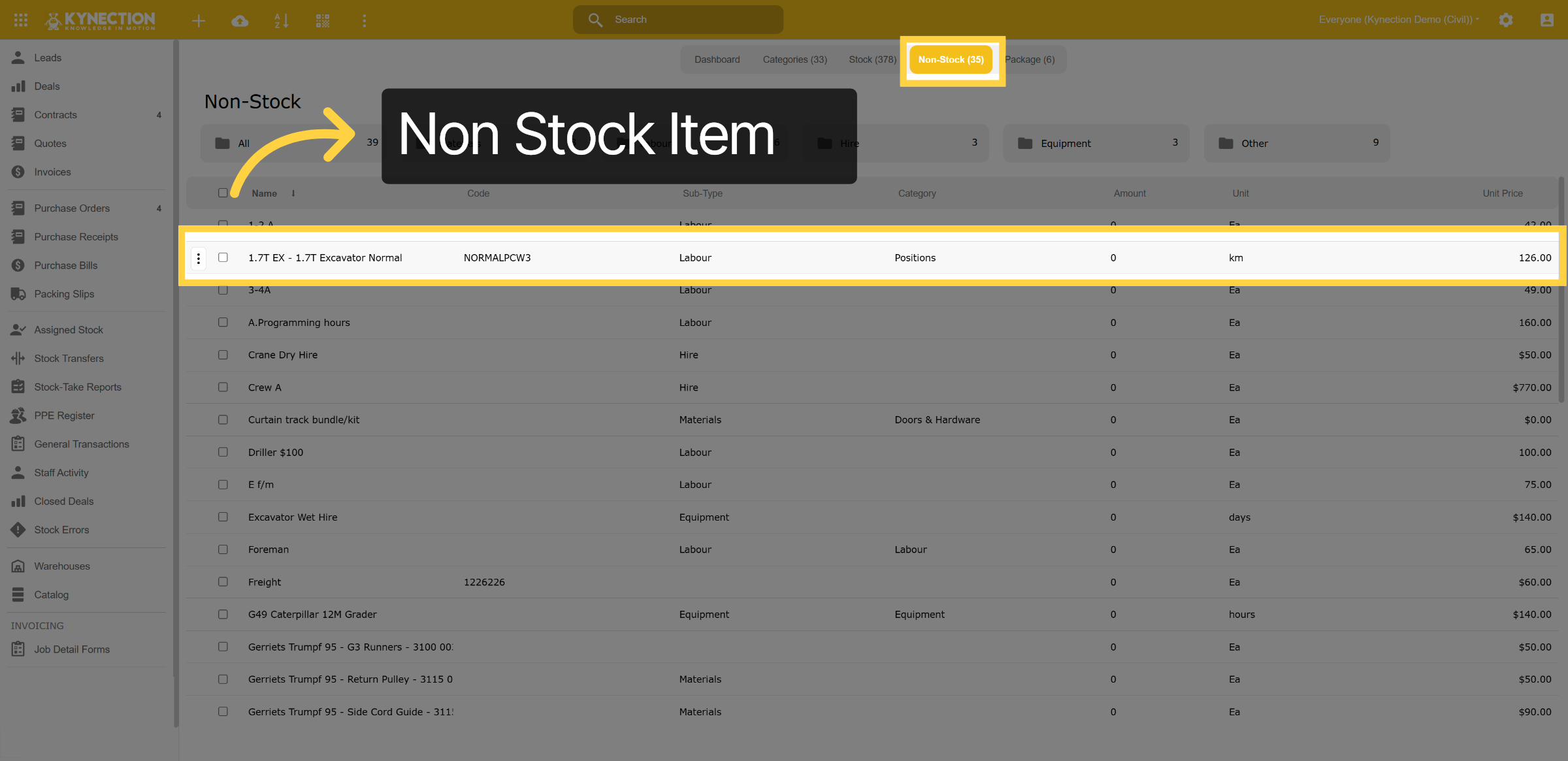
In this example, let's explore the 1.7 EX non-stock item.
19. Details of Non Stock Item
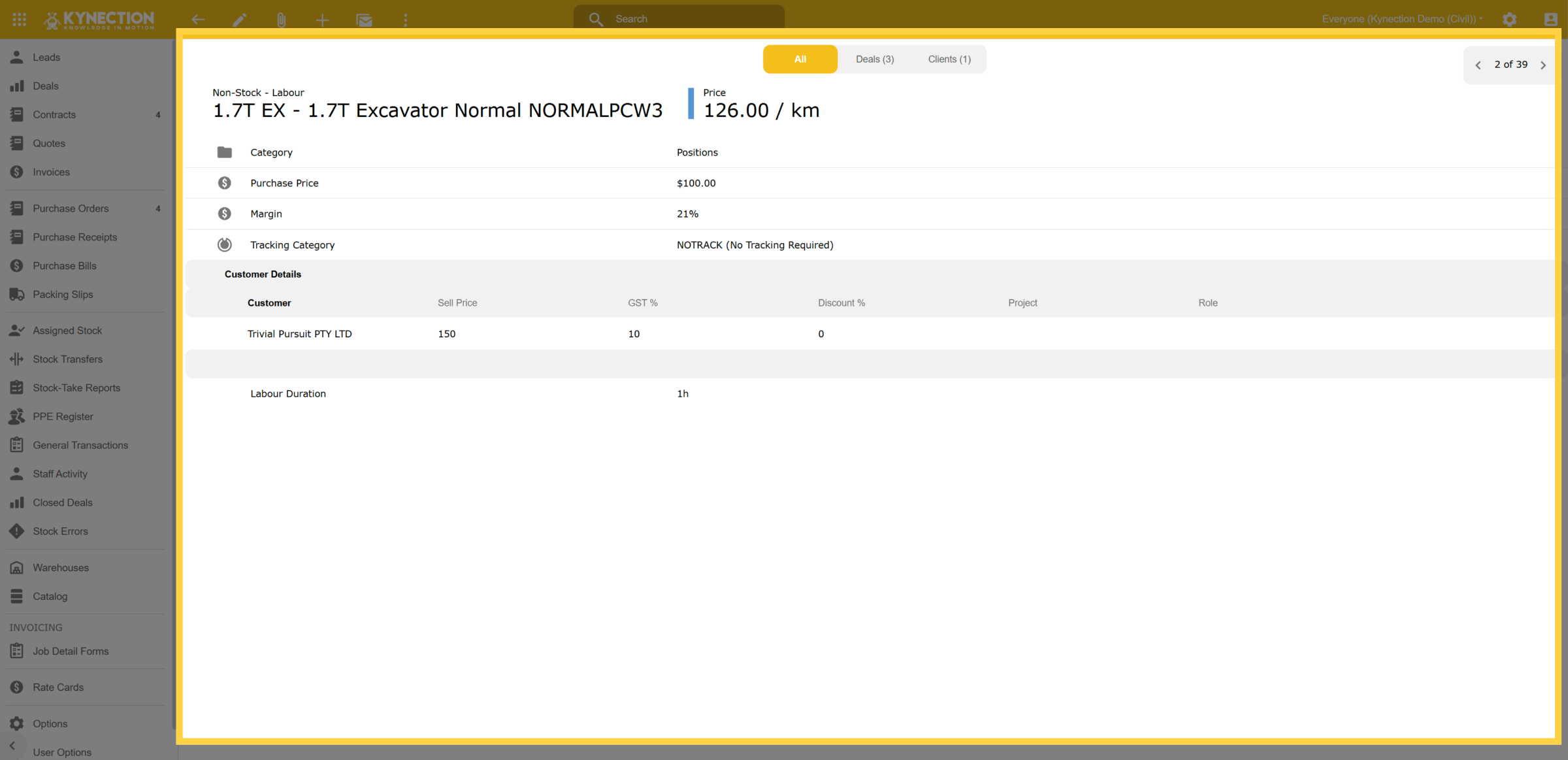
Here, you can find comprehensive details about this specific non-stock item, including its purchase cost, sales price, profit margin, and a history of customers who have utilized it.
20. Myob Acumatica Non-Stock
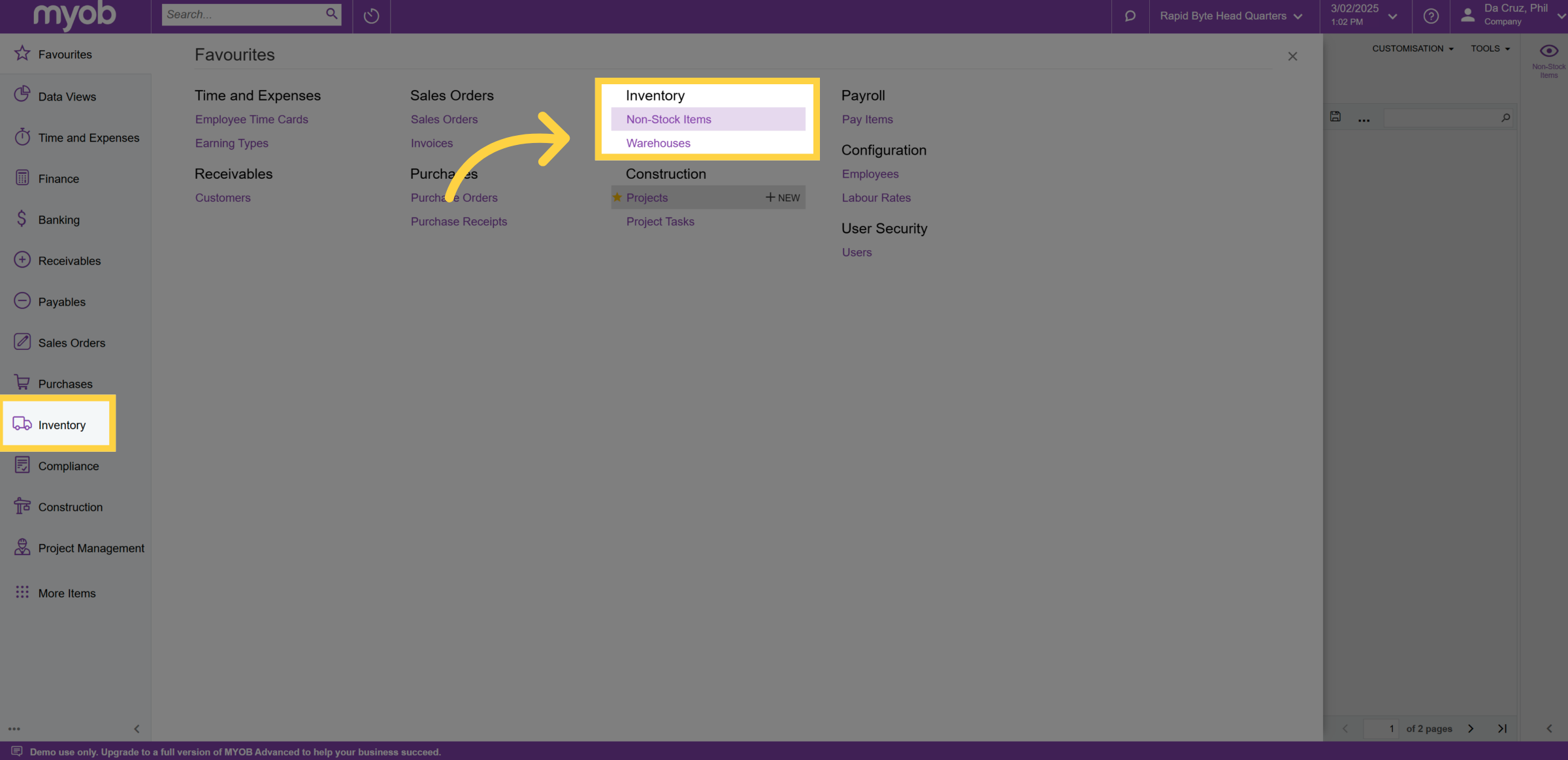
From the MYOB Acumatica dashboard, navigate to the Inventory section in the left pane. If this feature is starre, you can also access it in the Favorites tab.
21. List of Non-Stock Items
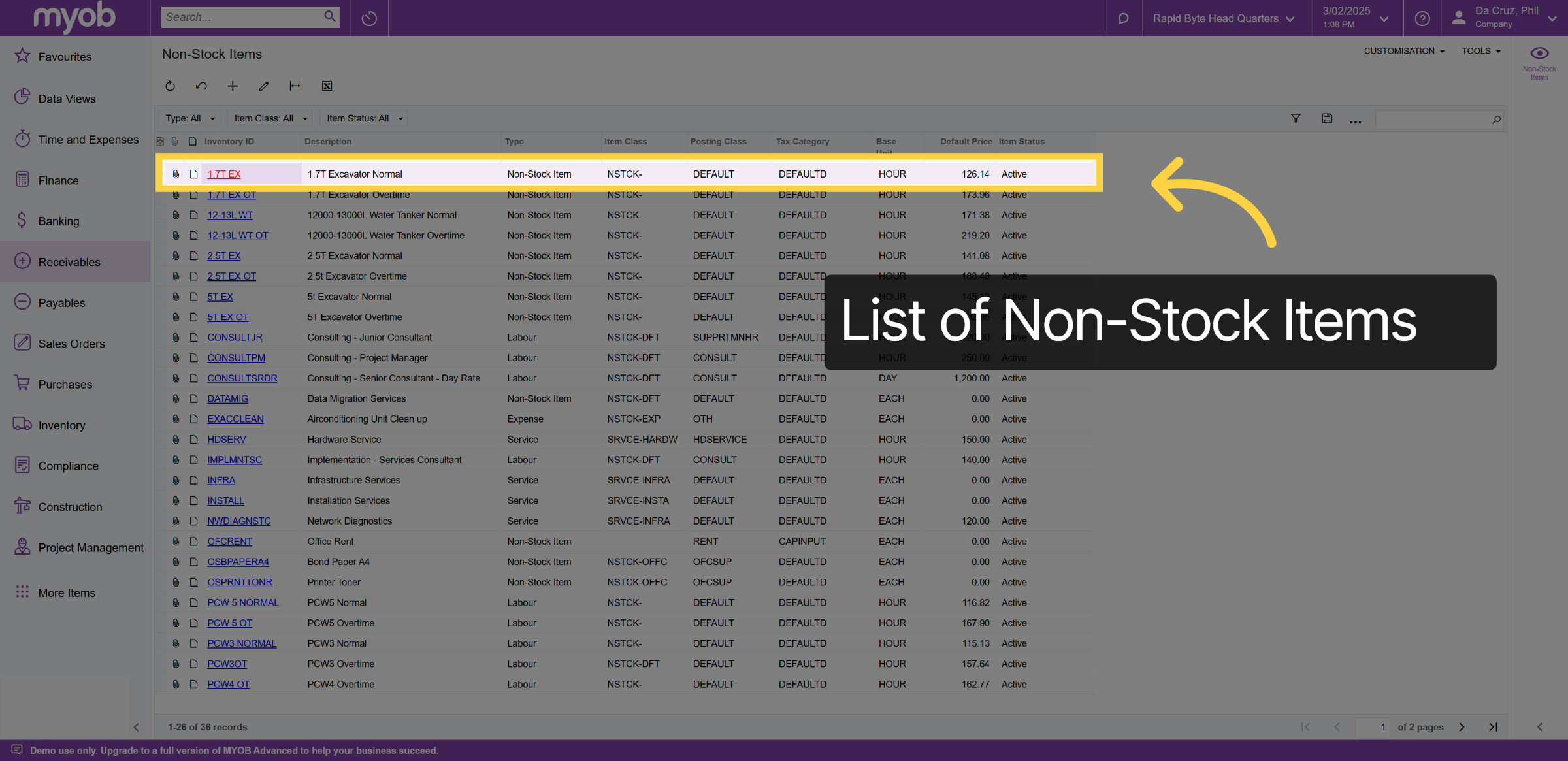
In the non-stock category, you can view a complete list of all non-stock items pushed to Kynection via API. Let's select the same 1.7T EX example.
22. Details of Item
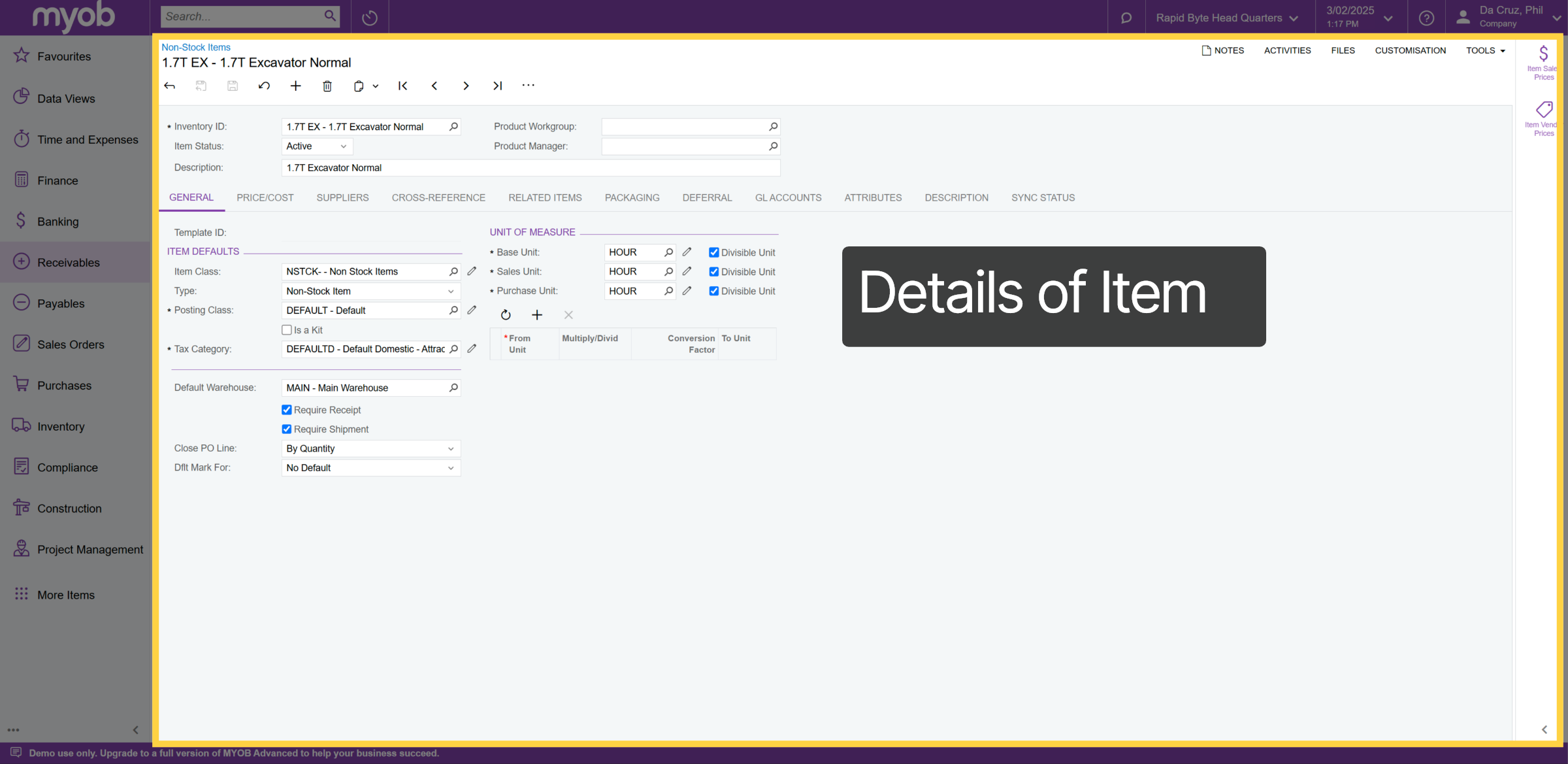
Here, we can view all the details of the non-stock item within Acumatica, including cost and price. Typically, most customers prefer to have the source of truth for these stock and non-stock items in MYOB Acumatica, however with multipe direcetional APis Kynection can be the source of truth
23. Kynection Invoices to Myob Acumatica
Let's explore how Kynection integrates with MYOB Acumatica to link invoices.

24. Invoice Cycle
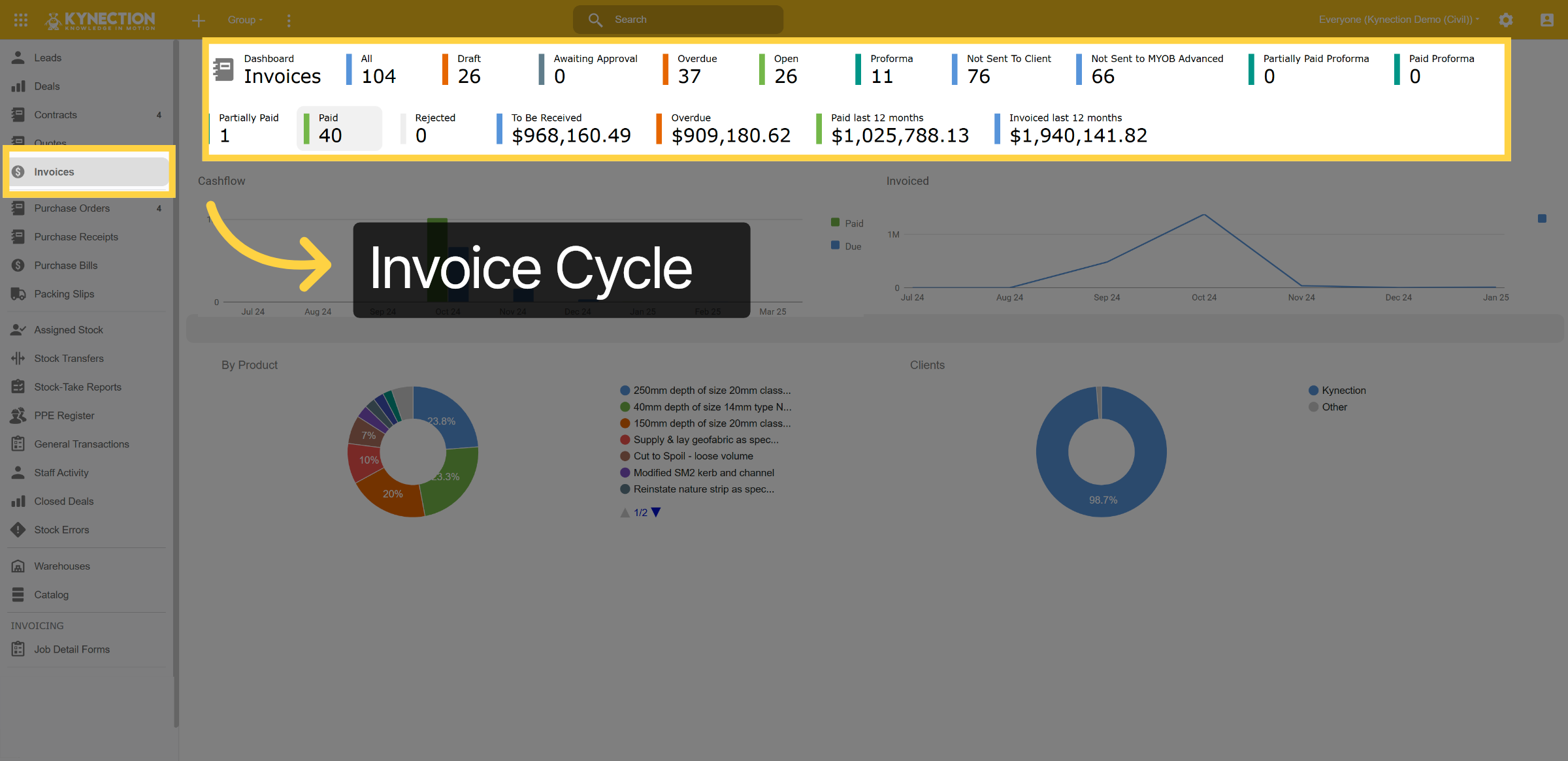
In the Prosper (sales) module of Kynection, select the Invoices tab from the left pane. The Invoices cycle displays each stage of an invoice. Invoices can be generated in either Kynection or MYOB Acumatica, depending on the customer's preferred source of truth.
25. Details of Invoice
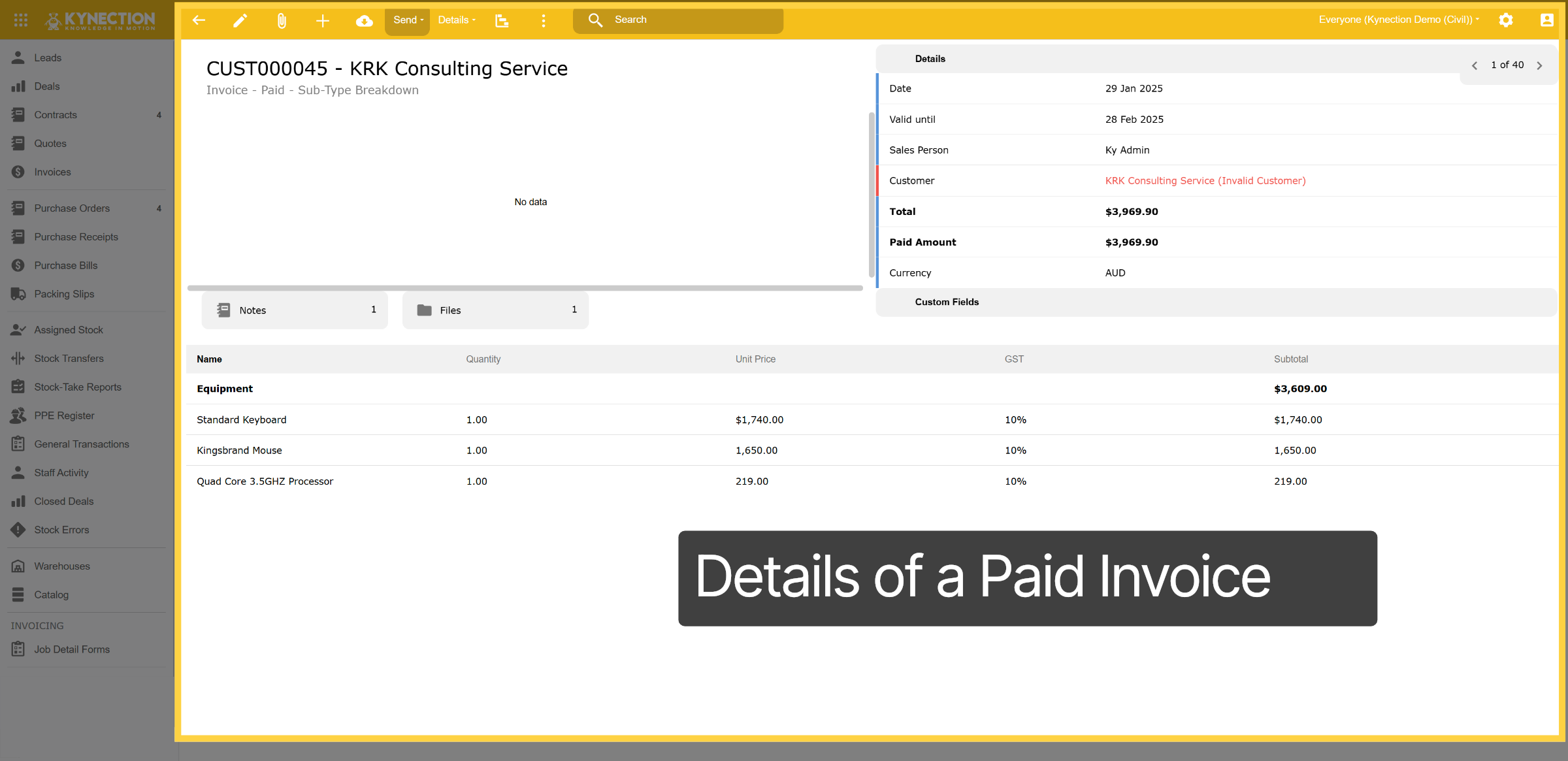
Here, you can view the complete details of the invoice, including each cost code line item. Additionally, we have the capability to send the invoice directly to the customer, which will automatically update MYOB Acumatica to reflect that the invoice has been sent. Once the invoice is paid in MYOB Acumatica, the API will automatically link back to Kynection and categorize that invoice as paid.
26. Invoices
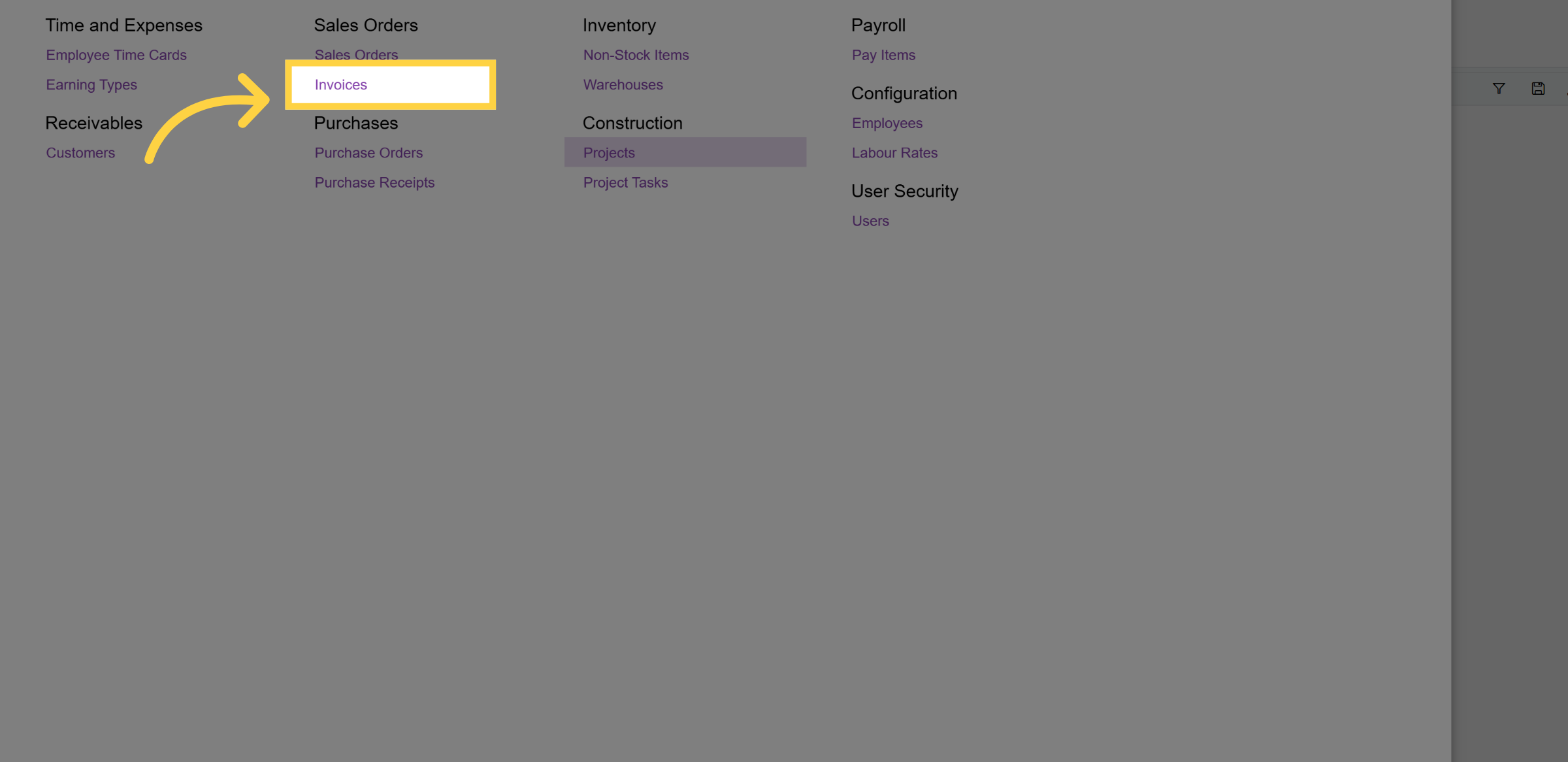
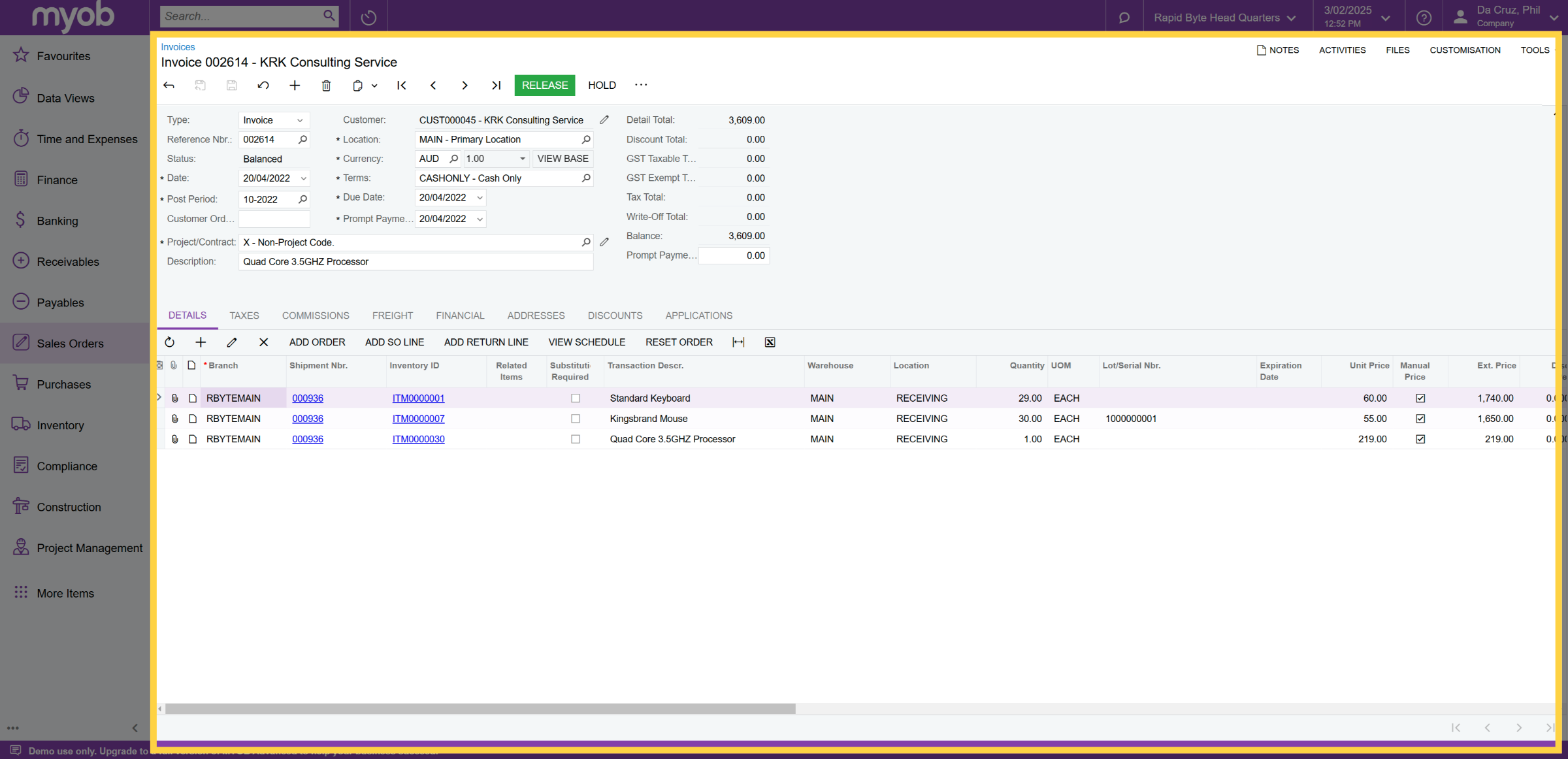
From the MYOB Acumatica dashboard, go to the sales orders section and select invoices.
27. Invoice List
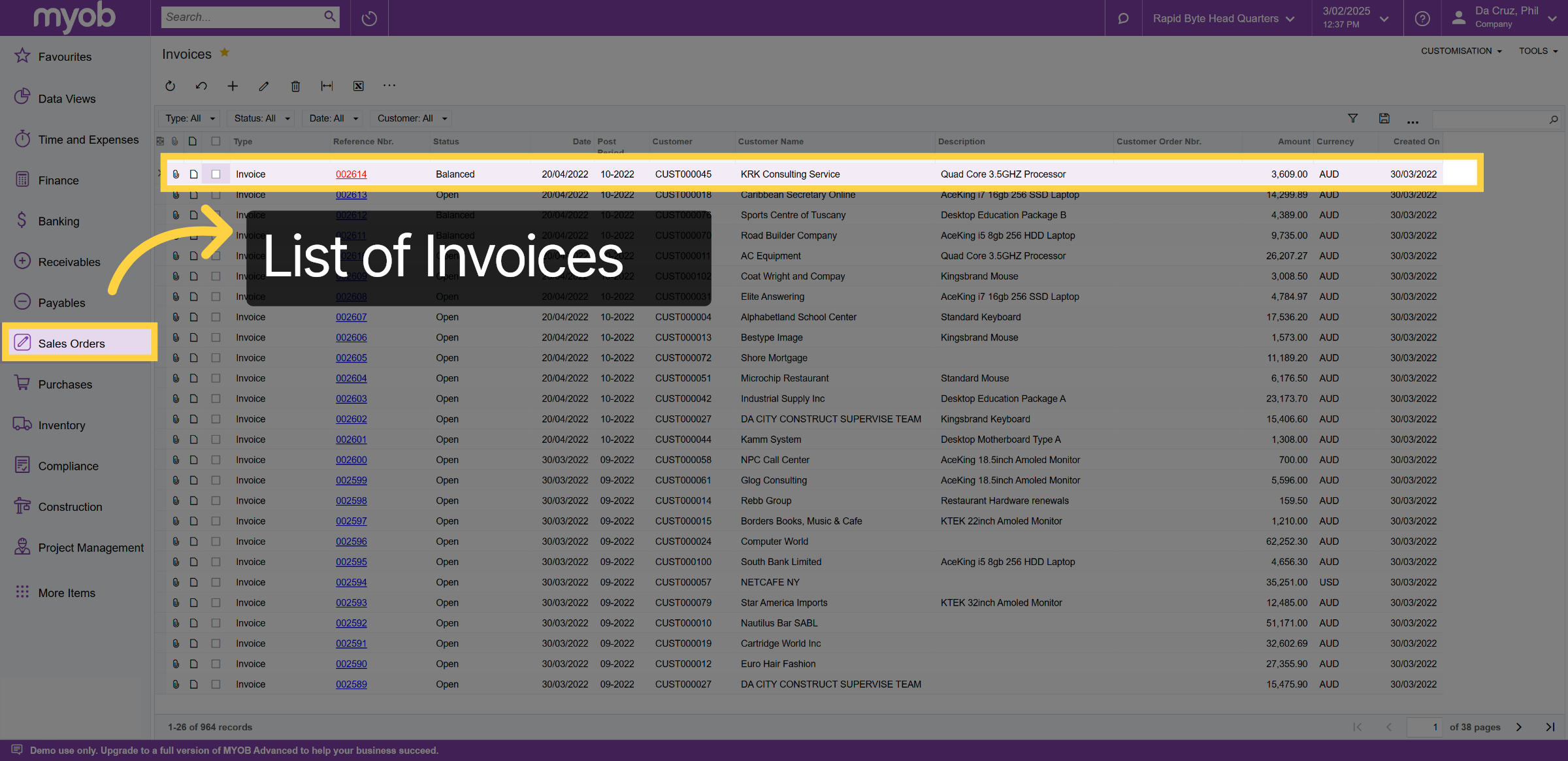
Within ivoices, you'll find a list of all invoices. Select one for an example.
28. Invoice Details
Within an invoice, all cost code items are displayed similarly to Kynection. This includes customer details, accounting codes, inventory ID, quantity, unit price, and much more.
Thank you for watching.

