Our client portal is a vital tool designed to enhance your project delivery experience.
1. Invitation to the Portal
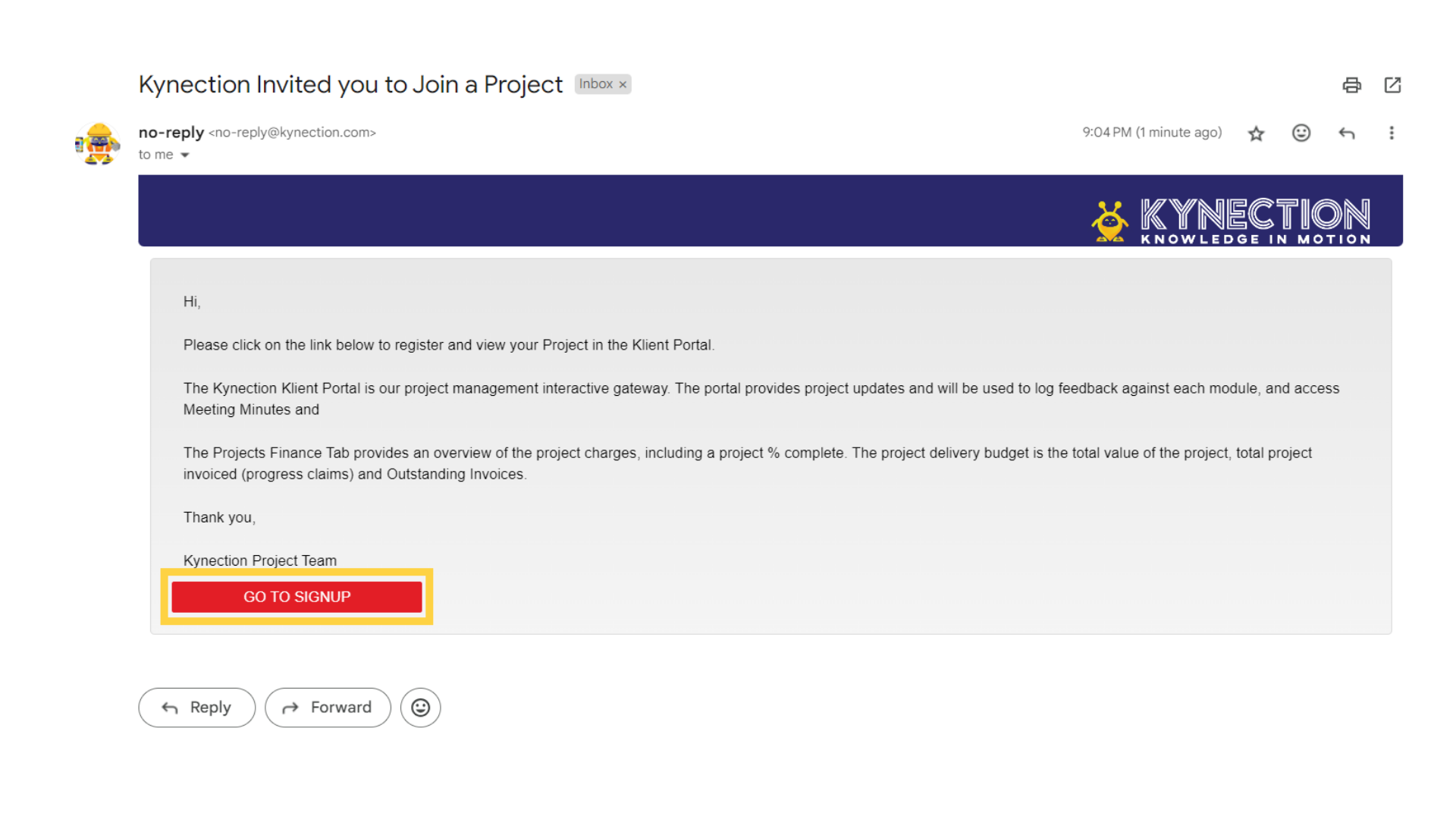
Invitations to the portal are sent via email. Begin your access by clicking "Go to signup."
2. Registration Invite
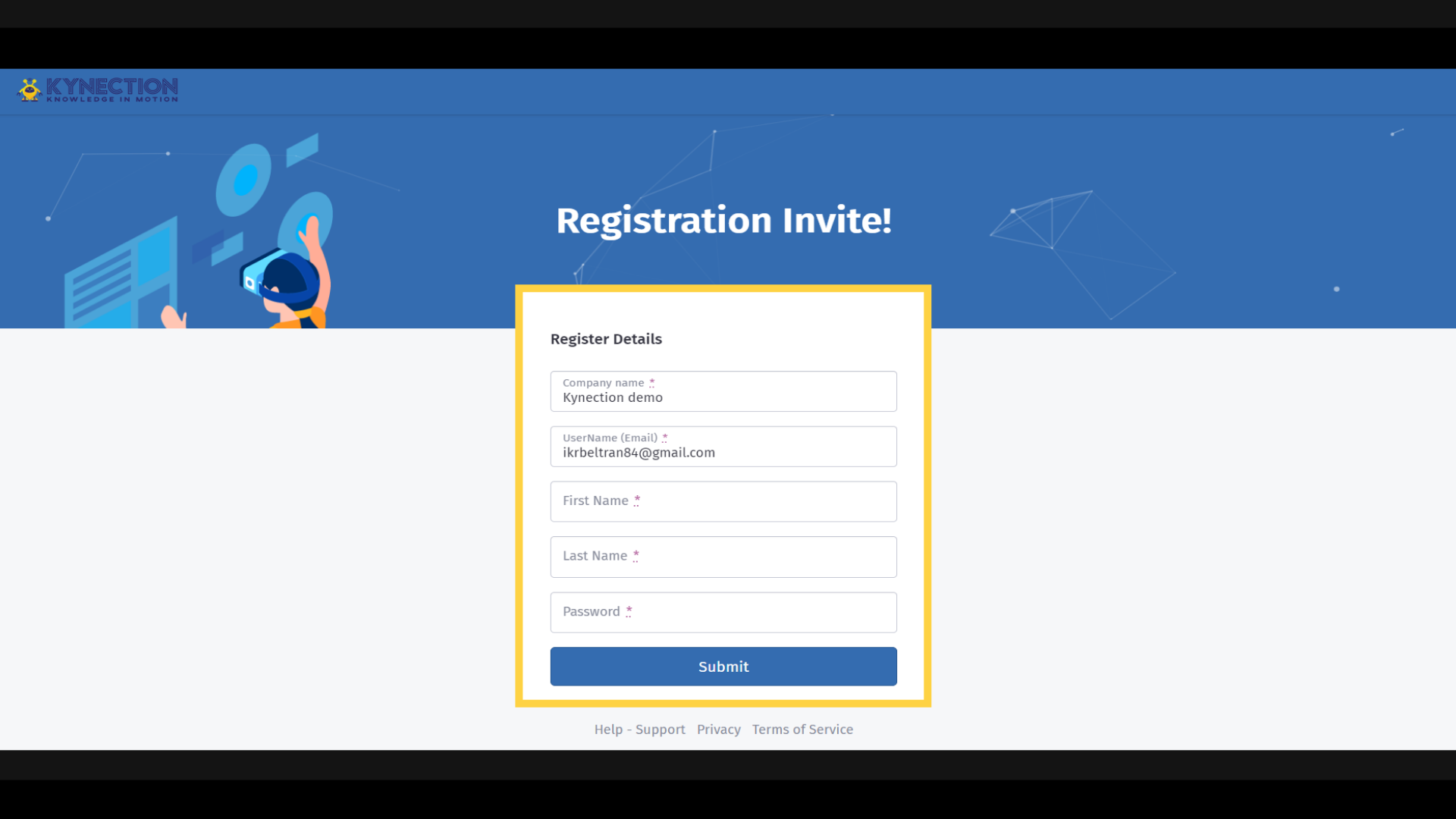
You will be prompted to register and assign your password to the Portal. Click "Submit" once done.
3. Welcome to the Klient Portal
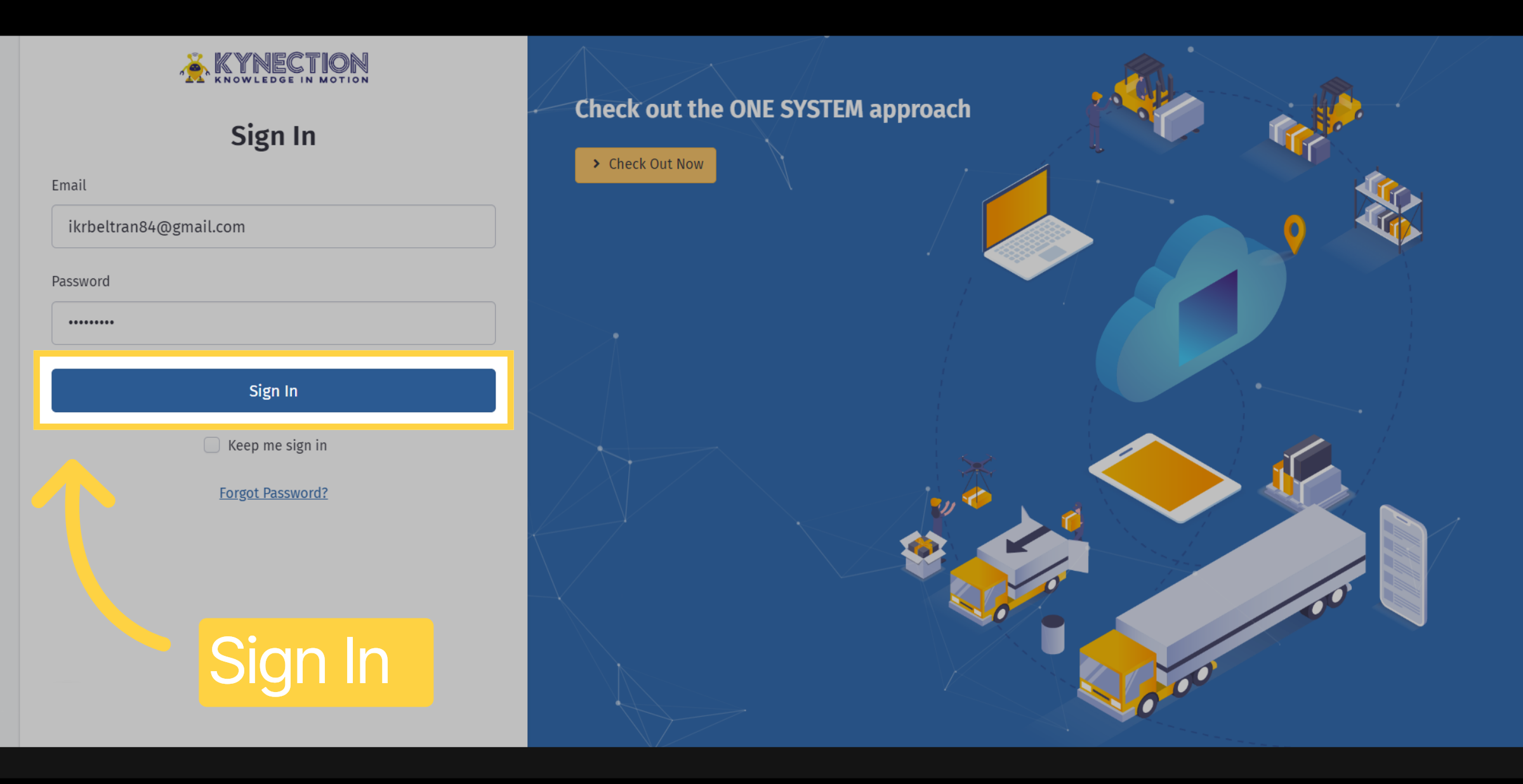
Welcome to the client Portal! Sign in to track your progress, share feedback, and access important documentation.
4. View Project
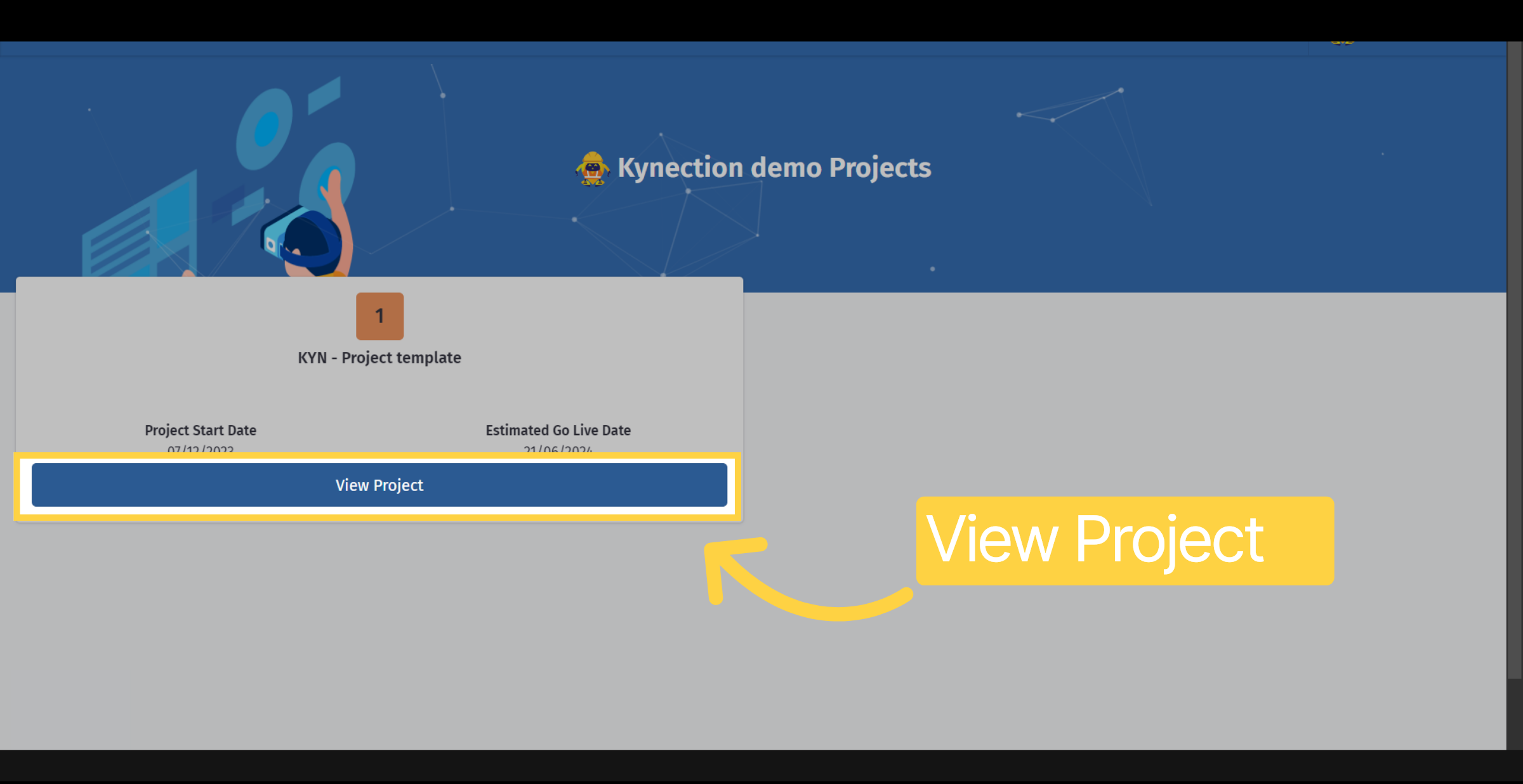
Navigate to the project section by selecting View Project.
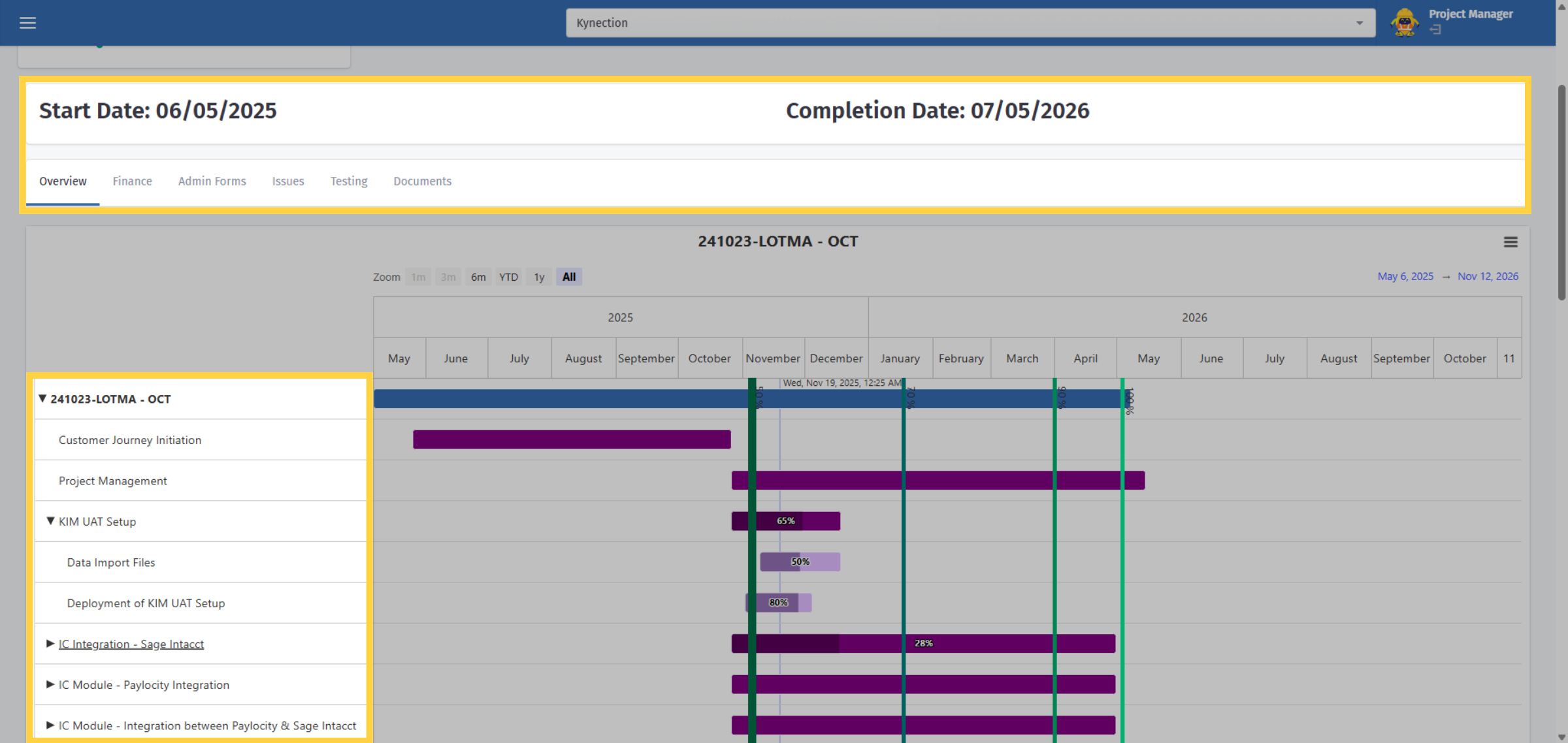
5. Overview
The project overview displays the project start and completion dates, and has milestone and task progression available in the Gannt chart.
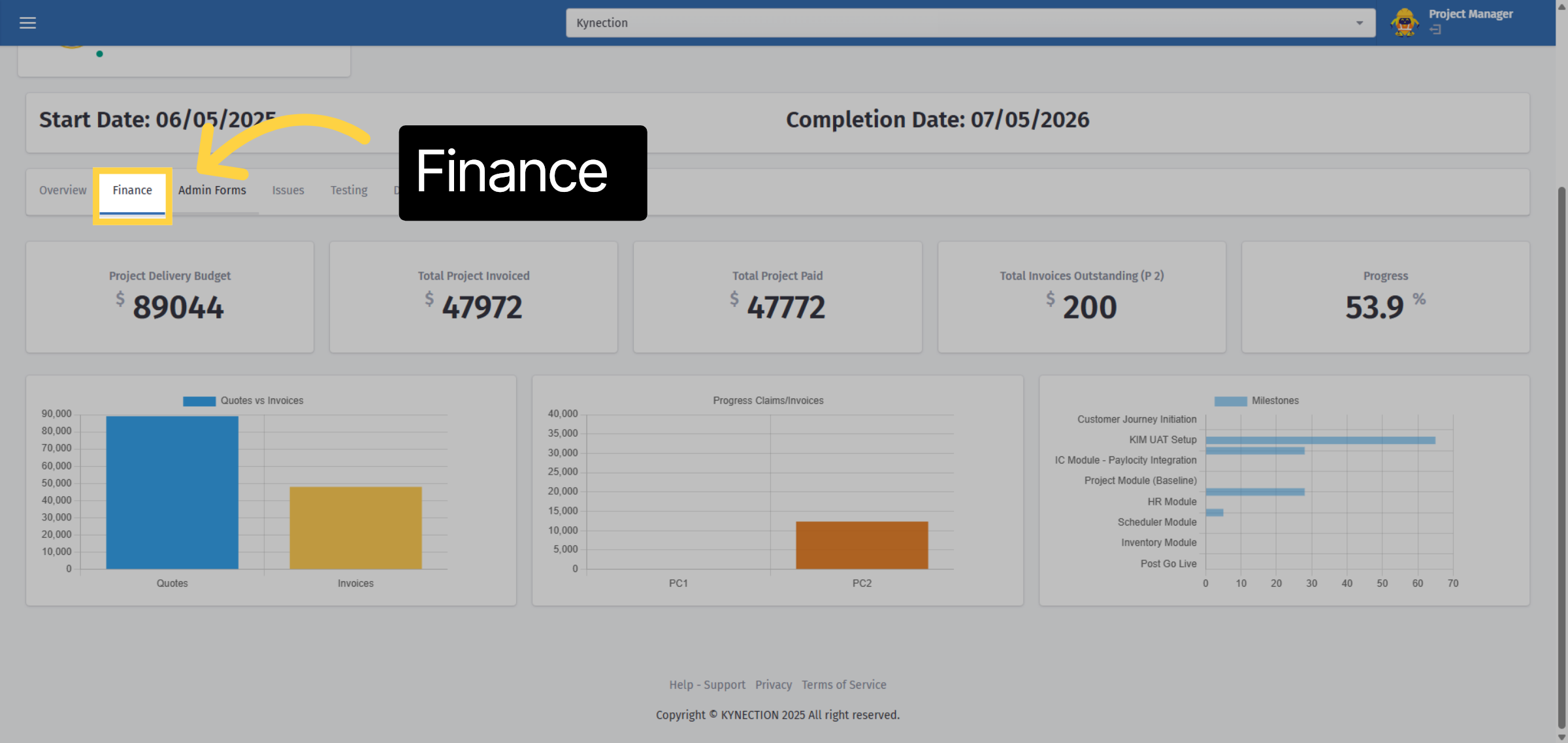
6. Finance
From the menu, select the "Finance" tab to view the project delivery budget and invoice details.
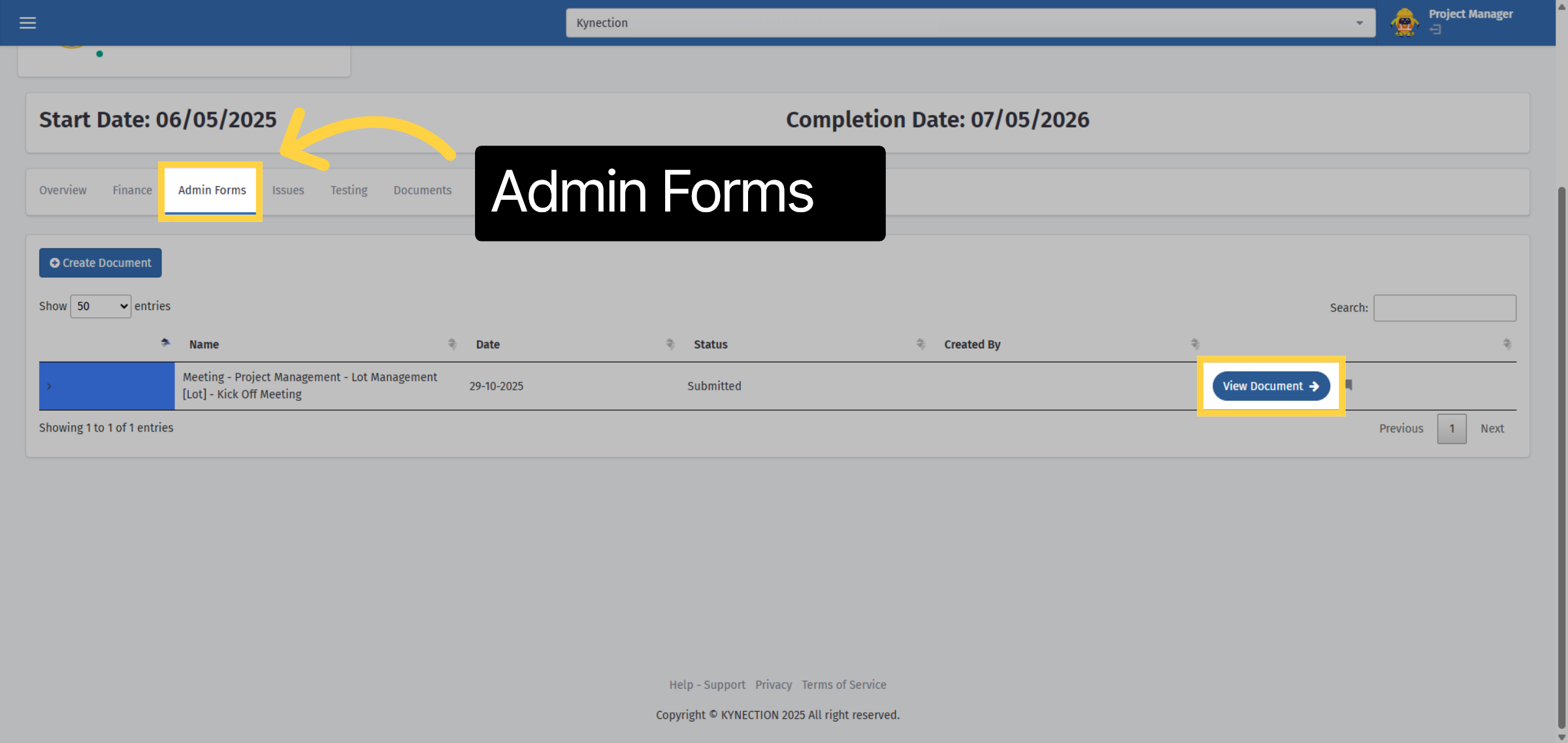
7. Admin Forms
The Admin Forms tab stores your project meeting minutes. Click the "View Document" tab to open.
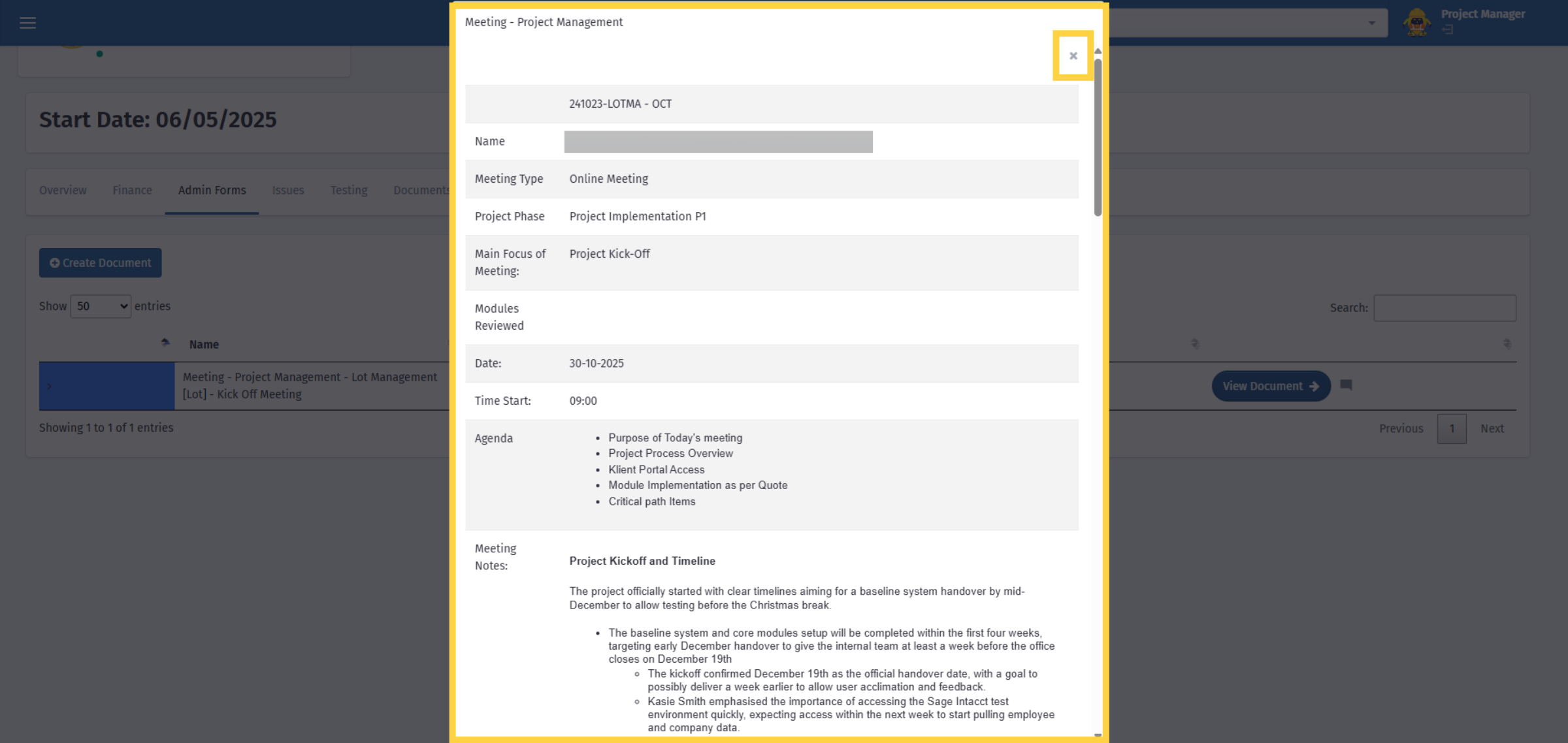
8. View Document
Once you have finished reading the document, click the "X" to close. Action items from the minutes are listed under the "Issues" tab.
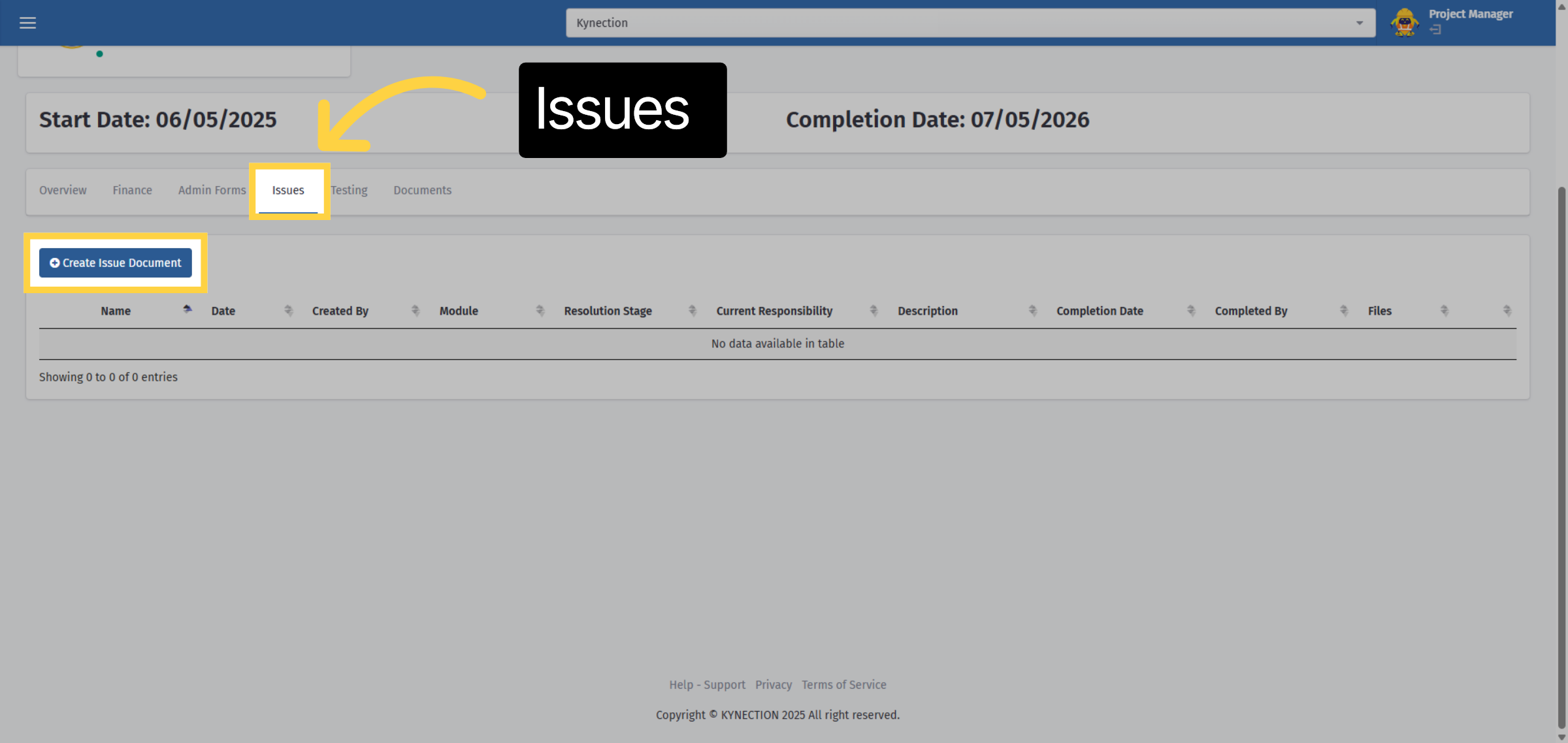
9. Issues
The issues tab records the action items from meetings, keeping track of who is responsible and the item status. To raise an issue, select the "Create Issue Document" button.
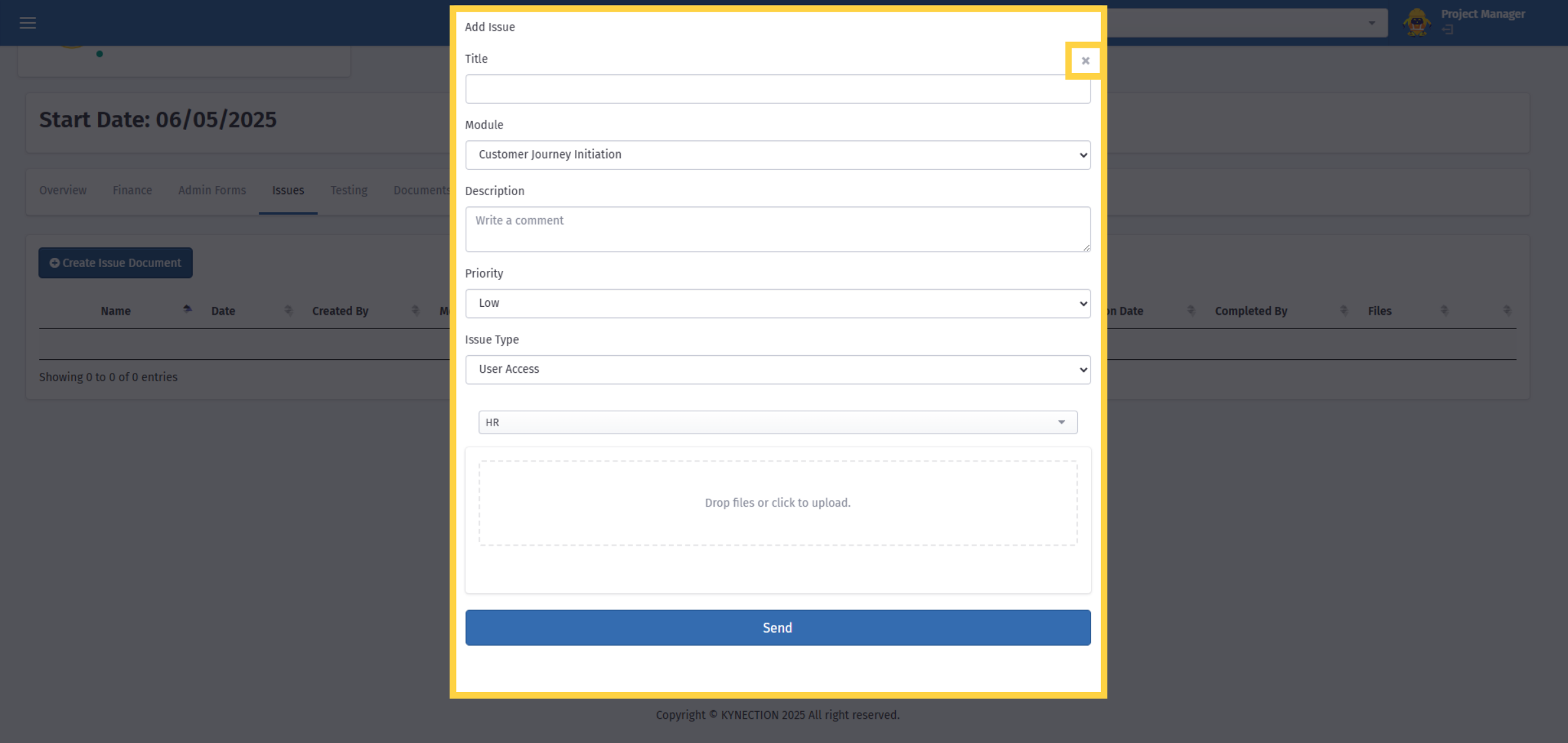
10. Adding an Issue
If raising an issue, please provide details that include: if it is web or mobile related, the module, the username, and screenshots. This allows us to replicate the issue in order to resolve it. The project team receives a notification when issues are added.
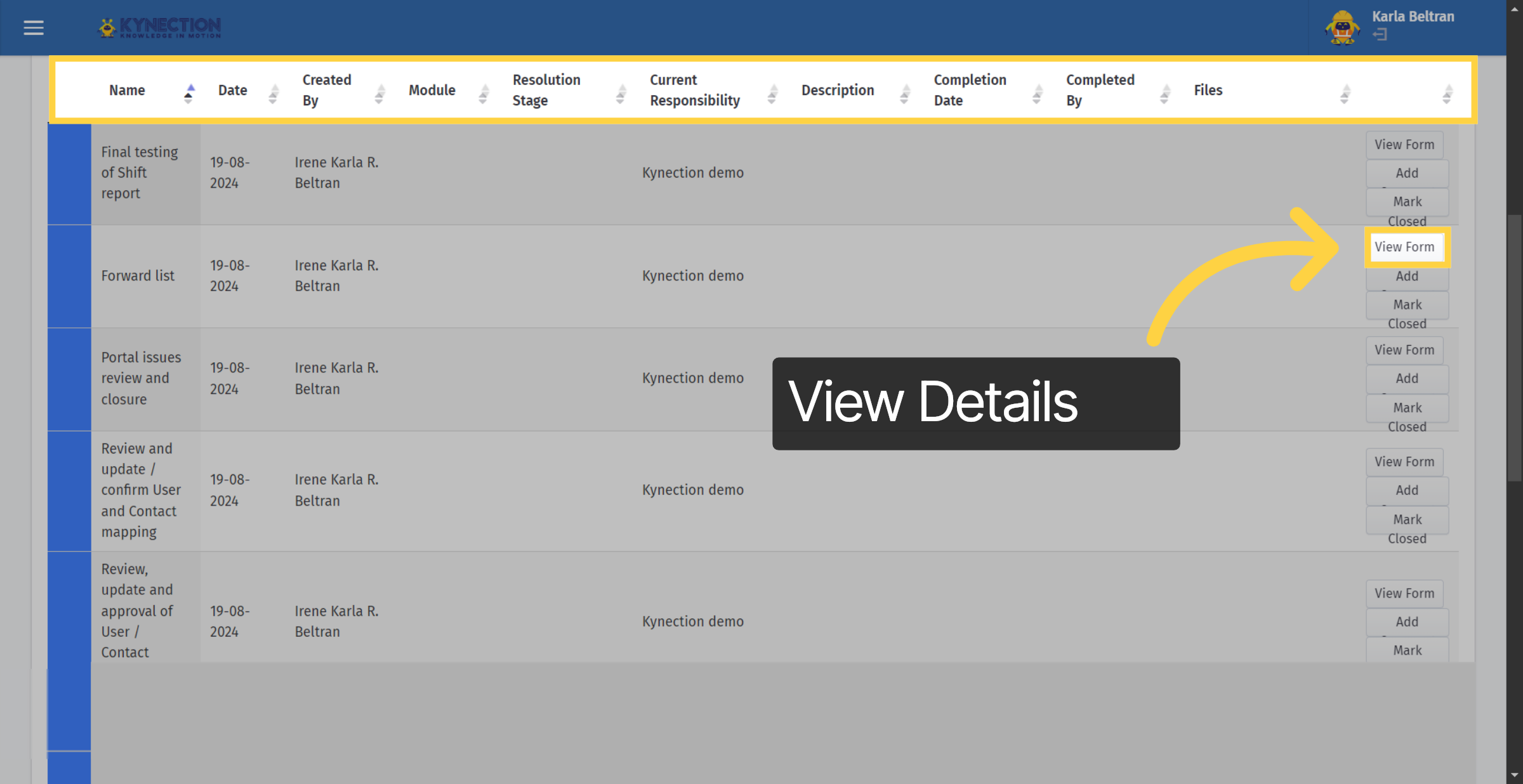
11. Raised Issues
Raised issues can be sorted using the arrows next to the column headers. Tabs on the right hand side allow you to manage the issues raised. Select "View Form" to inspect the details of an issue raised.
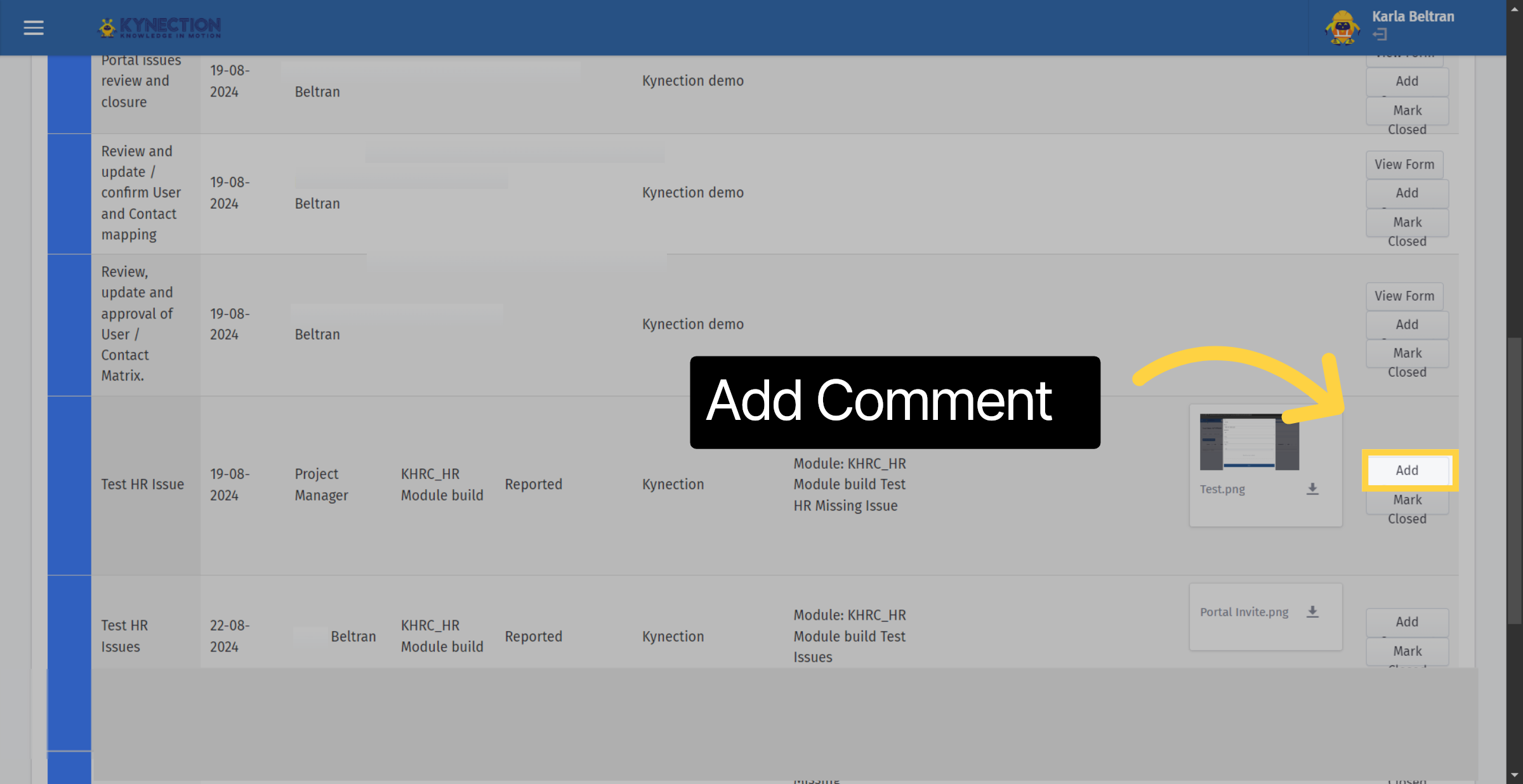
12. Add Comment
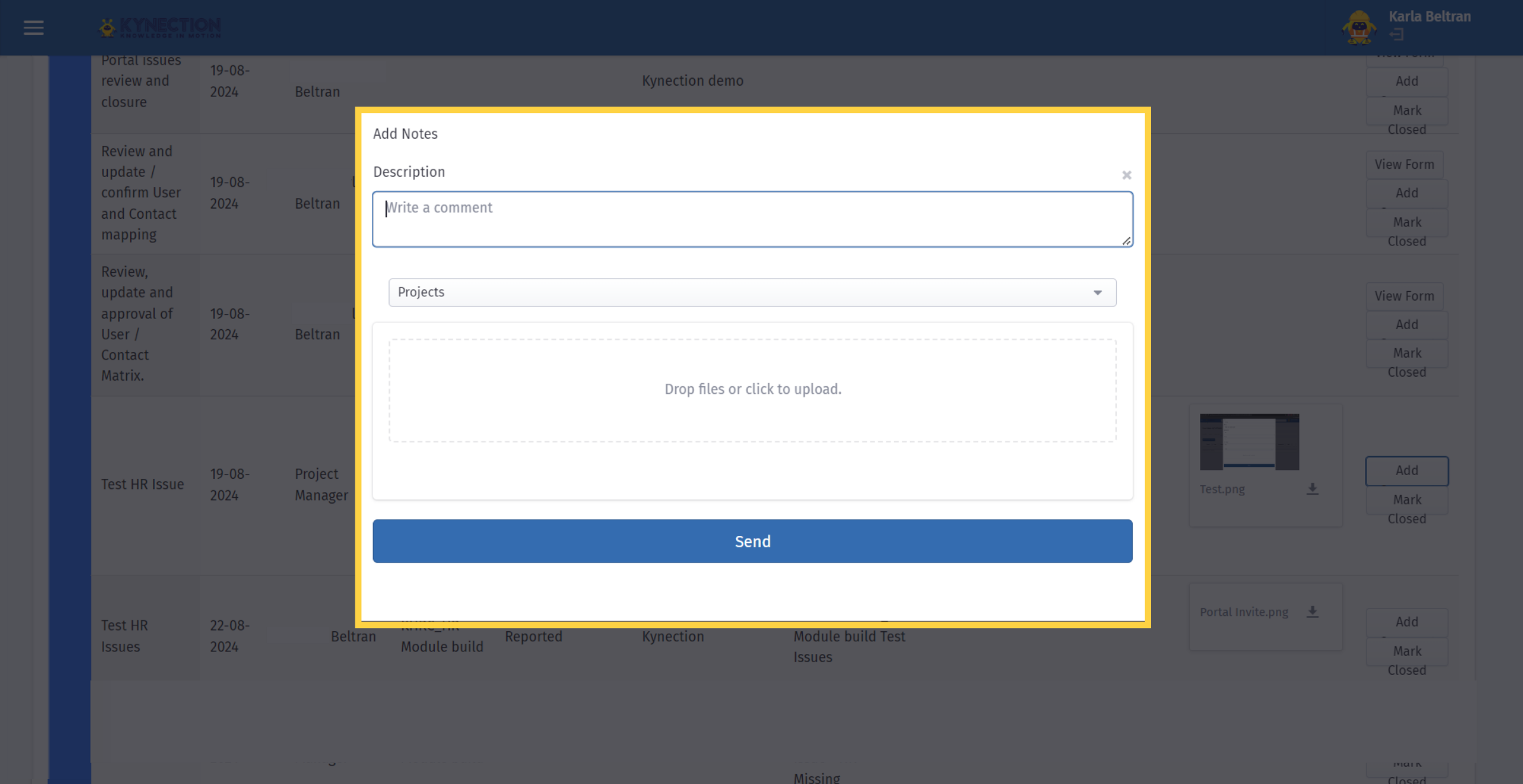
Add further comments to issues using the "Add" button. Kynection will add a comment to items before updating the status of an item to completed.
13. Upload Comment
When we update an issue you will receive an email notification. Please confirm we have resolved your issue by testing in your sandbox database.
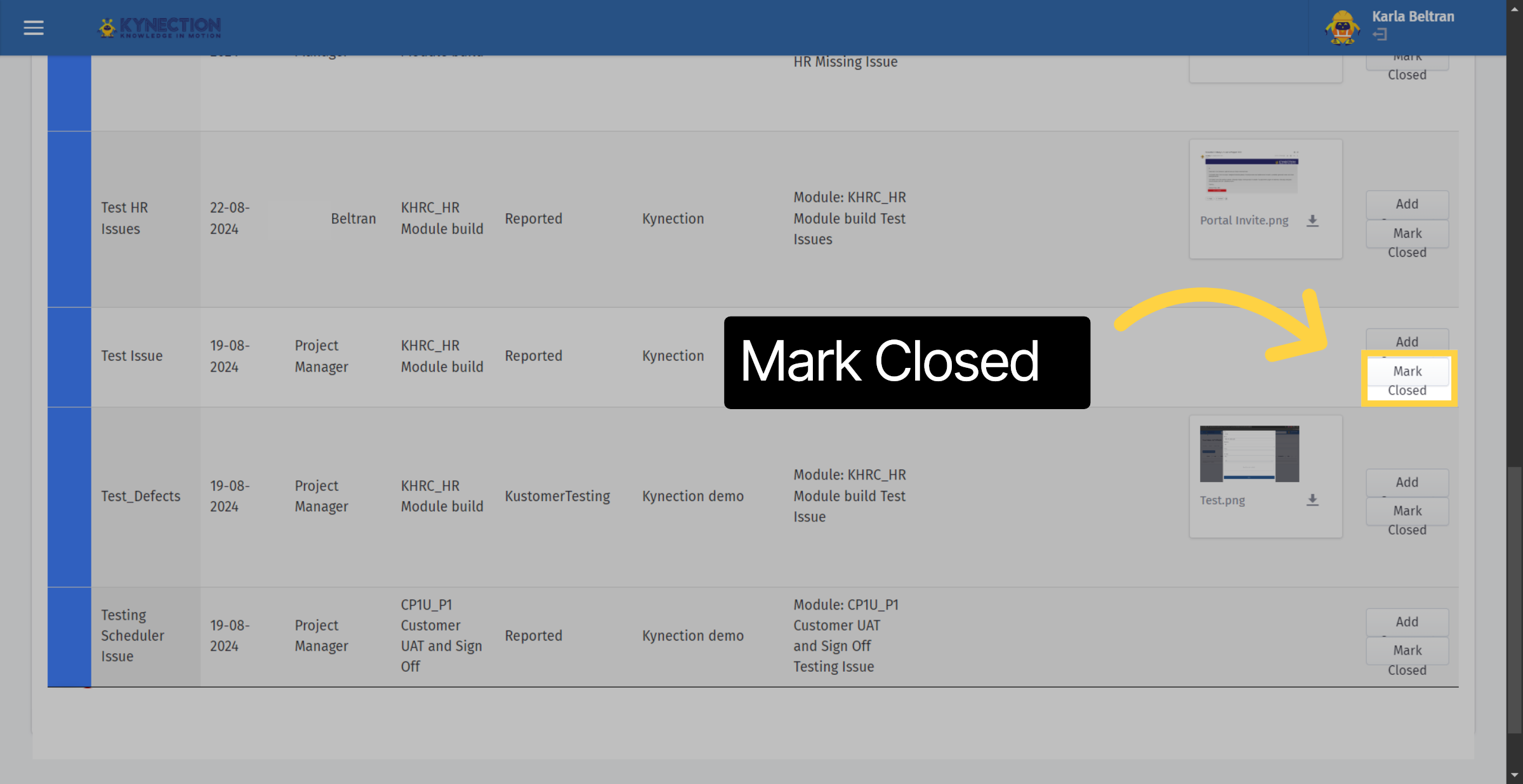
14. Mark Closed
If issue has been addressed and rectified, close the item using the button for "Mark Closed". If the issue has not been resolved, add a comment.
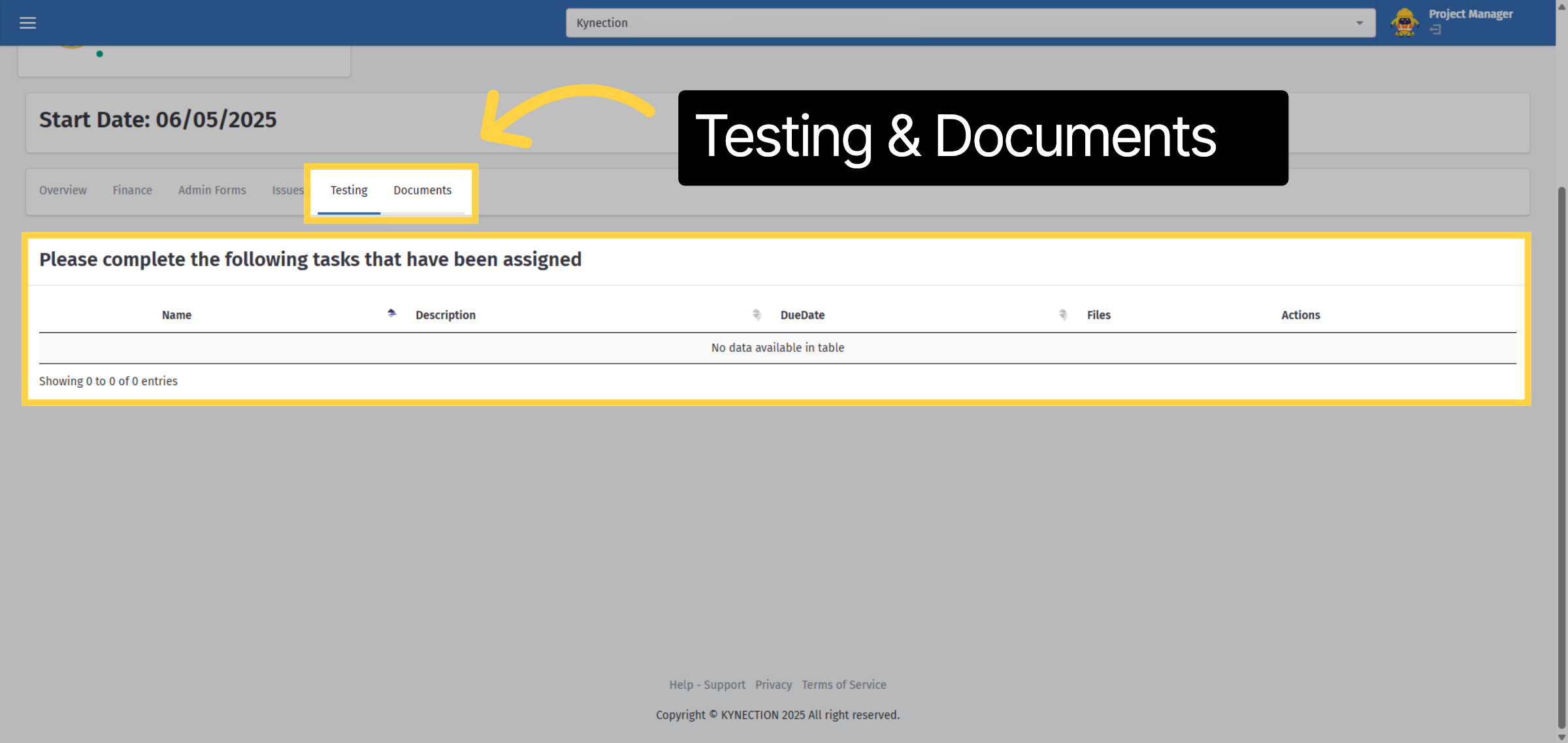
15. Testing & Documents Section
The "Testing" and "Documents" tabs serve as designated areas for uploading sharable documentation.
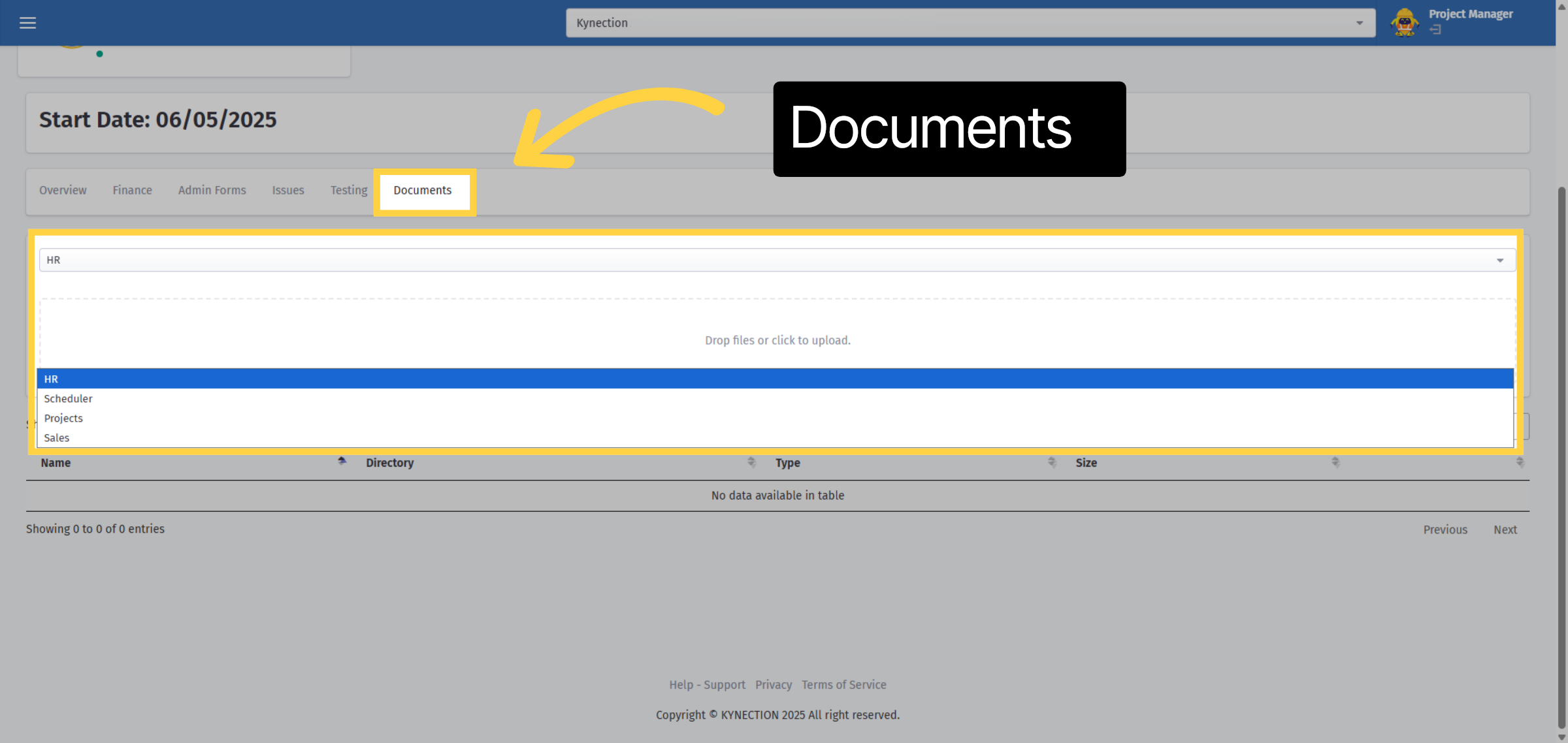
16. Documents
If uploading a document, select the relevant module and then drag and drop the file to share.
If you have any questions related to using the portal, your project manager will be able to assist.

