Welcome to the Quallogi Mobile Training Guide, your comprehensive resource
for mastering the electronic logbook.
1. Log in Details
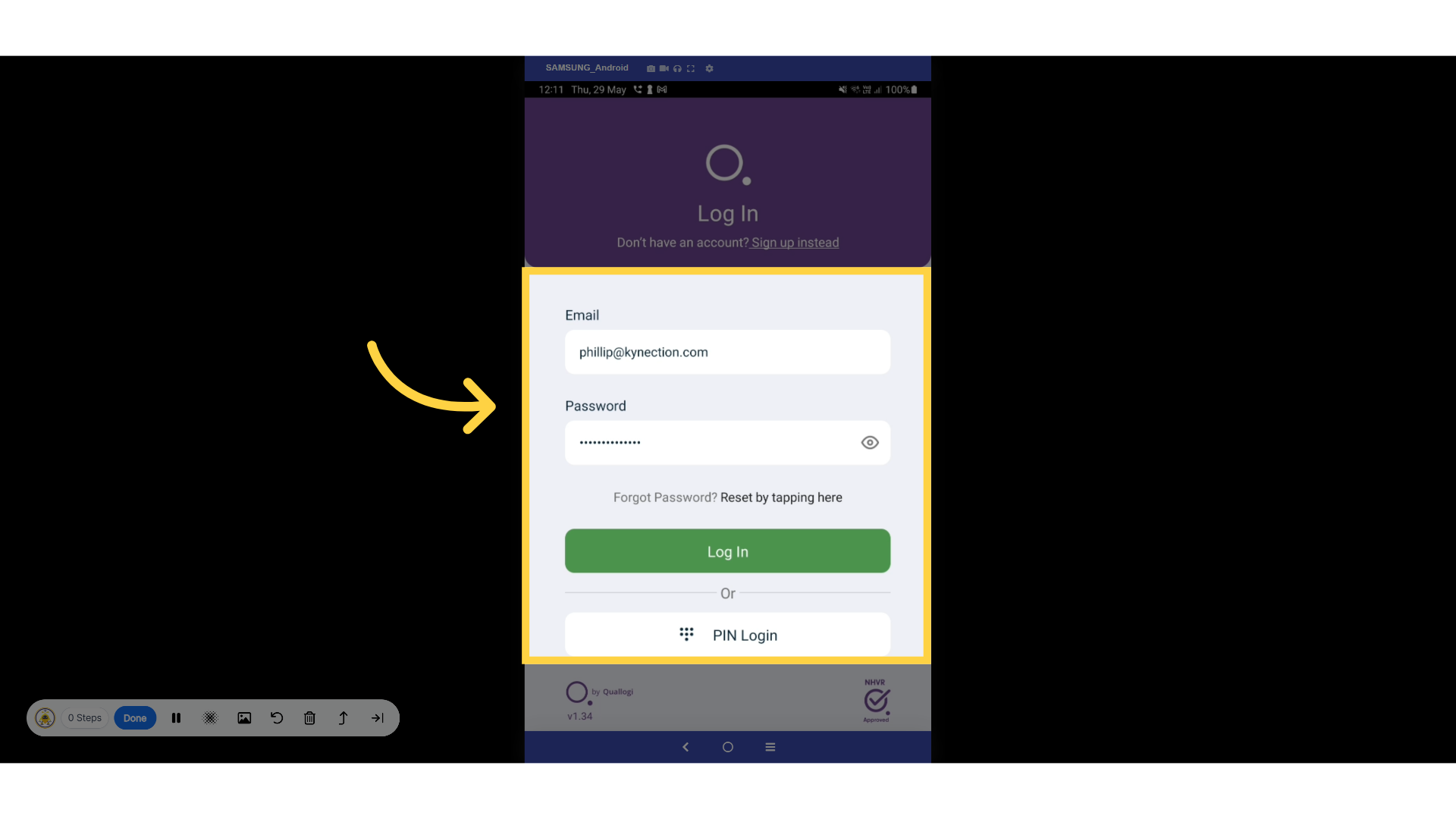
To begin, download the application from either the Google Play Store
or the Apple App Store. Once installed, sign up by entering your email
address and creating a secure password.
2. Q Dashboard
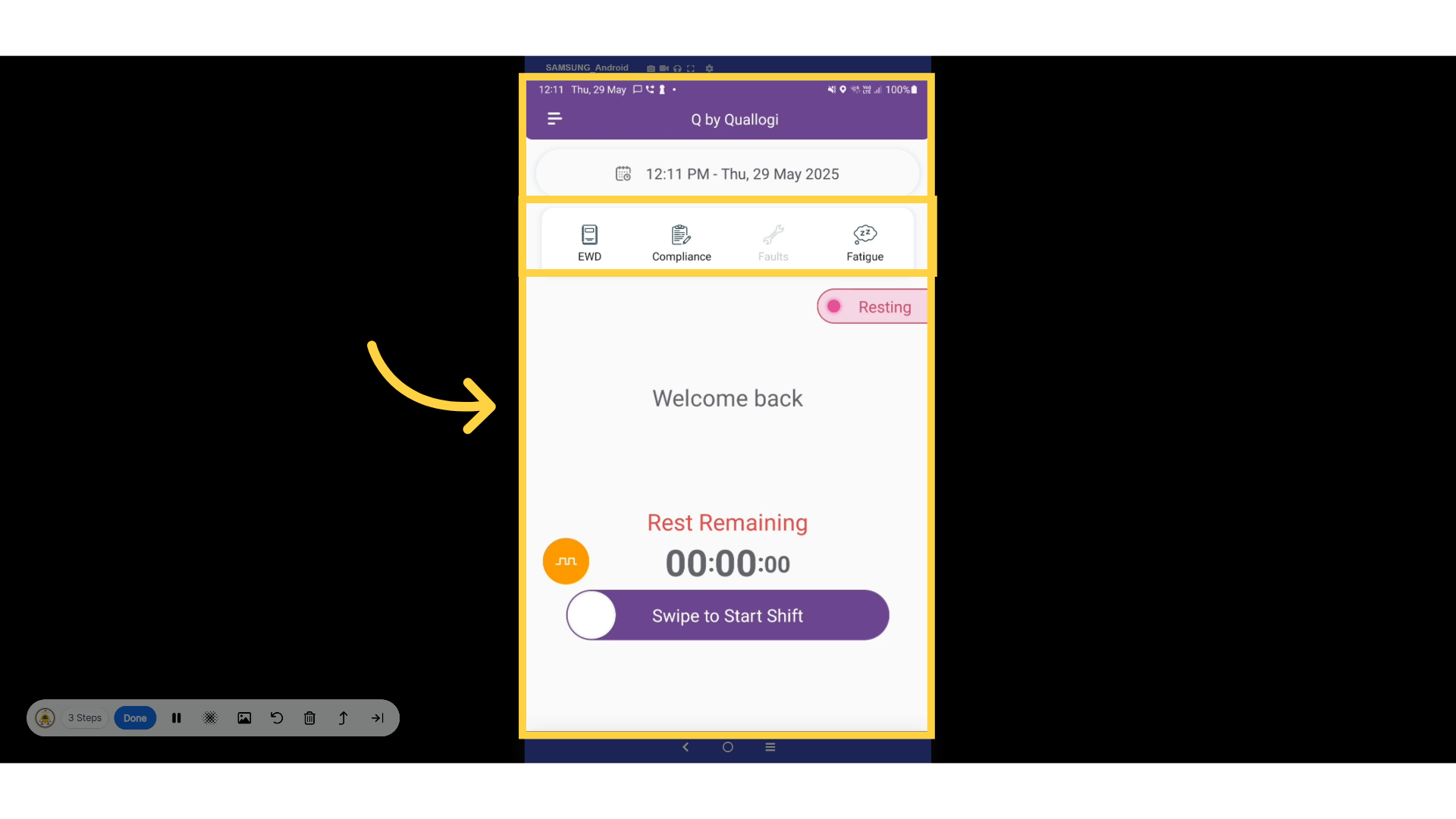
On the Q Dashboard, users can conveniently access their EWD records,
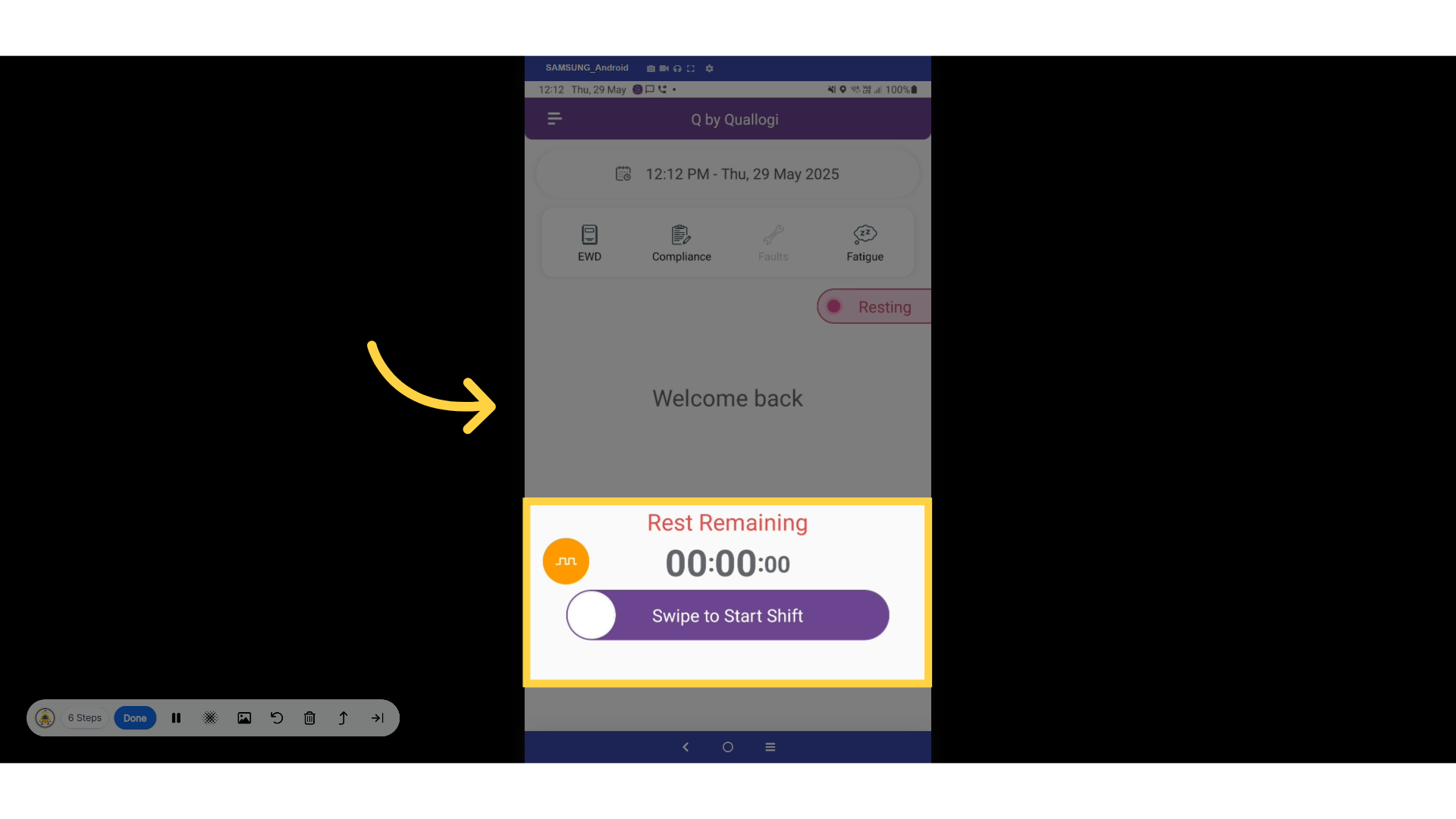
compliance reports, and fatigue hours. To begin a shift, simply use the
prominent swipe button.
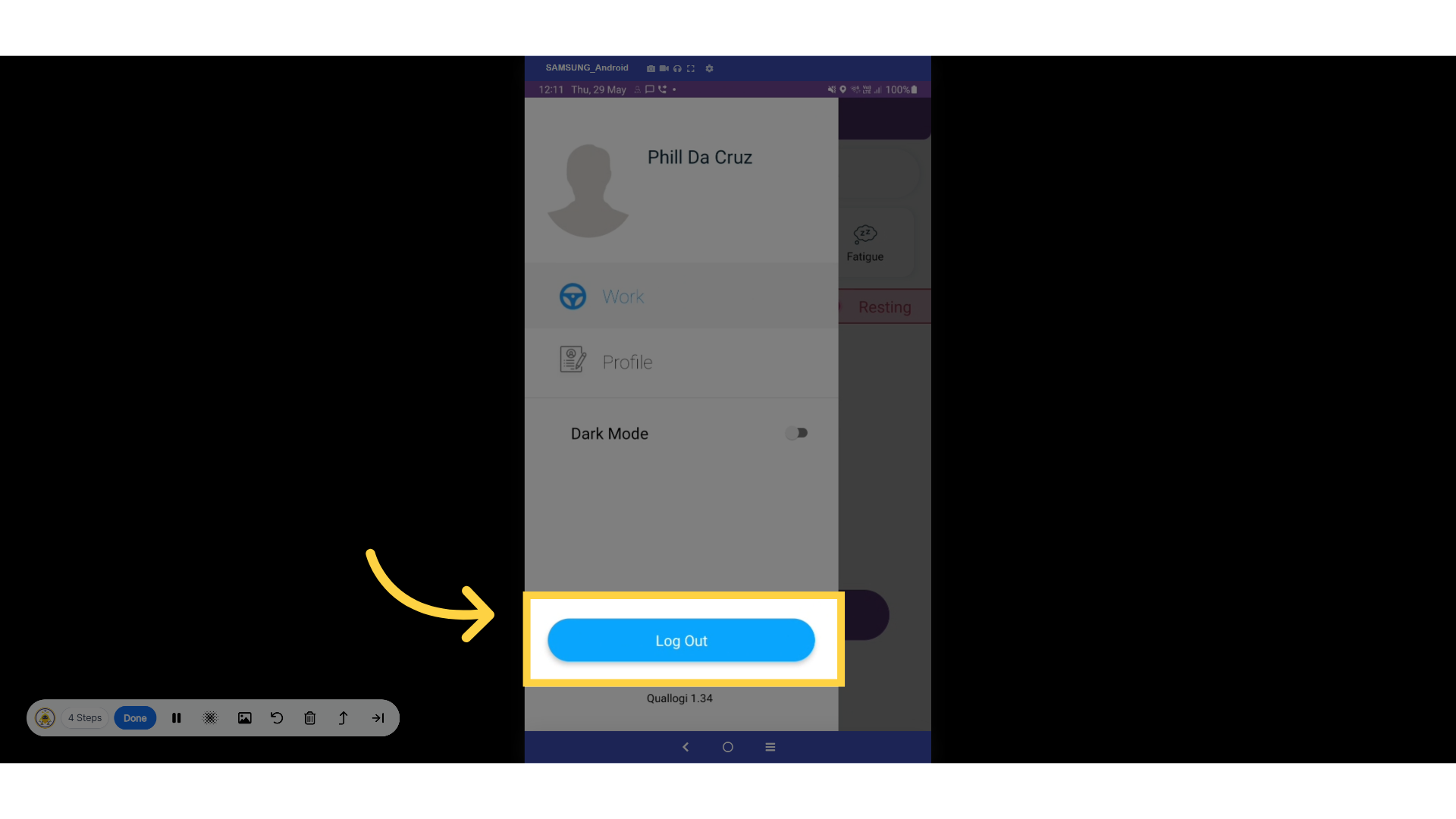
3. Log Out
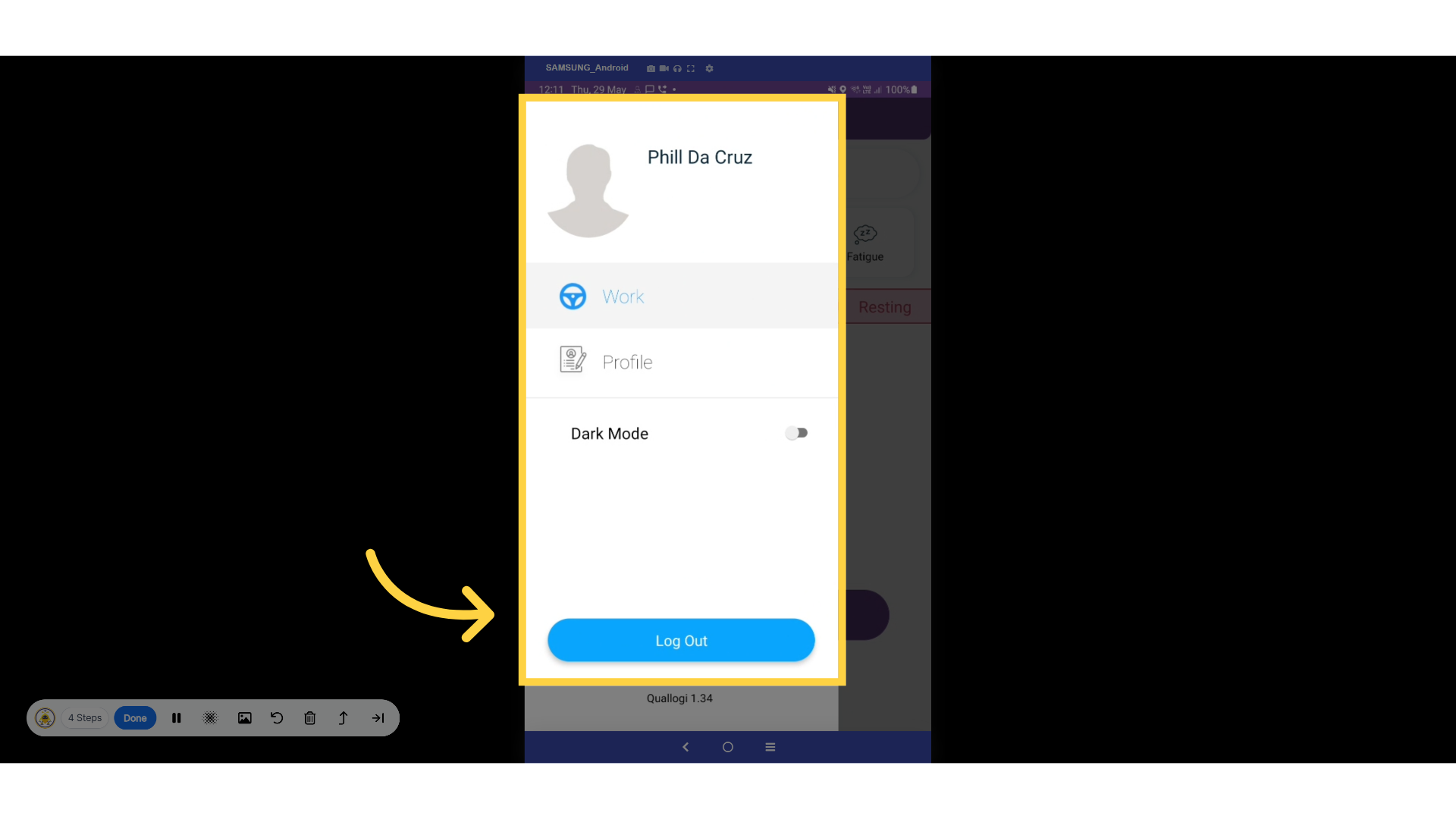
To log out, switch to dark mode, or access your profile, simply tap the
three-line icon located in the top-left corner of your device.
4. Profile Overview
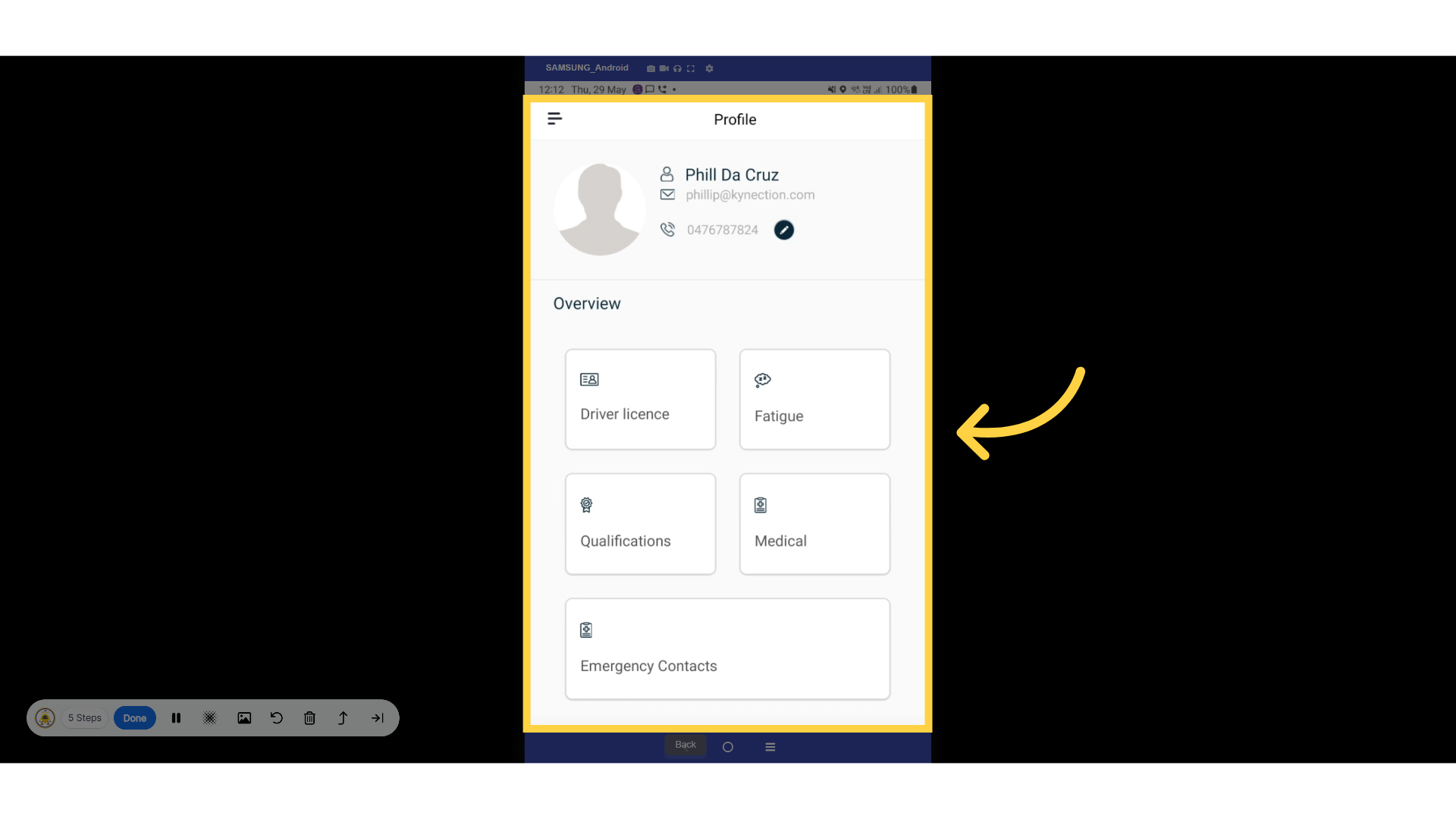
In your profile, you can conveniently update your driver's license, view
your qualifications, manage emergency contacts, access medical reports,
and review your fatigue history.
5. Start Shift
Begin your shift by swiping!
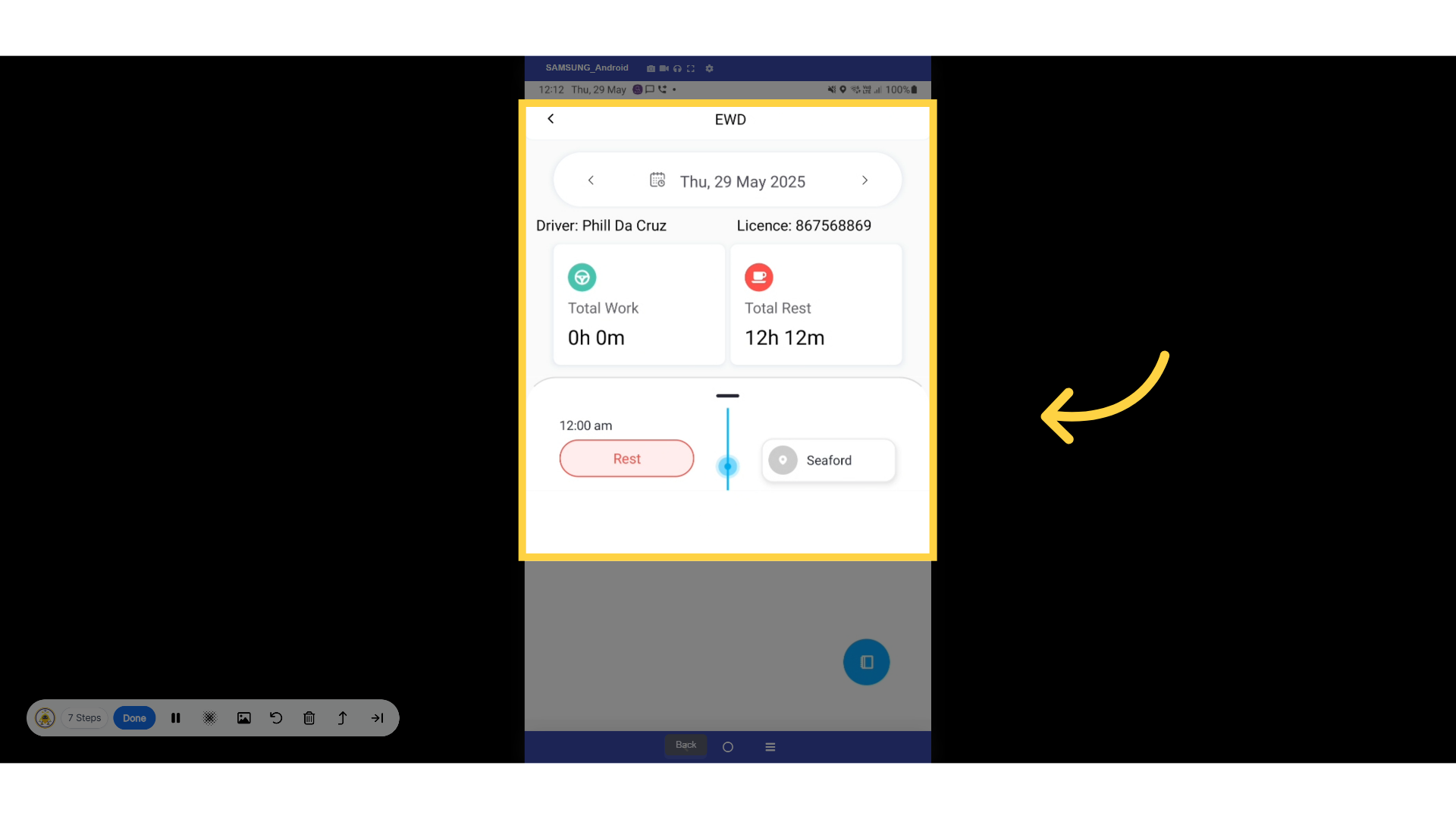
6. EWD Overview
This section provides a comprehensive overview of your total work and
rest hours, complete with a timeline illustrating the start time and
location of your shift.
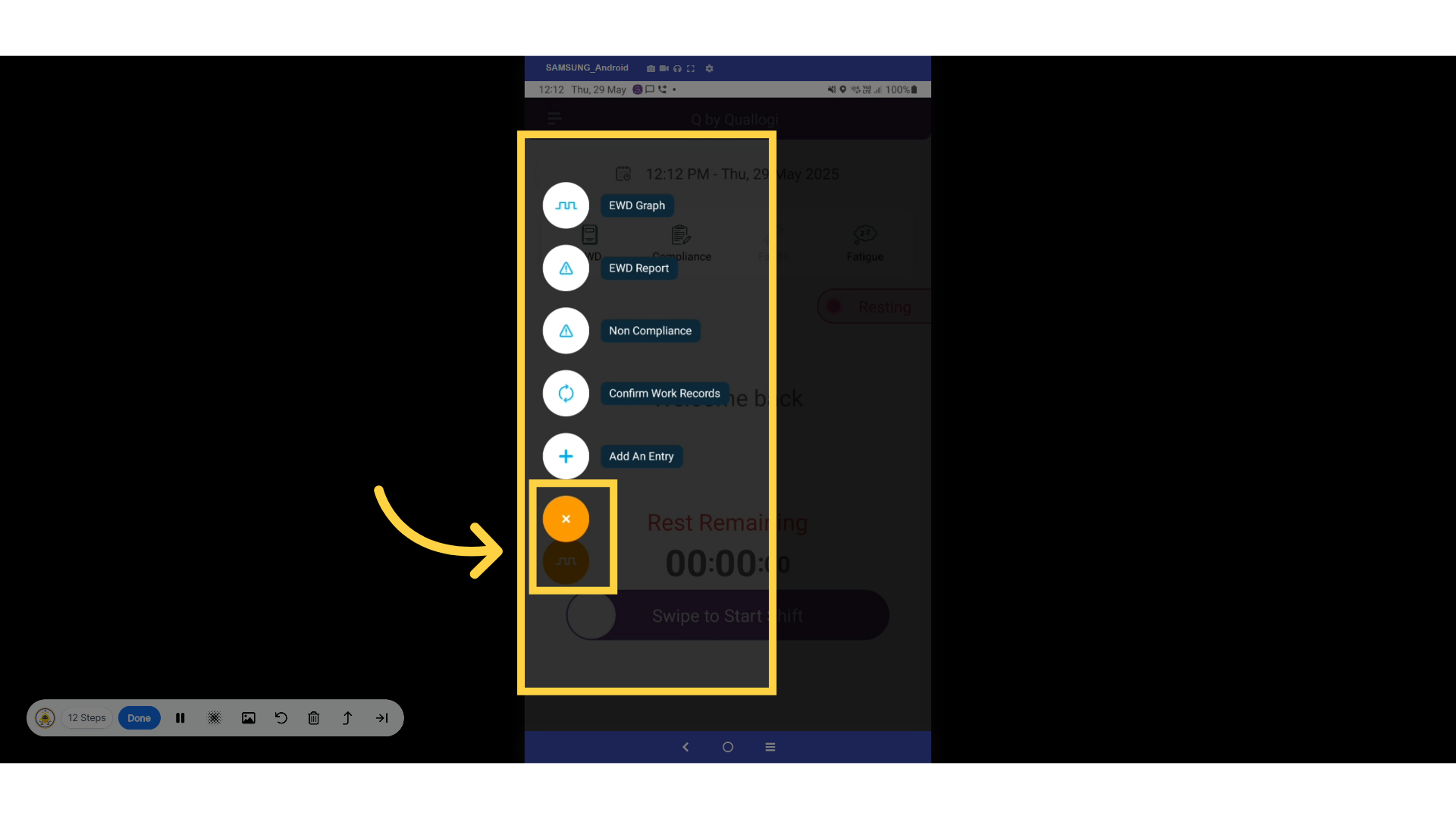
7. Compliance Mode
In compliance mode, you can view a variety of reports, including the
EWD Graph, EWD Report, Non-Compliance Reports, and Confirm Work Records.
Let's take a closer look at the EWD Graph.
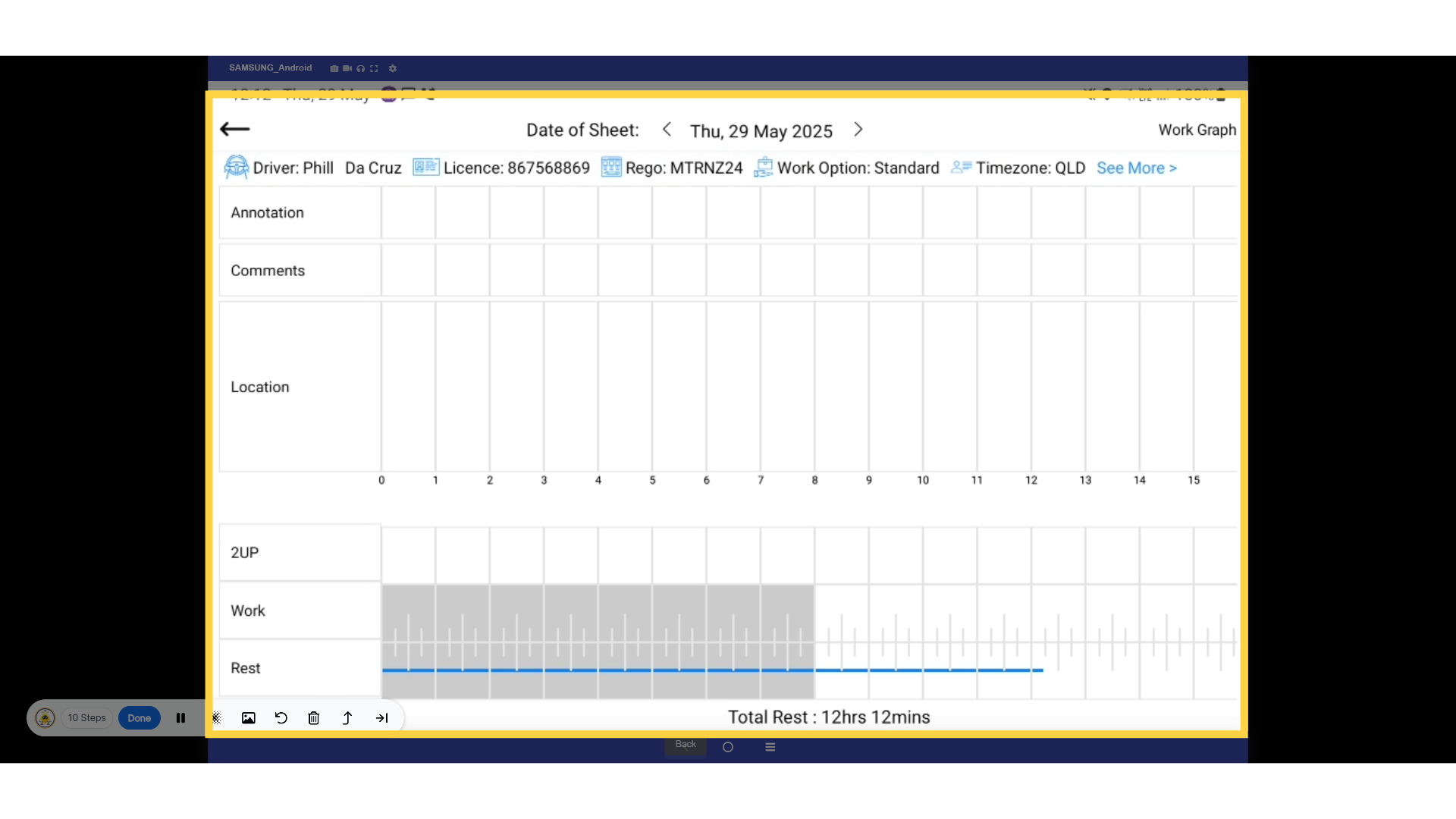
8. EWD Graph
This graph provides a clear visualization of your work and rest periods,
along with their respective locations. Additionally, you can enhance
your experience by adding annotations and comments to these periods.
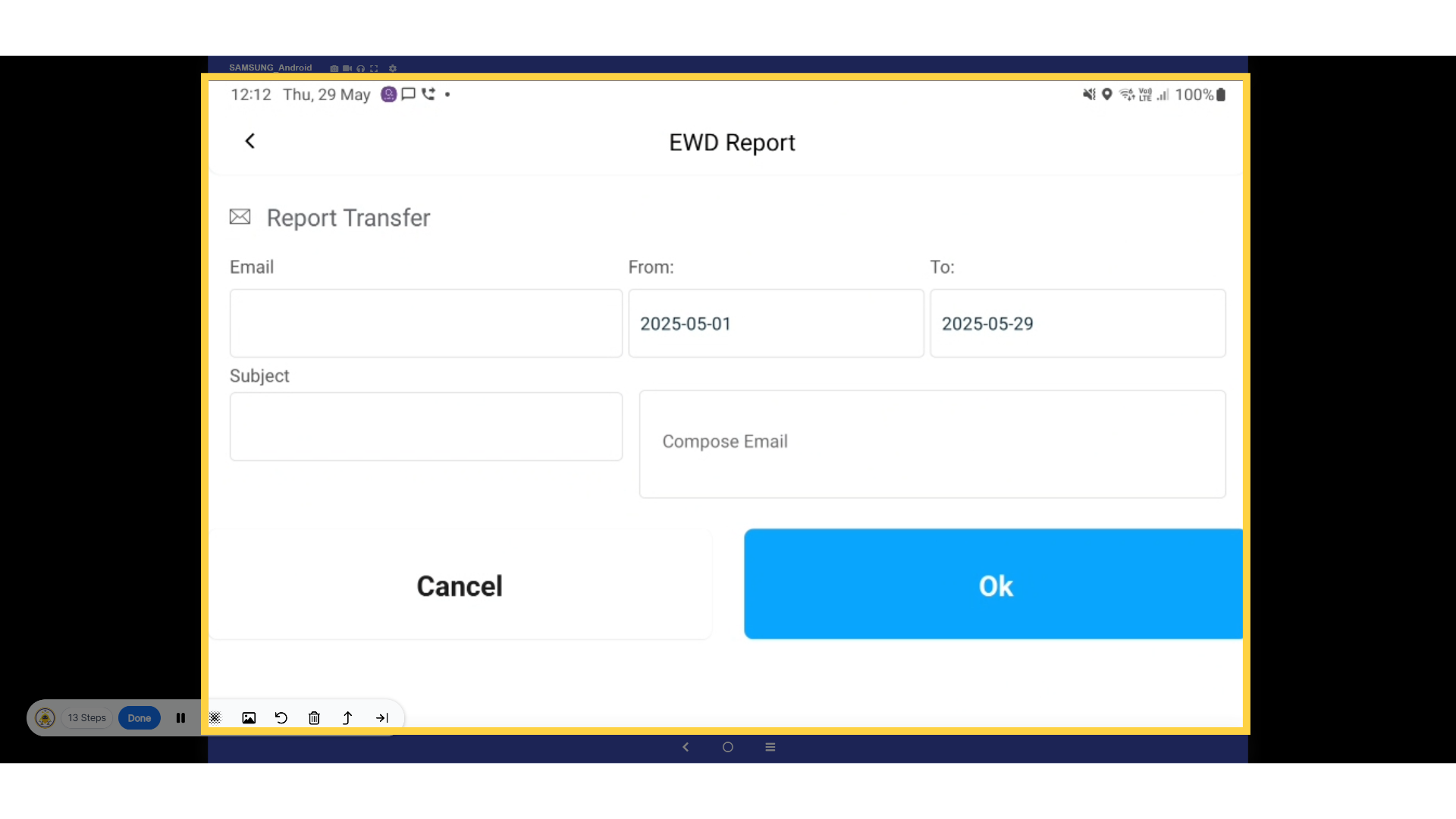
9. EWD Report
In the EWD Report section, you can easily email the report to anyone
you choose. Simply enter the recipient's email address and specify the
desired date range.
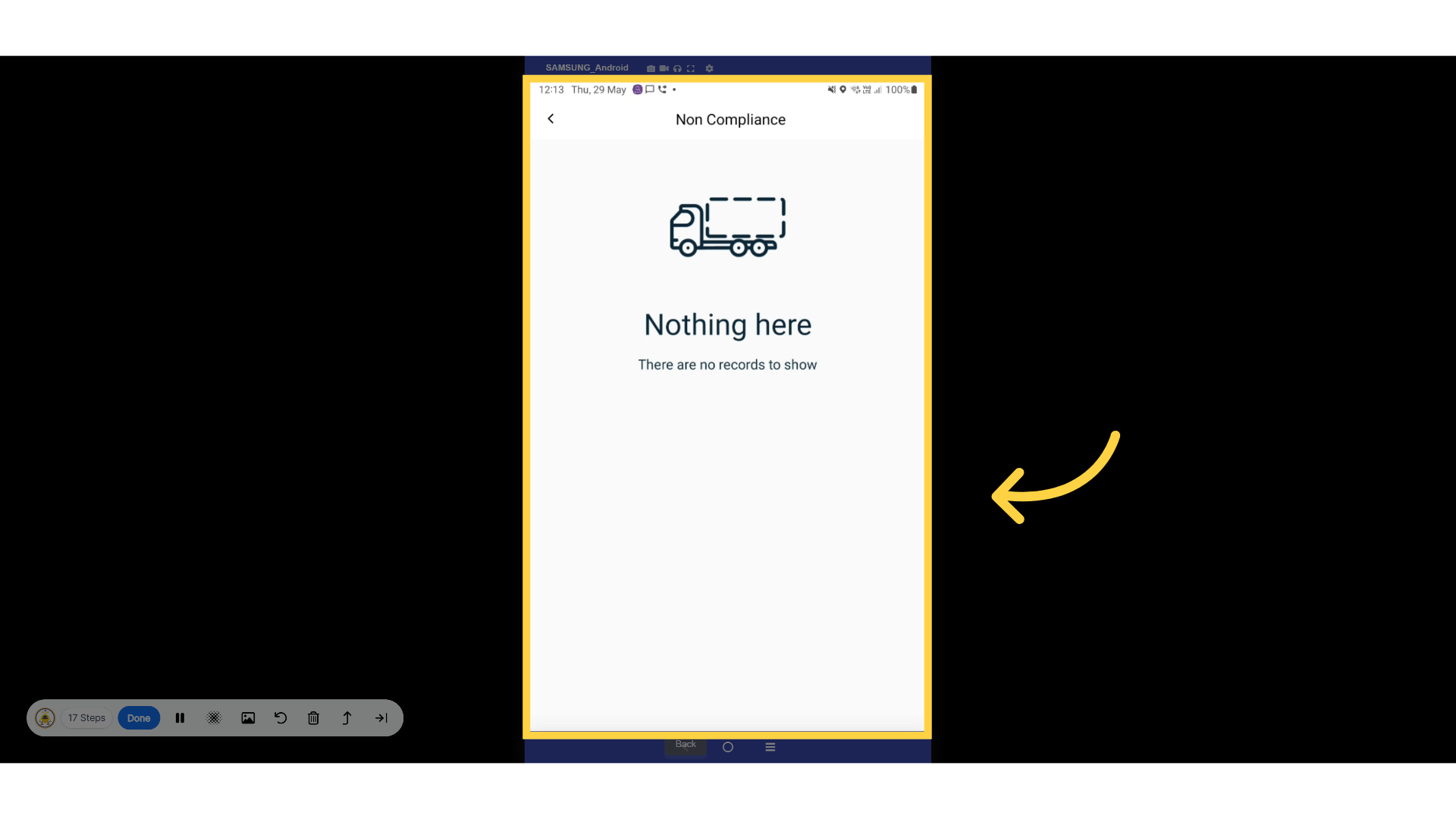
10. Non-Compliance
In this section, you can view all your non-compliance records.
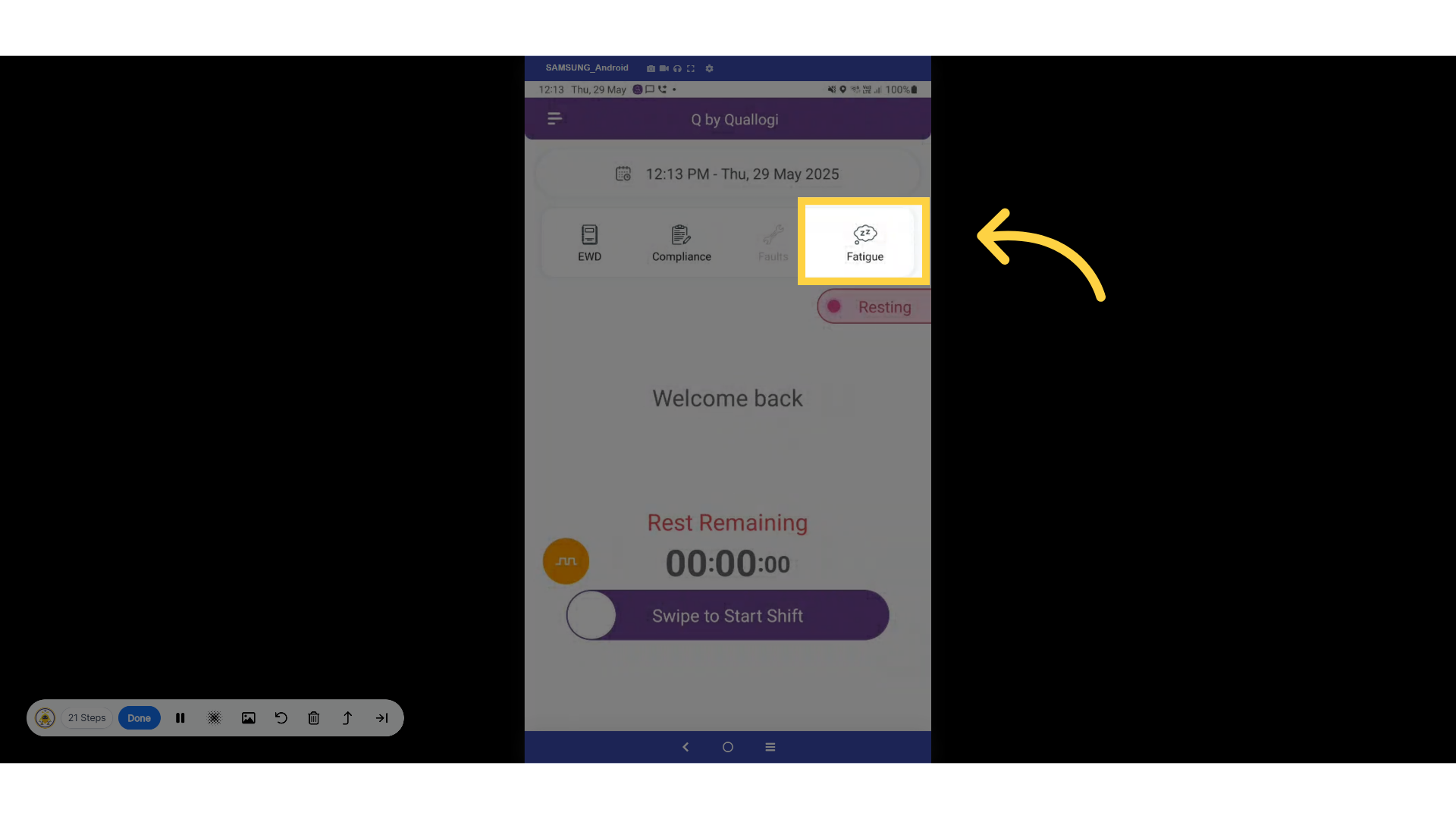
11. Fatigue
Let’s take a closer look at the fatigue icon.
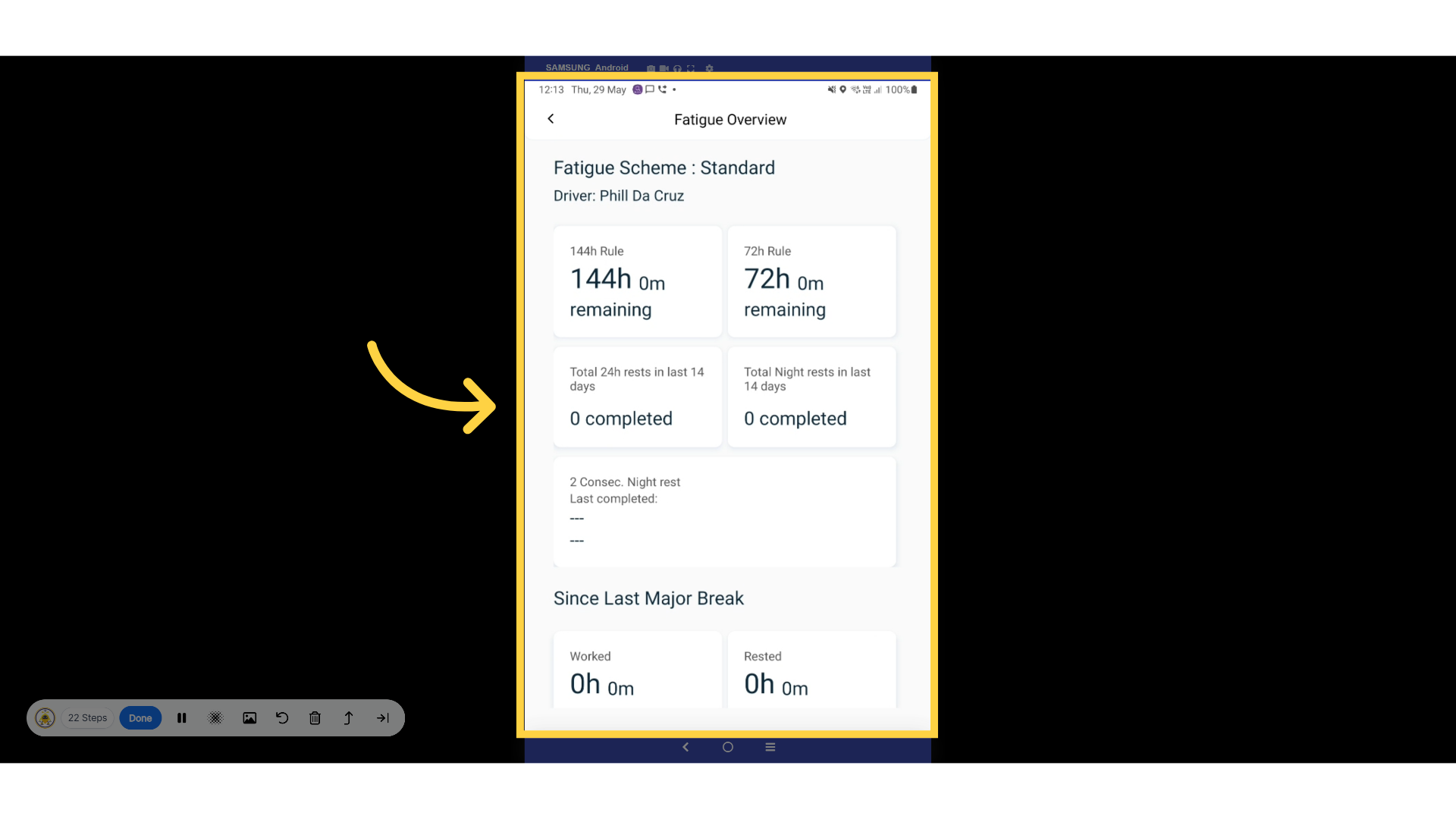
12. Fatigue Overview
Your fatigue overview varies depending on whether you are using the Basic
Fatigue Management or the Advanced Fatigue Management scheme. This overview
will display key metrics, including the implementation of the 144-hour
and 77-hour rules. It summarizes your total rest periods over the past
14 days, as well as the total number of night rests during that same
timeframe. Additionally, at the bottom of the overview, you will find
information regarding your last major break.
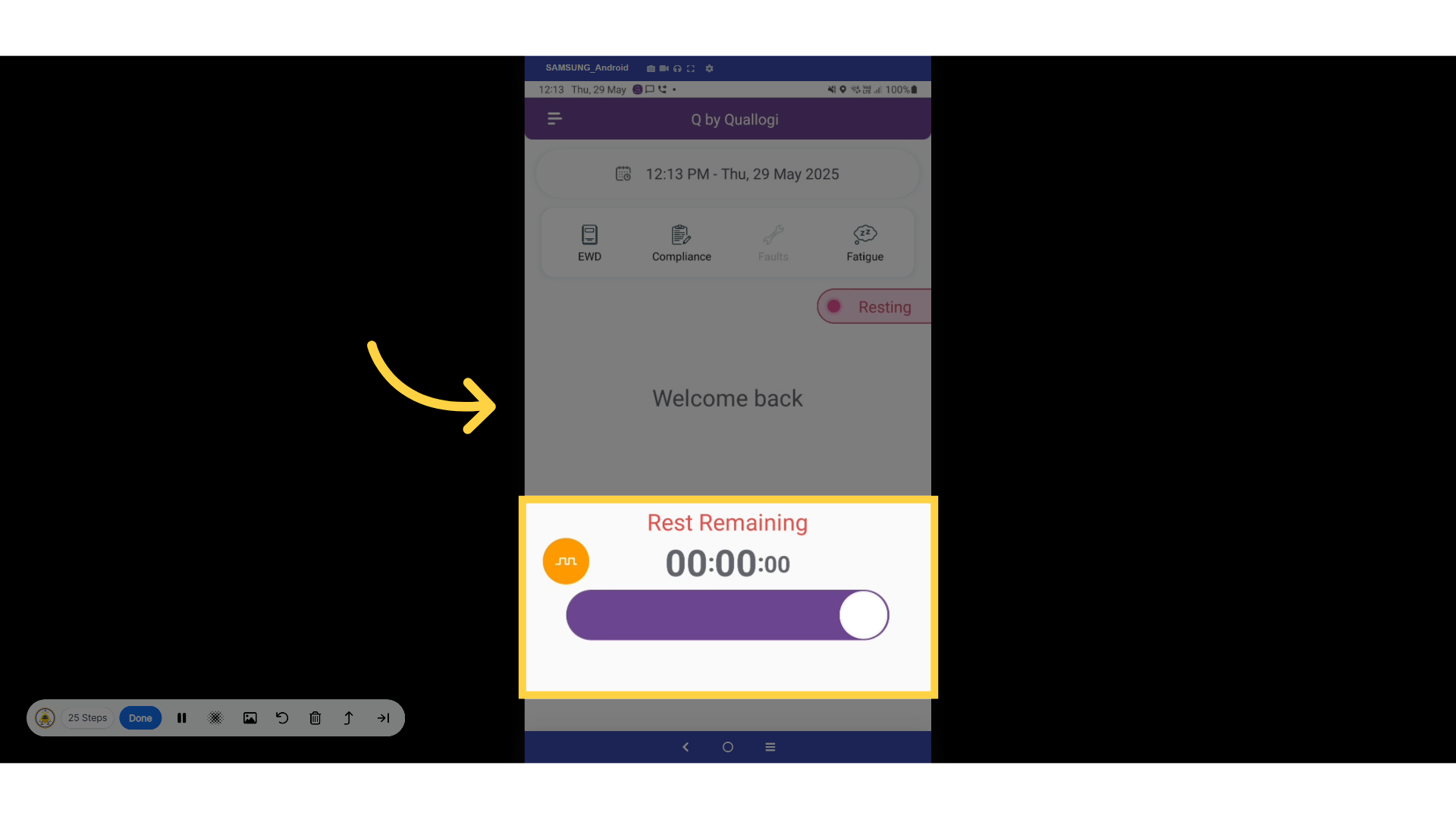
13. Start Shift
Let's begin our shift now!
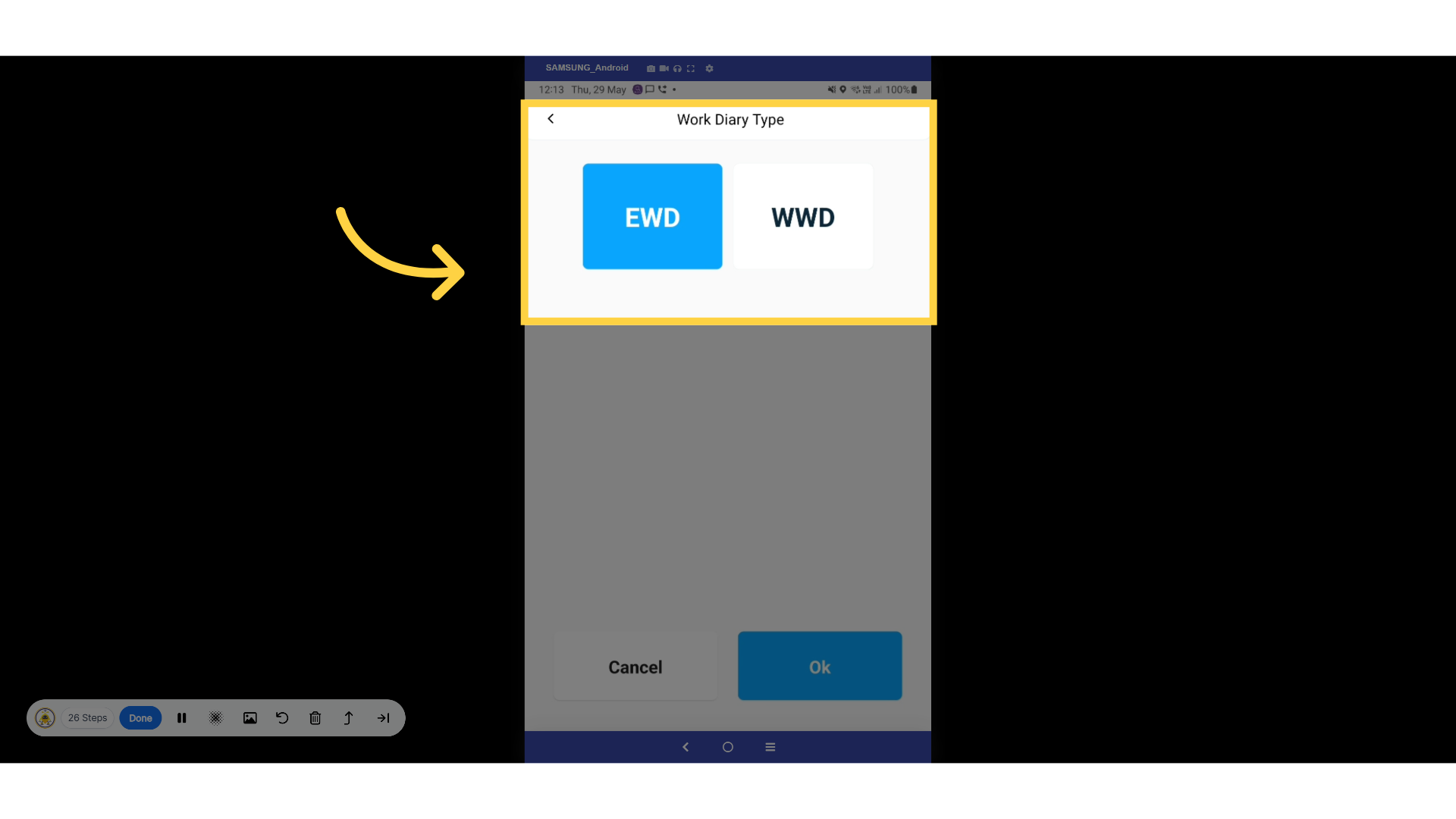
14. EWD or WWD
You can select either an EWD or a WWD. You can only choose one of these
options
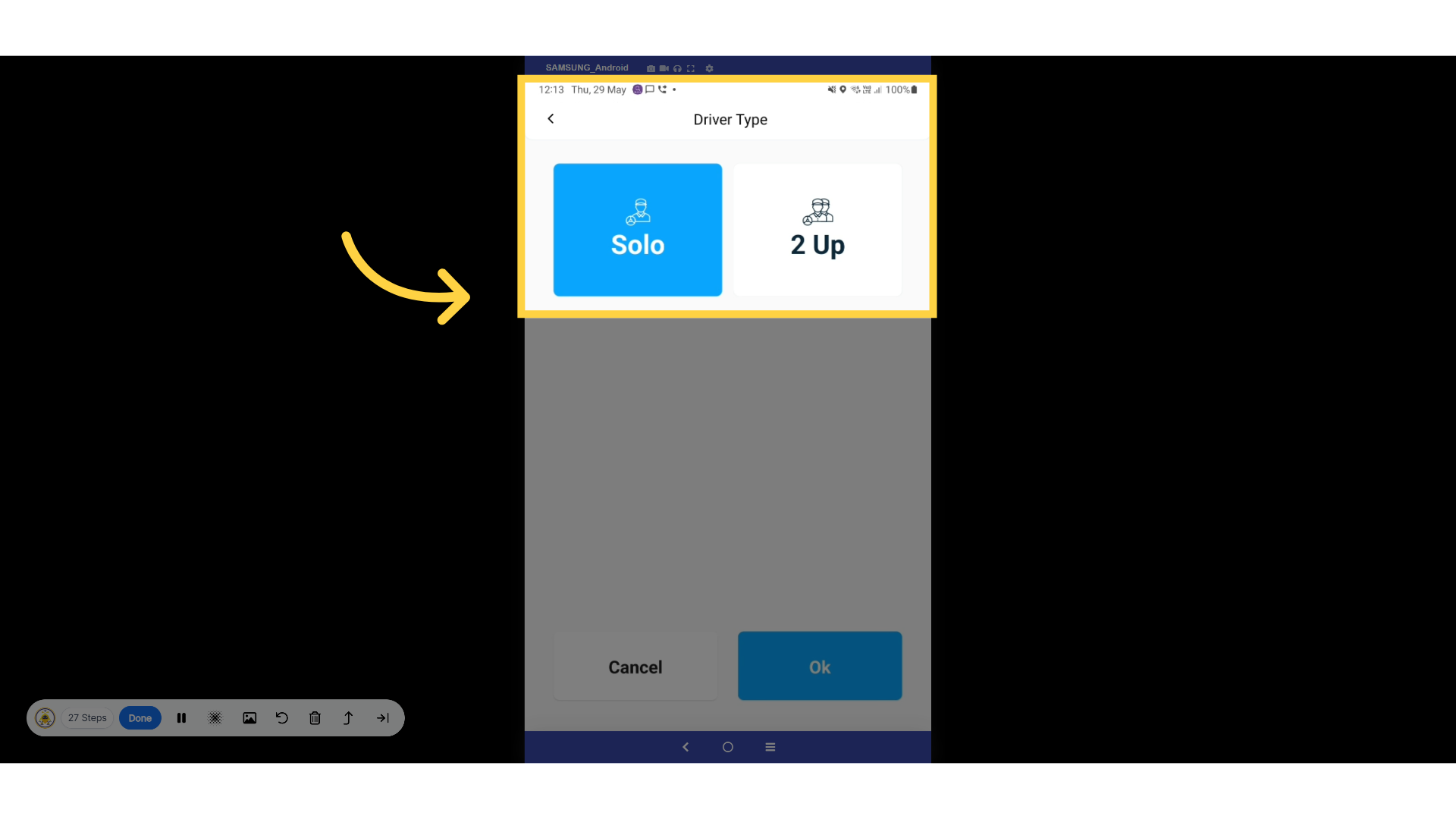
15. Solo or 2 Up
You now have the option to choose between a solo shift or a 2-up shift.
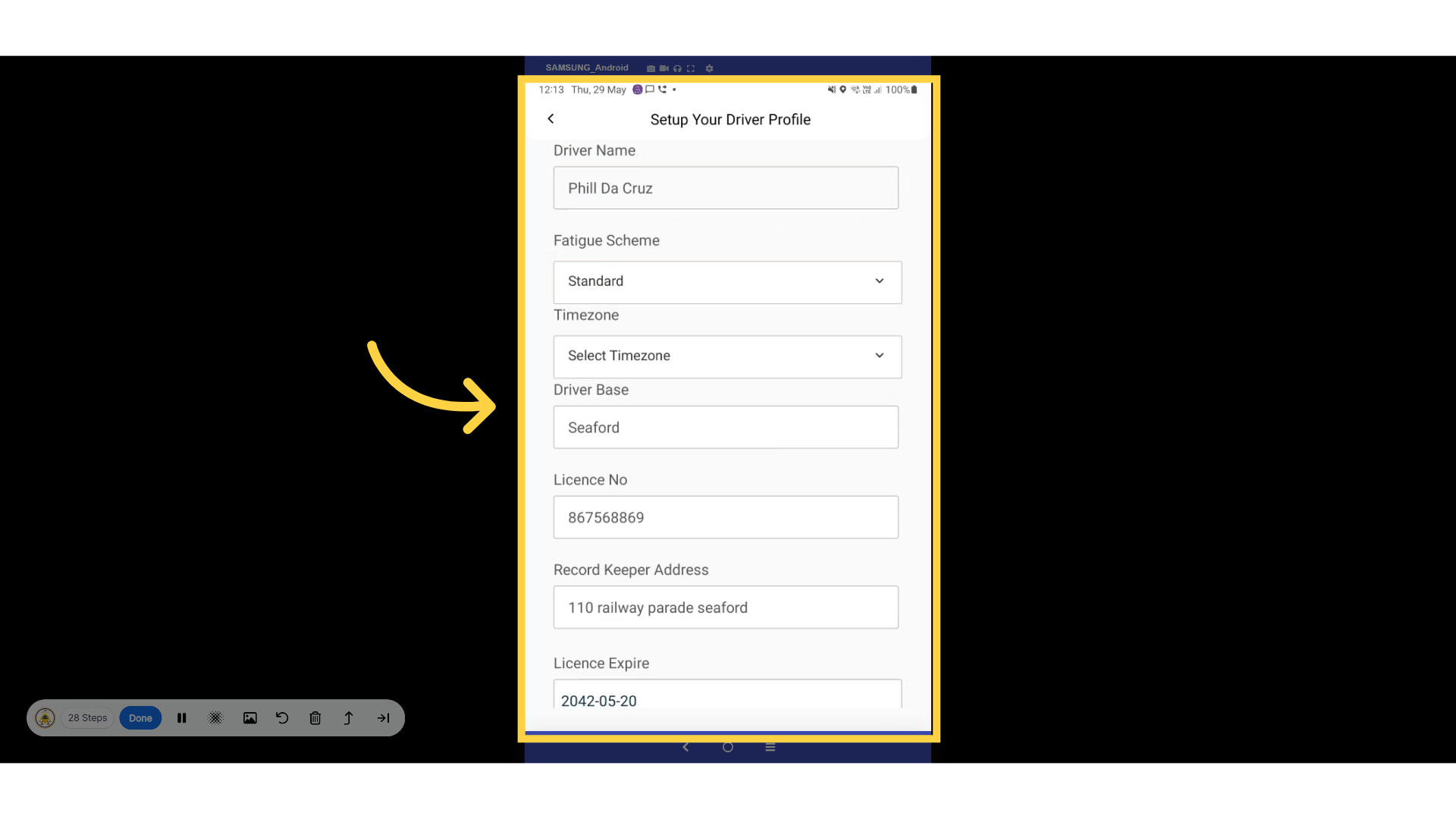
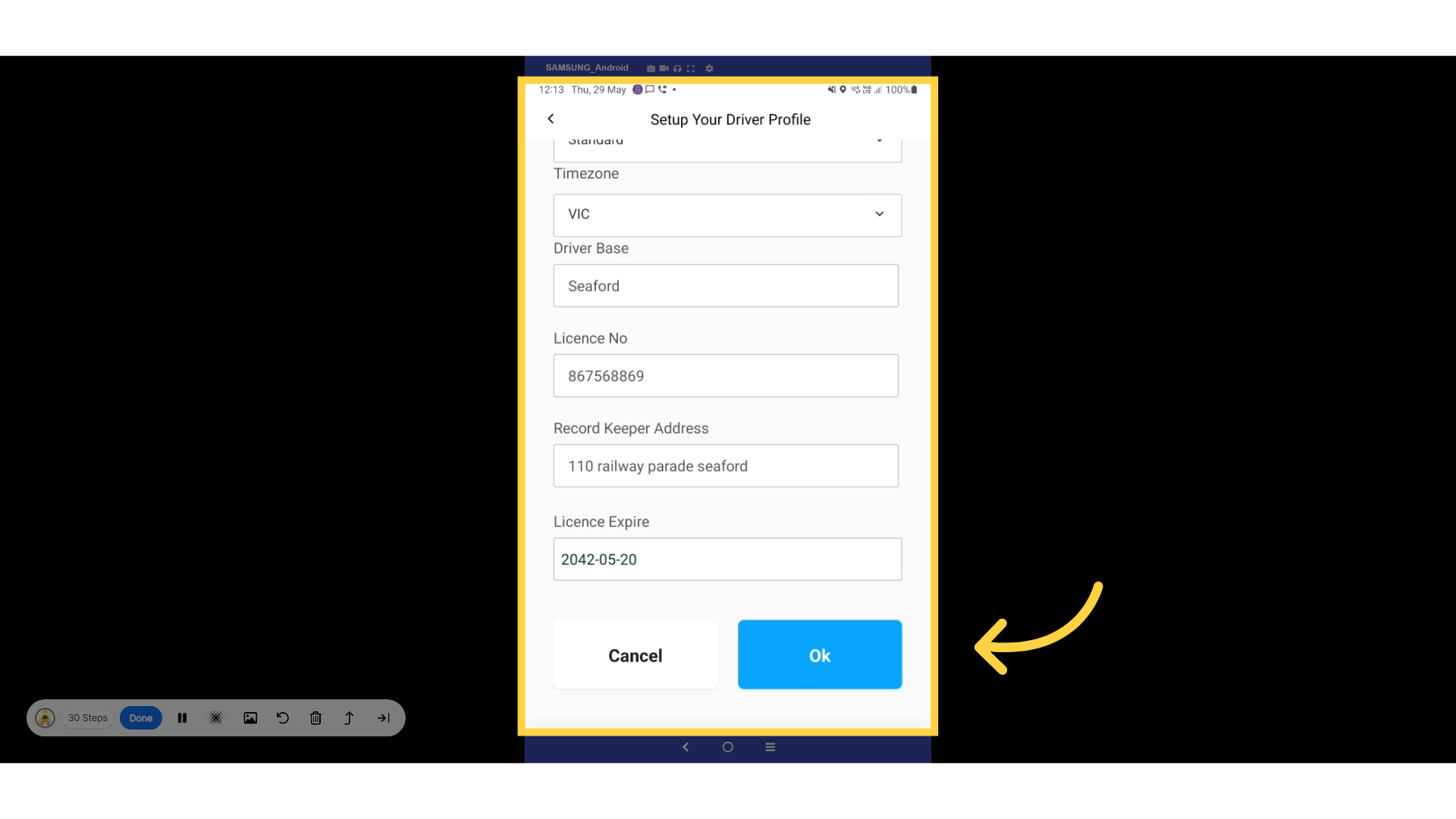
16. Fill in Details
Confirm your information and choose your preferred timezone.
17. Okay
Once you have finalized your selections, please click OK to confirm.
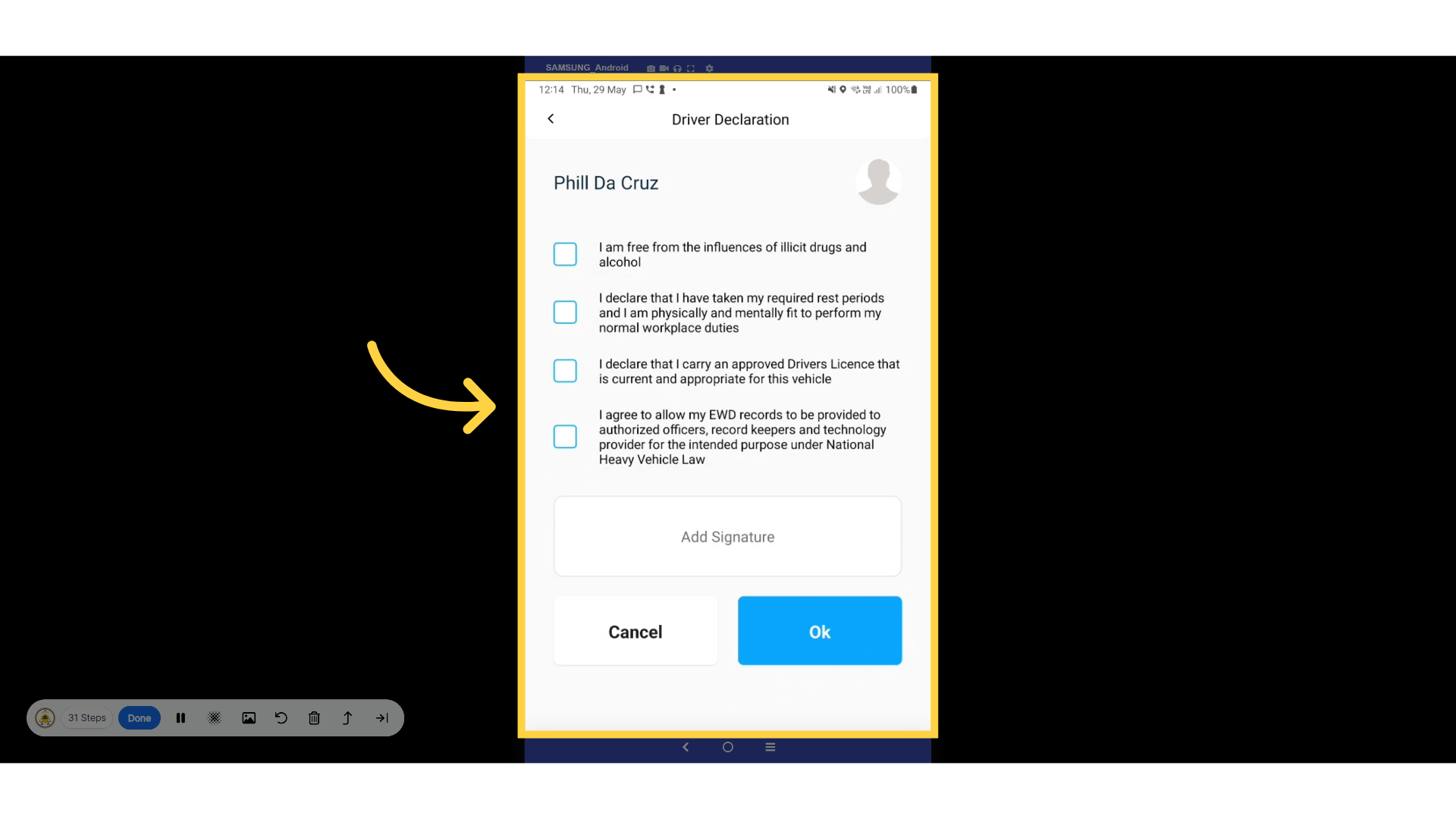
18. Fit for Duty
Please fill out your Fitness for Duty form, ensuring that you complete
the signature field. Once you have filled in all the necessary information,
click OK to submit your form.
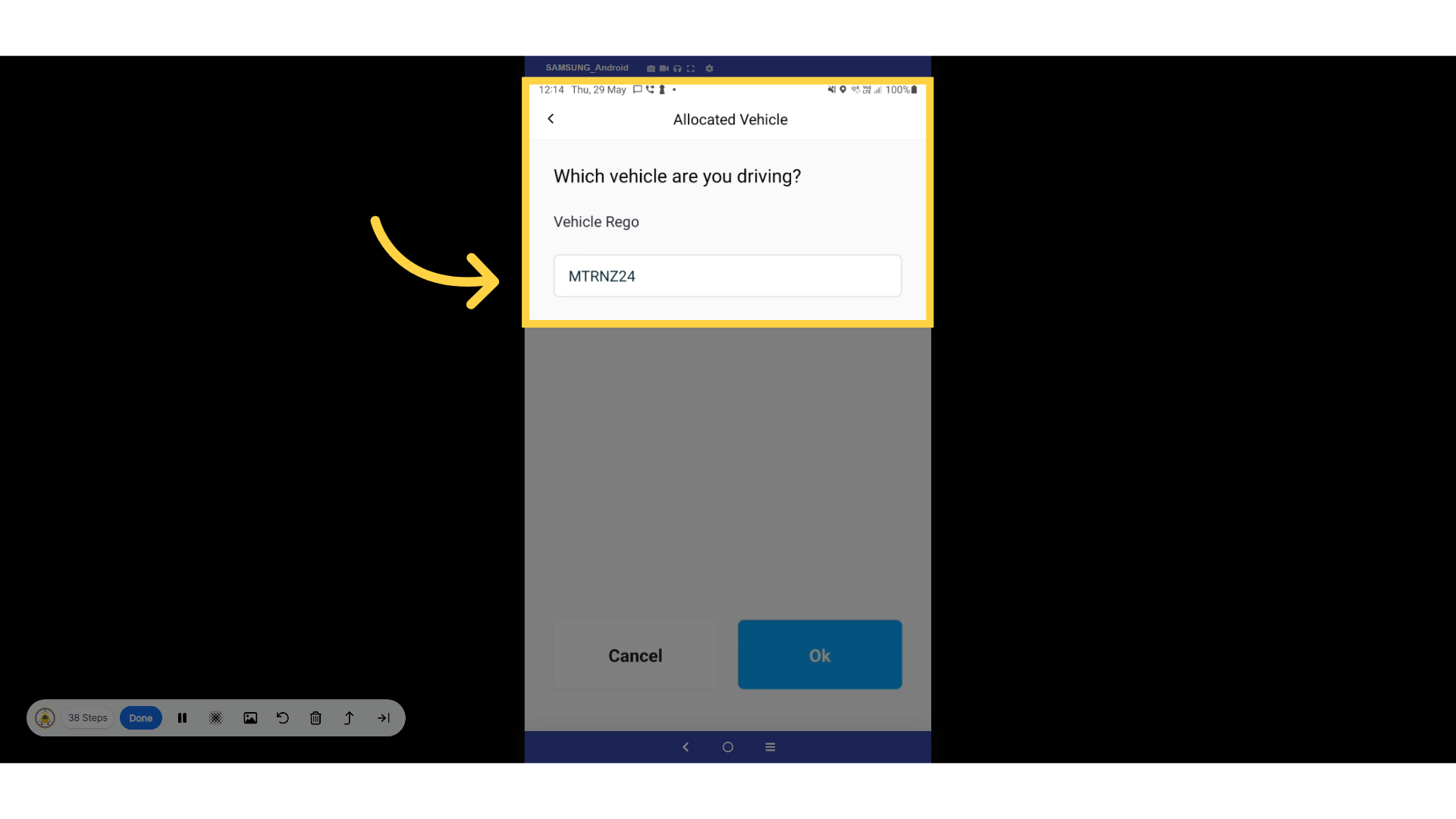
19. Vehicle Rego
Please enter the vehicle registration number and select okay
20. Input ODO
Enter the odometer reading.
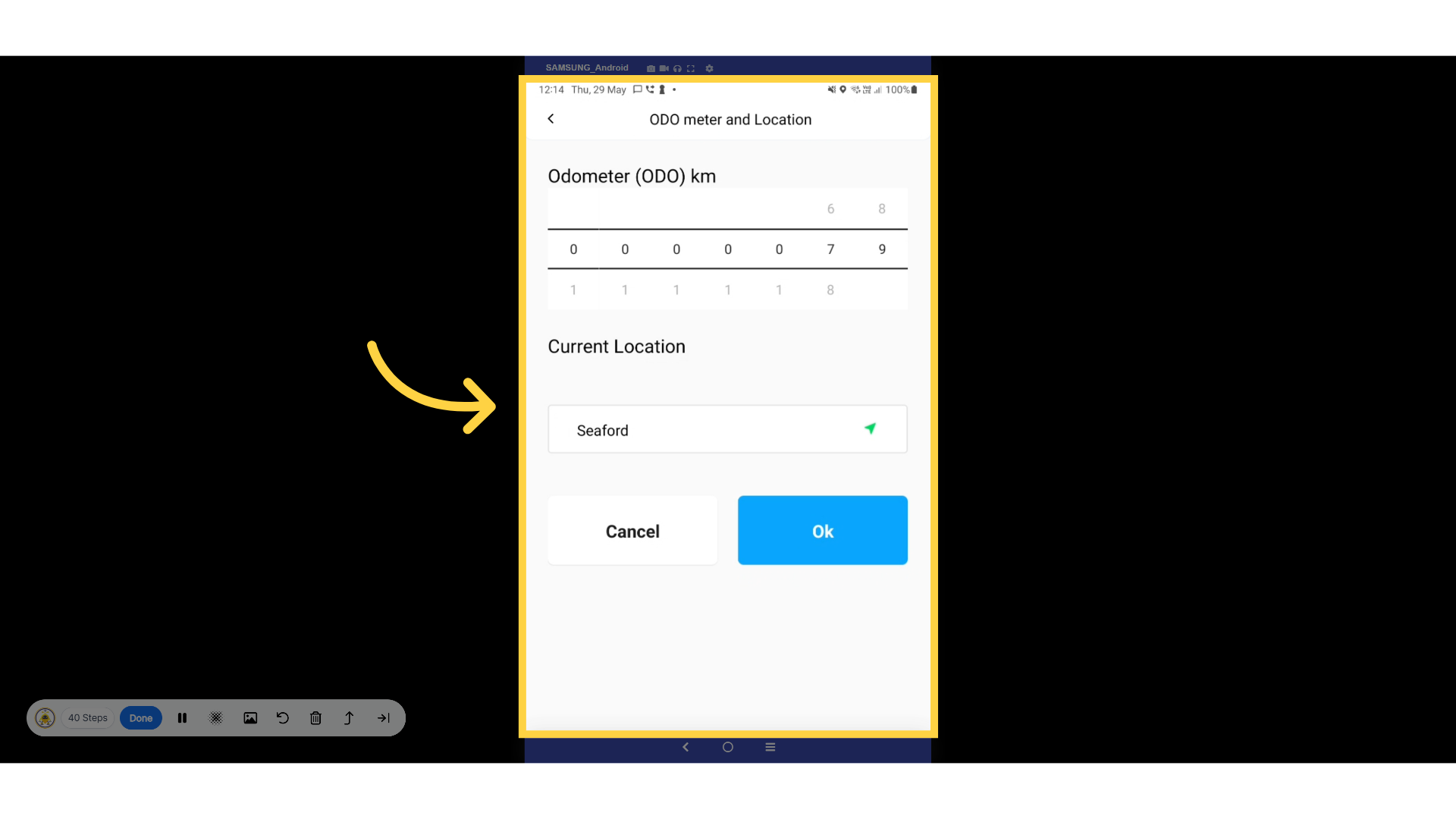
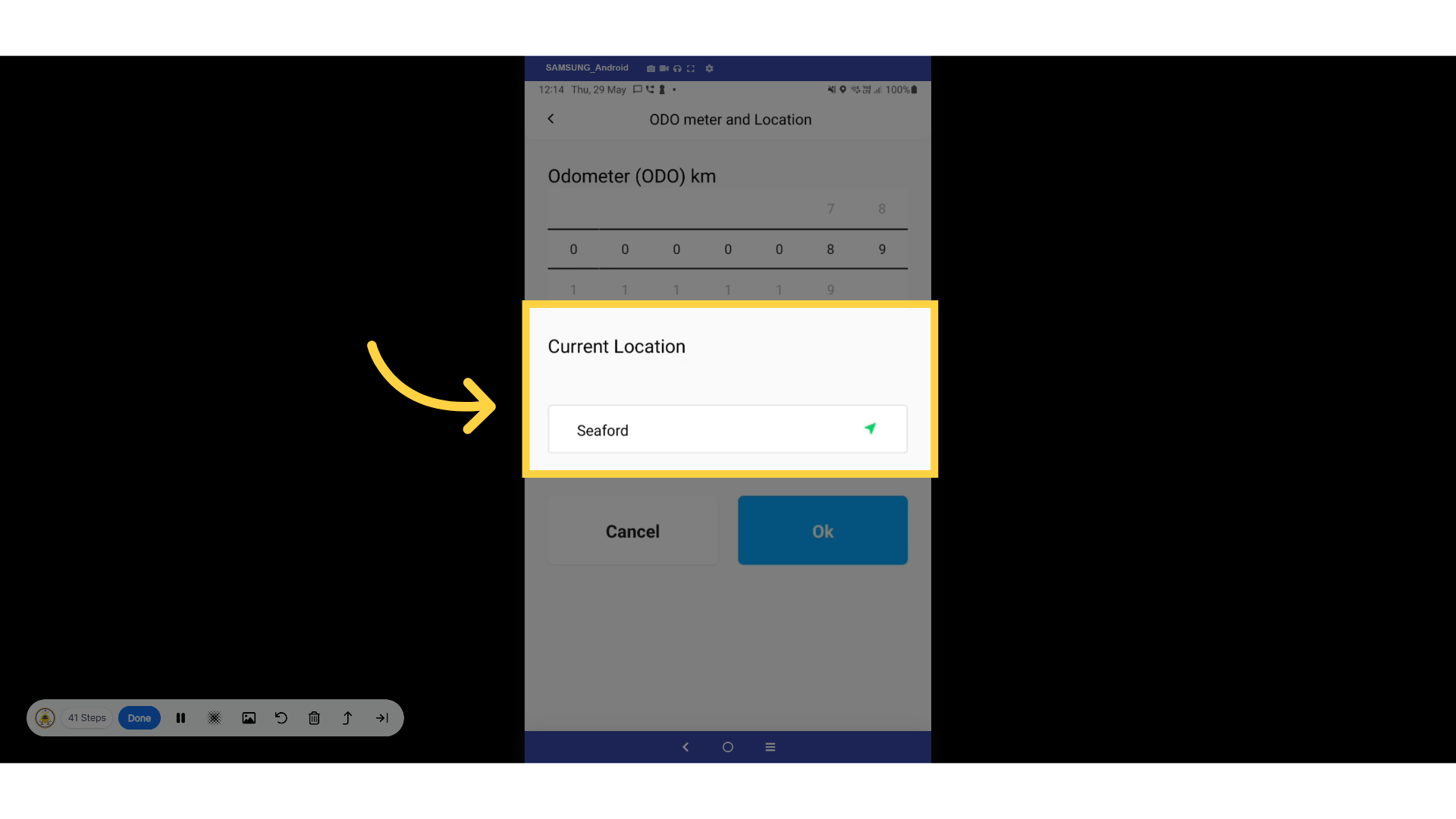
21. Location
Enter your current location and select okay
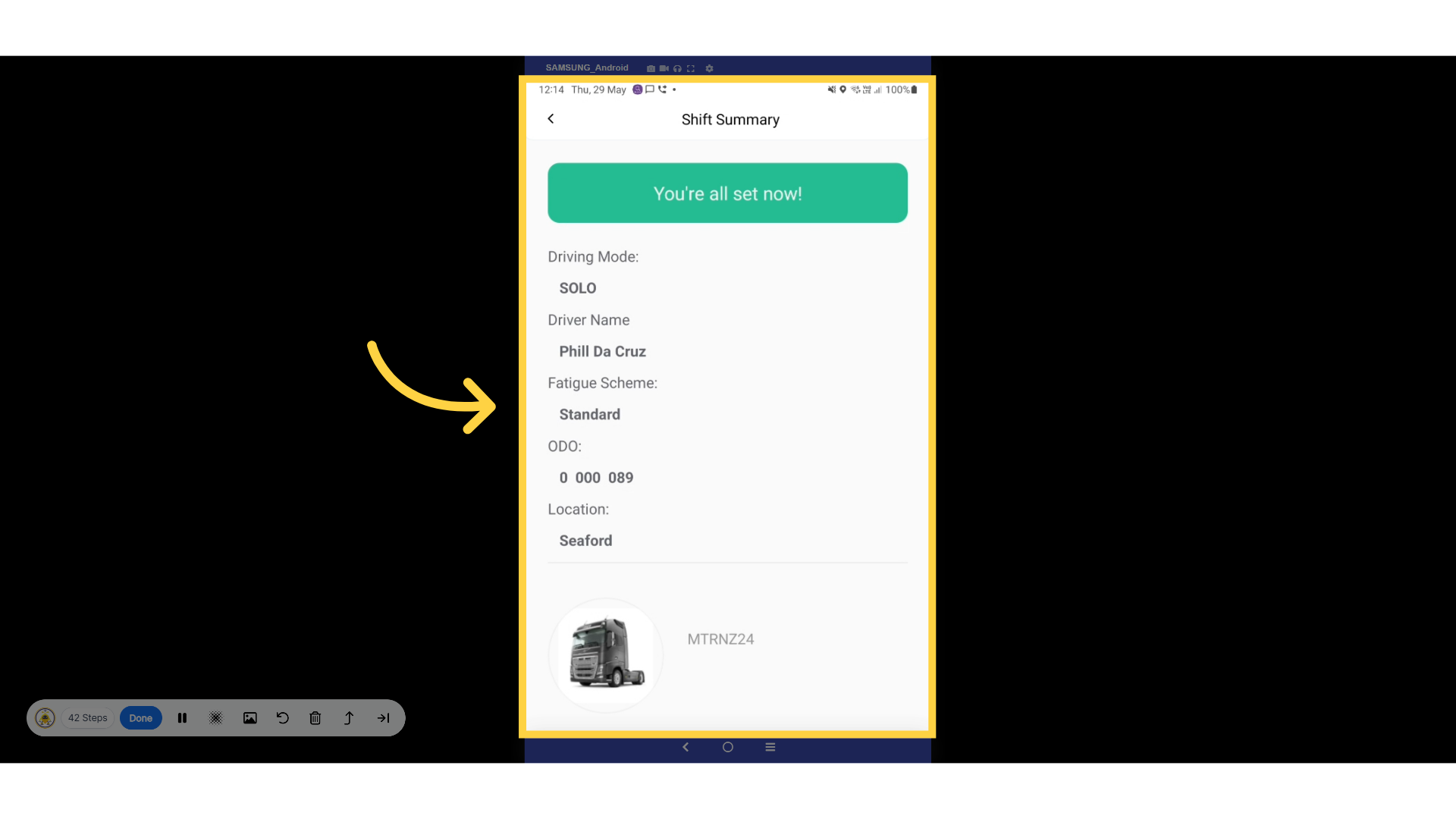
22. Shift Summary
Click okay and you're all set to hit the road!
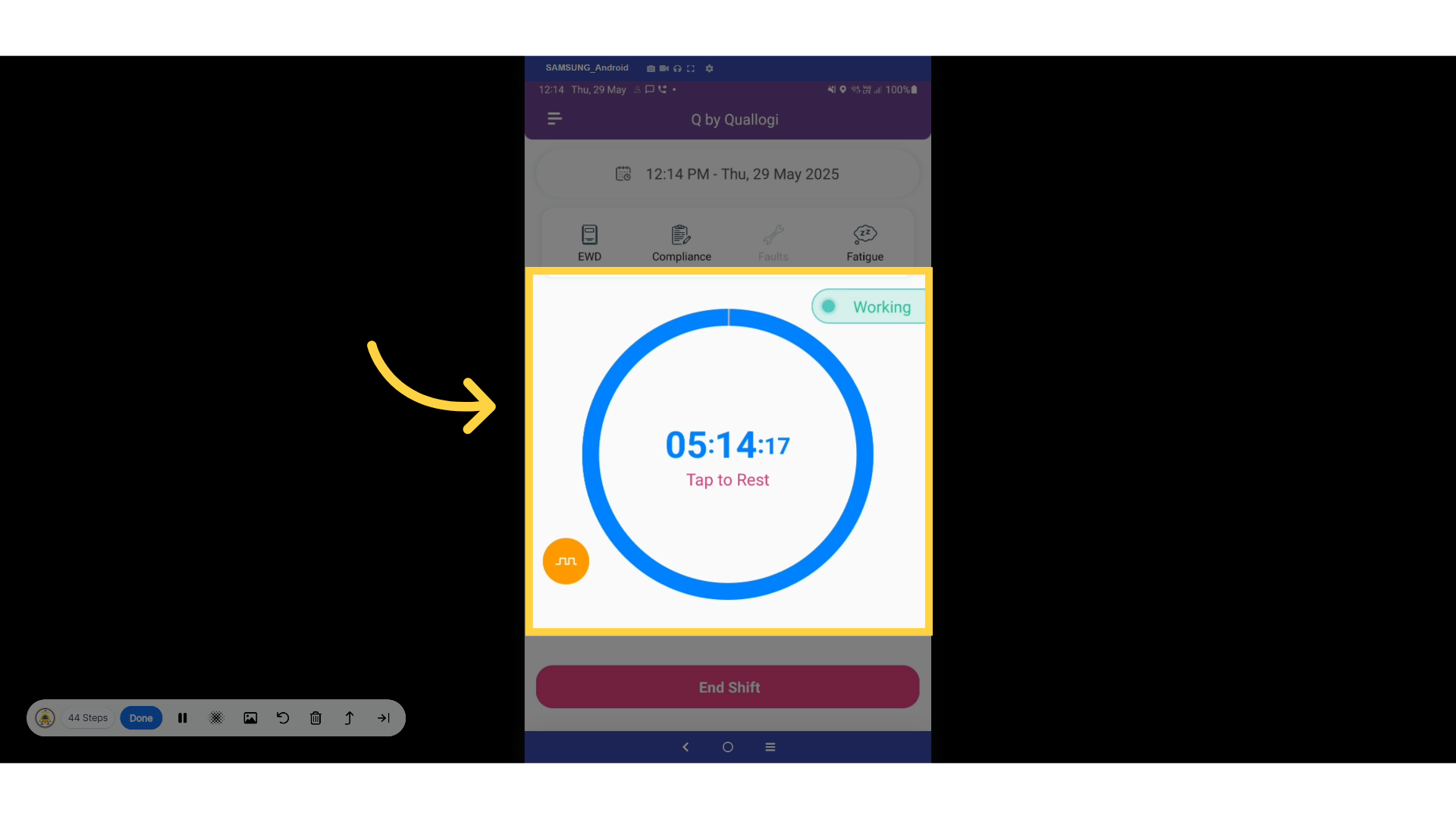
23. Shift Timer
The countdown timer has officially started! It will alert you as you
approach your designated rest break.
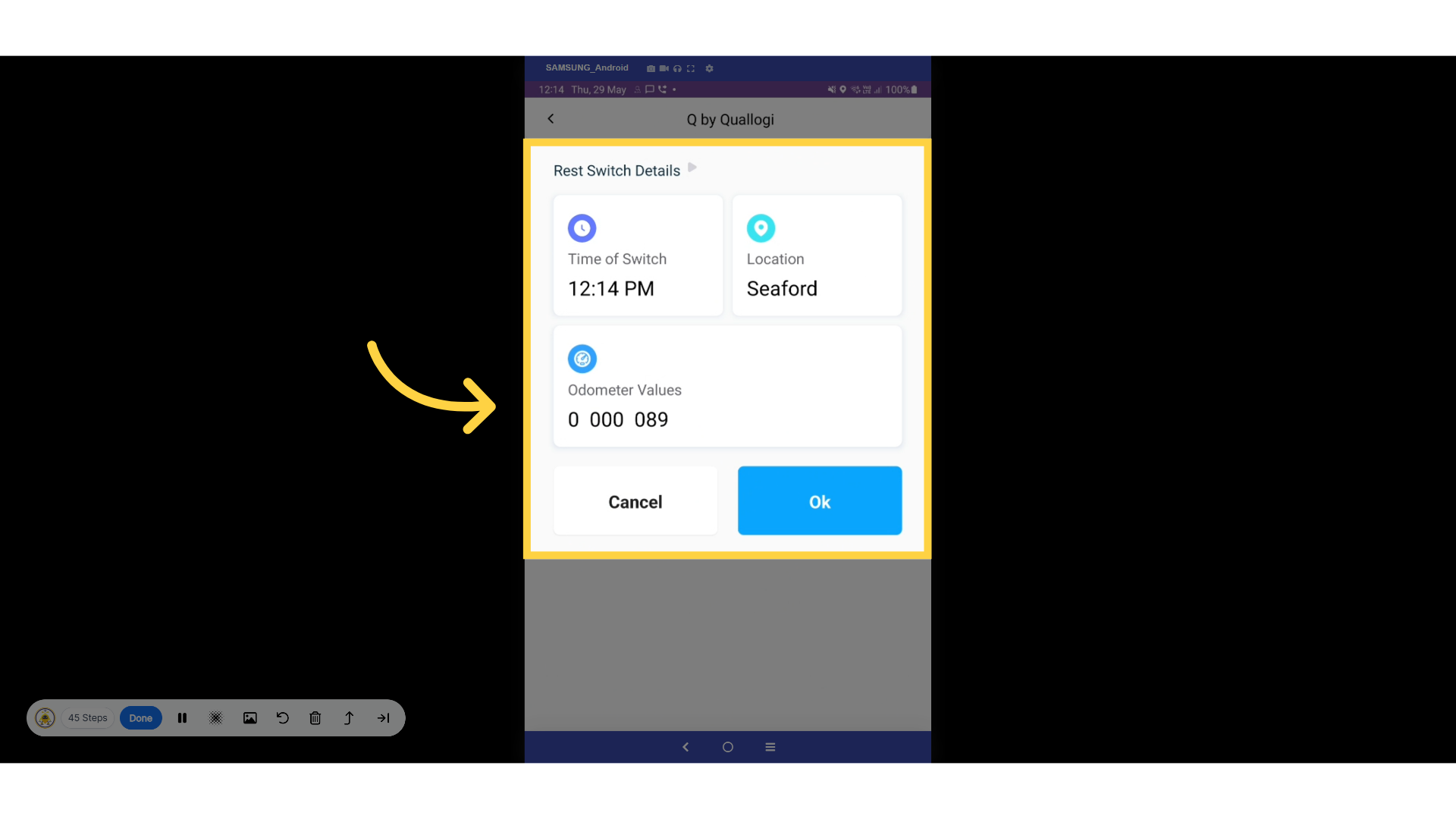
24. Rest Break
Once you click on the Rest Break button, a prompt will appear asking
you to confirm your switch to rest mode. You will need to verify your
time, location, and odometer reading. After reviewing this information,
simply click the OK button to proceed.
25. Rest Timer
The rest period commences, accompanied by an indication of how many minutes
remain before you can resume your drive.
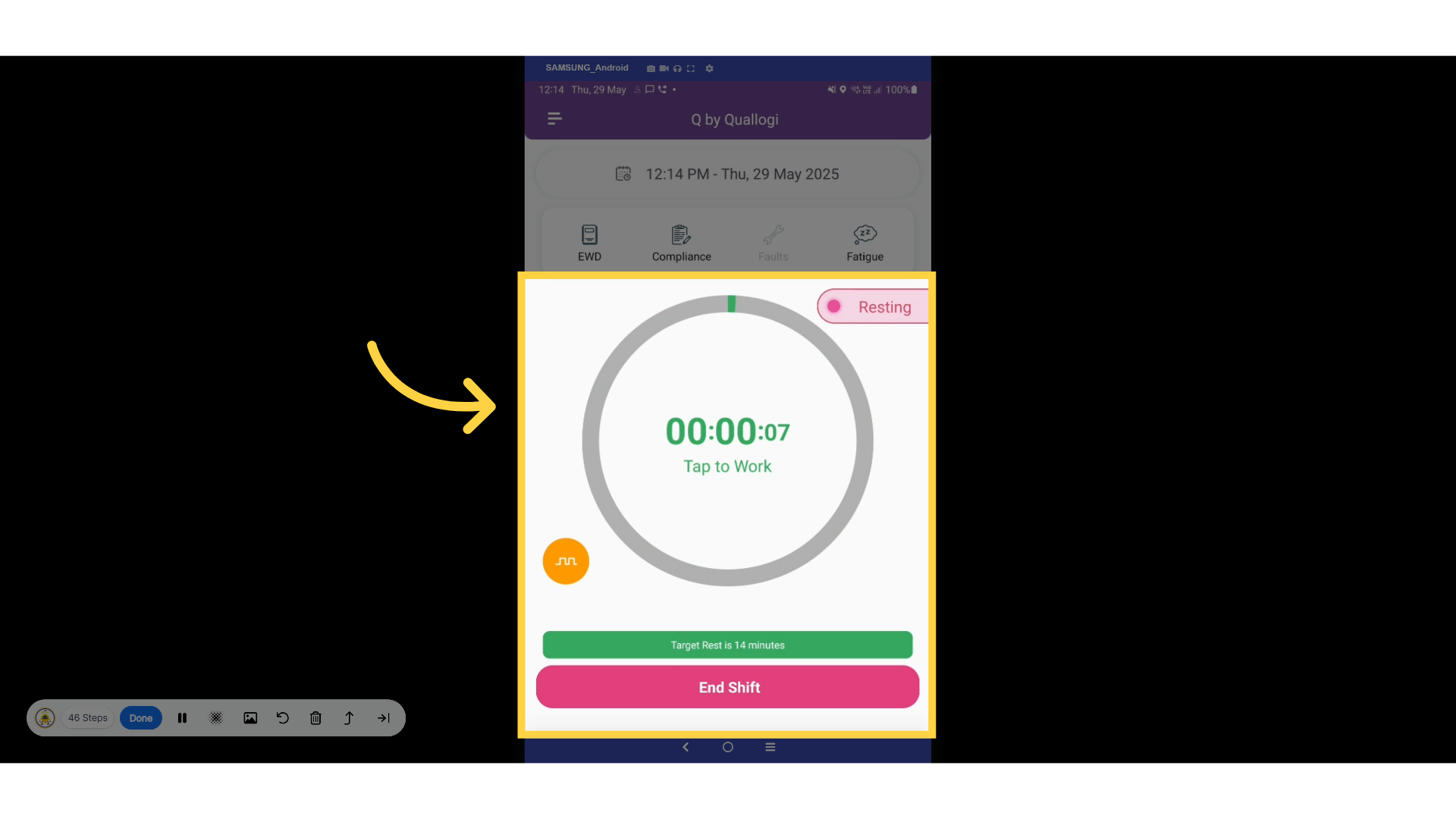
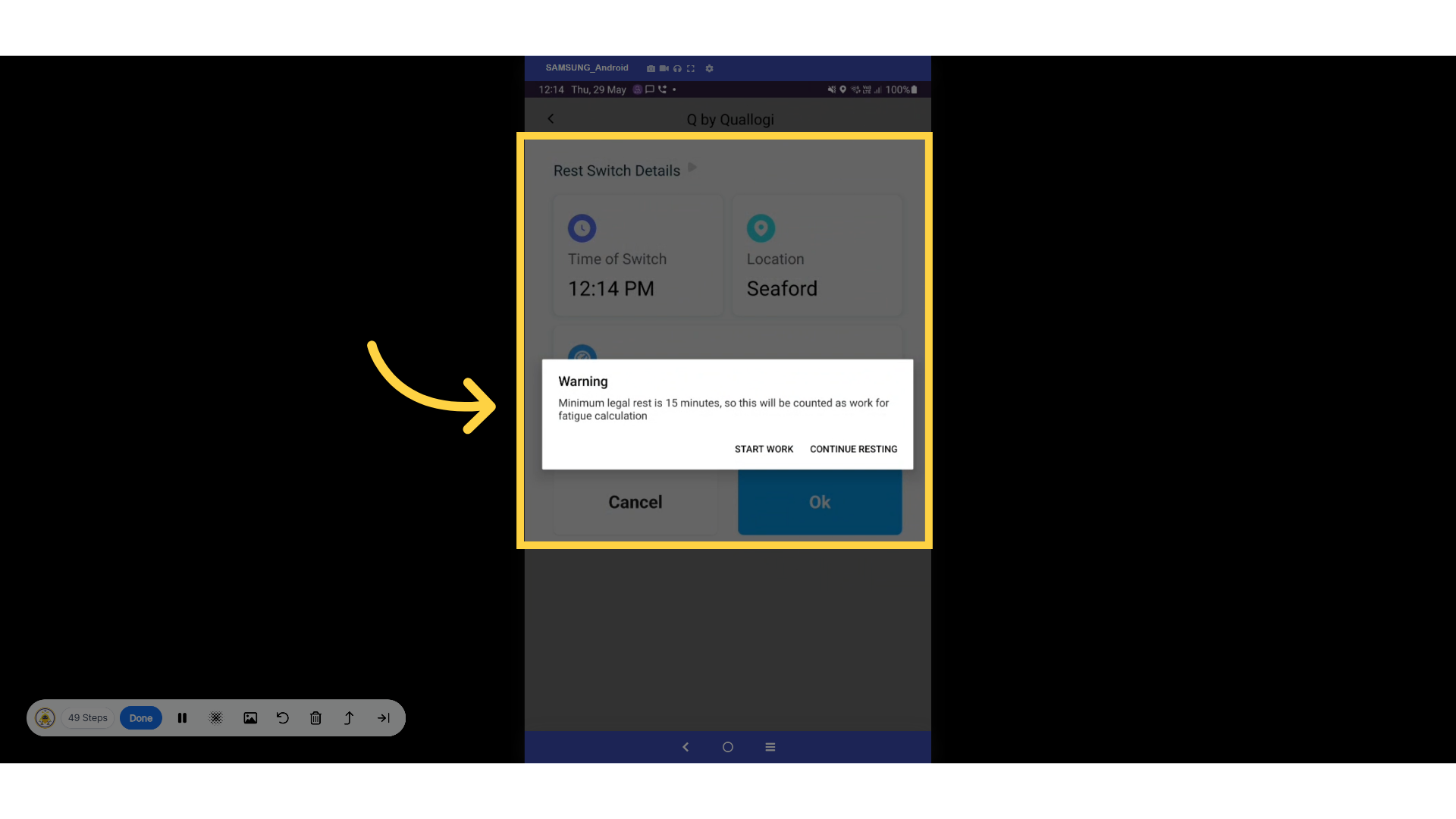
26. Work Timer
Once your rest time is over, simply tap Work to review the details, including
the switch time, location, and odometer reading. If you haven't met the
required 15 minutes, a warning message will appear.
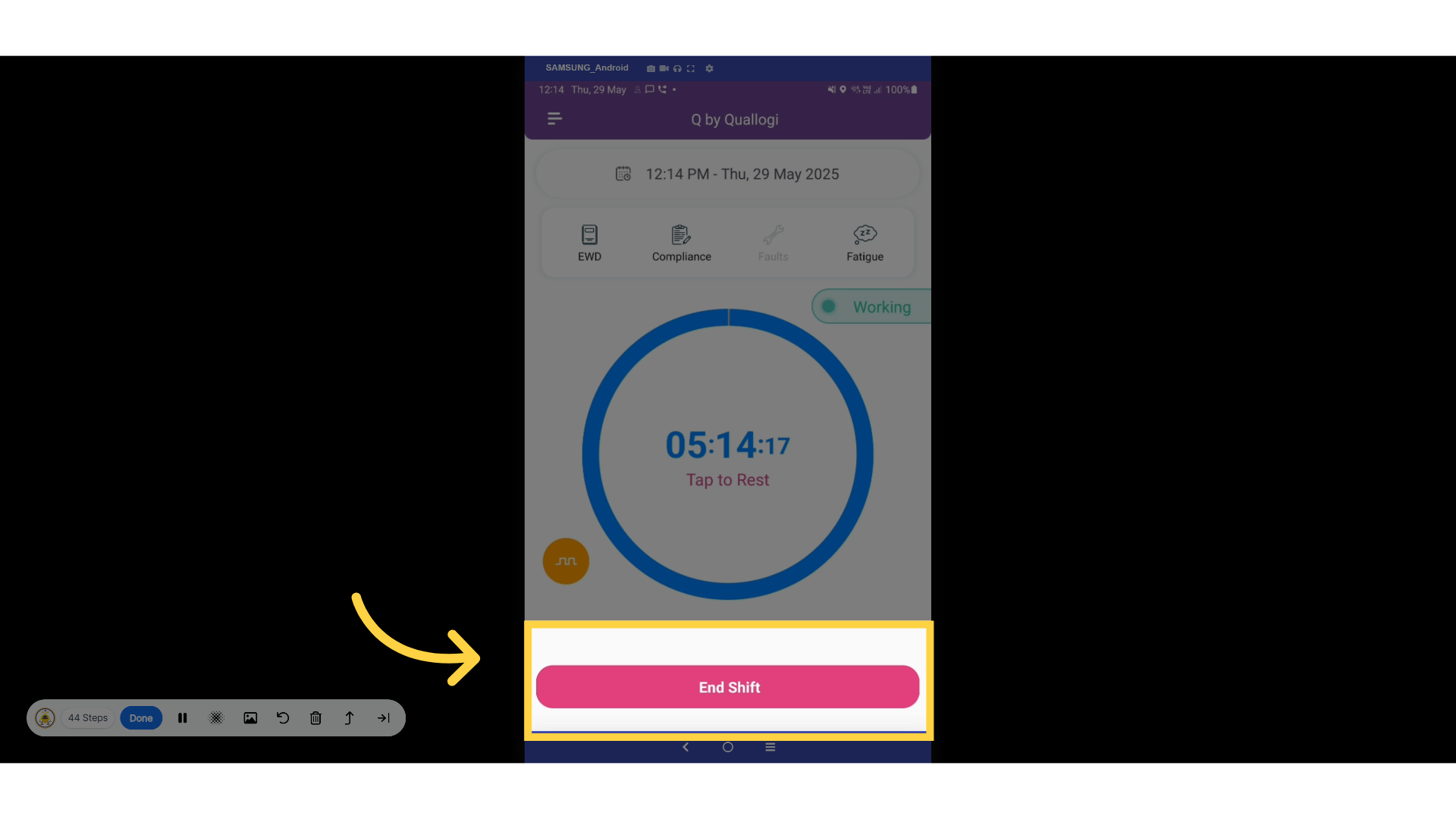
27. End Shift
It's time to wrap up our shift.
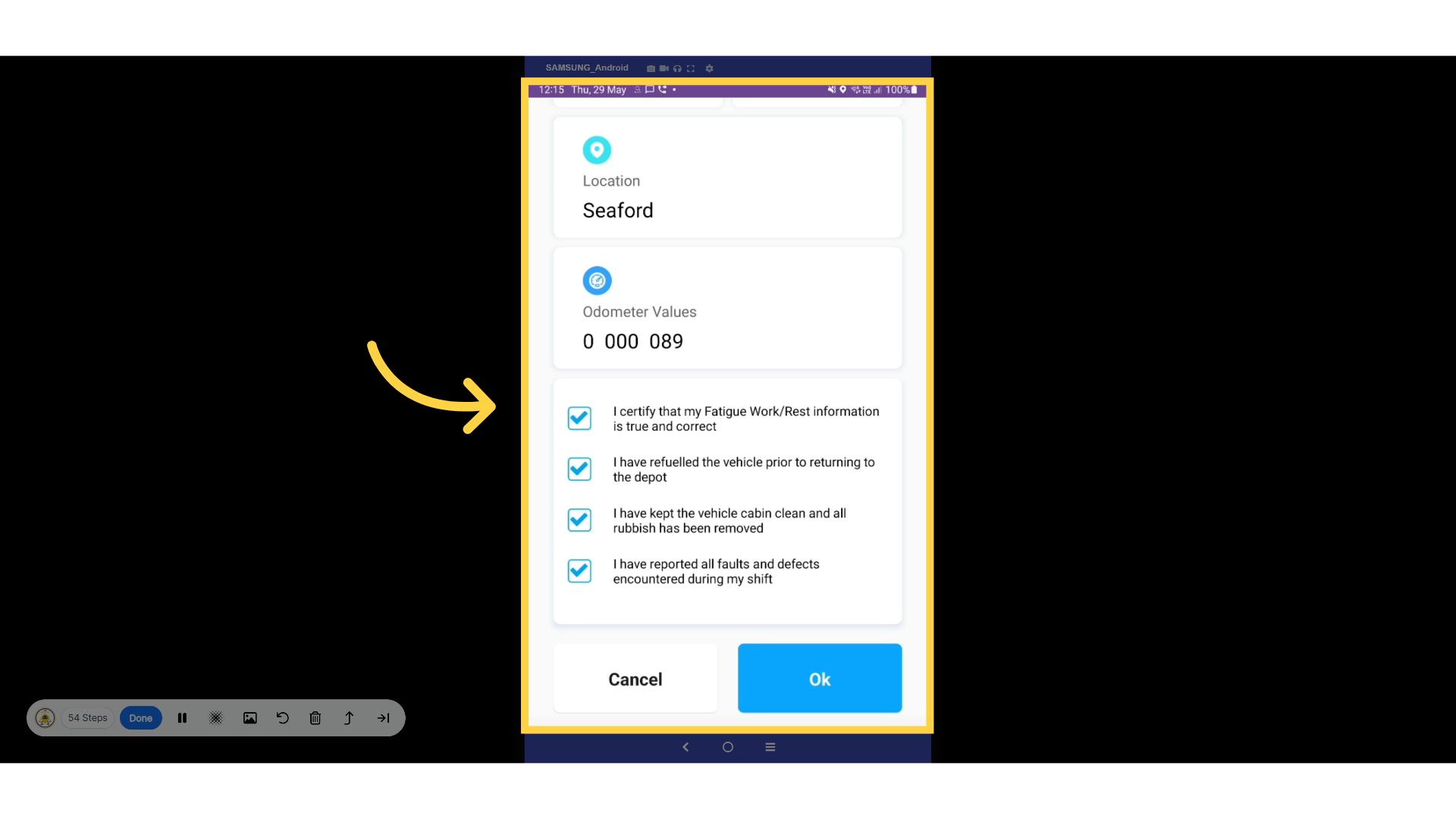
28. Log Out Declaration
Complete your logout declaration form.
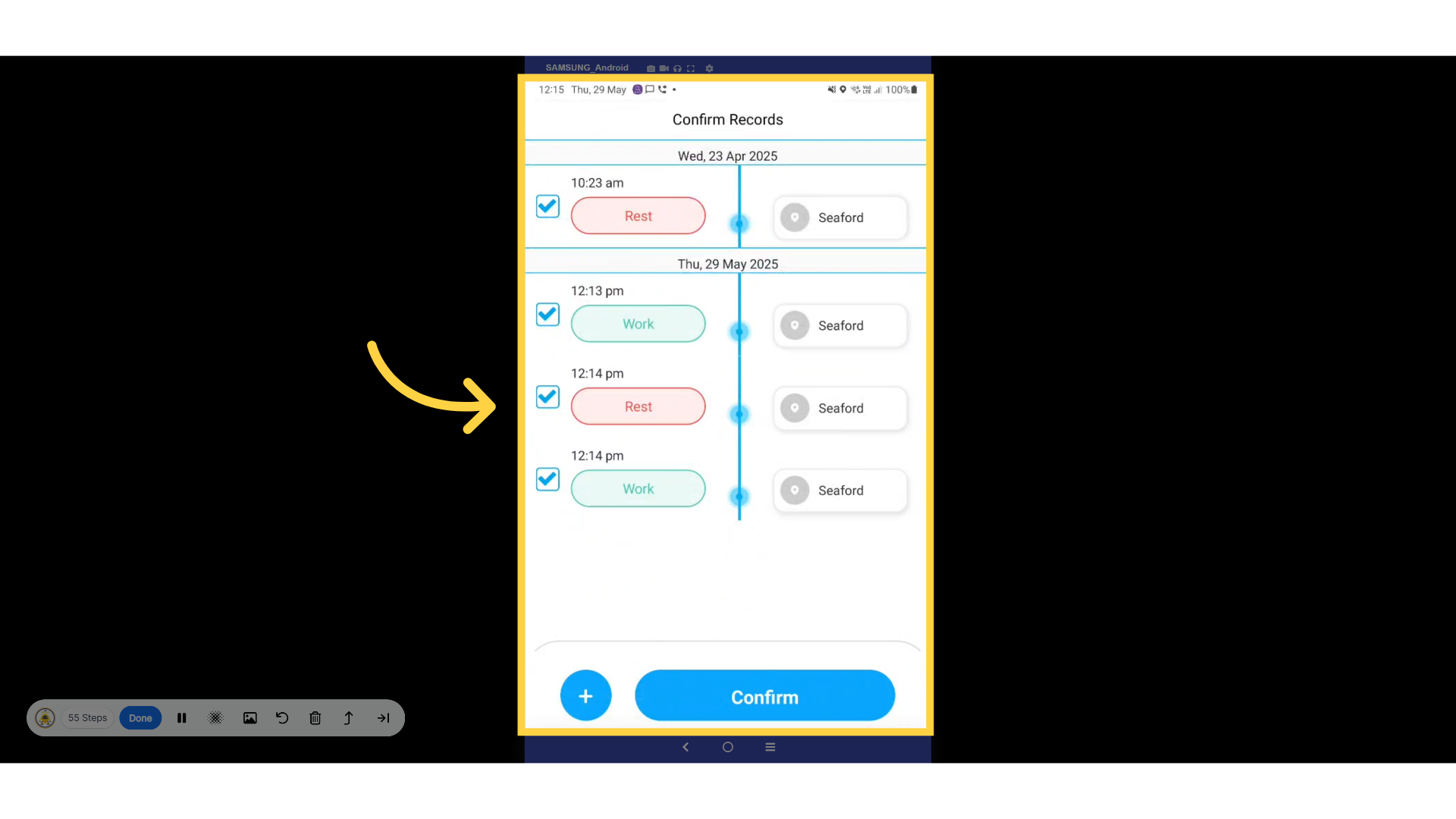
29. Confirm Records
You can now conveniently review your entire shift, including timestamps
and locations, to verify and confirm your records.
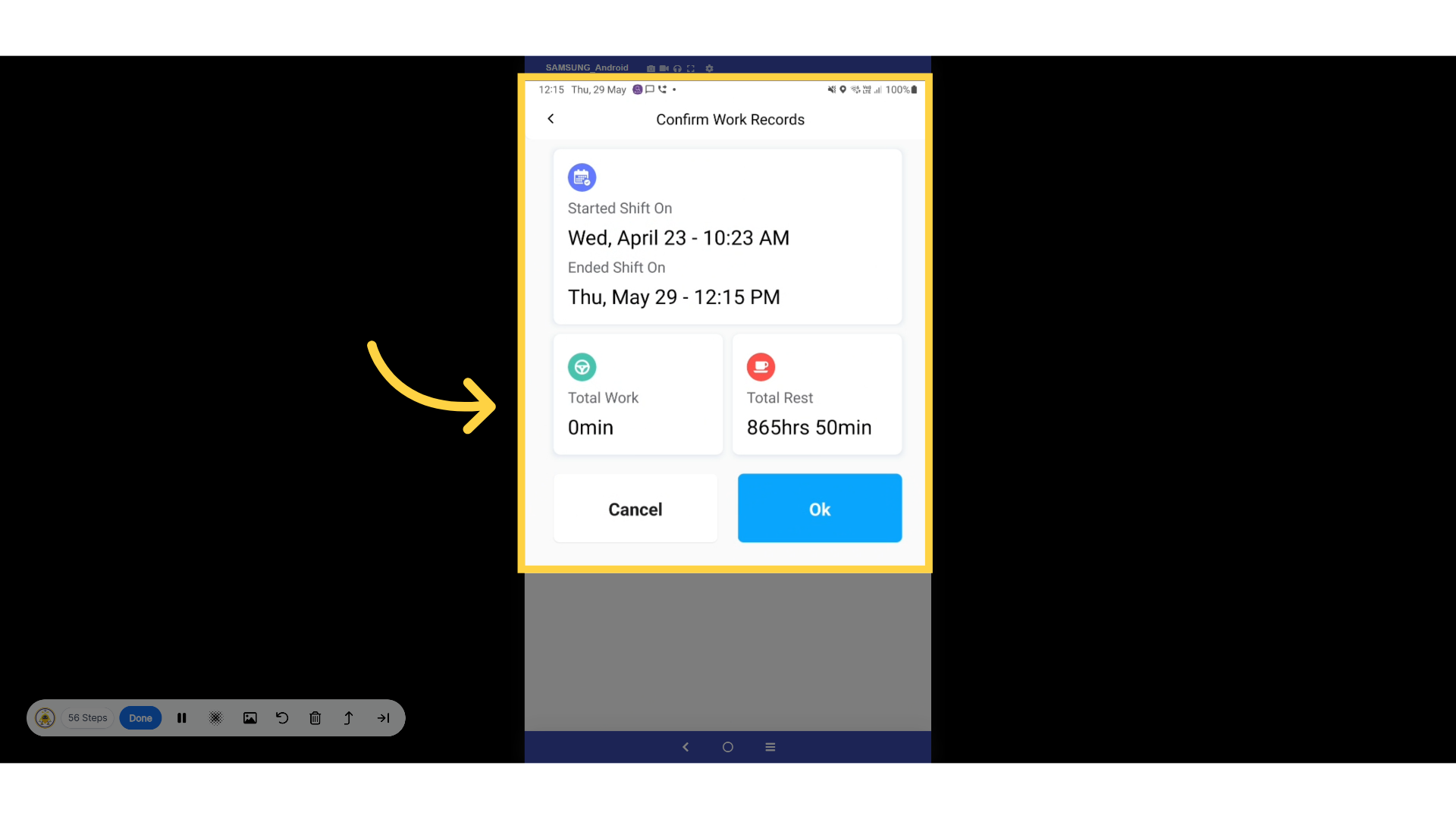
30. Recap Records
Here, you'll find a comprehensive overview of your total work and rest
hours.
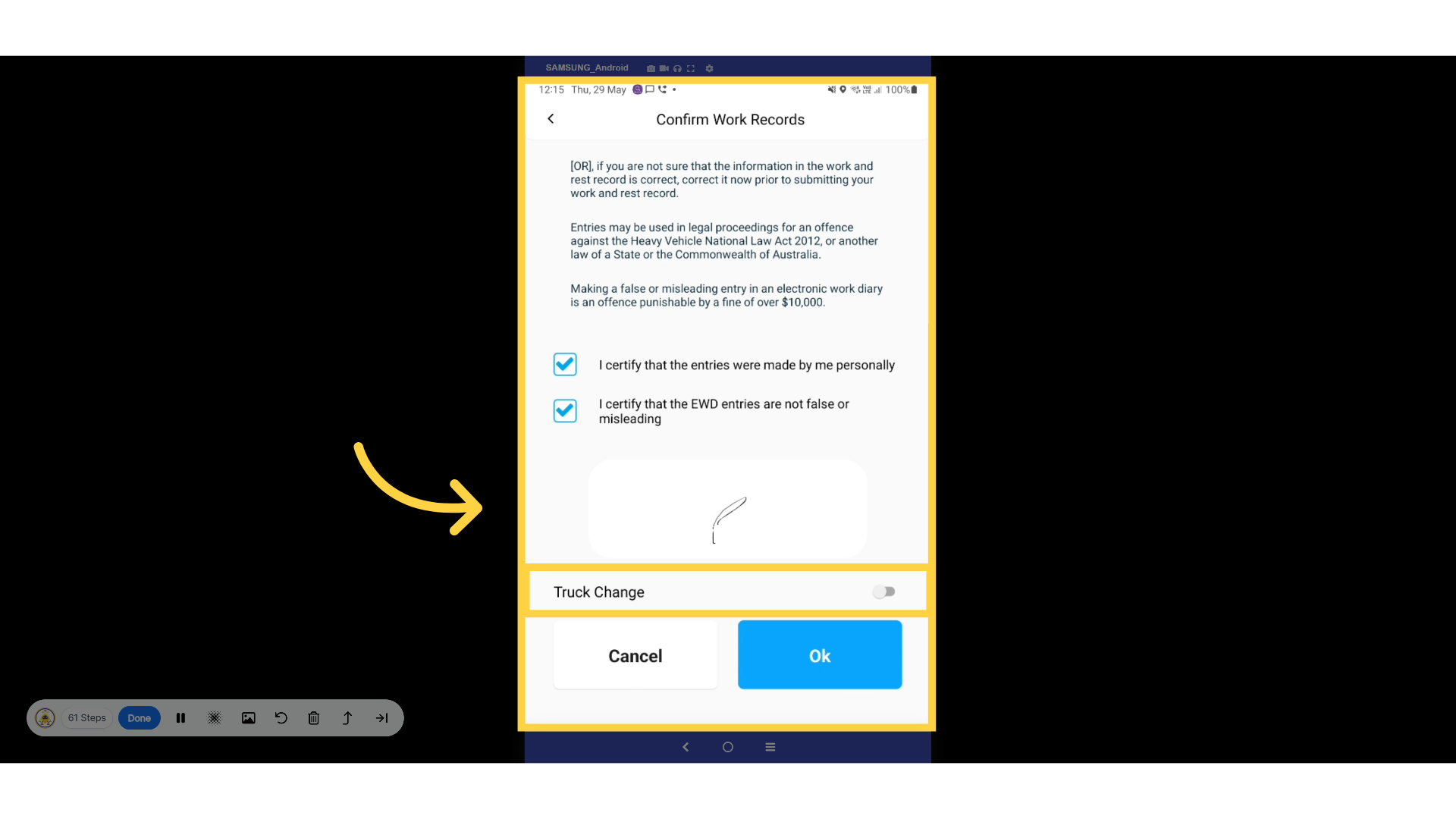
31. Confirm Work Records
In this section, you will need to verify your entries and confirm that
the information provided is both accurate and not misleading. To finalize
the process, please complete the signature field and click OK. Additionally,
if applicable, you have the option to check the box indicating that a
tuck change has occurred.
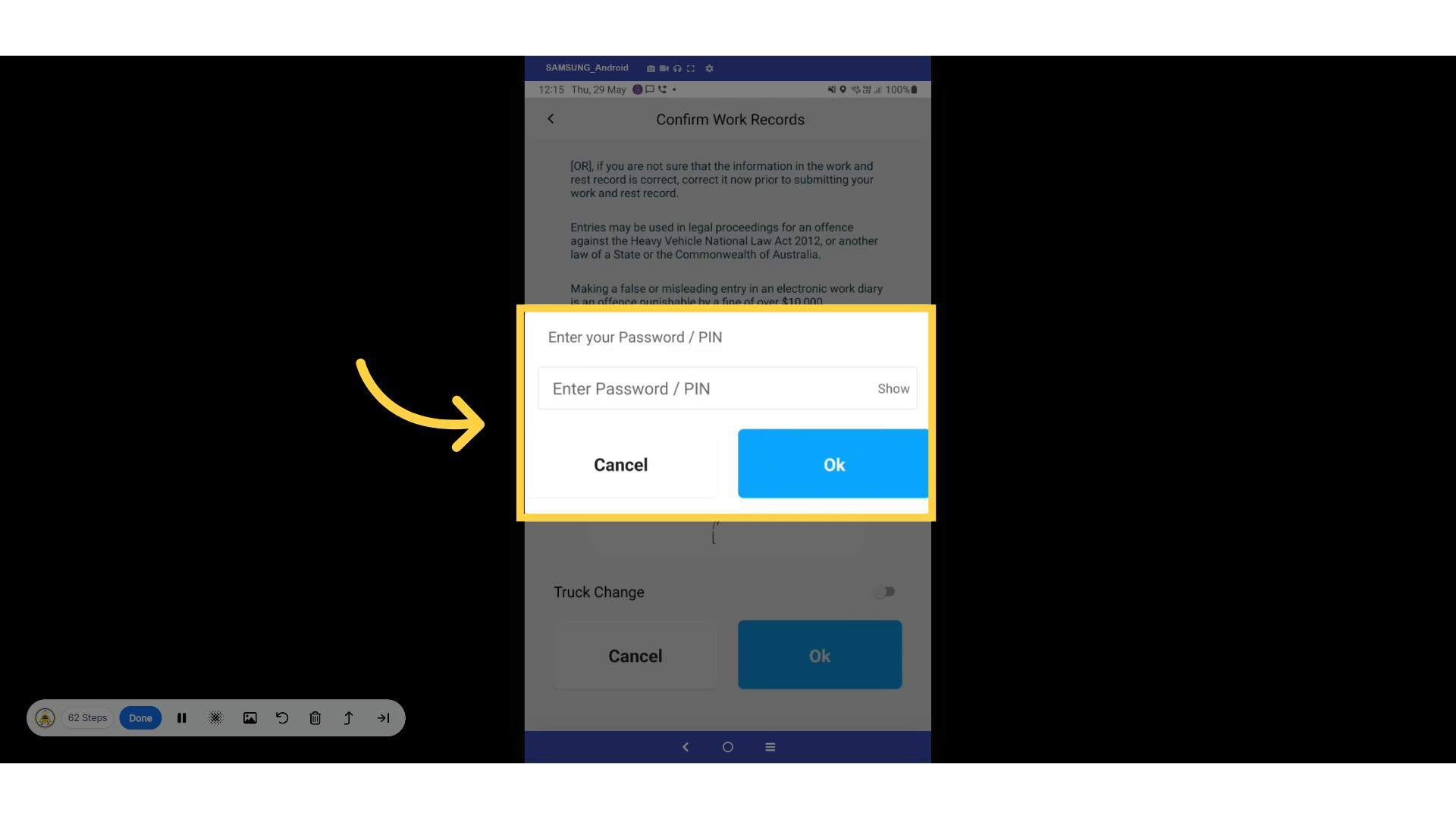
32. Password
Enter your password or PIN to finalize the record.
33. Log Out
To log out of the application, simply click the Log Out button.
Thanks for watching

