1. Select Jobs

2. Select Today
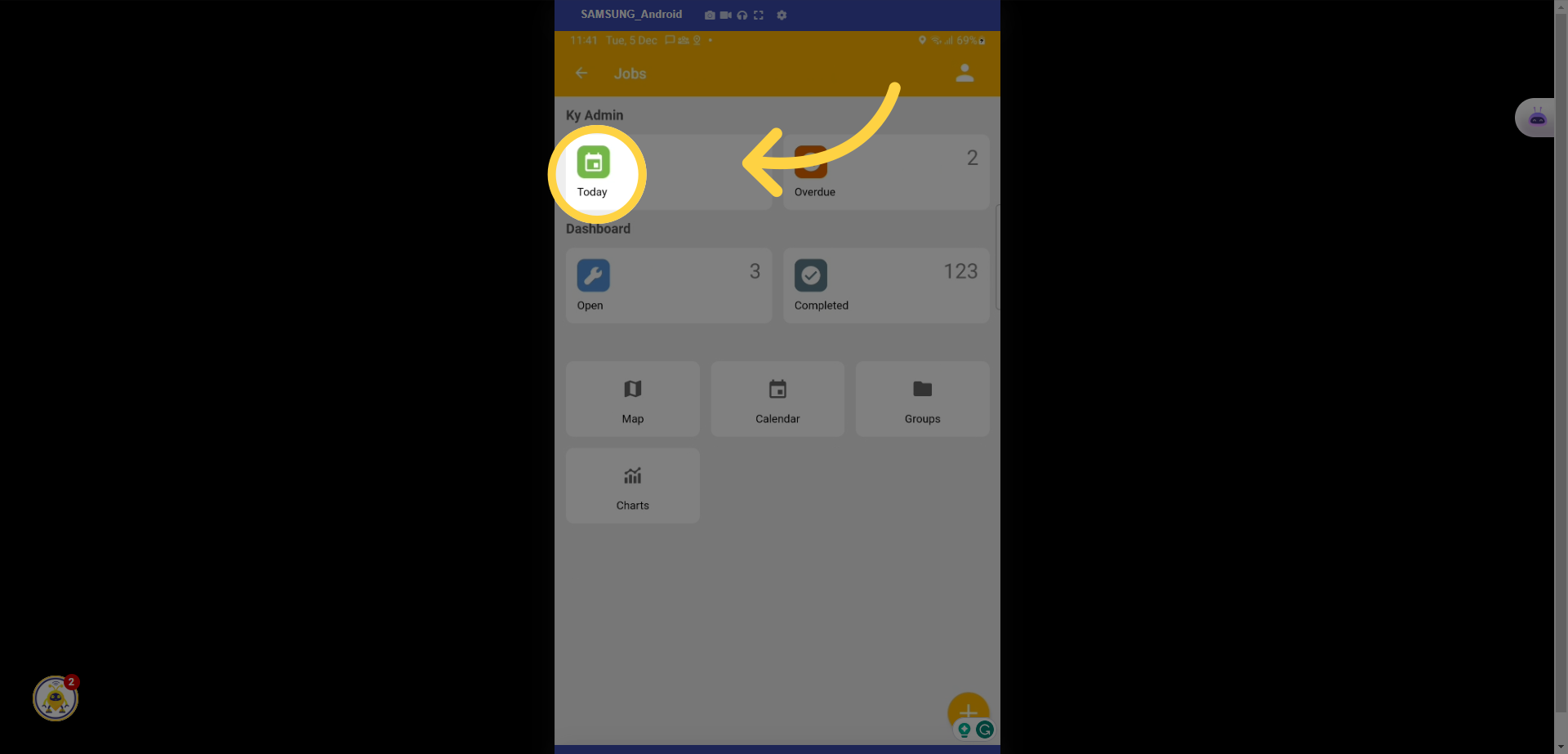
3. Select the specific Maintenance Job
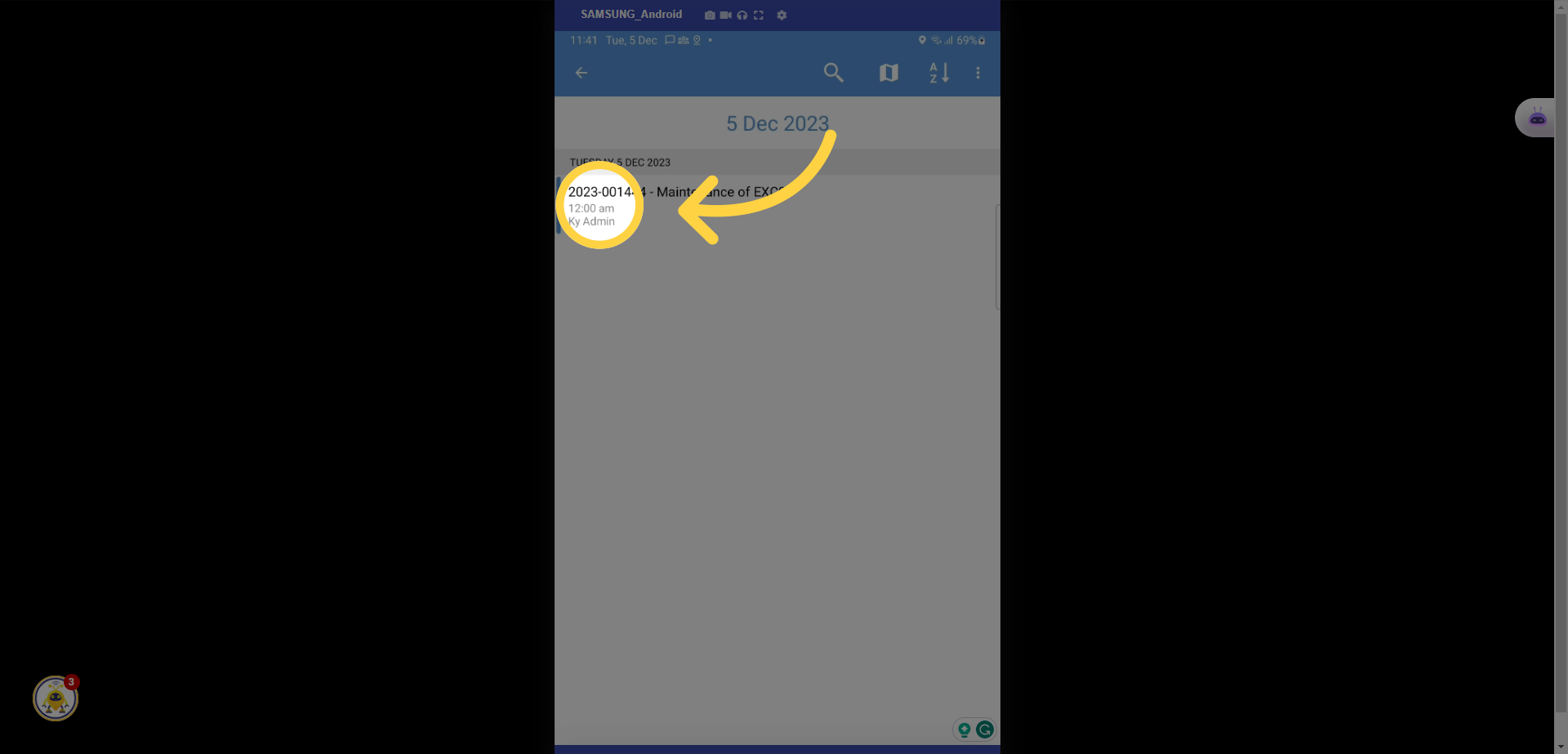
4. Click here
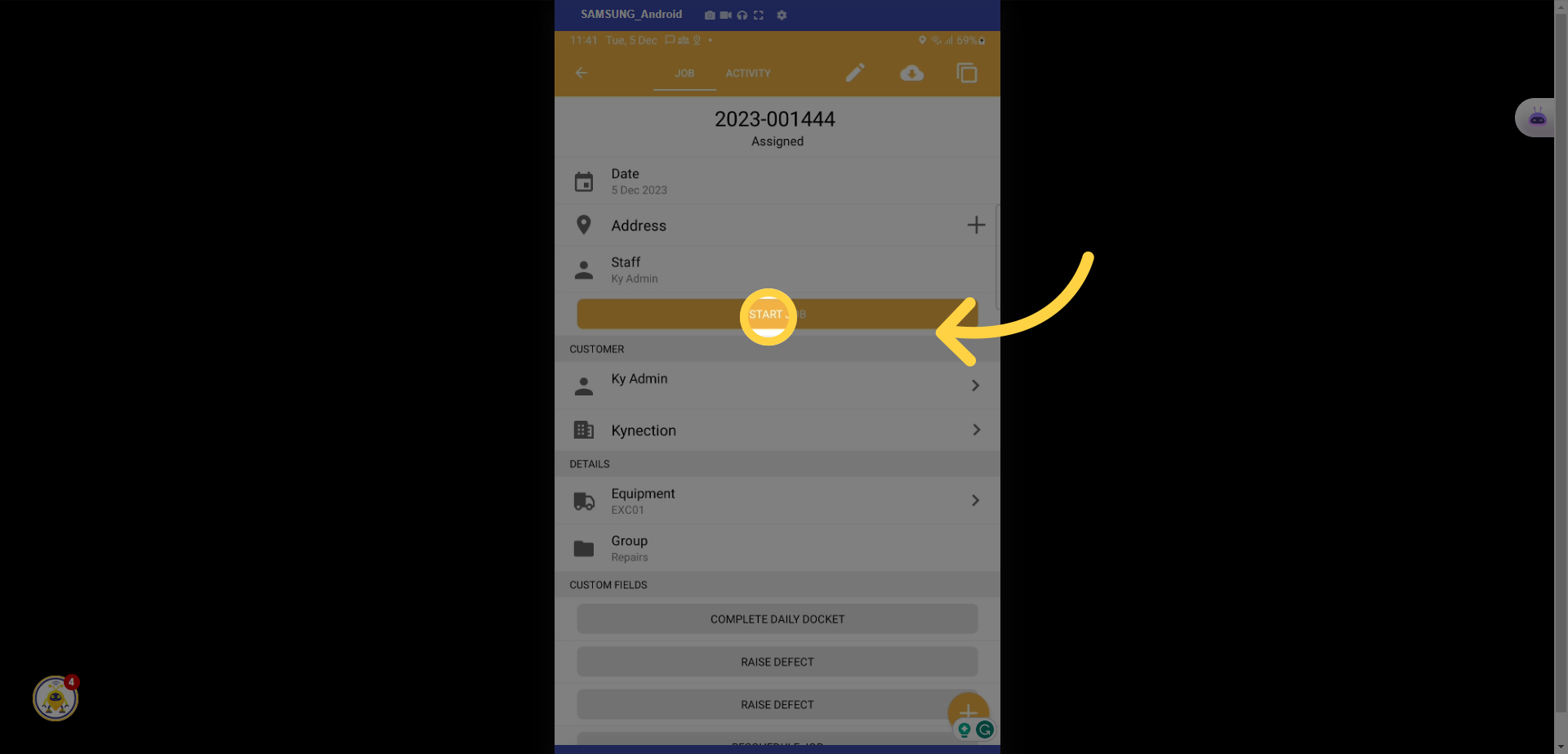
5. Select the specific repair you are making
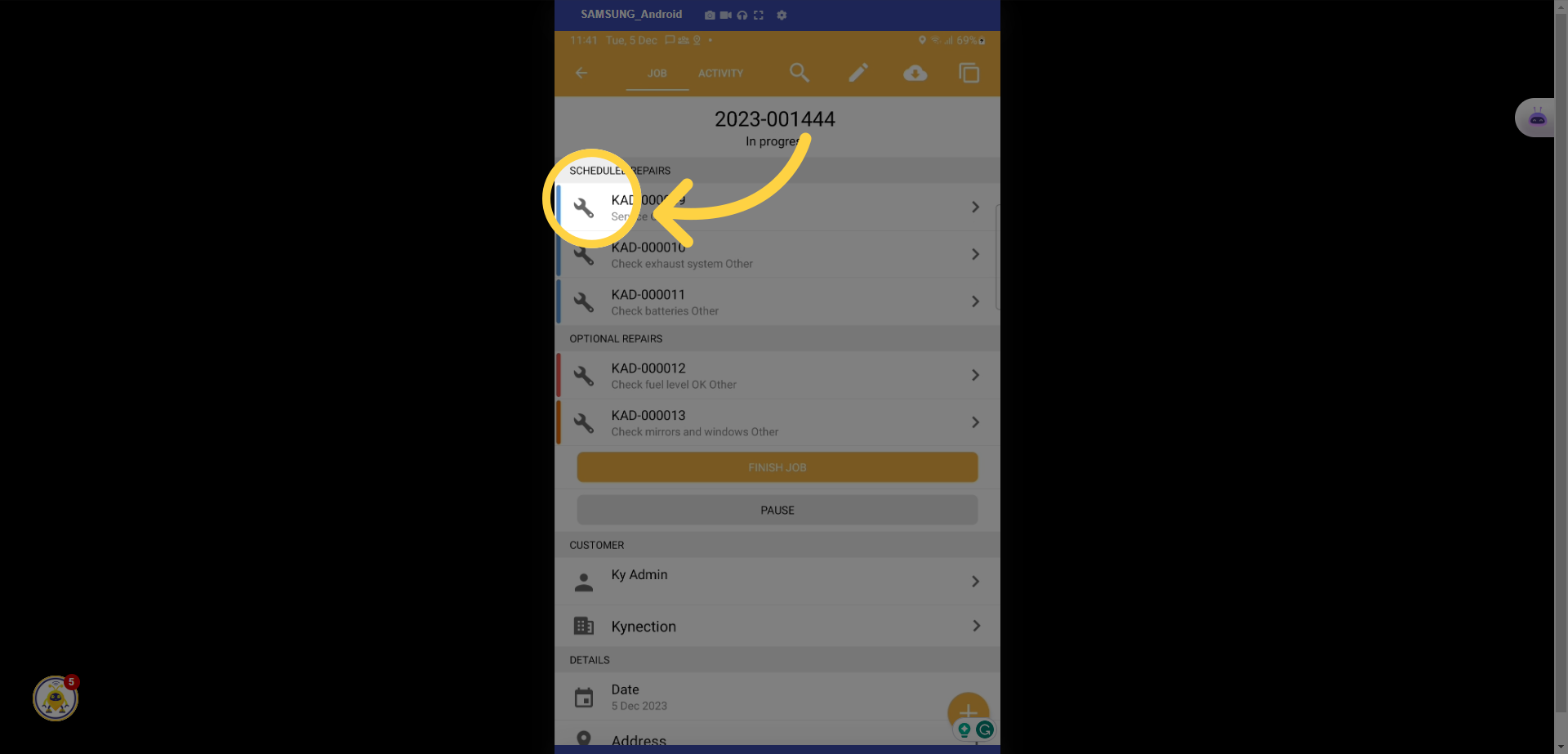
6. Select Start Repair
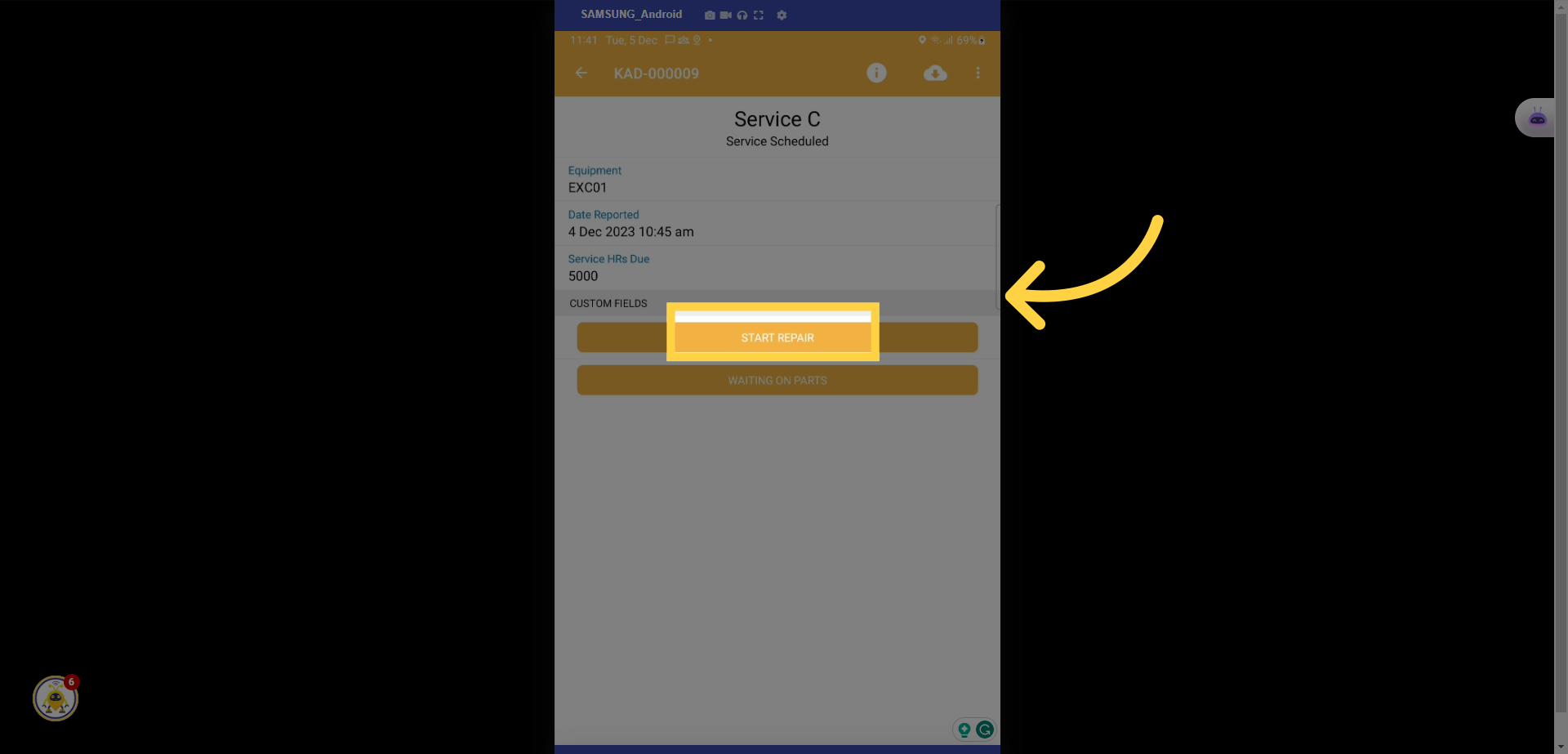
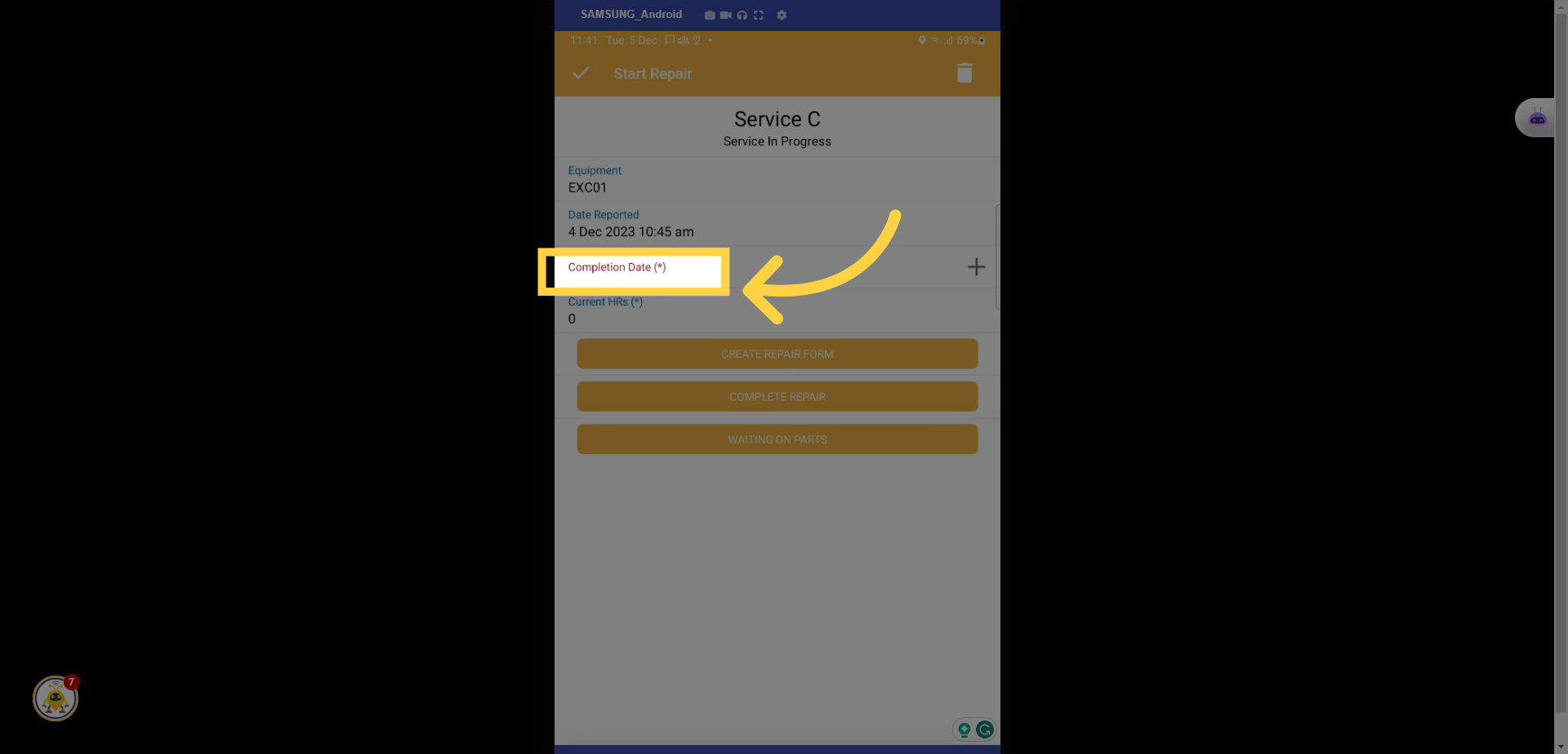
7. Enter in the date
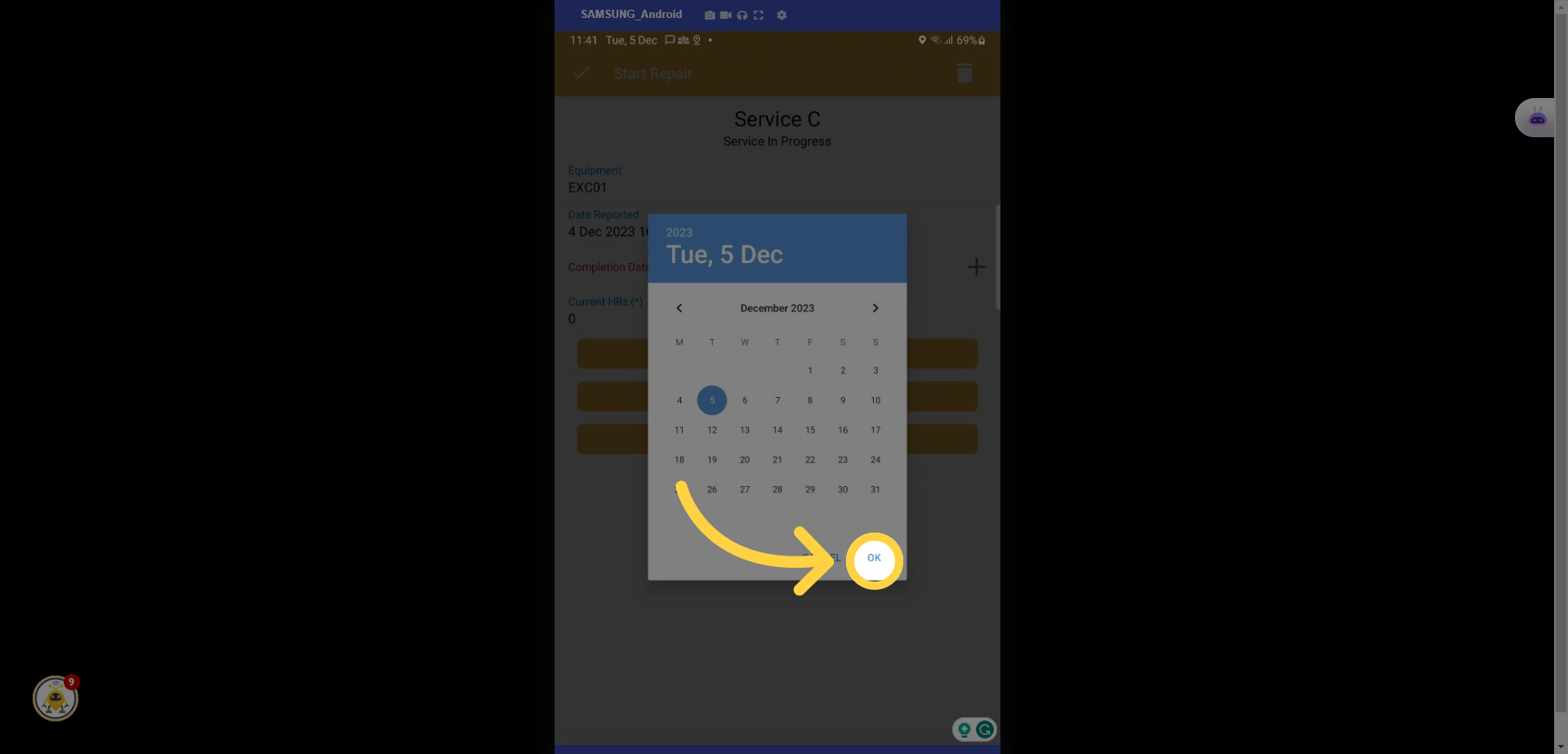
8. Select OK
9. Select the Current Hours
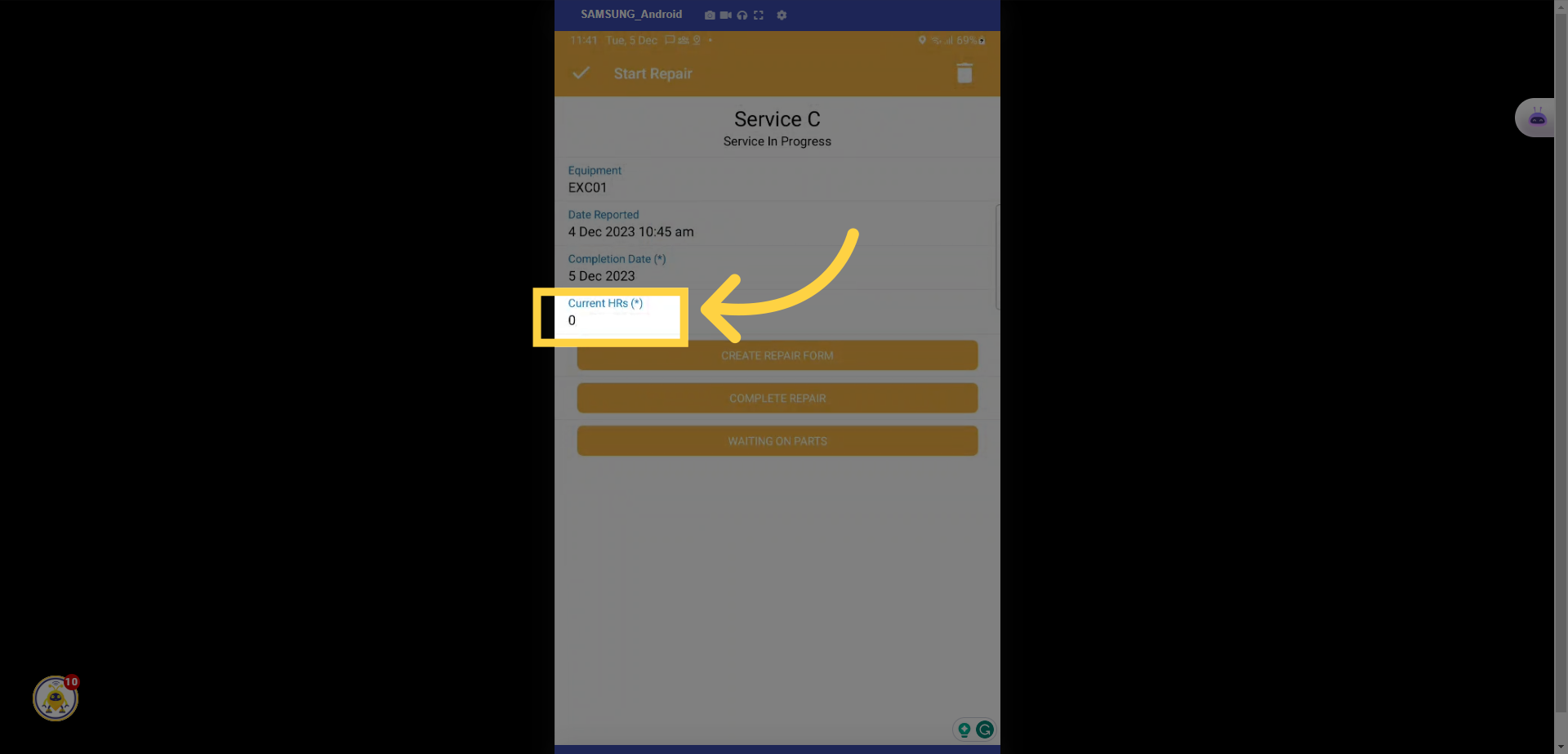
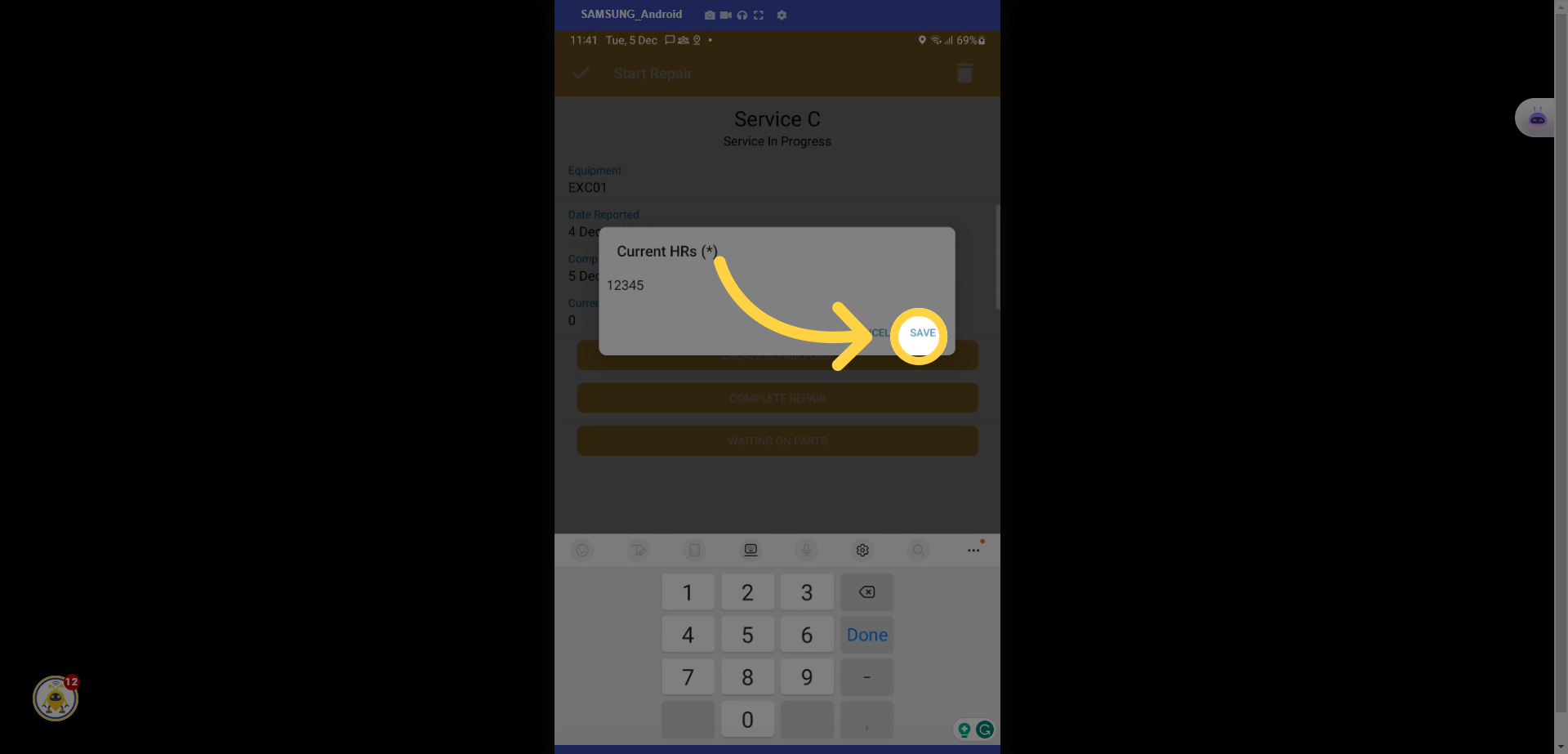
10. Enter in hours and click save
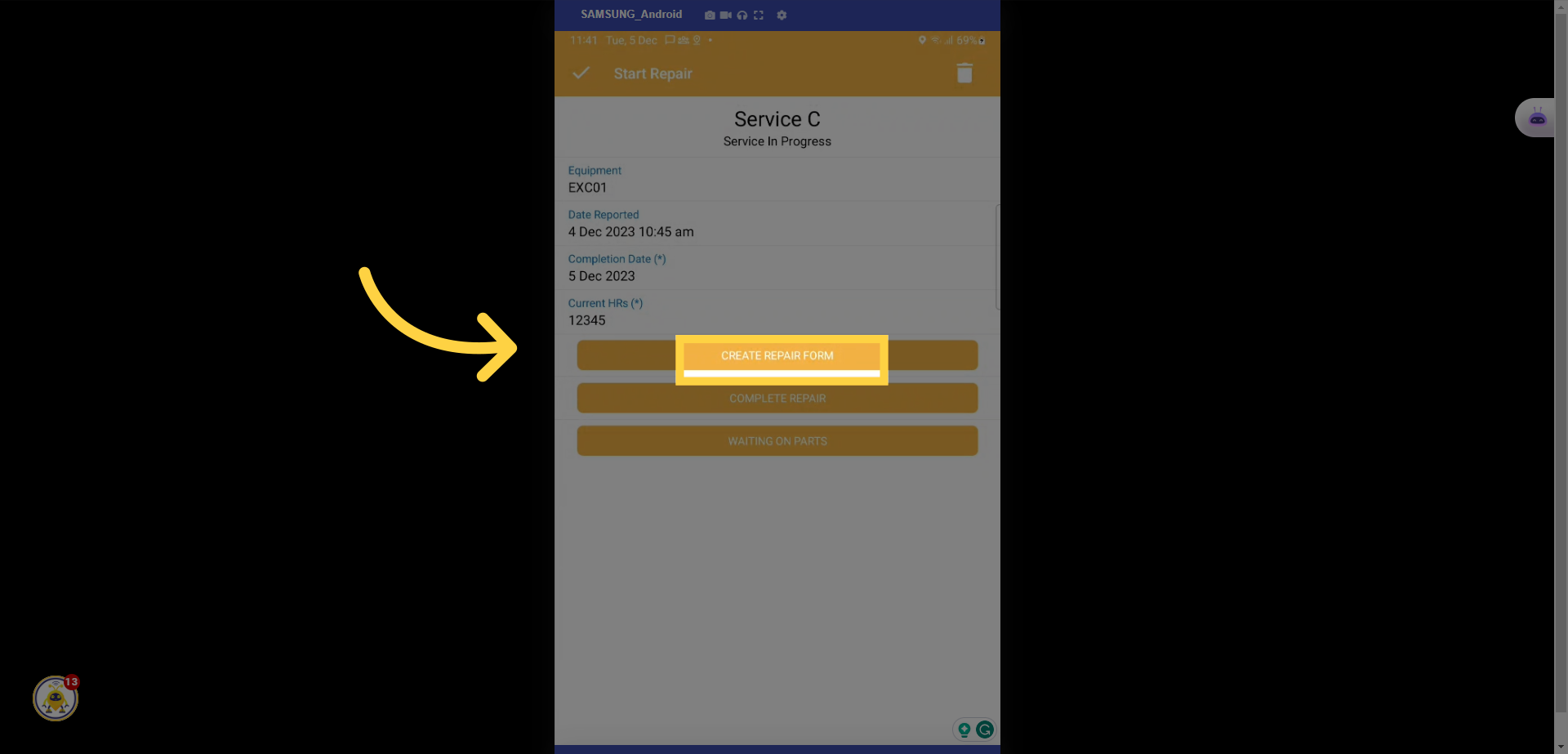
11. Select Create Defect Form
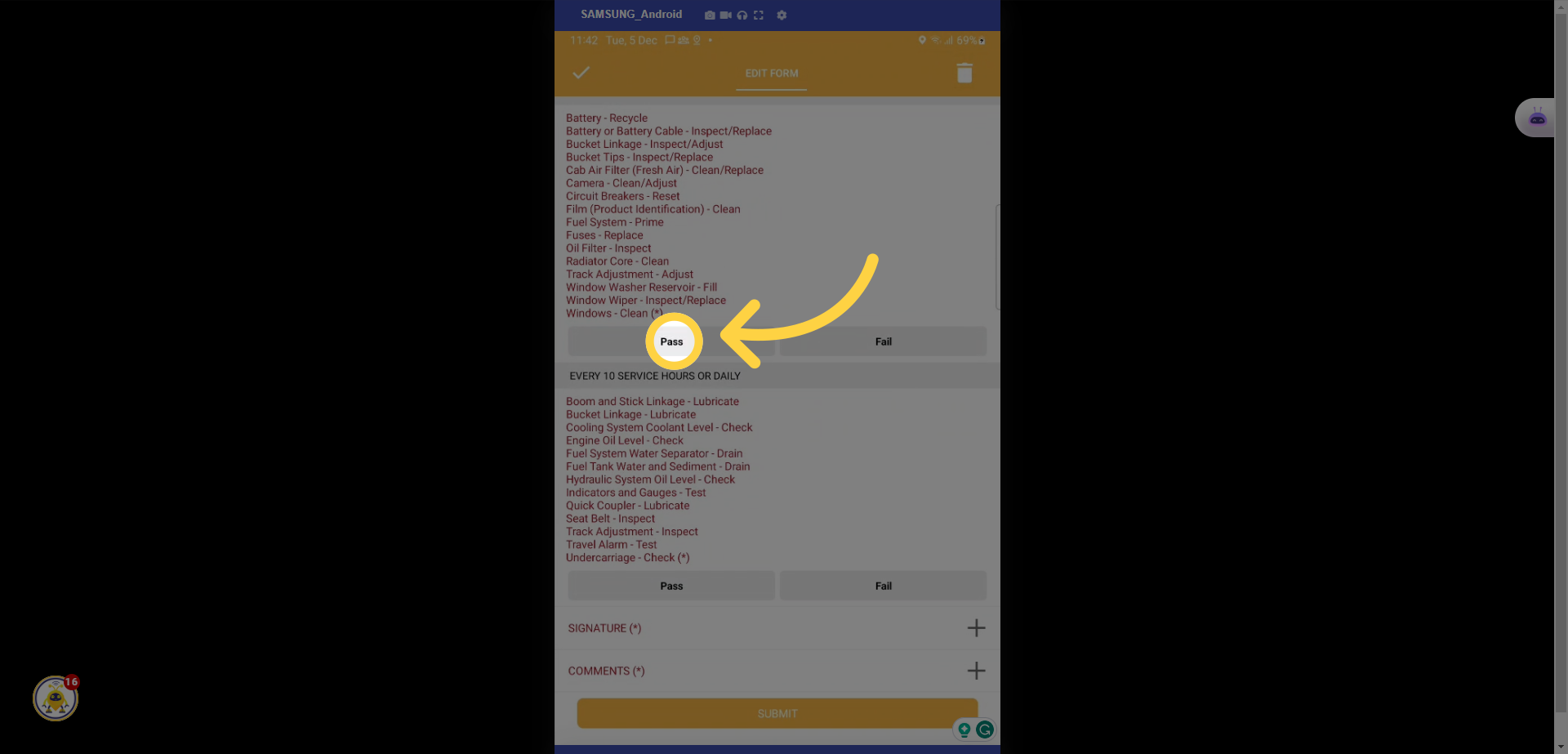
12. Select Pass or Fail
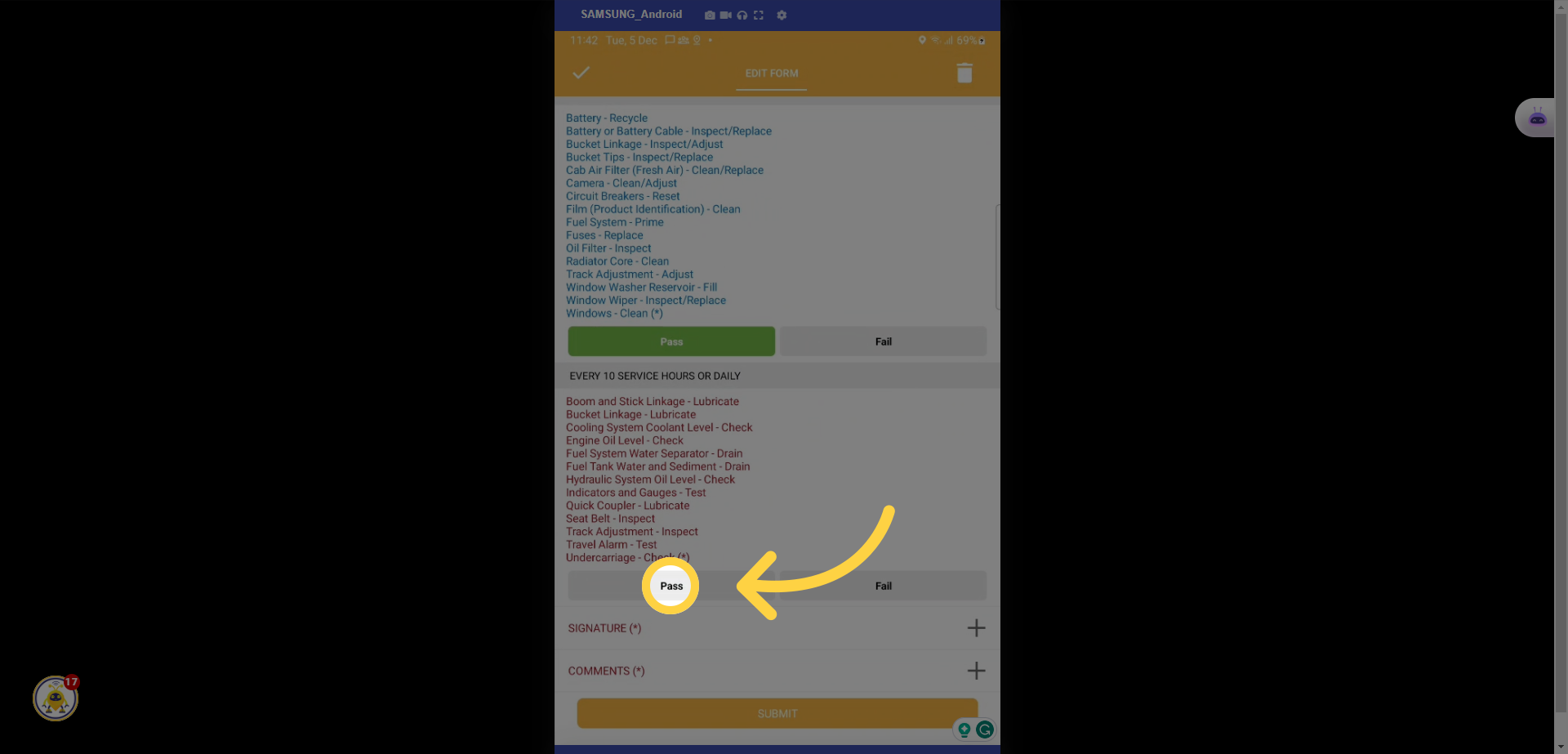
13. Select Pass or Fail
14. Complete your signature
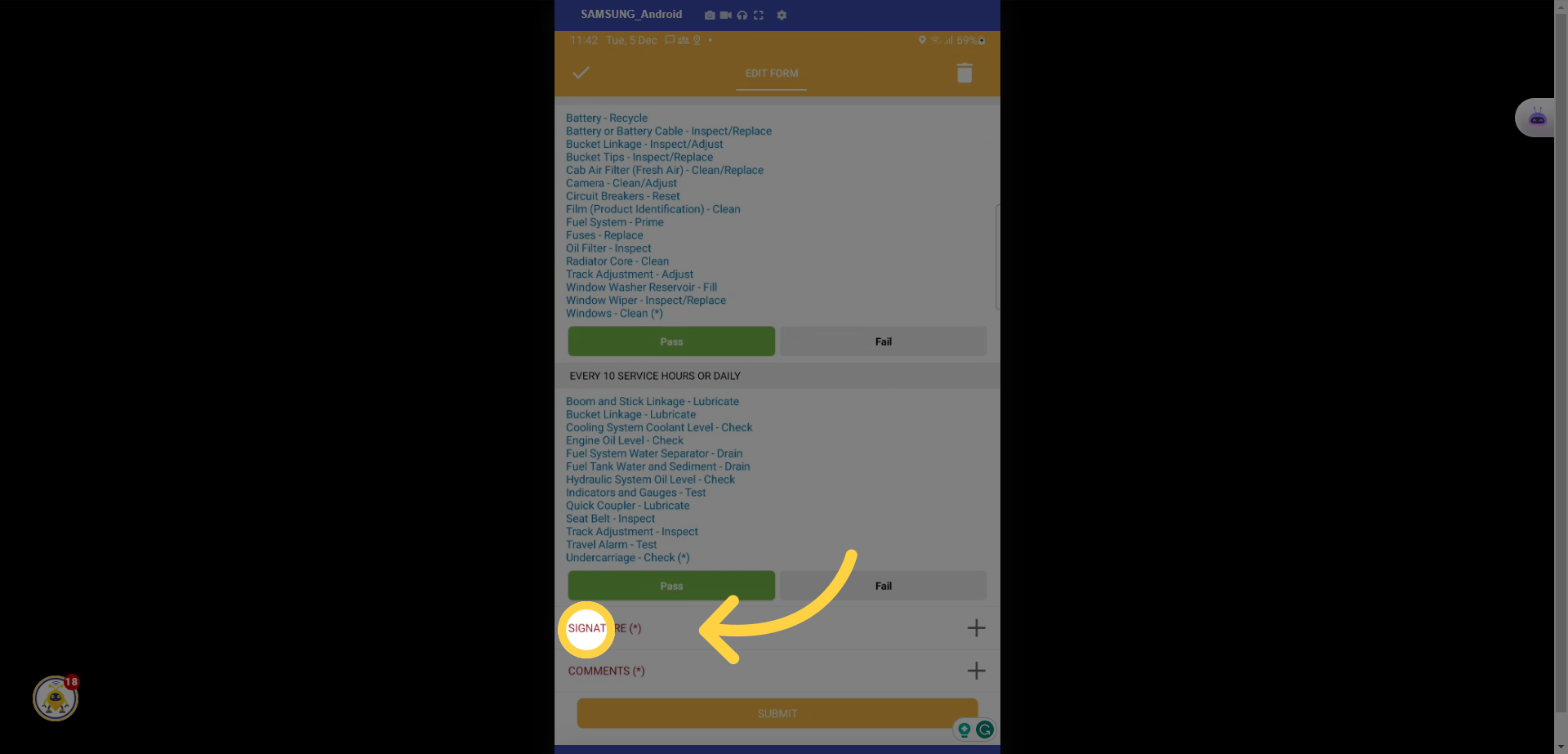
15. Sign and select the tick icon
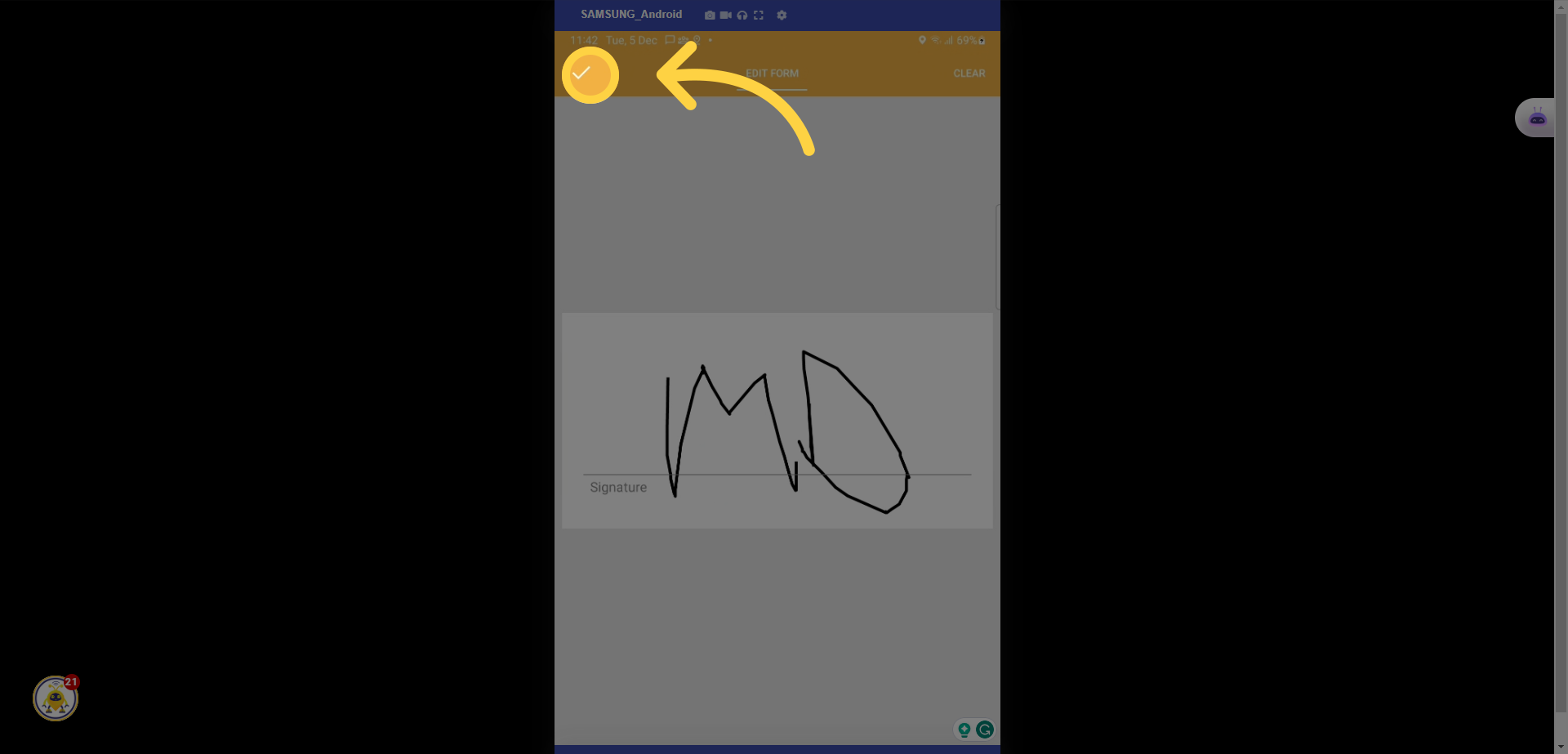
16. Add additional comments here
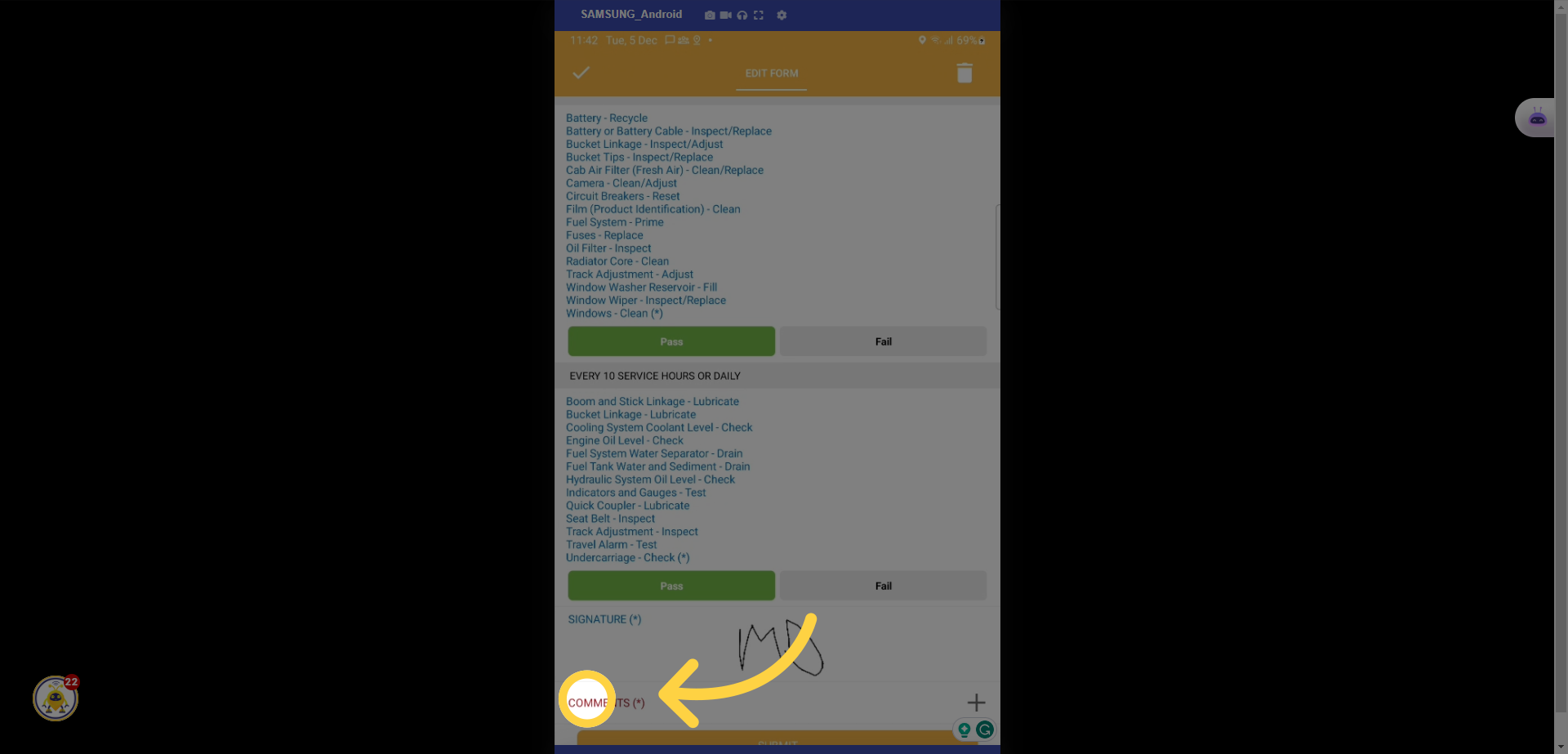
17. Add your comments and select tick to save
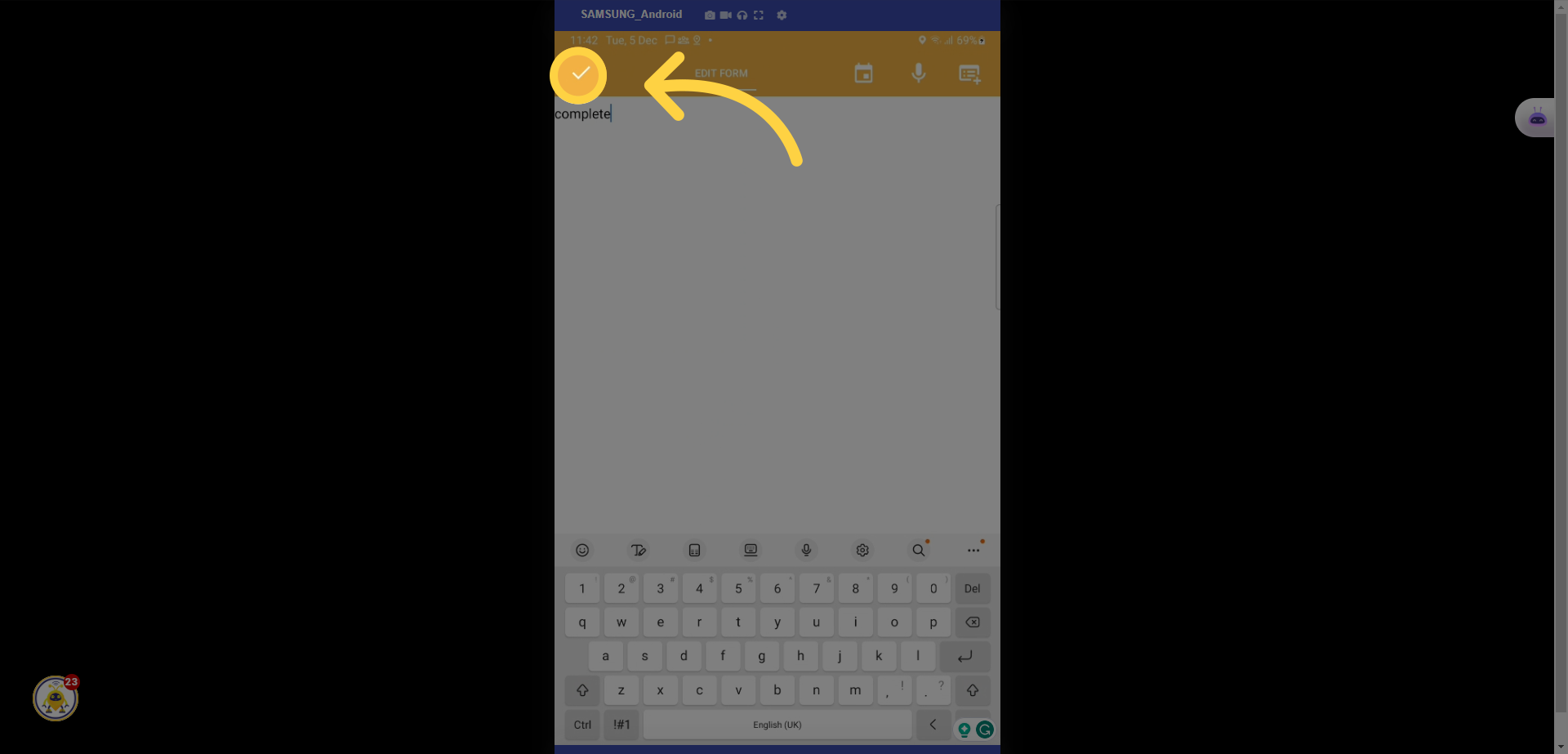
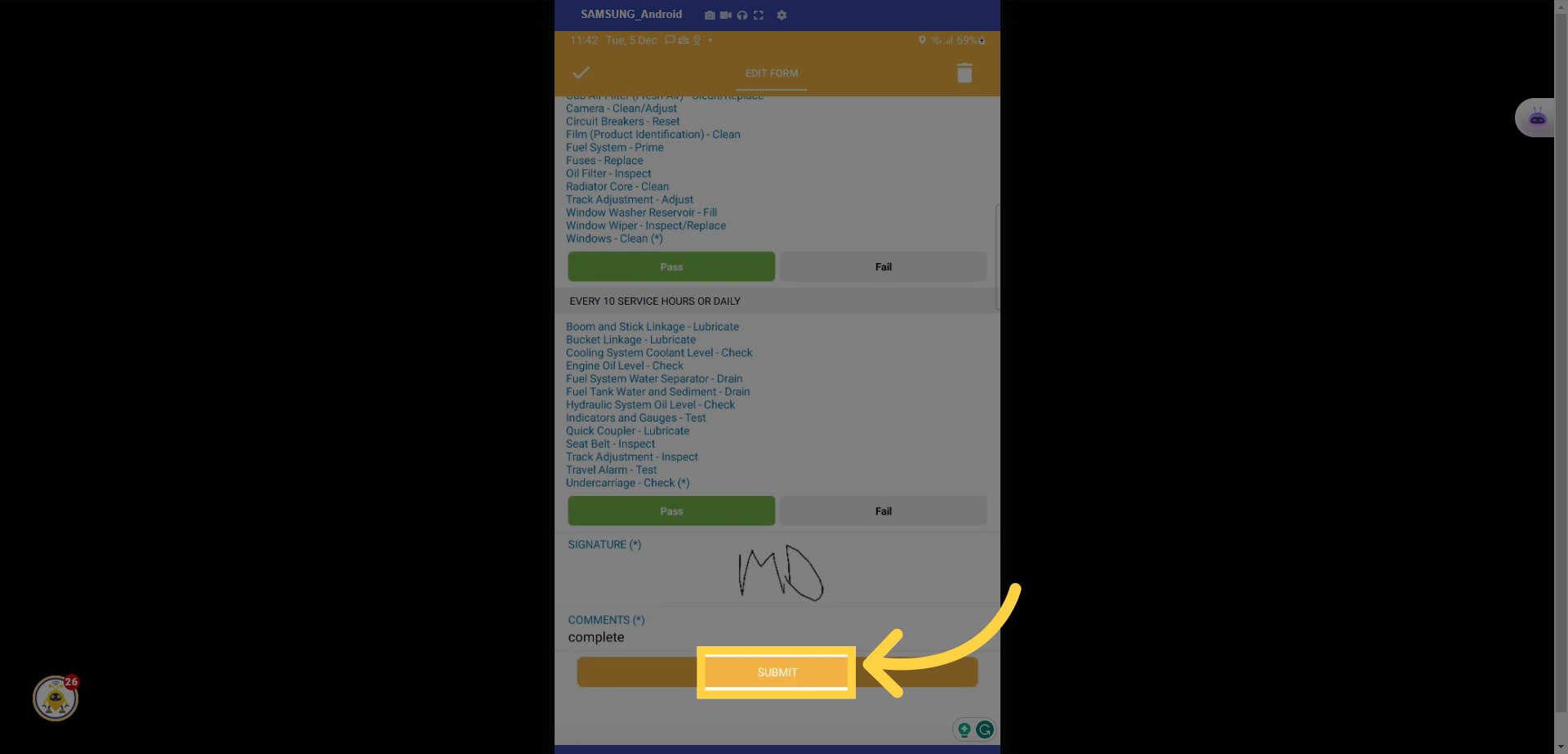
18. Select Submit
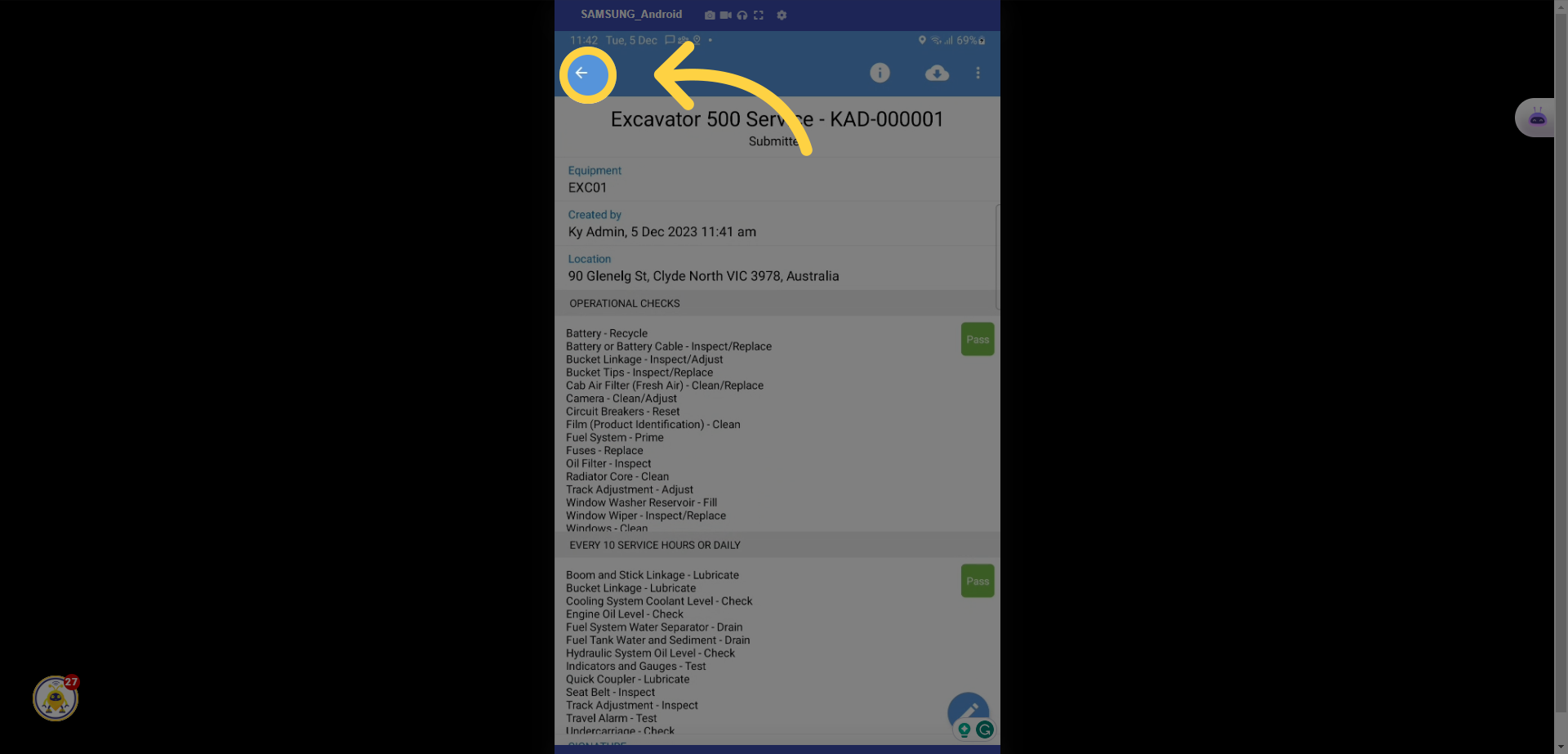
19. Select the back arrow
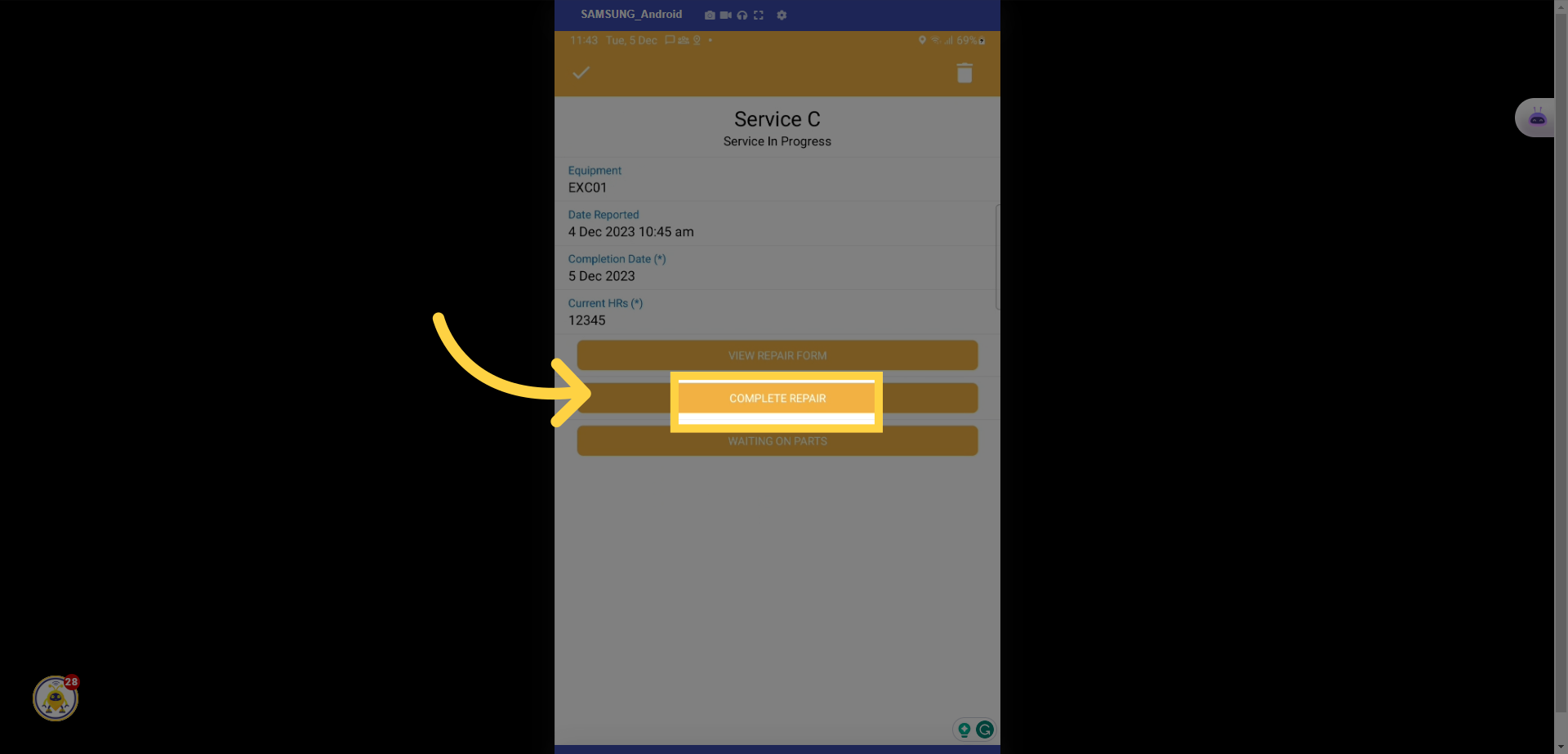
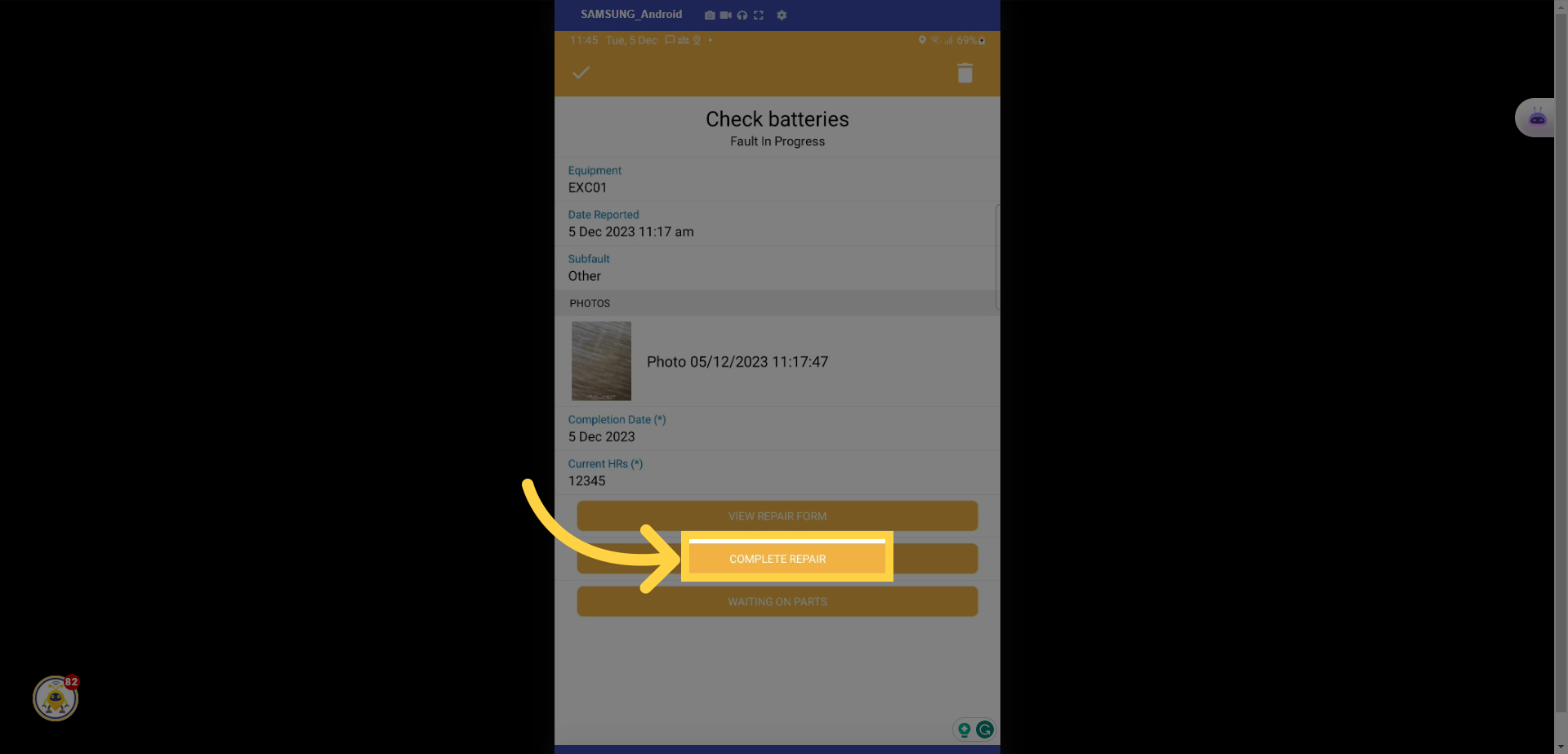
20. Select Complete Repair
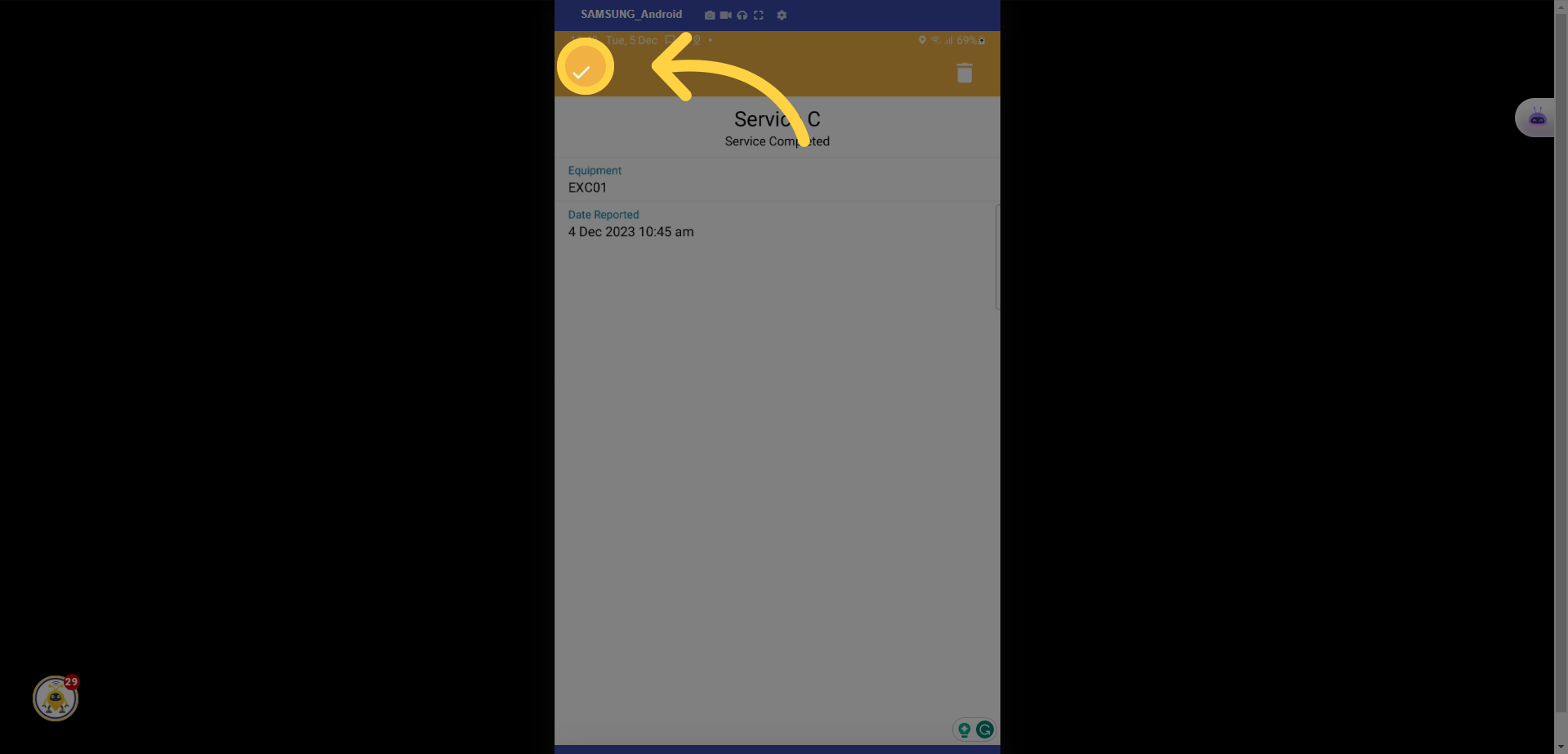
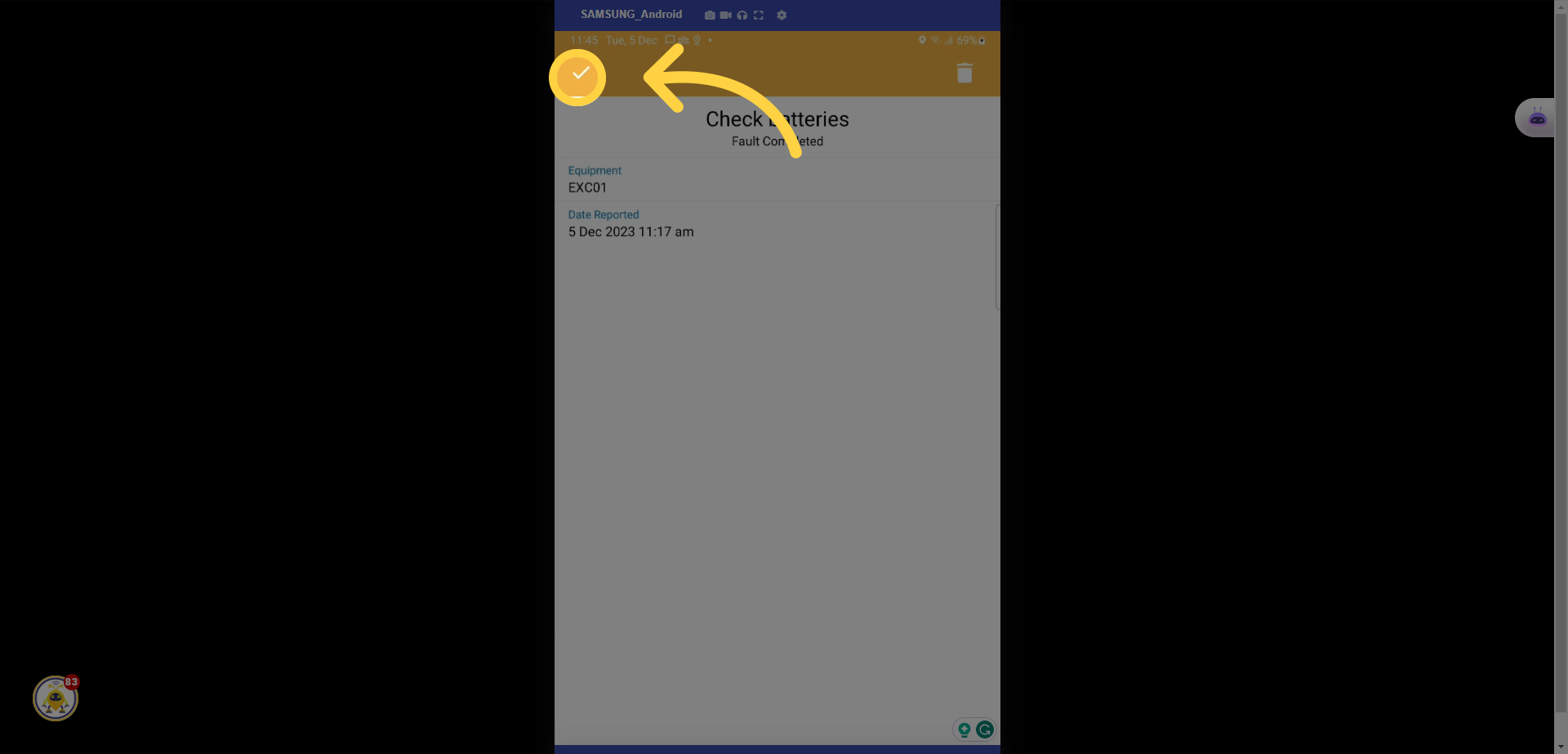
21. Select the tick icon
22. Select View Repair Form
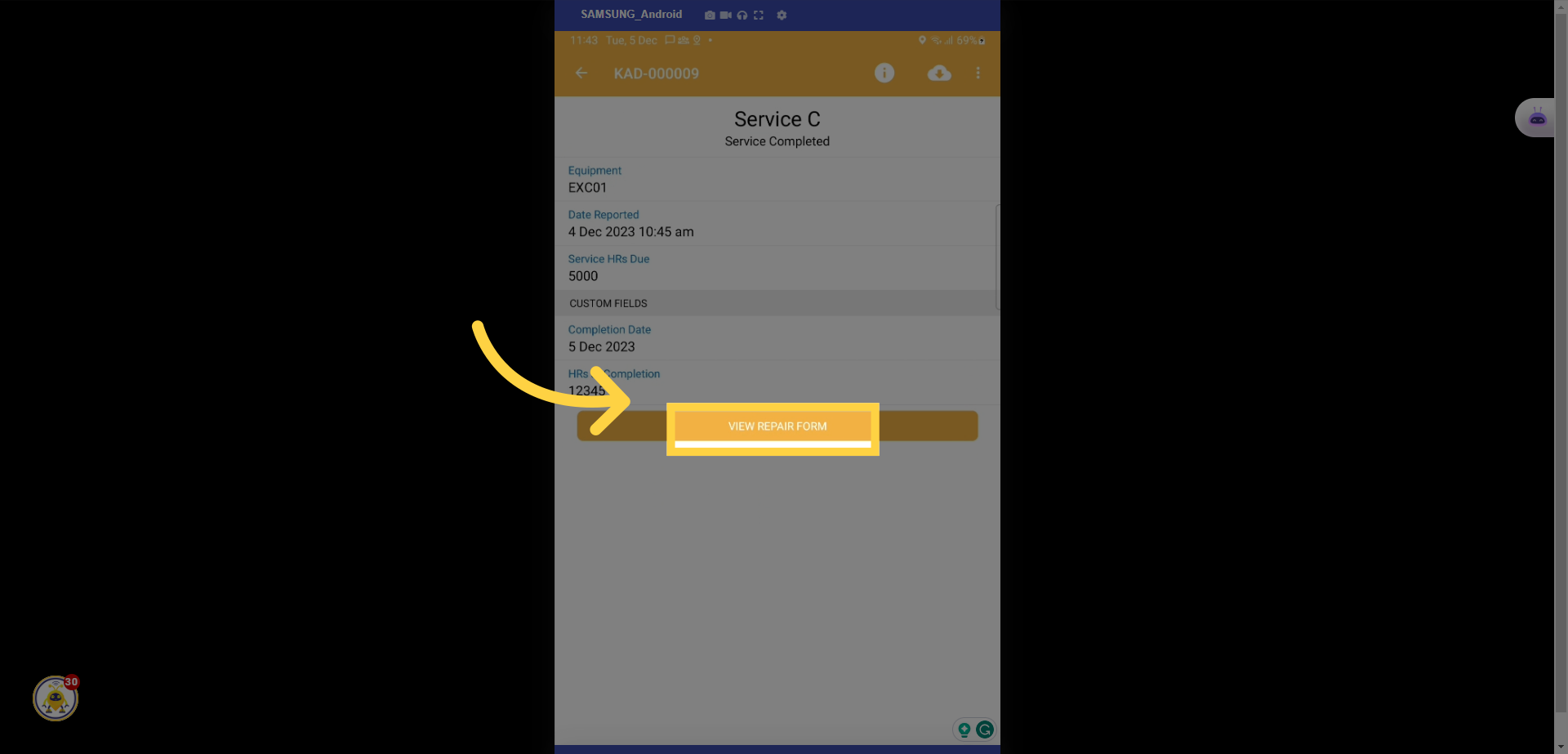
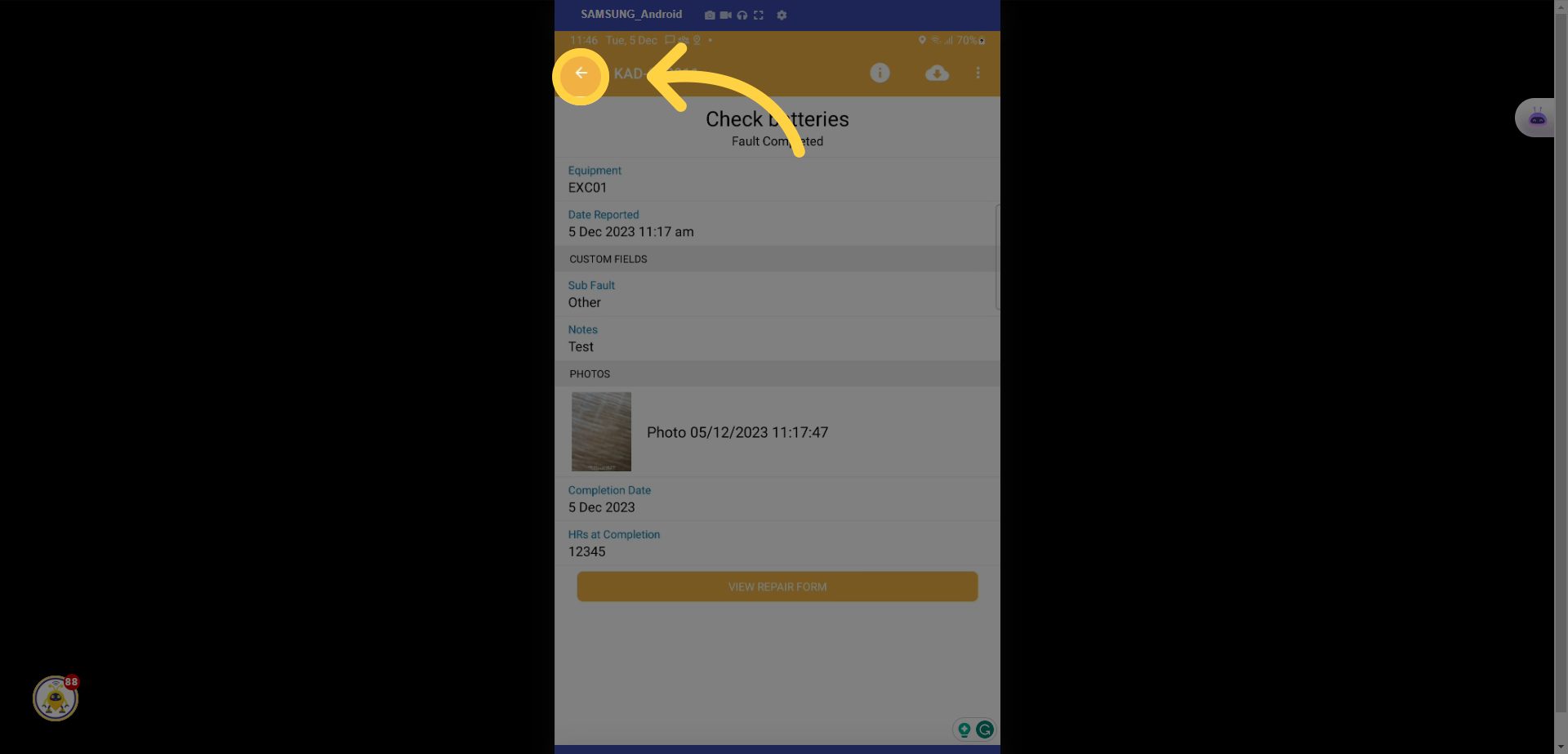
23. Select the back arrow
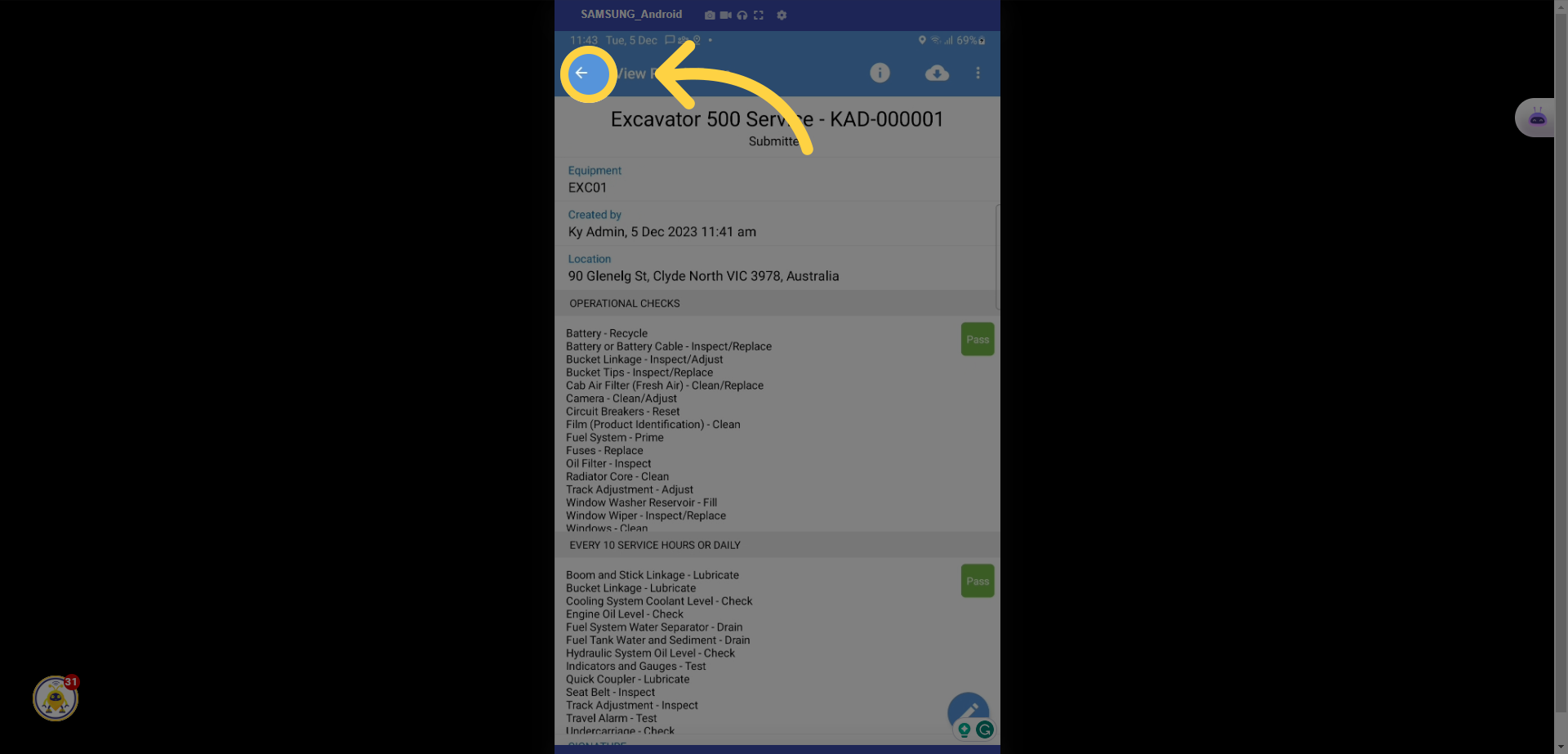
24. Select the back arrow
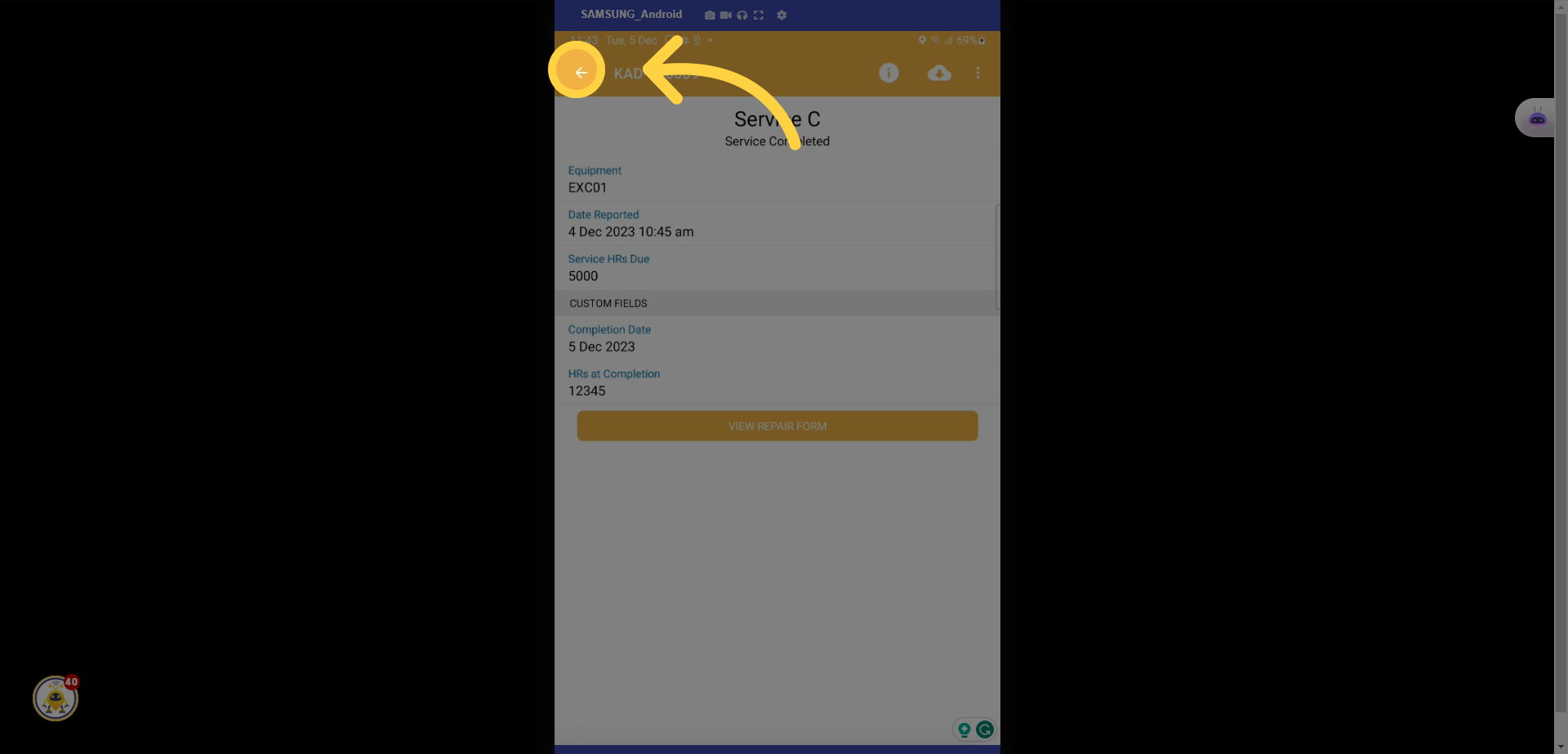
25. Select the Fault
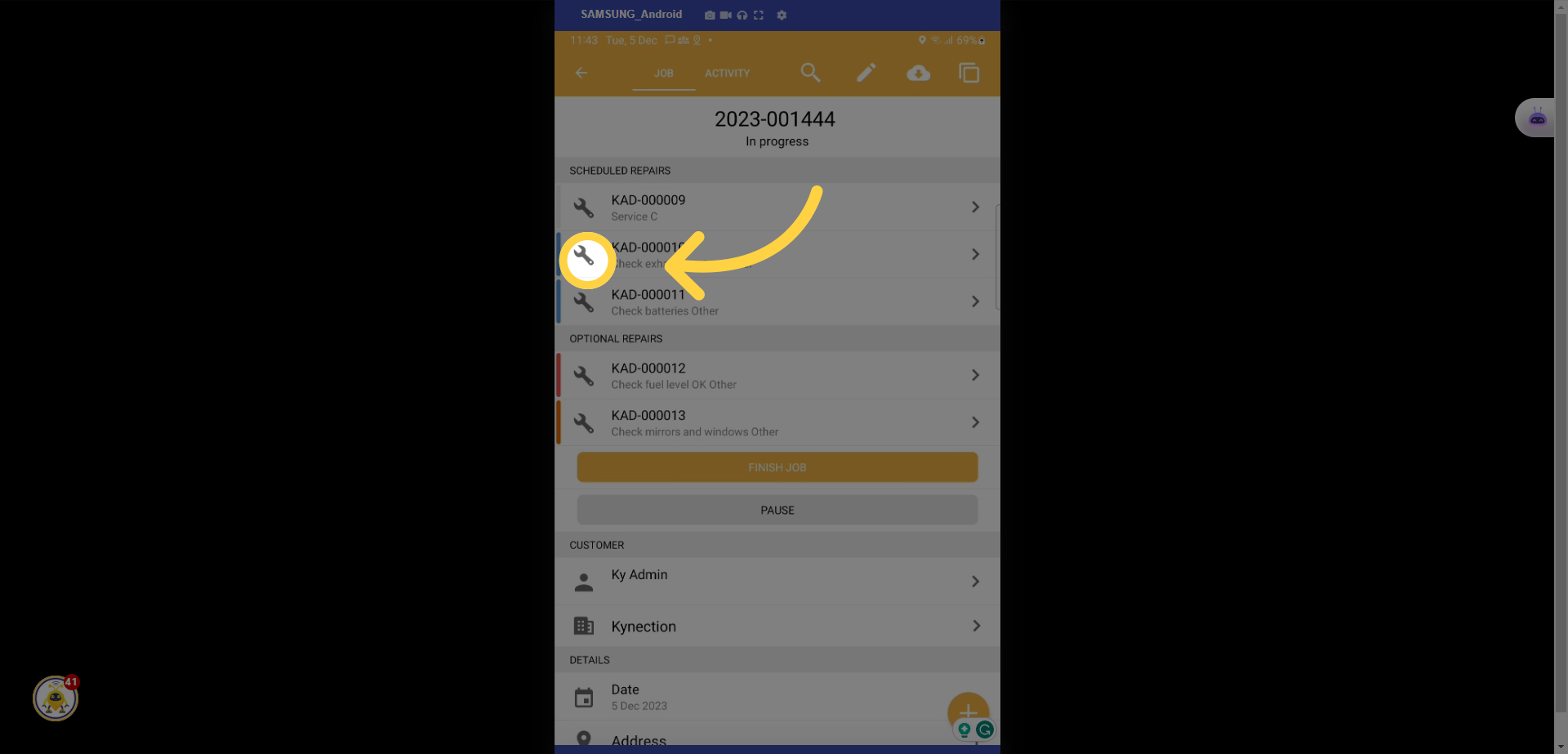
26. Waiting on Parts
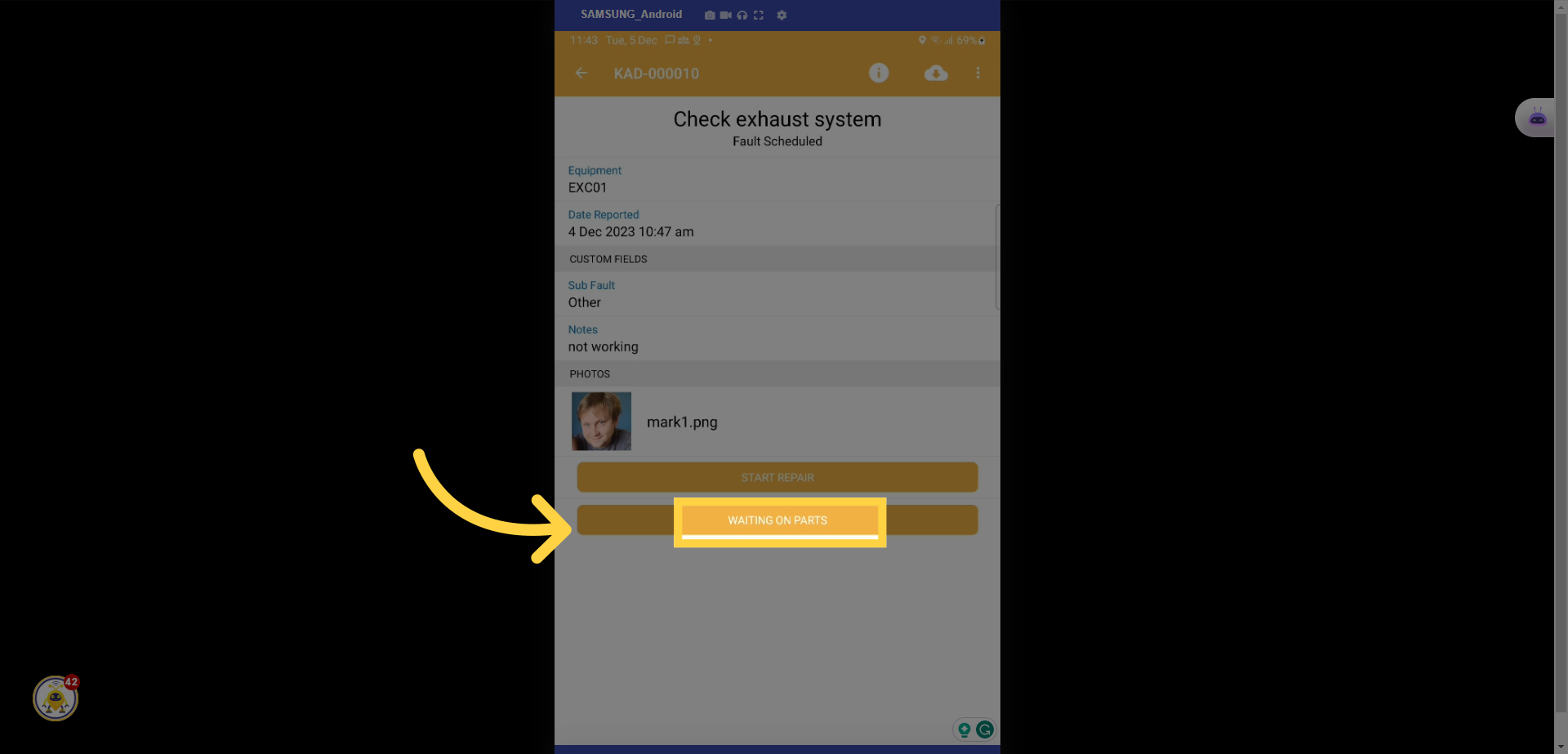
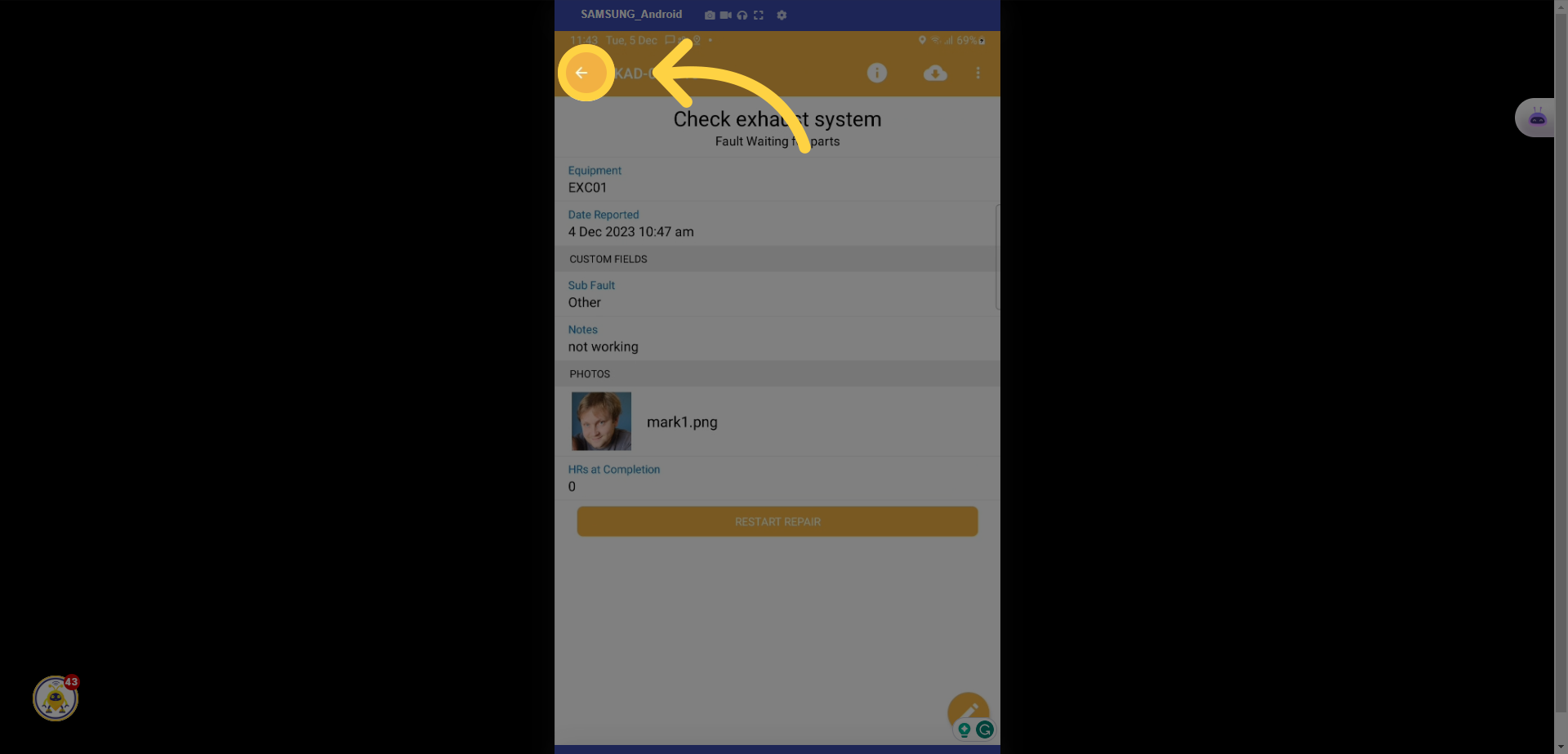
27. Select the back arrow
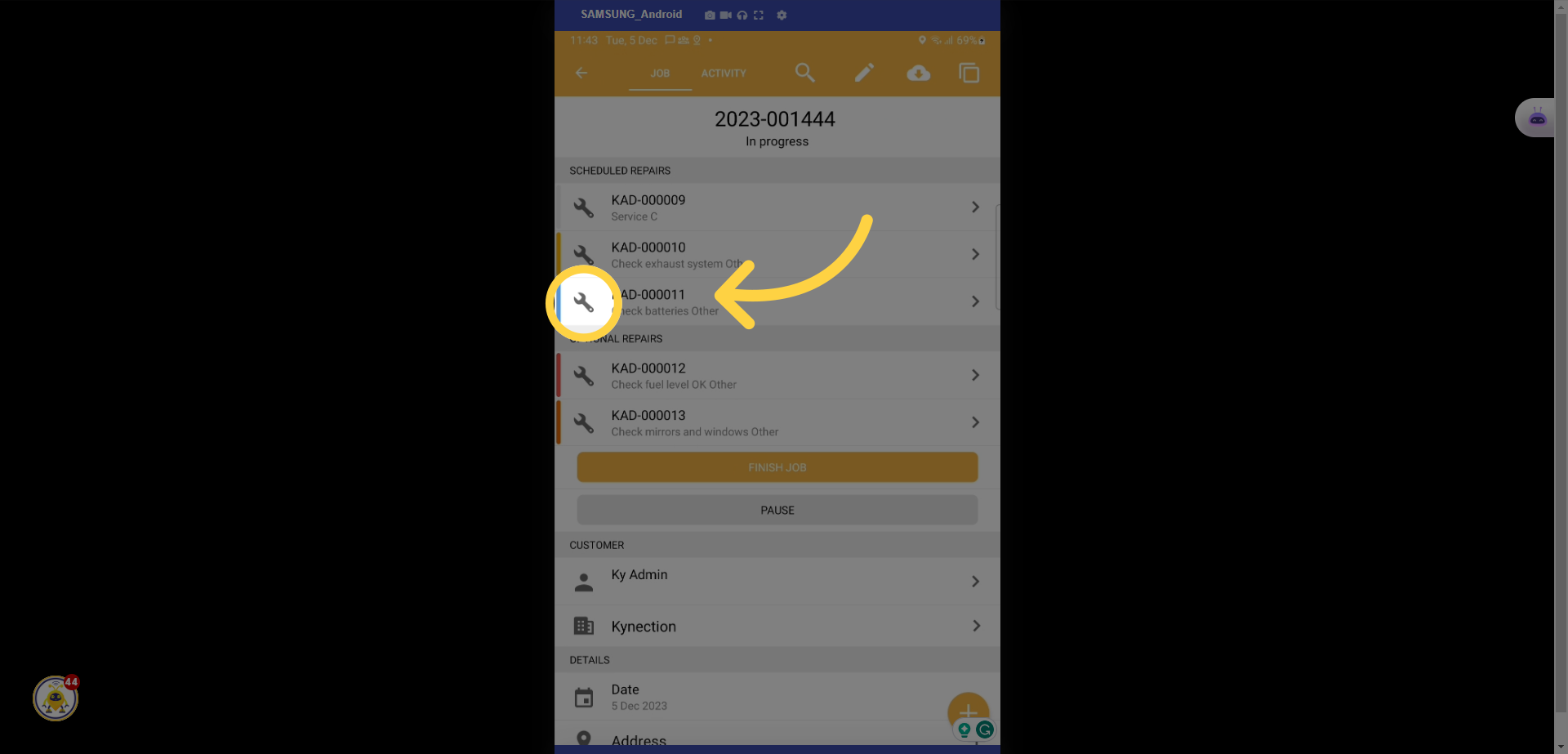
28. Select the service or repair
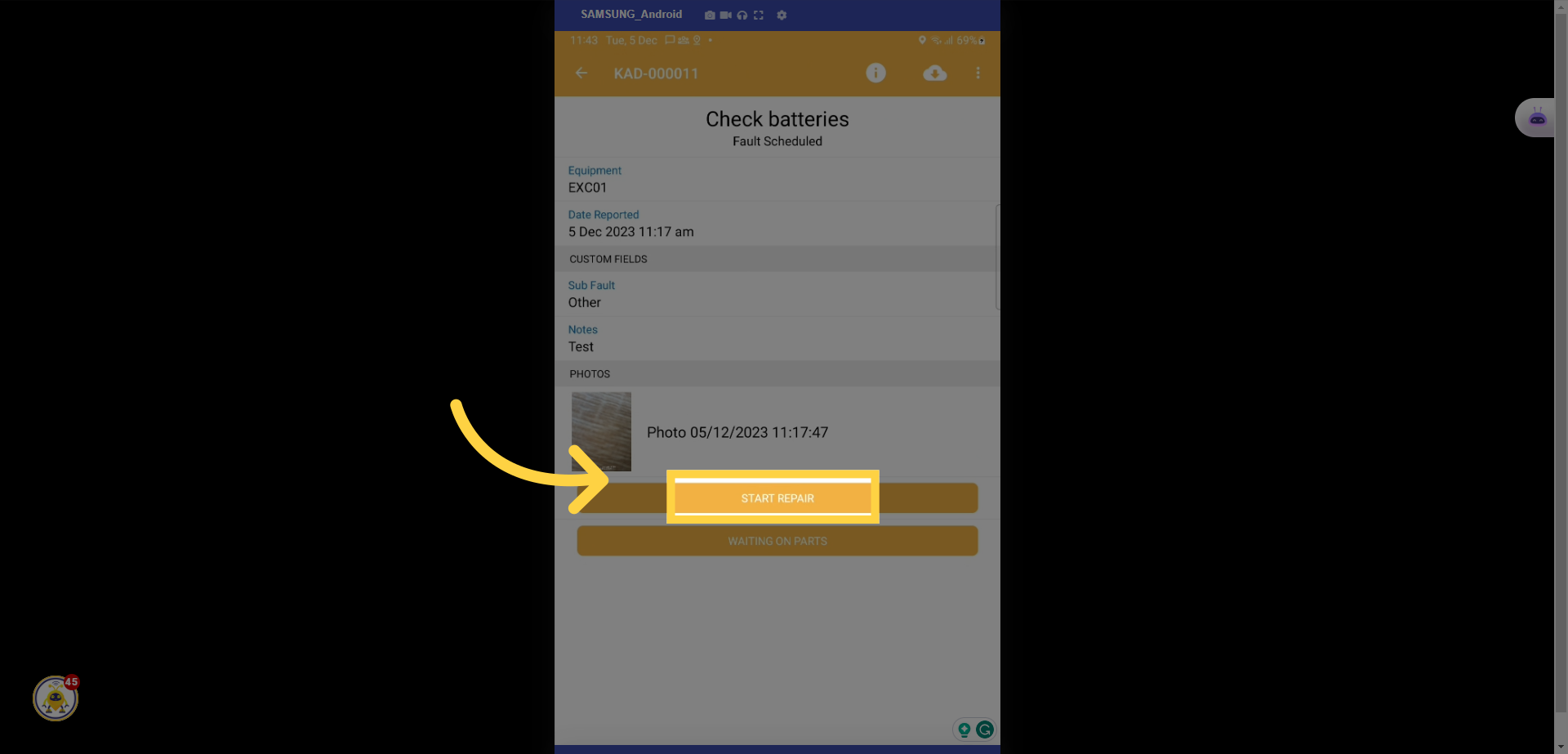
29. Select start repair
30. Select the completion date
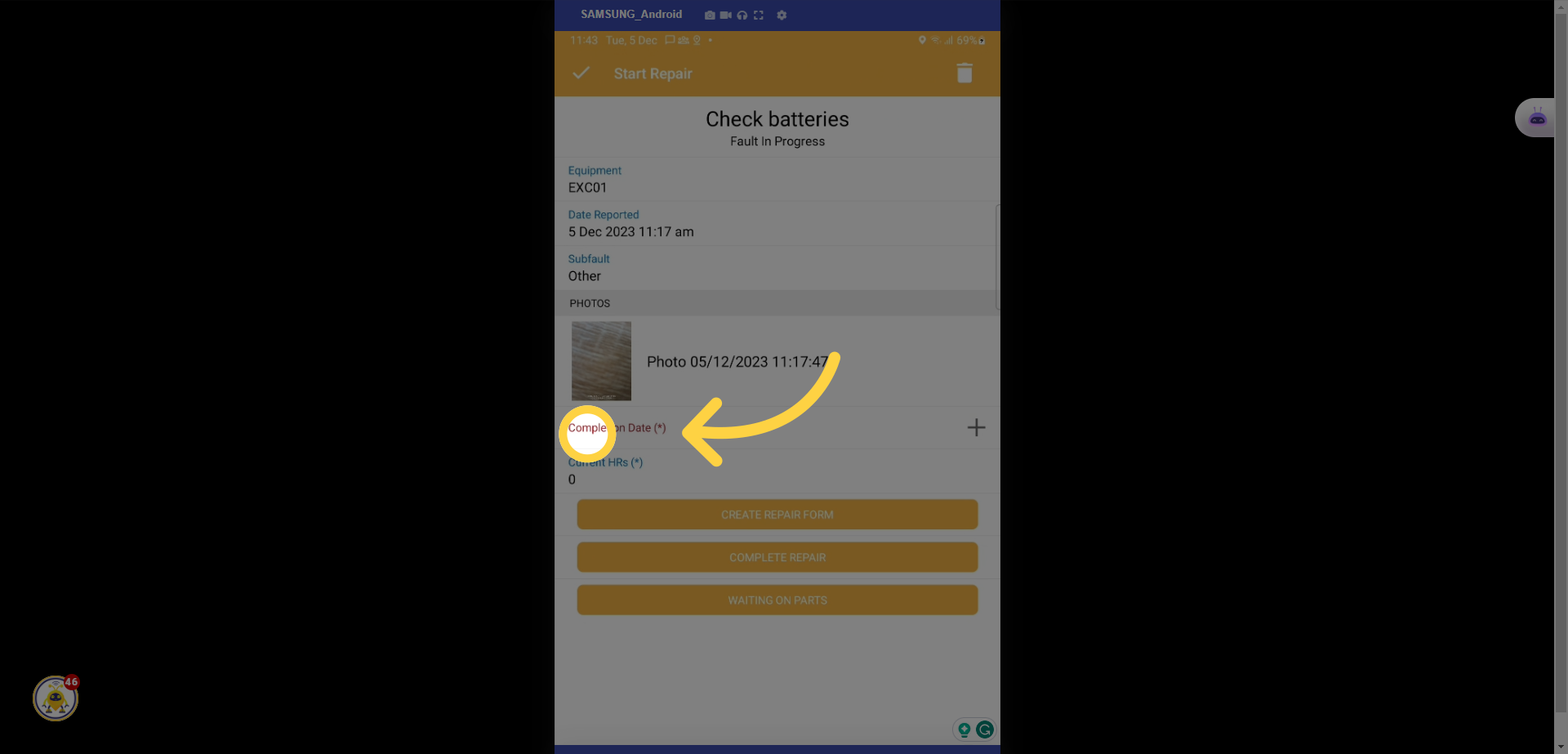
31. Select Ok
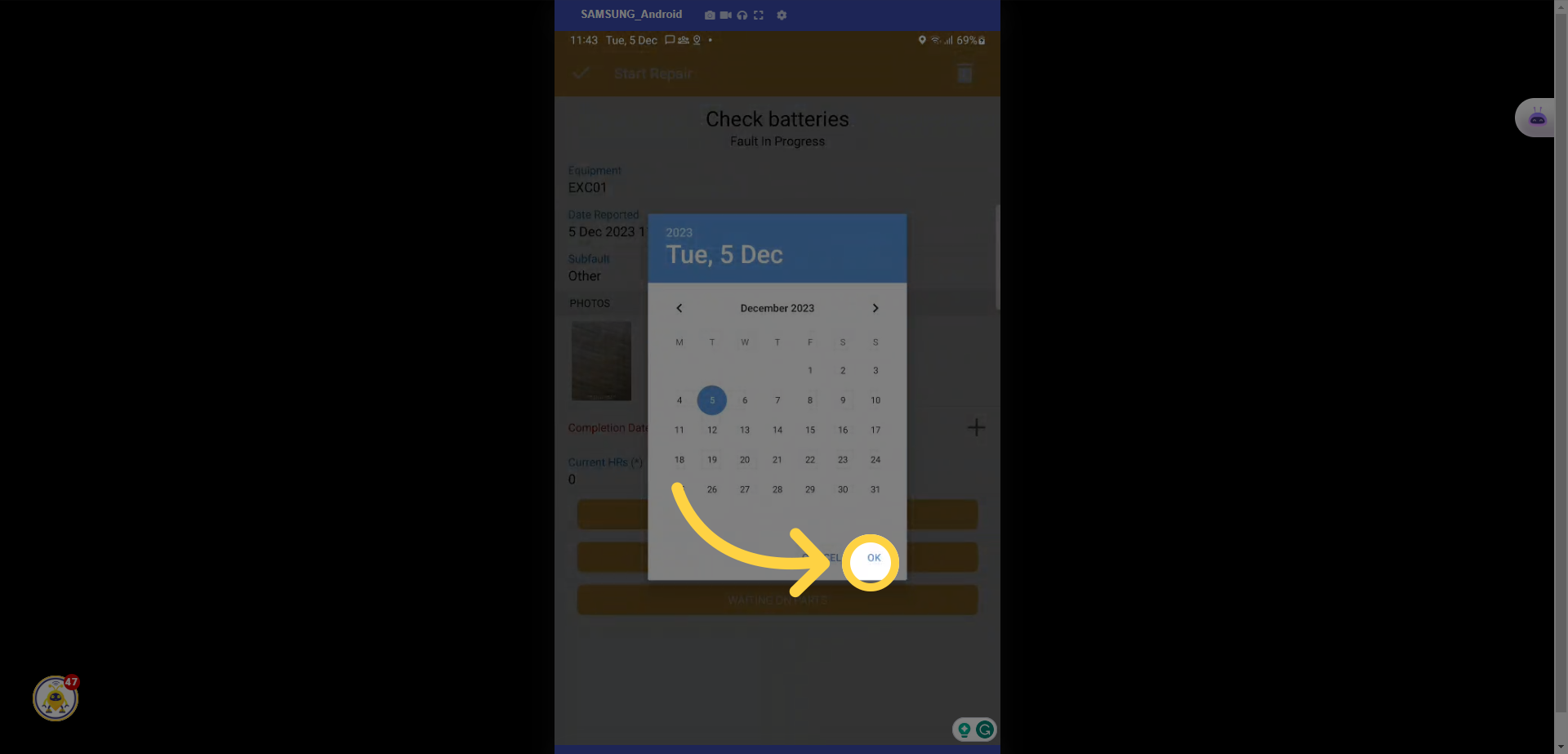
32. Enter in the hours
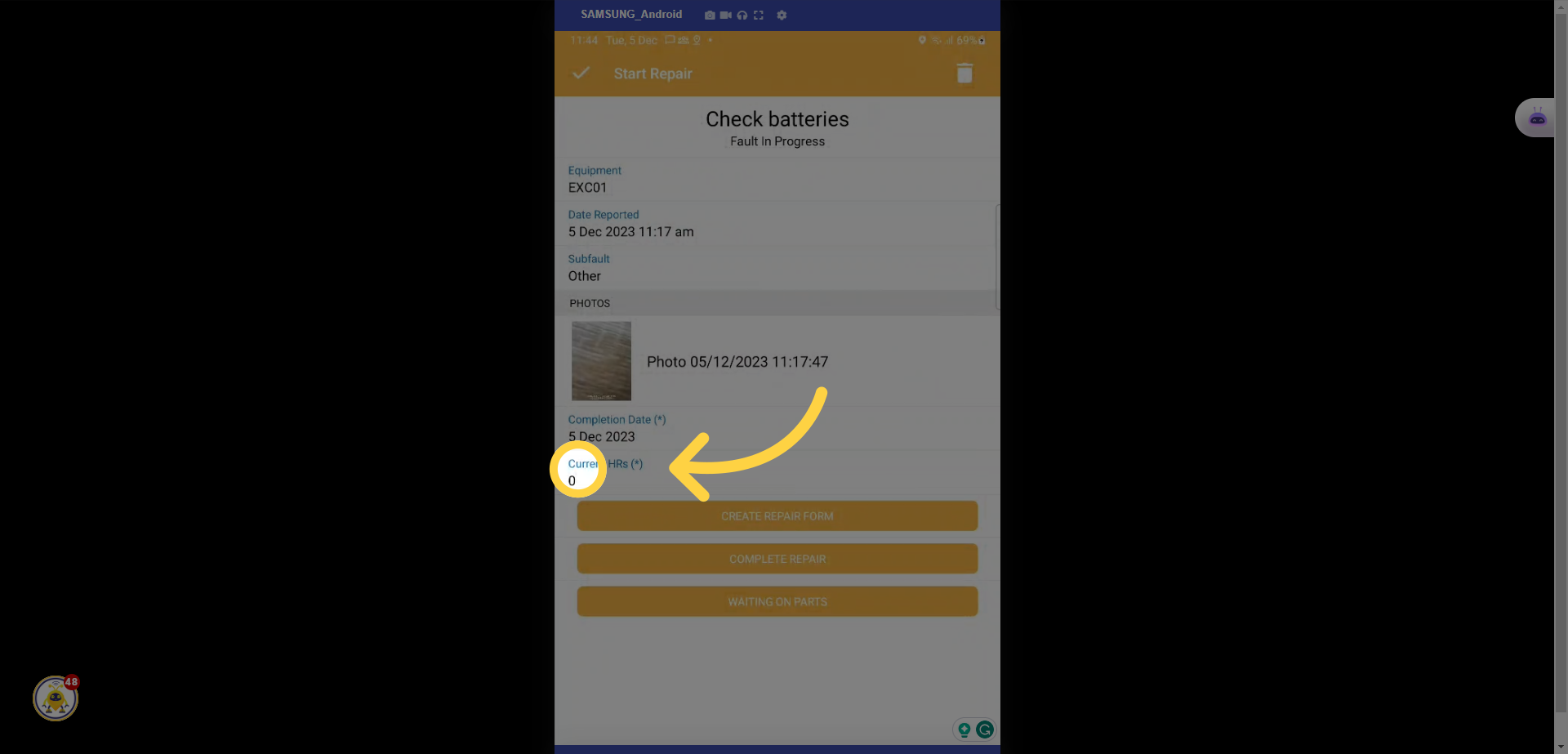
33. Enter in the hours and select save
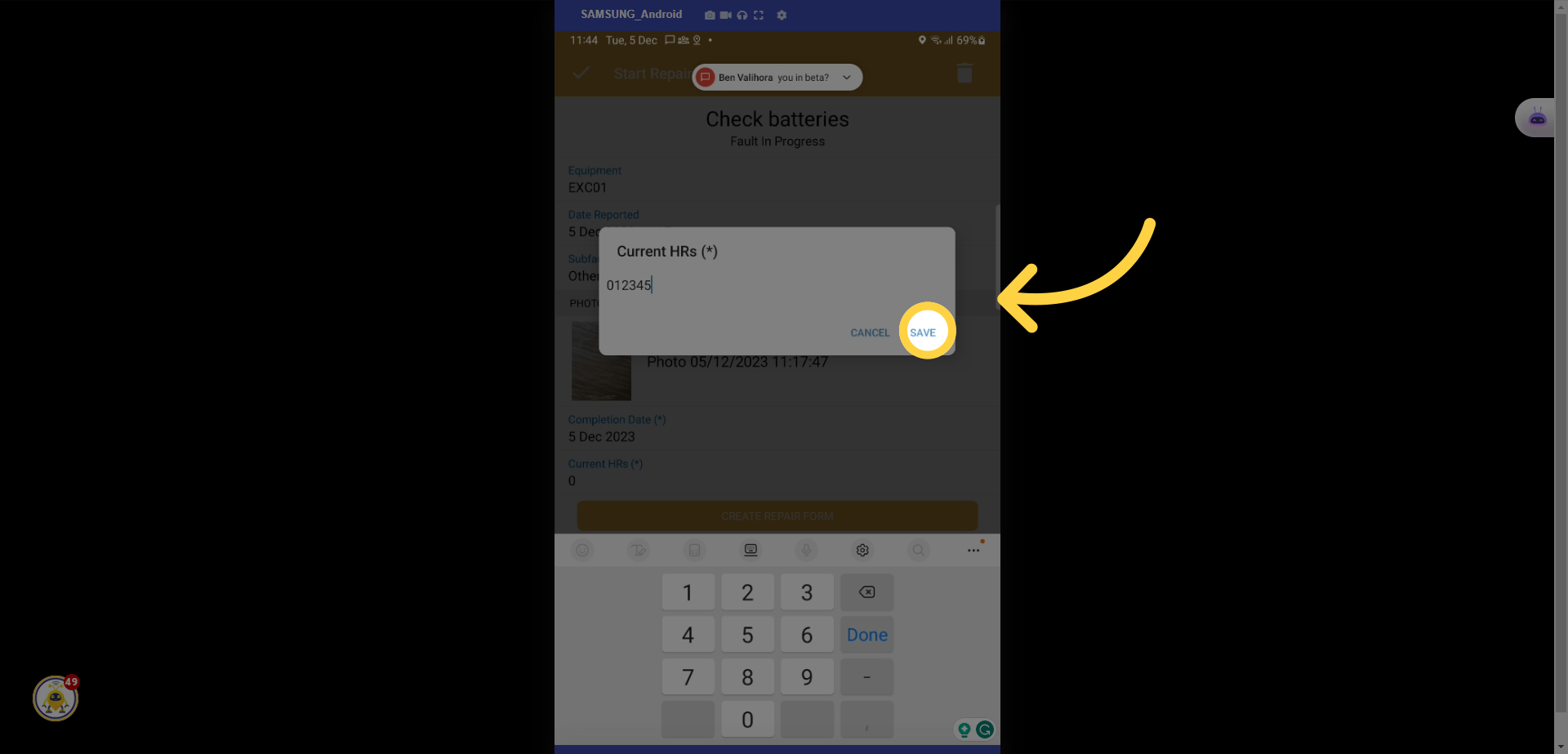
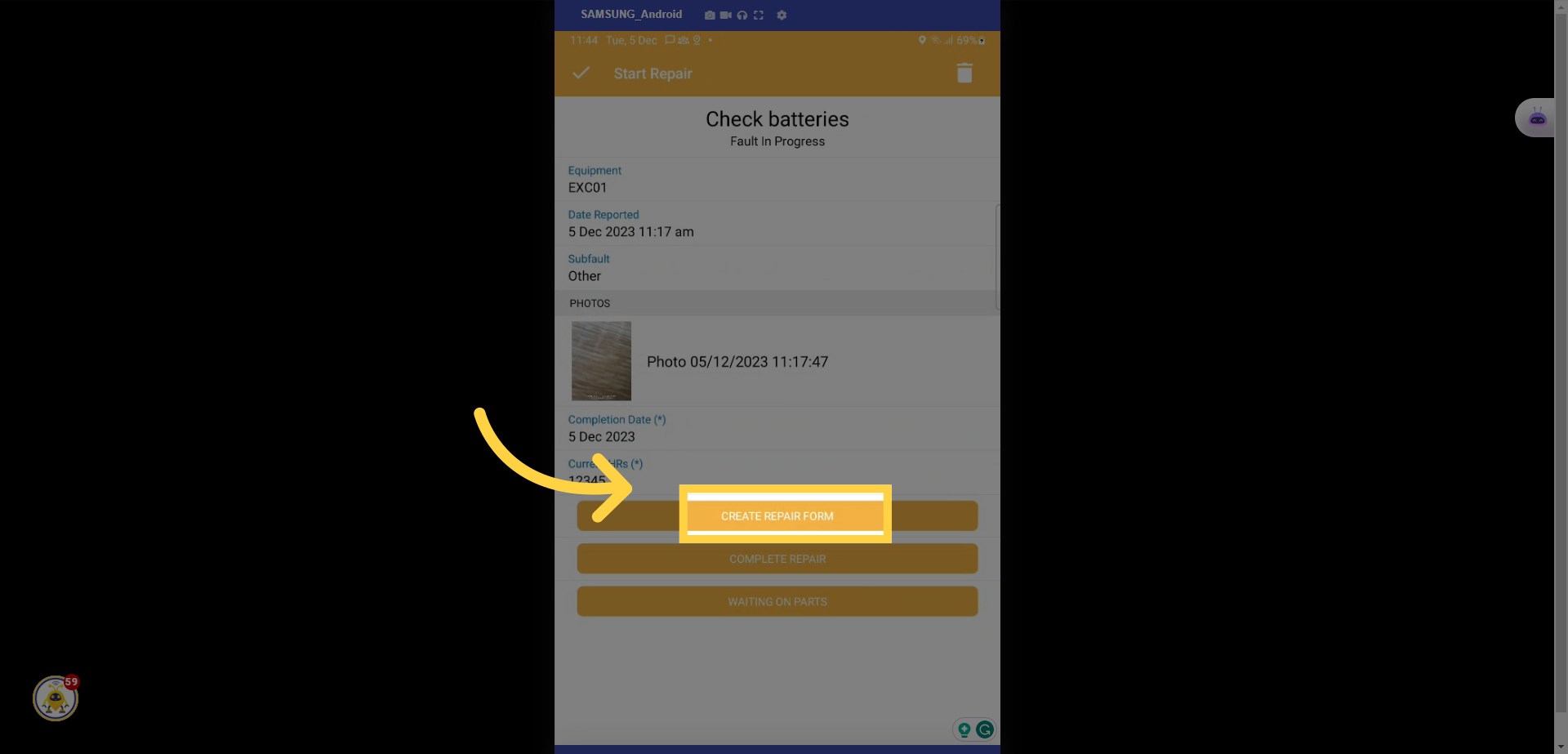
34. Select Create Repair Form
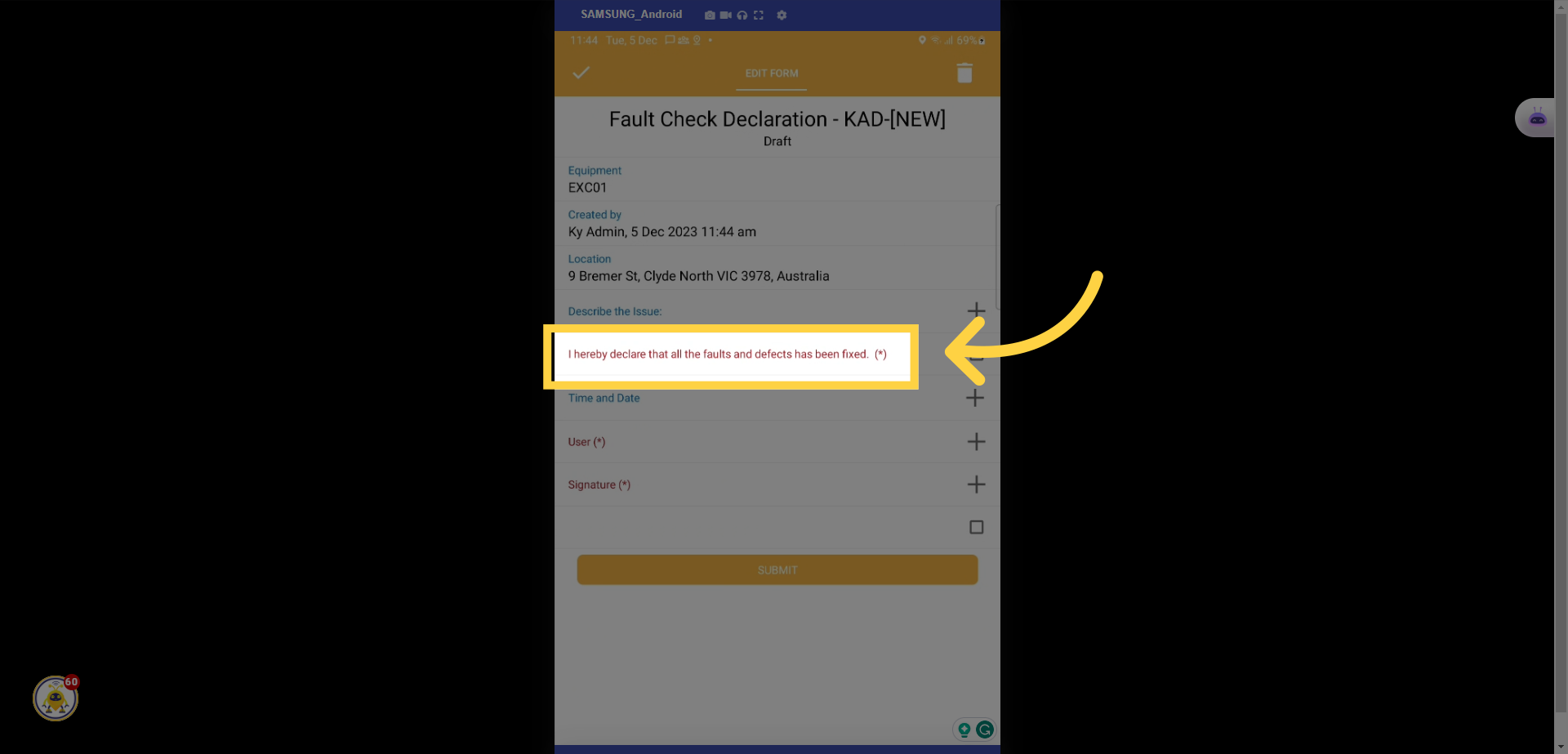
35. Complete the declaration
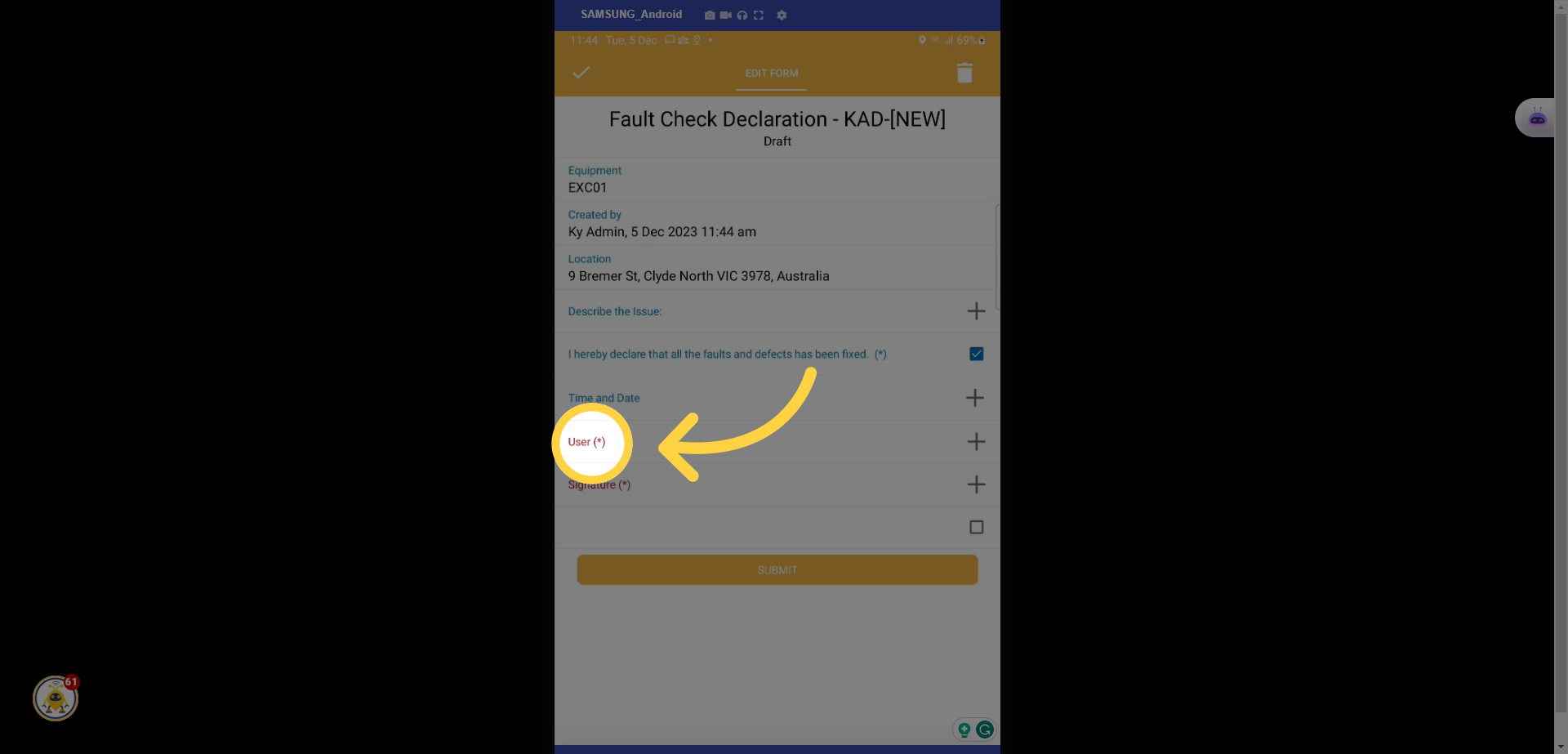
36. Select Users
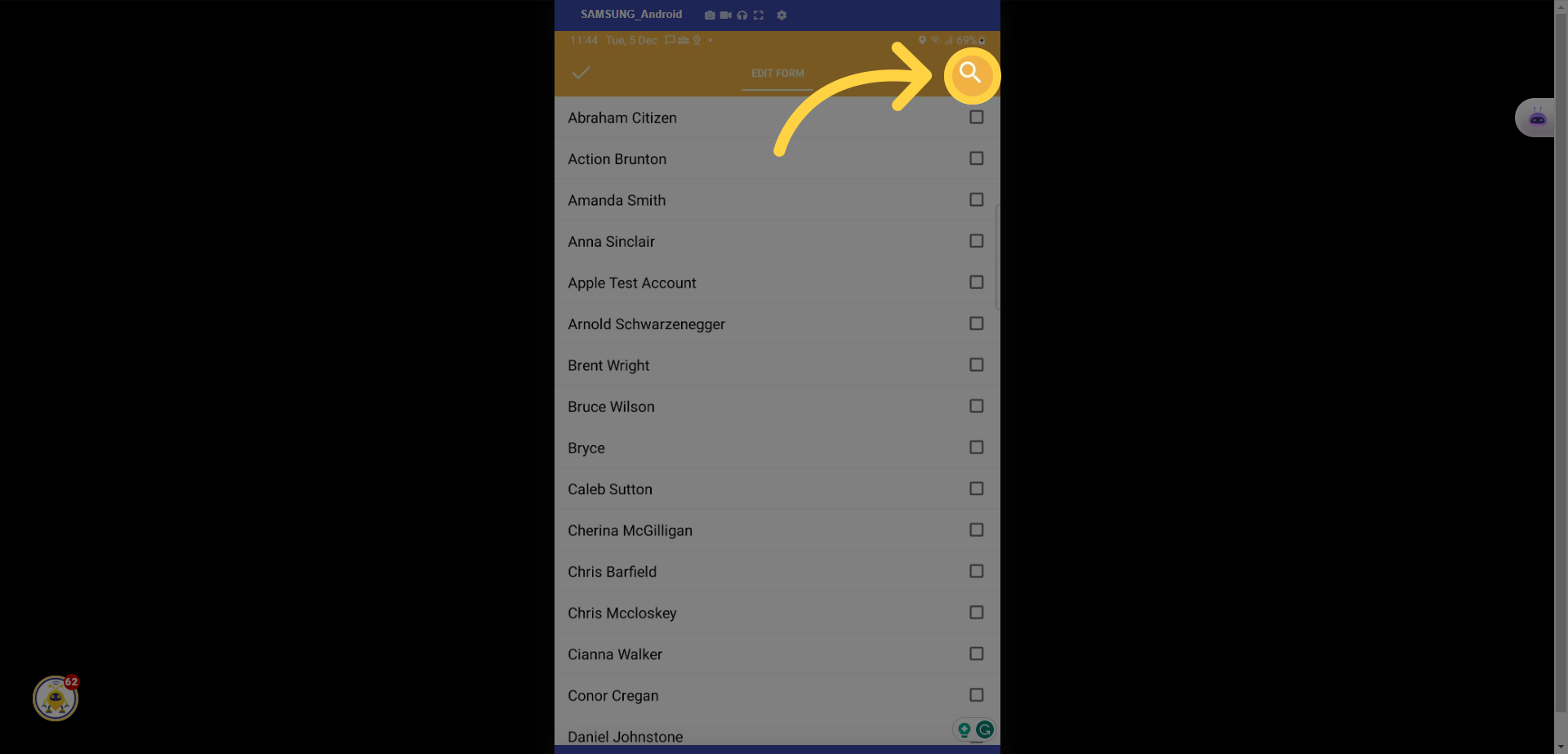
37. Find the repairer
38. Select the repairer
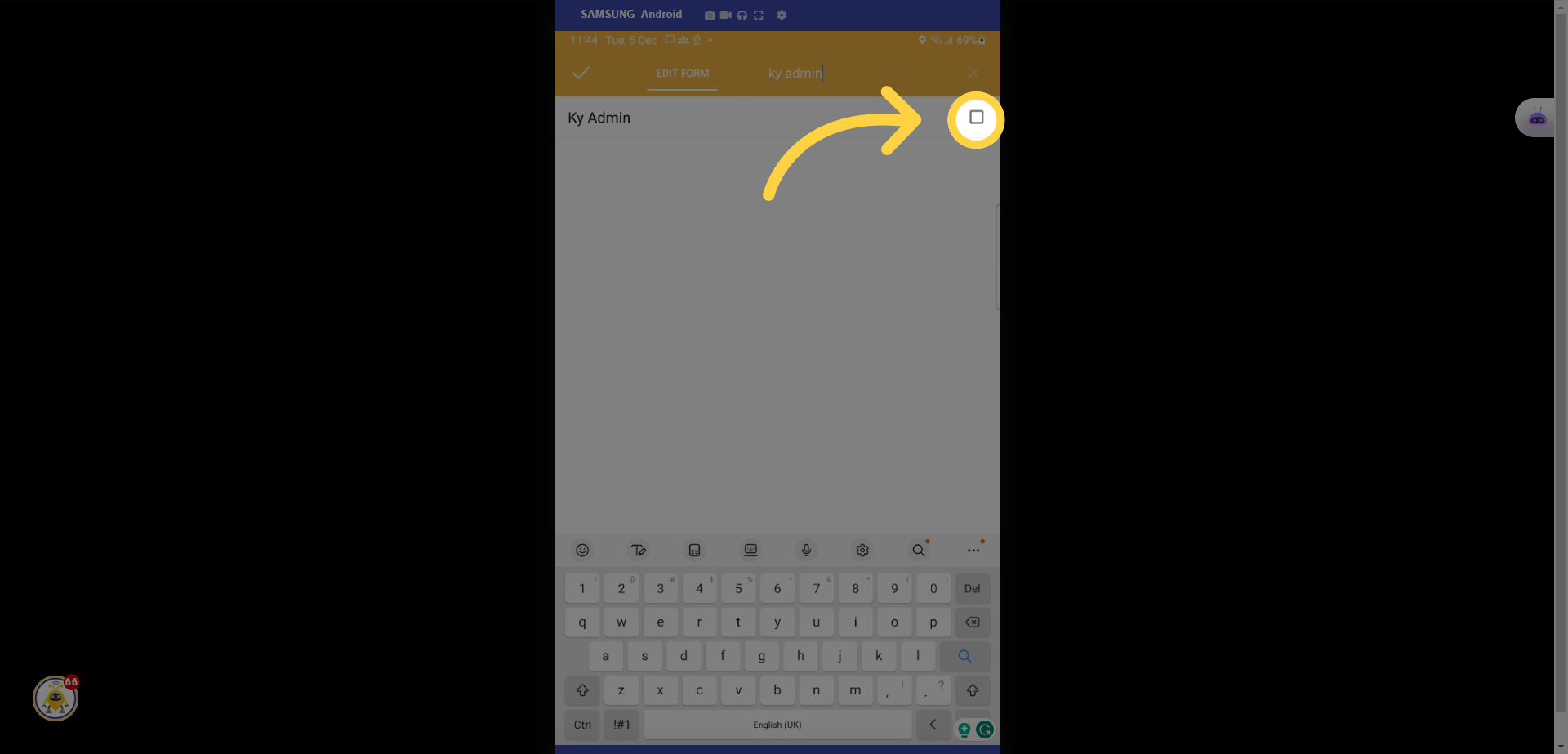
39. Select the tick to save
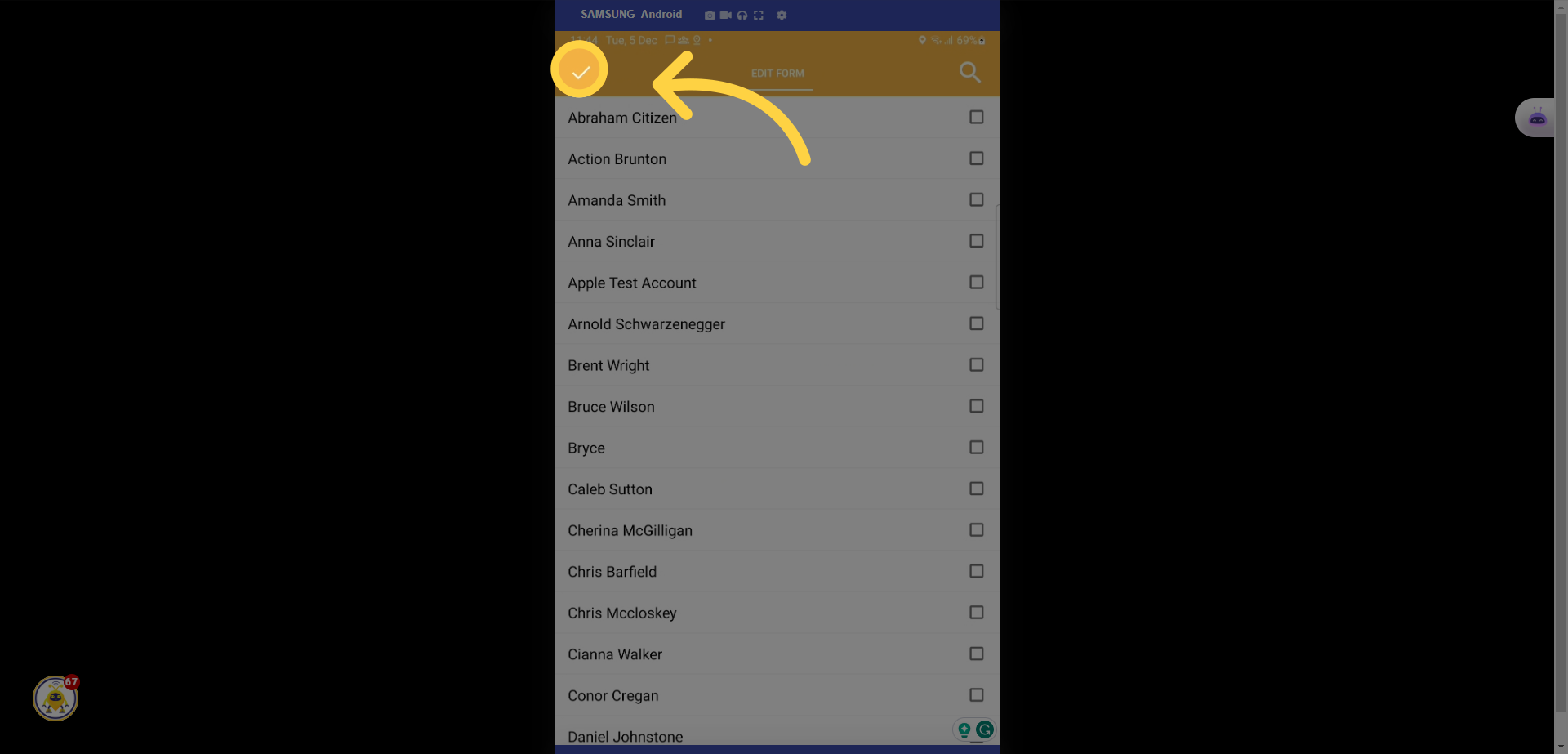
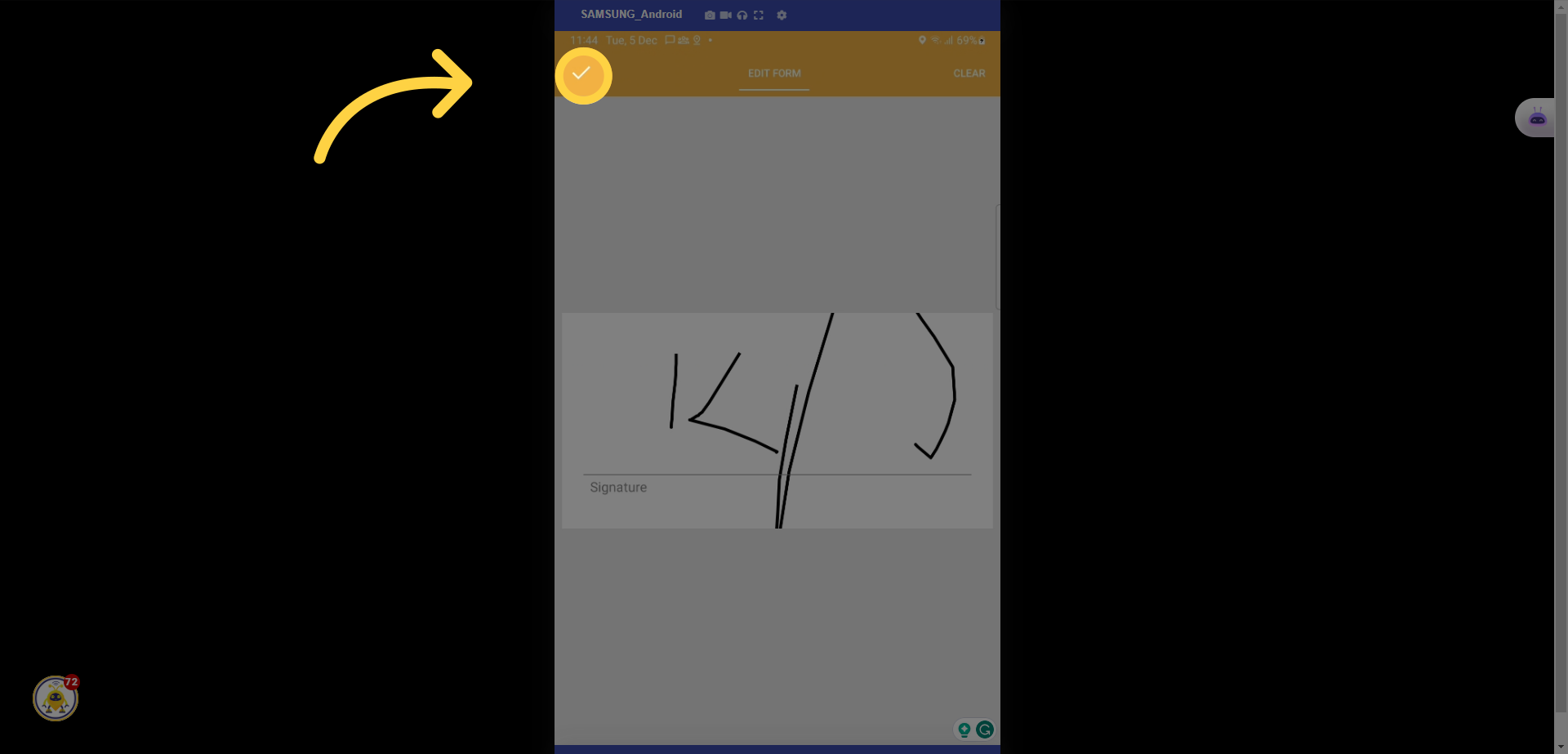
40. Select Signature

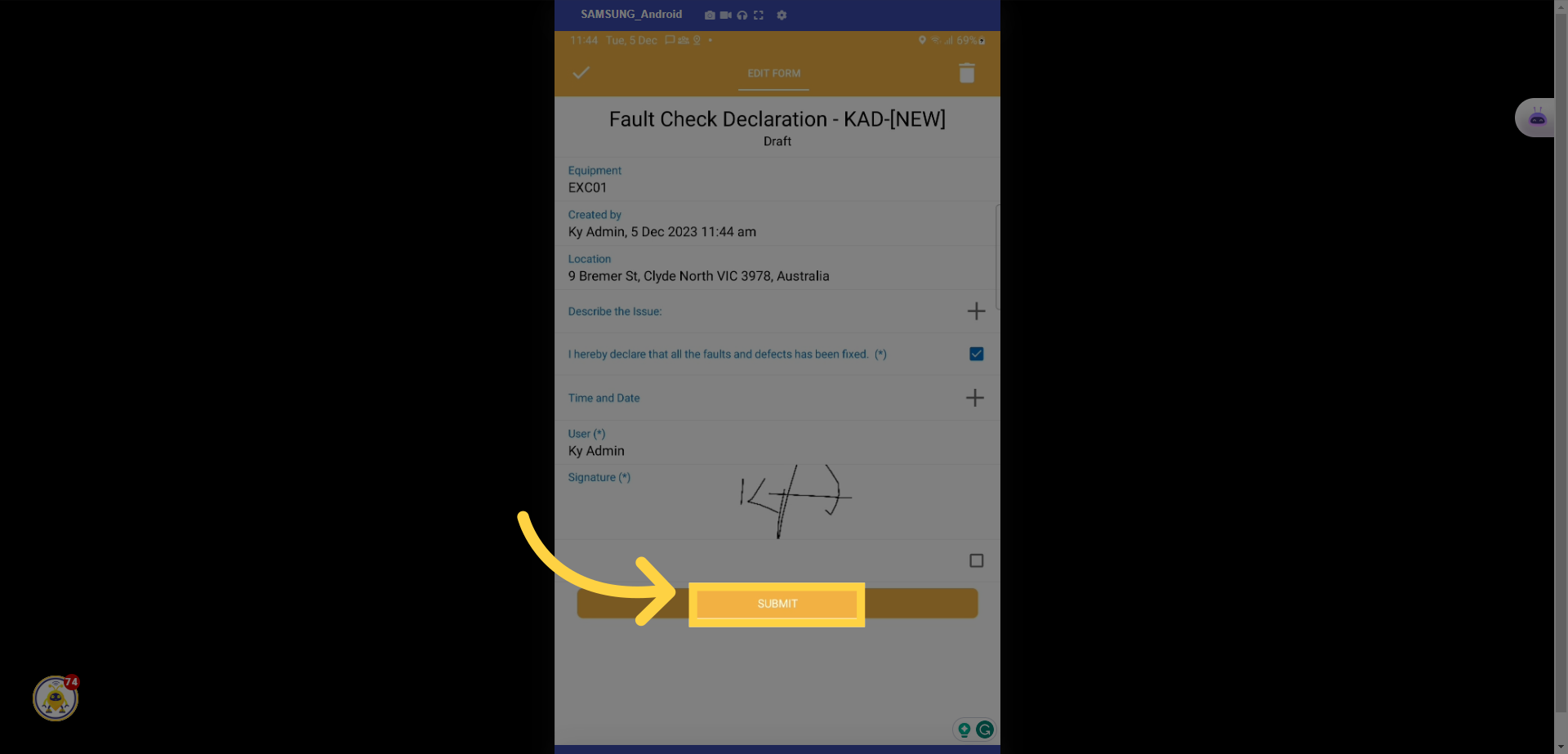
41. Sign using your device and select the tick to save
42. Select Submit
43. Select the back arrow
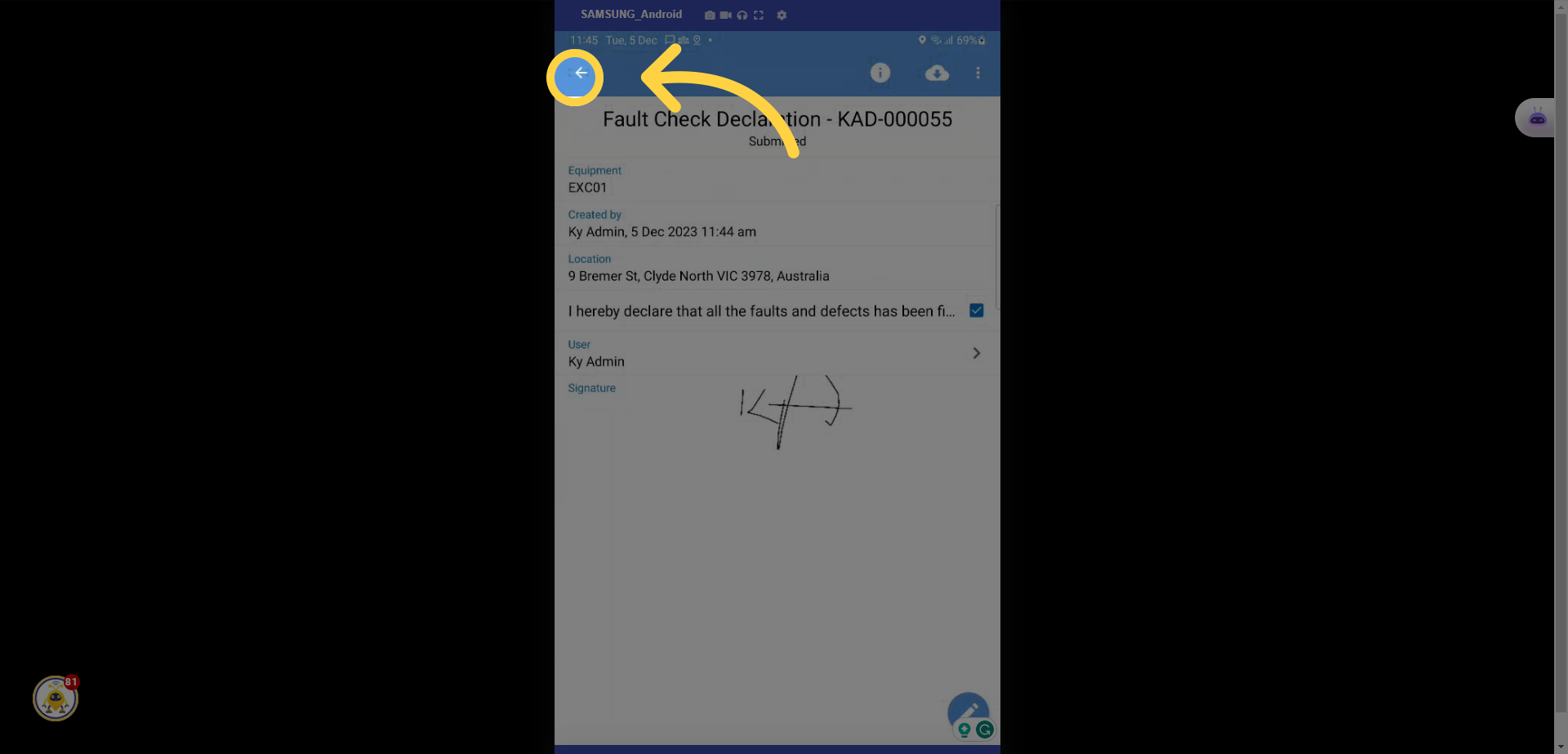
44. Complete repair
45. Select the tick icon
46. Select the back arrow
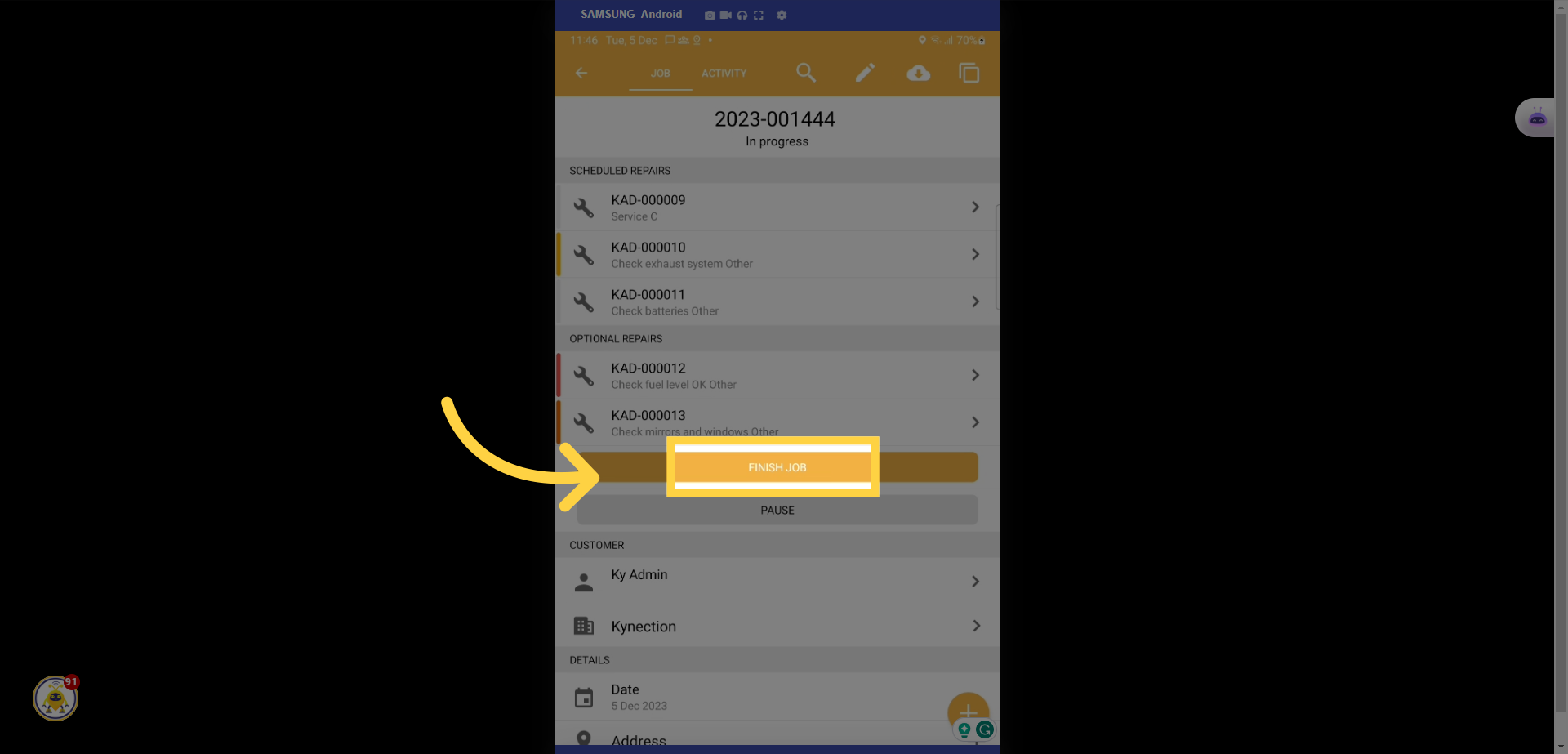
47. Select Finish Job
Ex_Equipment_BL_UG-Mobile Job completion_6/12/23-V1

